Guides

All topics
erxes XOS
Sales
Settings
Account
Workspace
Developers
Core Modules
Broadcasts
Documents
Automations
Segments
Contacts
Plugins
Operation
Sales
Frontline
Tourism
Content
Accounting
Agents
Company Brain
Mongolian
Loyalty
2. Creating an Organization, Adding Teams and Team Members
This section allows you to build your organization’s structure by creating branches, departments, and team members. The erxes platform’s permission system aligns with this structure, helping you manage teams and roles effectively.
Step 1: Create a Branch
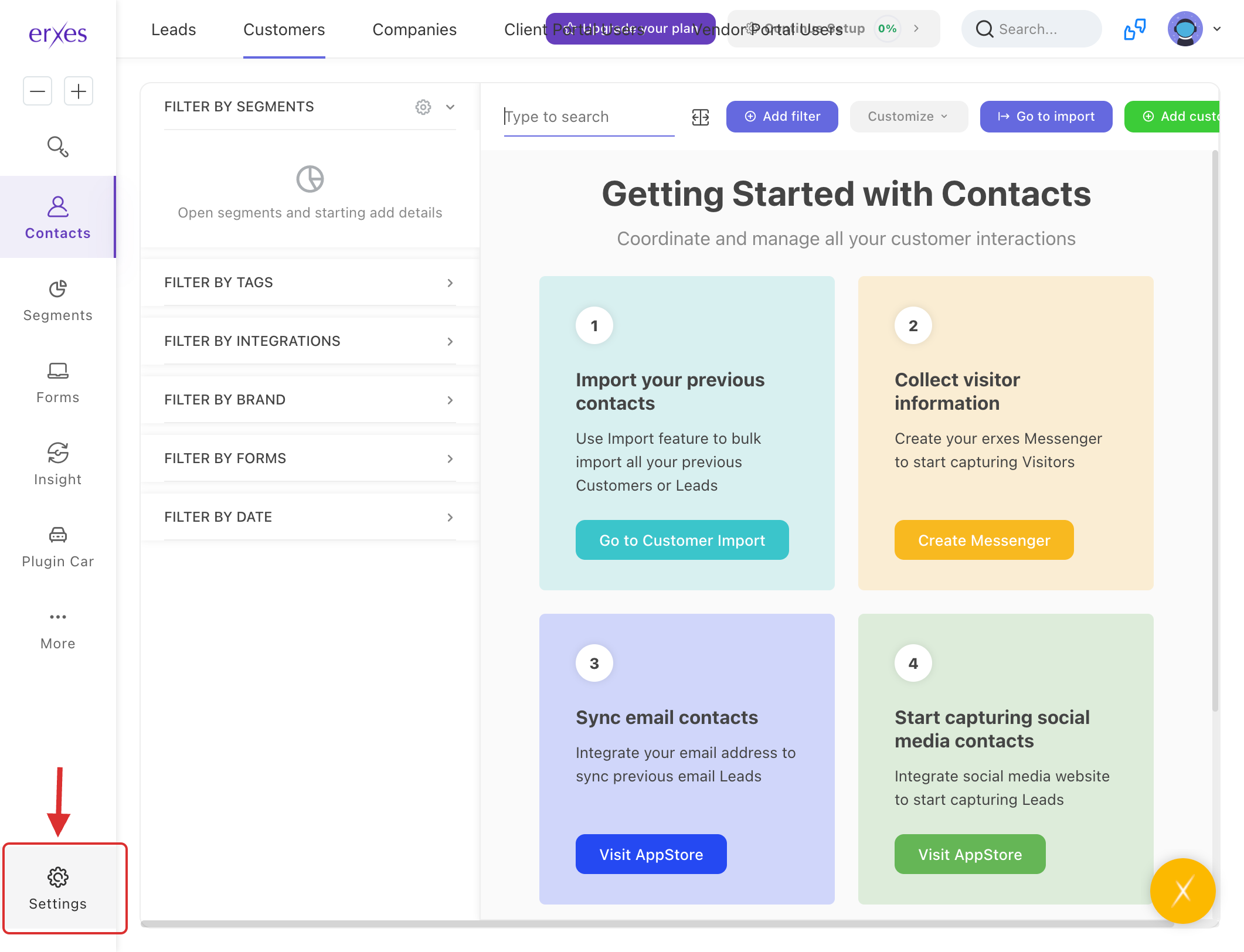
- Go to the Settings section.
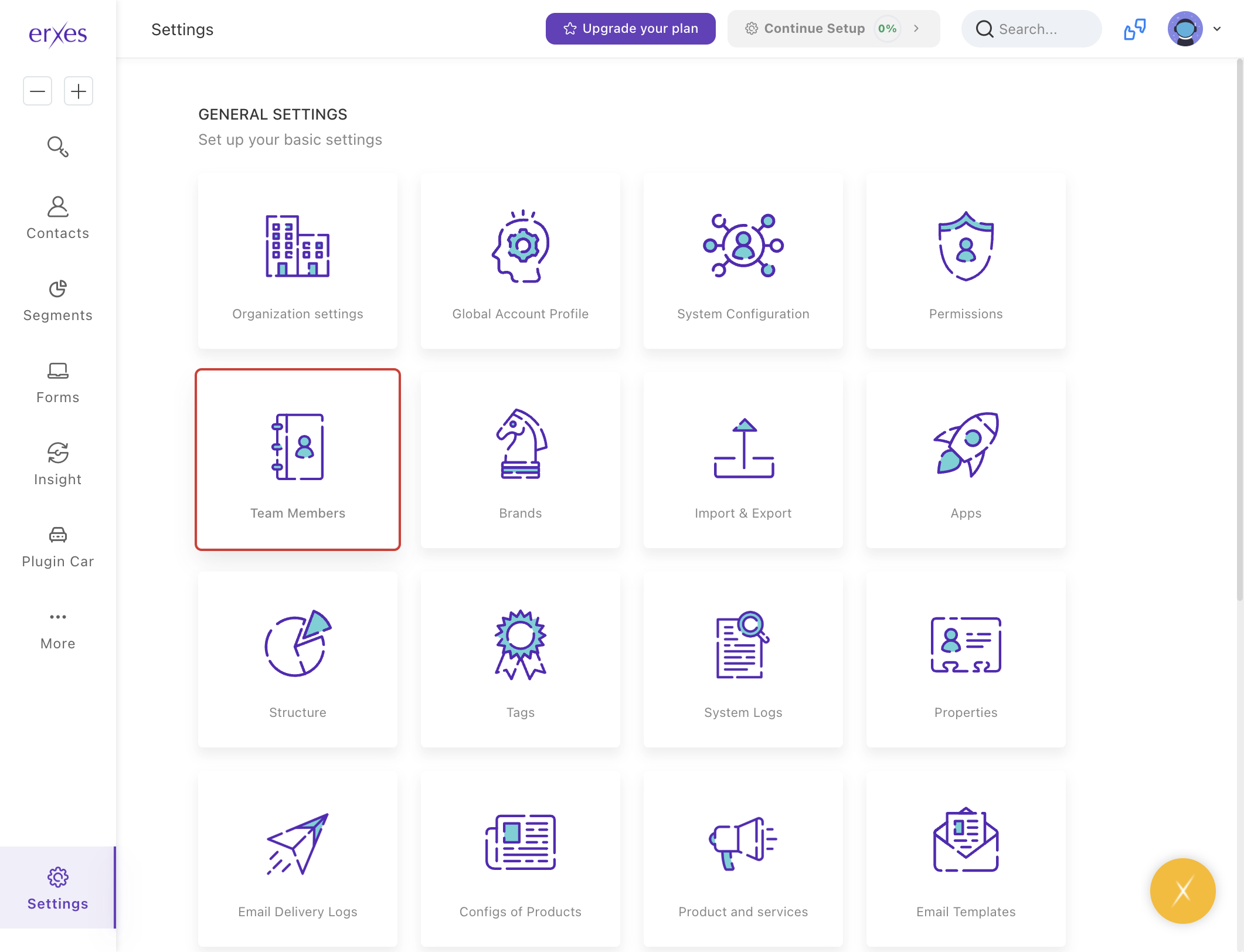
- Navigate to Team Member.
- Next to the Branch section, click the "+" icon.
- In the Title field, enter the branch name.
- In the Address field, enter the branch location.
- In the Code field, enter a unique code (e.g., "01").
Note: This is a required field. - Click Save.
Tip: Fill in other optional fields if necessary before saving.
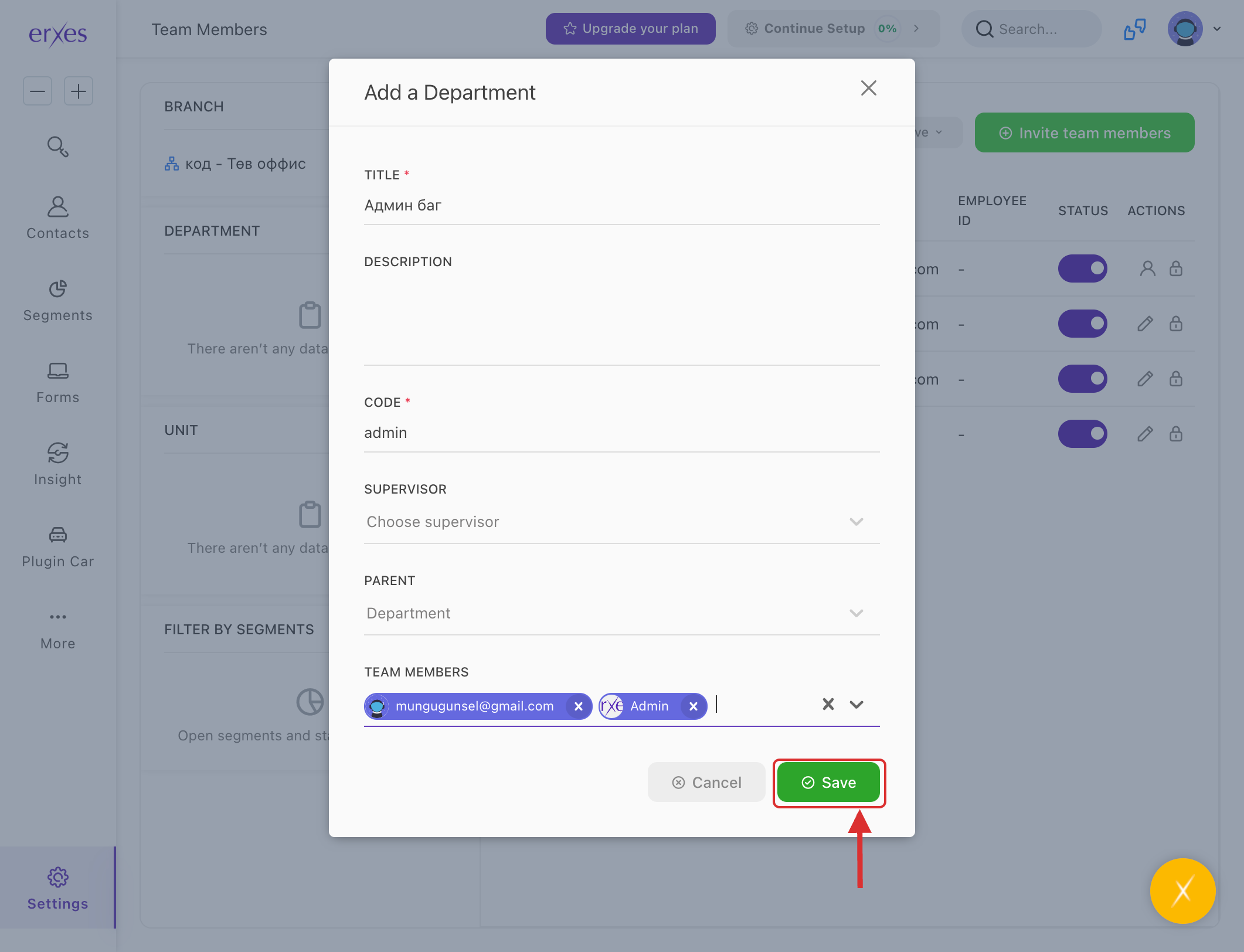
Step 2: Create a Team or Department
- Next to the Department section, click the "+" icon.
- In the Title field, enter the department or team name.
- In the Code field, enter a unique code (e.g., "01").
Note: This is a required field. - In the Team Members field, assign an admin (usually yourself).
- Click Save to finalize the team setup.
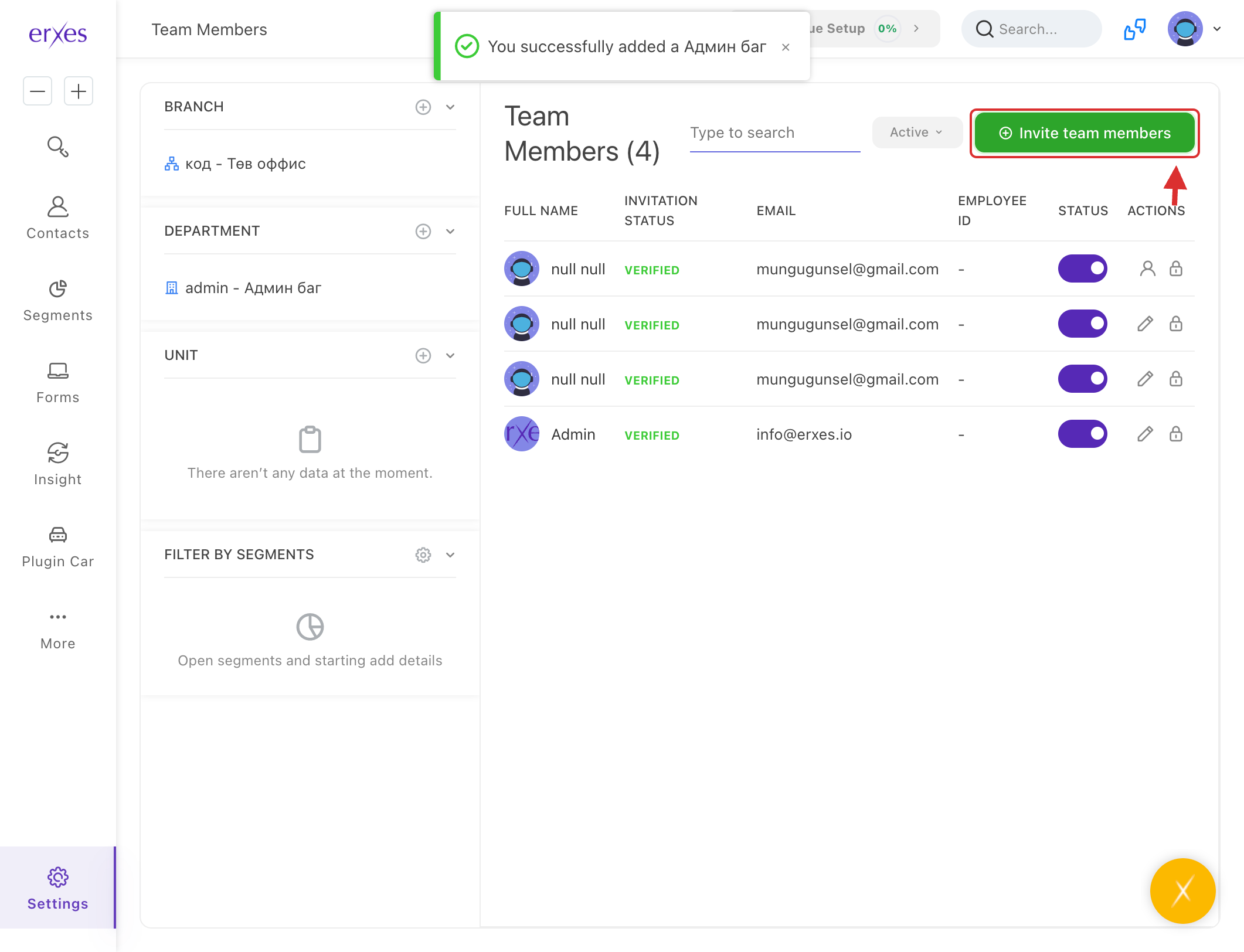
Step 3: Invite Team Members (Employees)
- Click the Invite Team Member button.
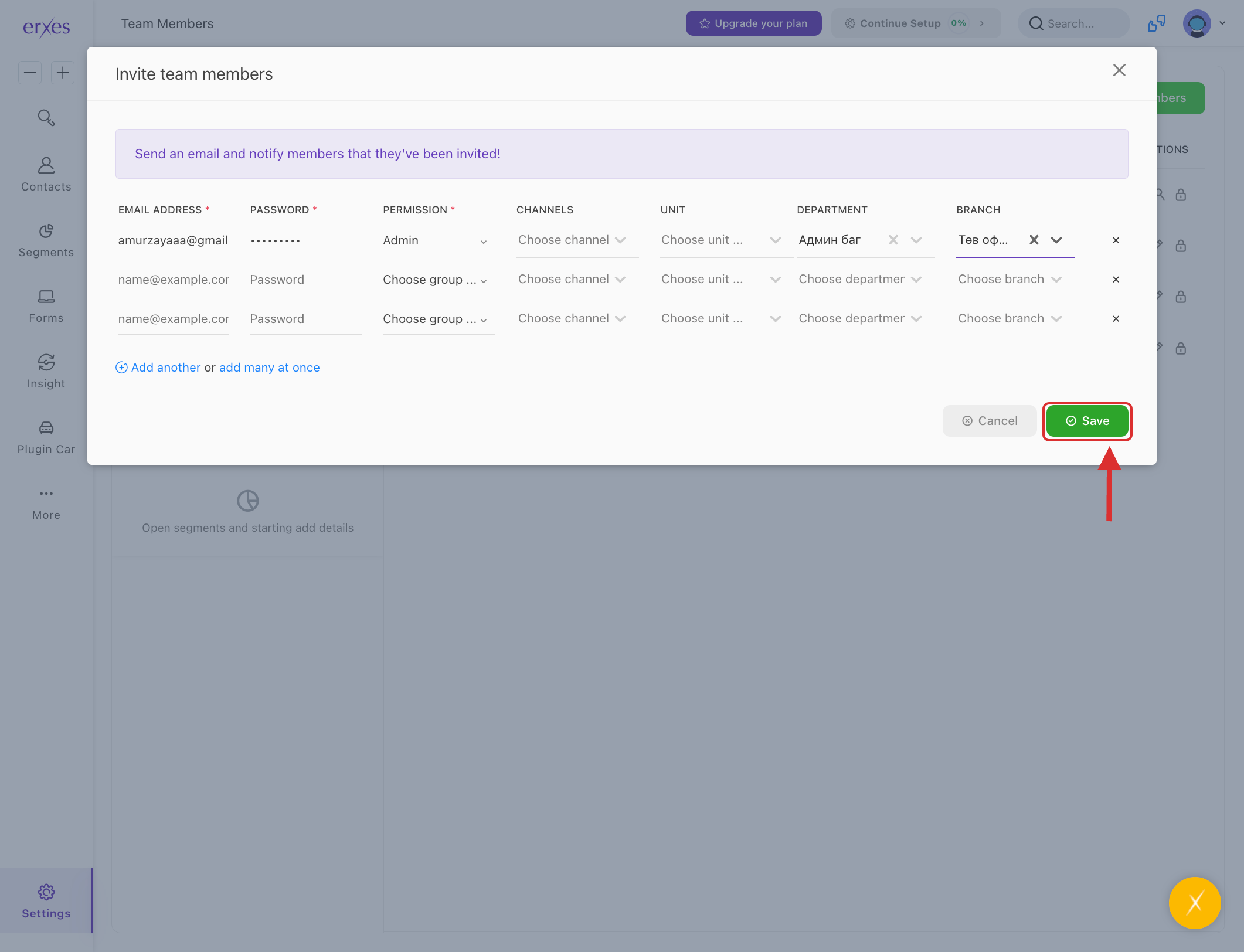
- Fill in the following required fields:
- Password
- Permission Level
- Branch
- Team/Department
- Click Save to send the invitation and create the user profile.
Reminders:
- Invited users can log in with the initial password provided.
- Users can change their password after logging in.
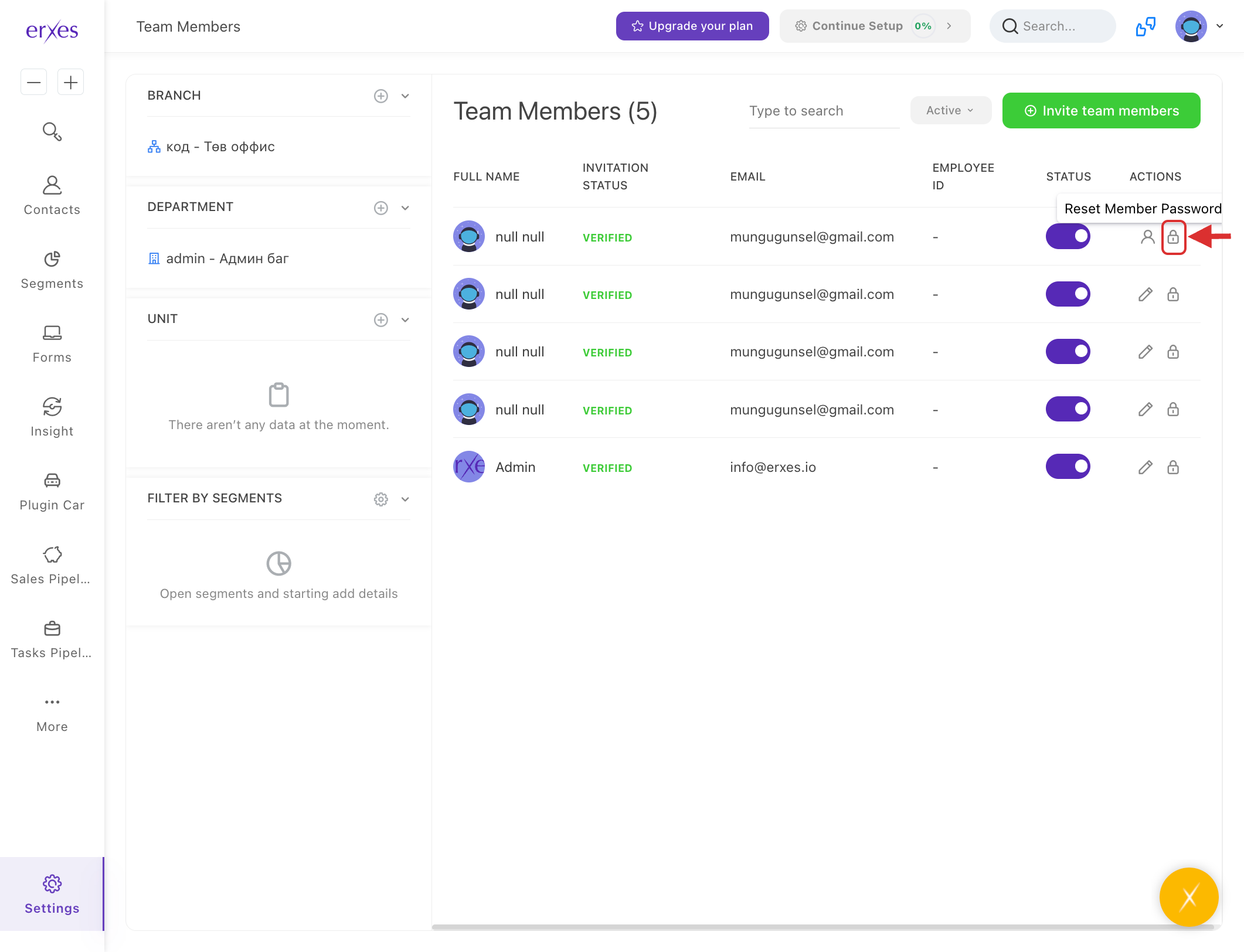
- To reset a user’s password, the admin can:
- Click the lock icon next to their email.
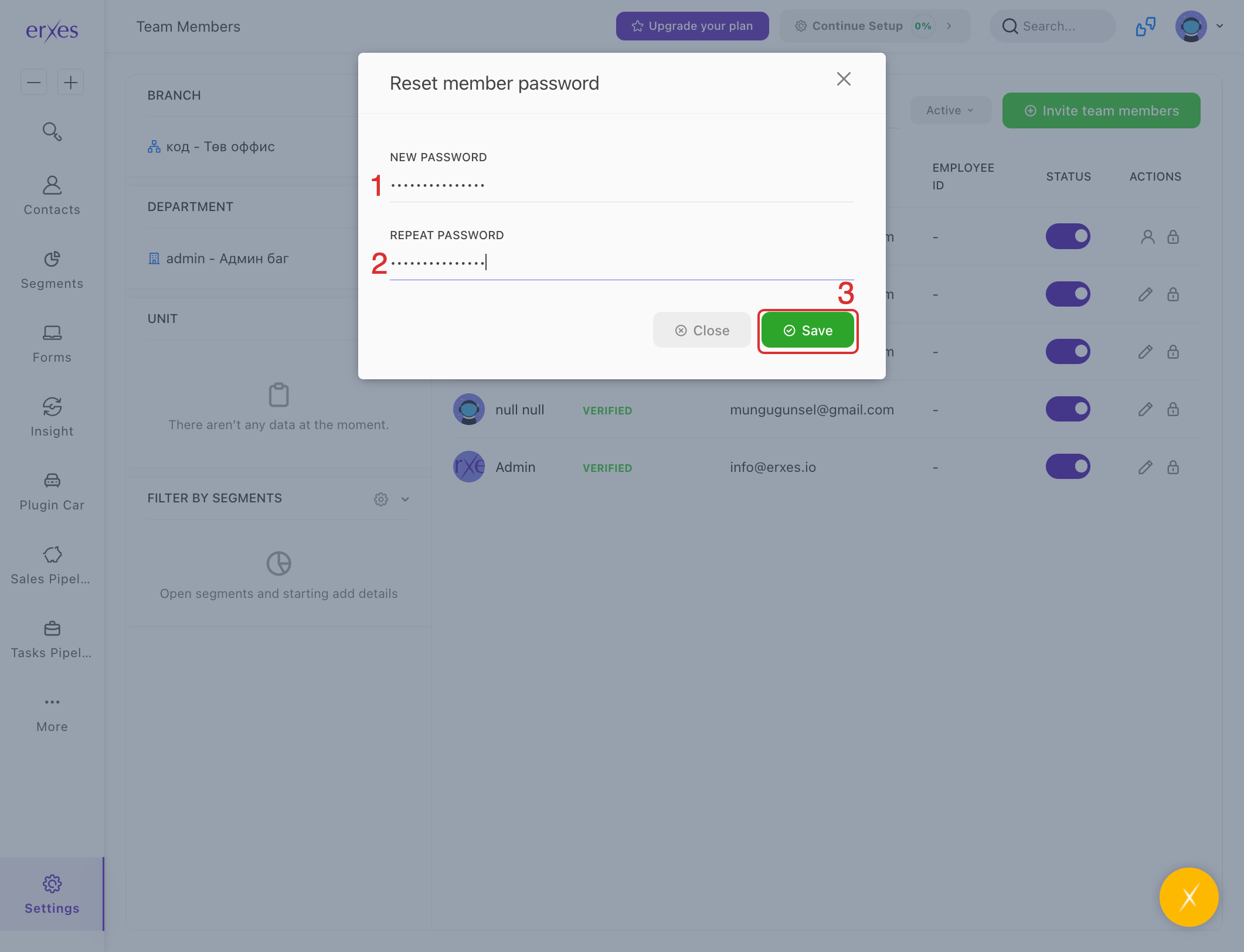
- Enter the new password twice.
- Click Save to apply the change.
Step 1: Create a Branch
- Go to the Settings section.
- Navigate to Team Member.
- Next to the Branch section, click the "+" icon.
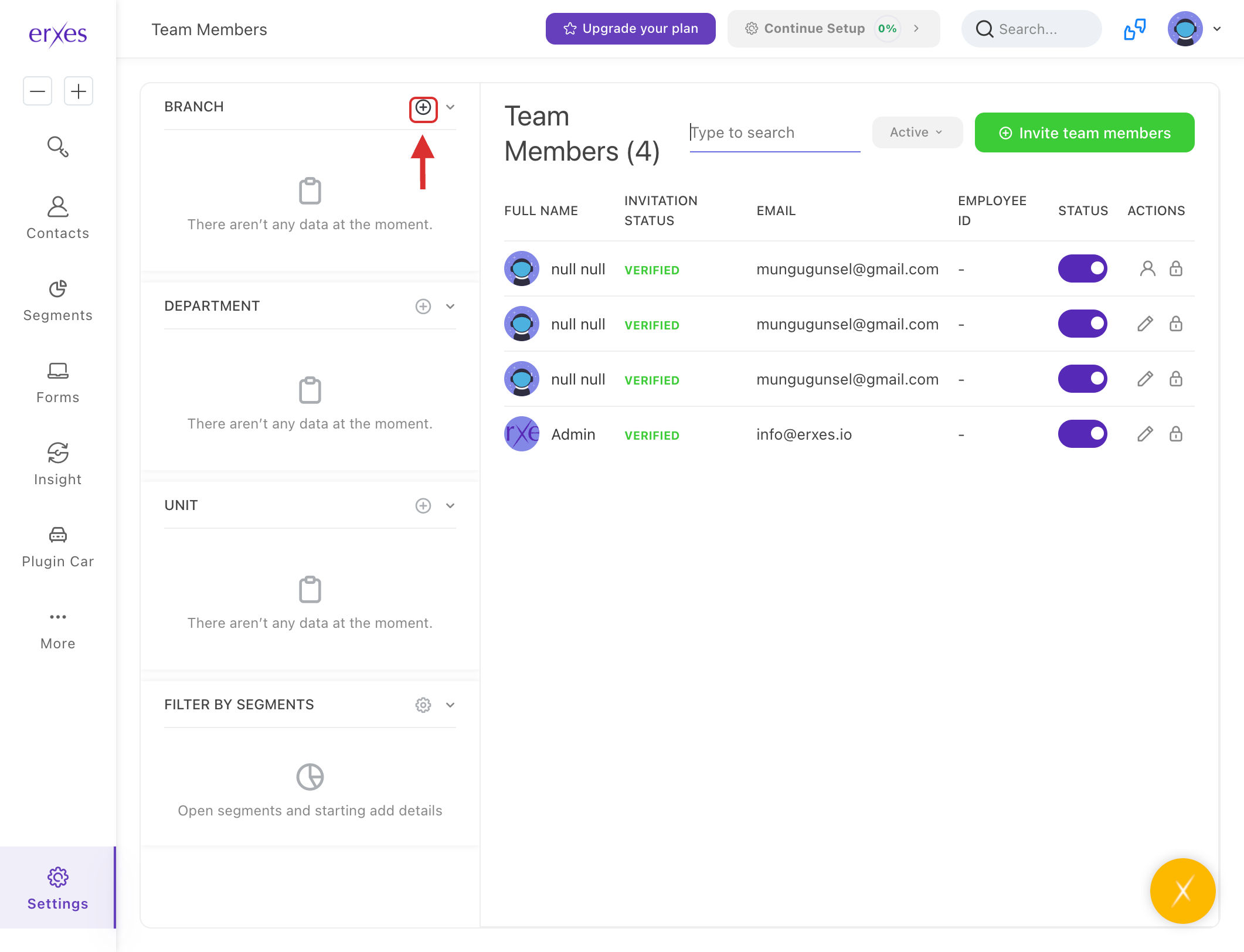
- In the Title field, enter the branch name.
- In the Address field, enter the branch location.
- In the Code field, enter a unique code (e.g., "01").
Note: This is a required field.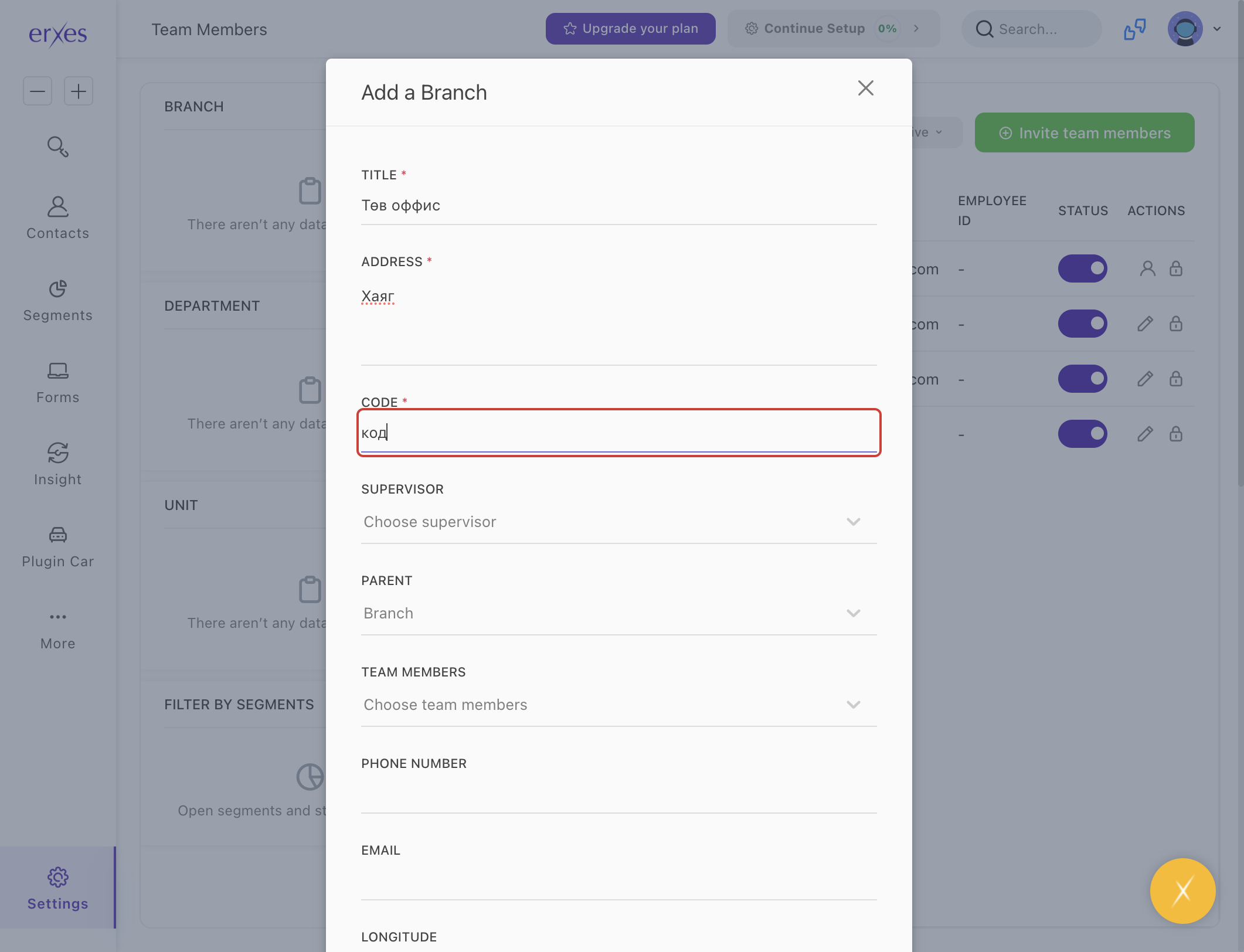
- Click Save.
Tip: Fill in other optional fields if necessary before saving.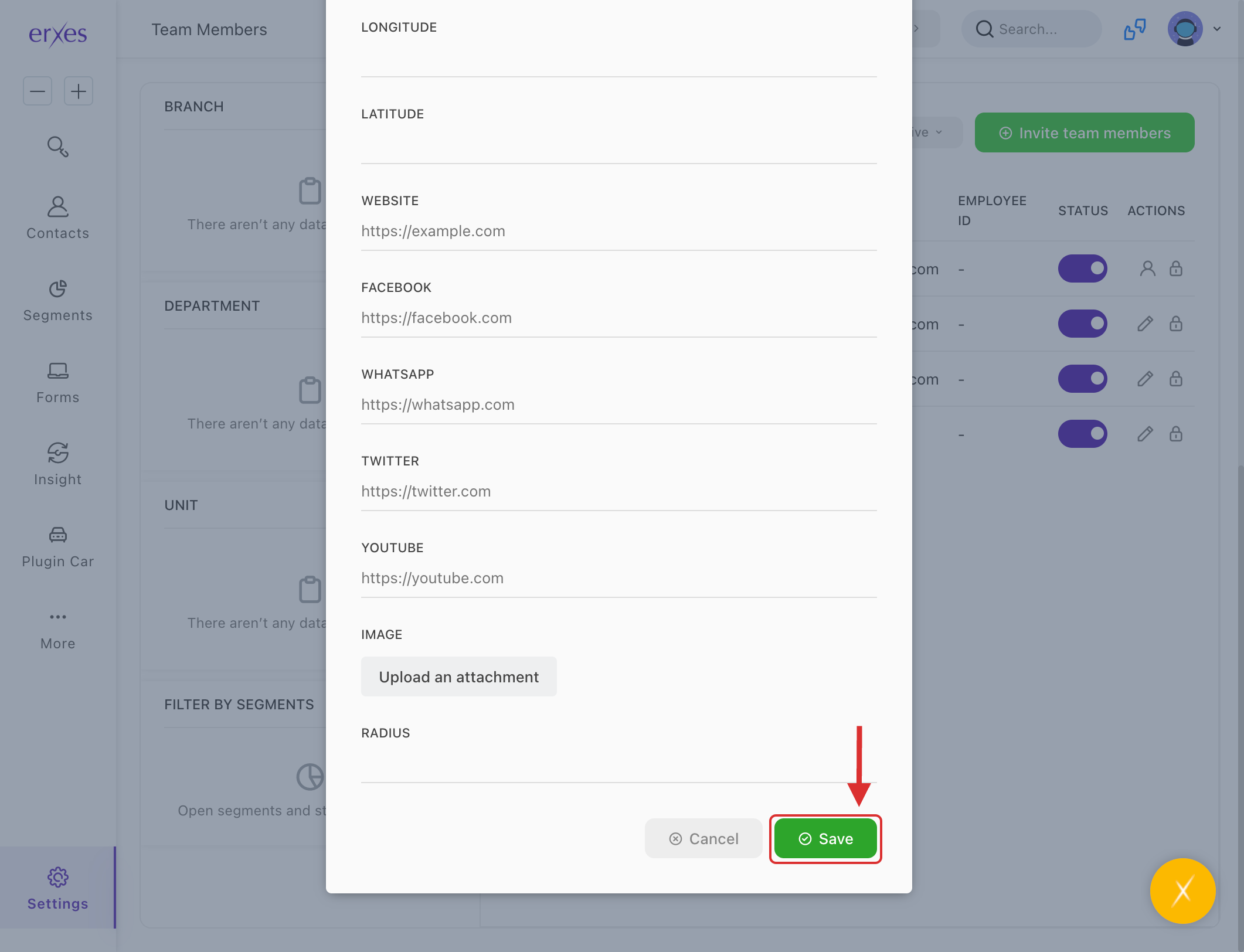
Step 2: Create a Team or Department
- Next to the Department section, click the "+" icon.
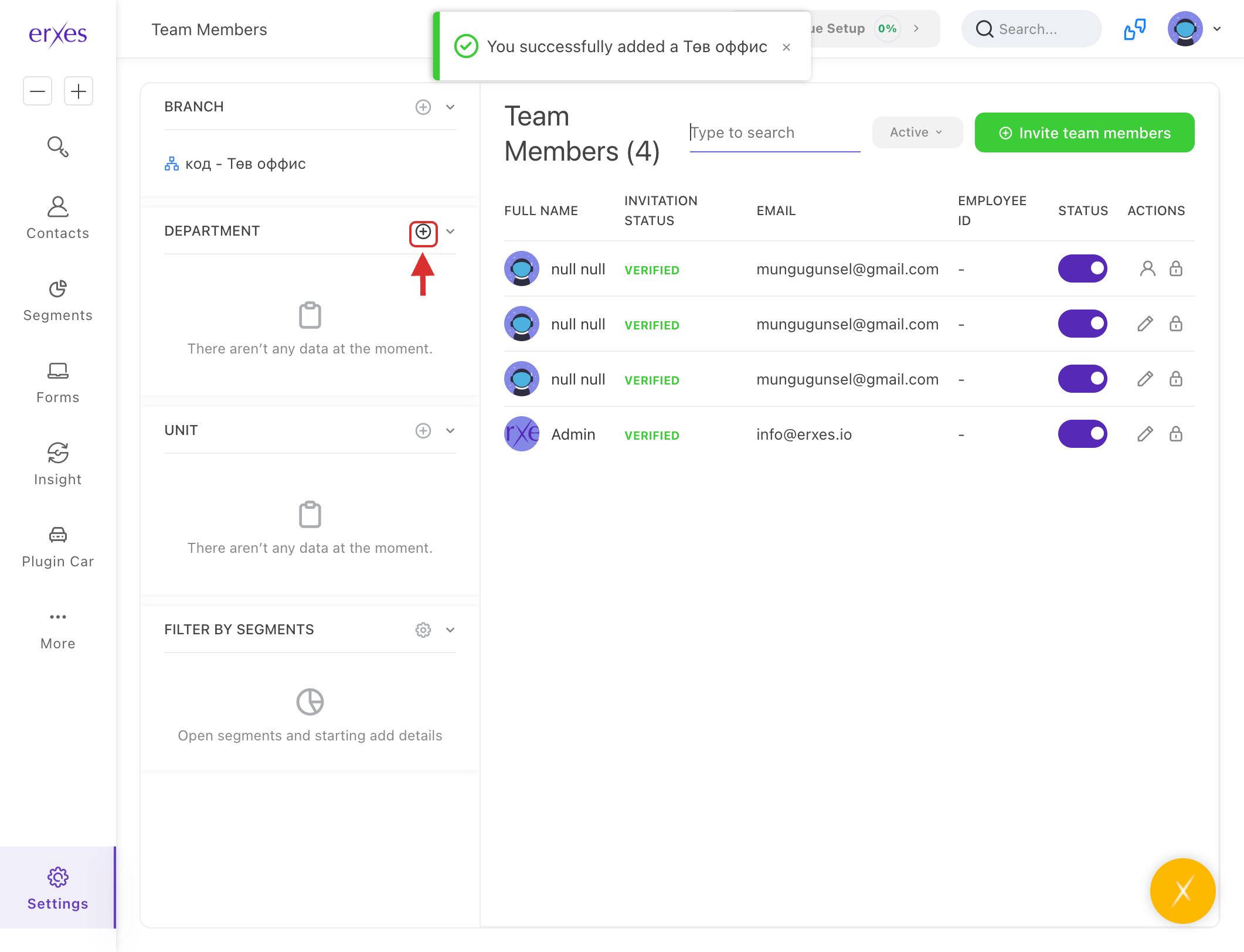
- In the Title field, enter the department or team name.
- In the Code field, enter a unique code (e.g., "01").
Note: This is a required field. - In the Team Members field, assign an admin (usually yourself).
- Click Save to finalize the team setup.
Step 3: Invite Team Members (Employees)
- Click the Invite Team Member button.
Fill in the following required fields:- Password
- Permission Level
- Branch
- Team/Department
- Click Save to send the invitation and create the user profile.
Reminders:
- Invited users can log in with the initial password provided.
- Users can change their password after logging in.
- To reset a user’s password, the admin can:
- Click the lock icon next to their email.
- Enter the new password twice.
- Click Save to apply the change.