
Guides

All topics
erxes XOS
Sales
Settings
Account
Workspace
Developers
Core Modules
Broadcasts
Documents
Automations
Segments
Contacts
Plugins
Operation
Sales
Frontline
Tourism
Content
Accounting
Agents
Company Brain
Mongolian
Loyalty
5. Using the Teaminbox Module
The Teaminbox module brings together all customer conversations in one place, enabling Team members to reply, filter, label, assign, and resolve conversations efficiently.
Accessing Teaminbox
- Go to the Teaminbox module from the sidebar.
- You will see a list of all current and past conversations.
Reply to a Conversation
- Click on a conversation to open it.
- In the "To send your message" field, type your response.
- Click Send to reply.
Resolve a Conversation
- Open a conversation.
- Click the Resolve button in the top right corner to mark the conversation as closed.
Note: If the Customer replies again, the conversation will reopen automatically and return to active status.
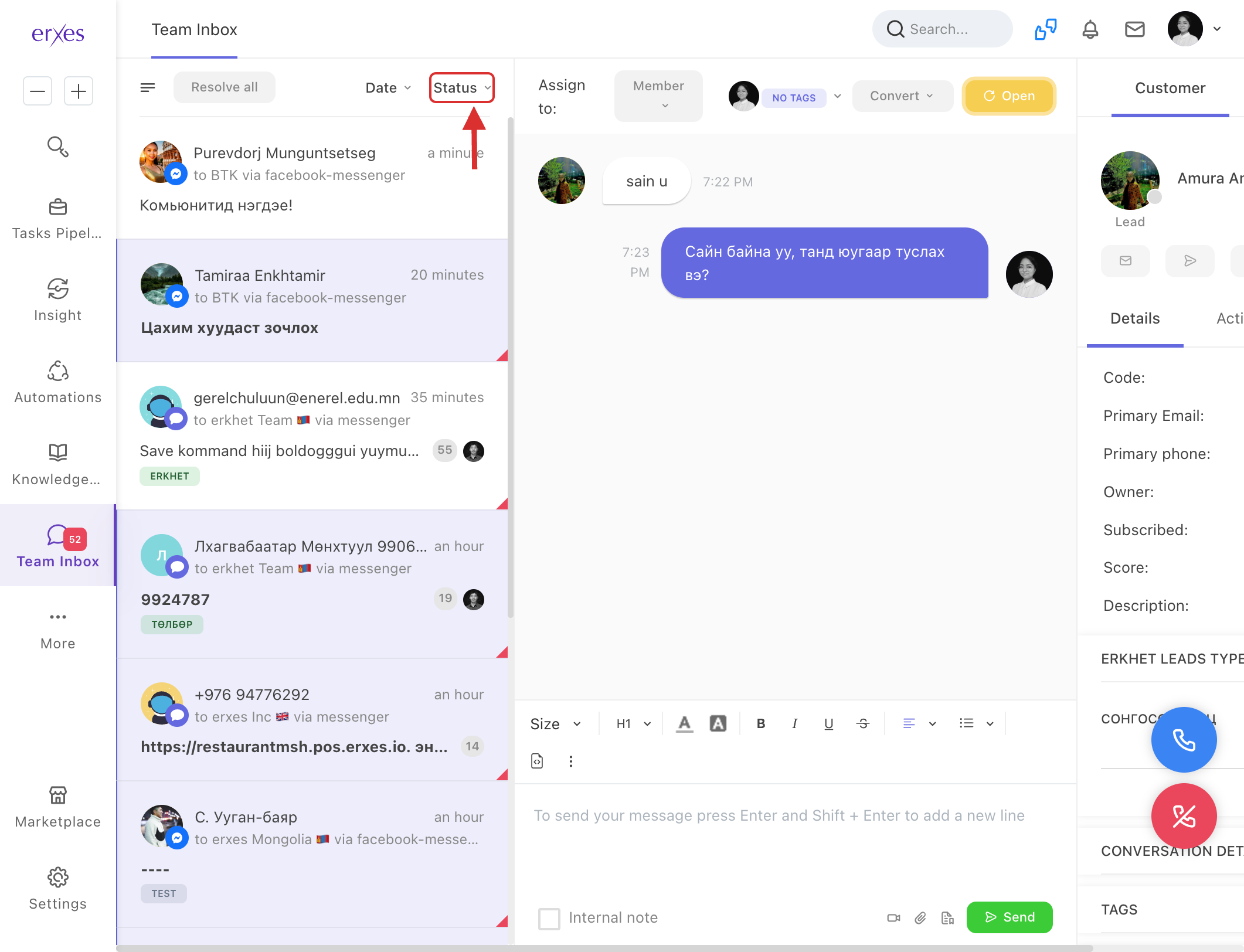
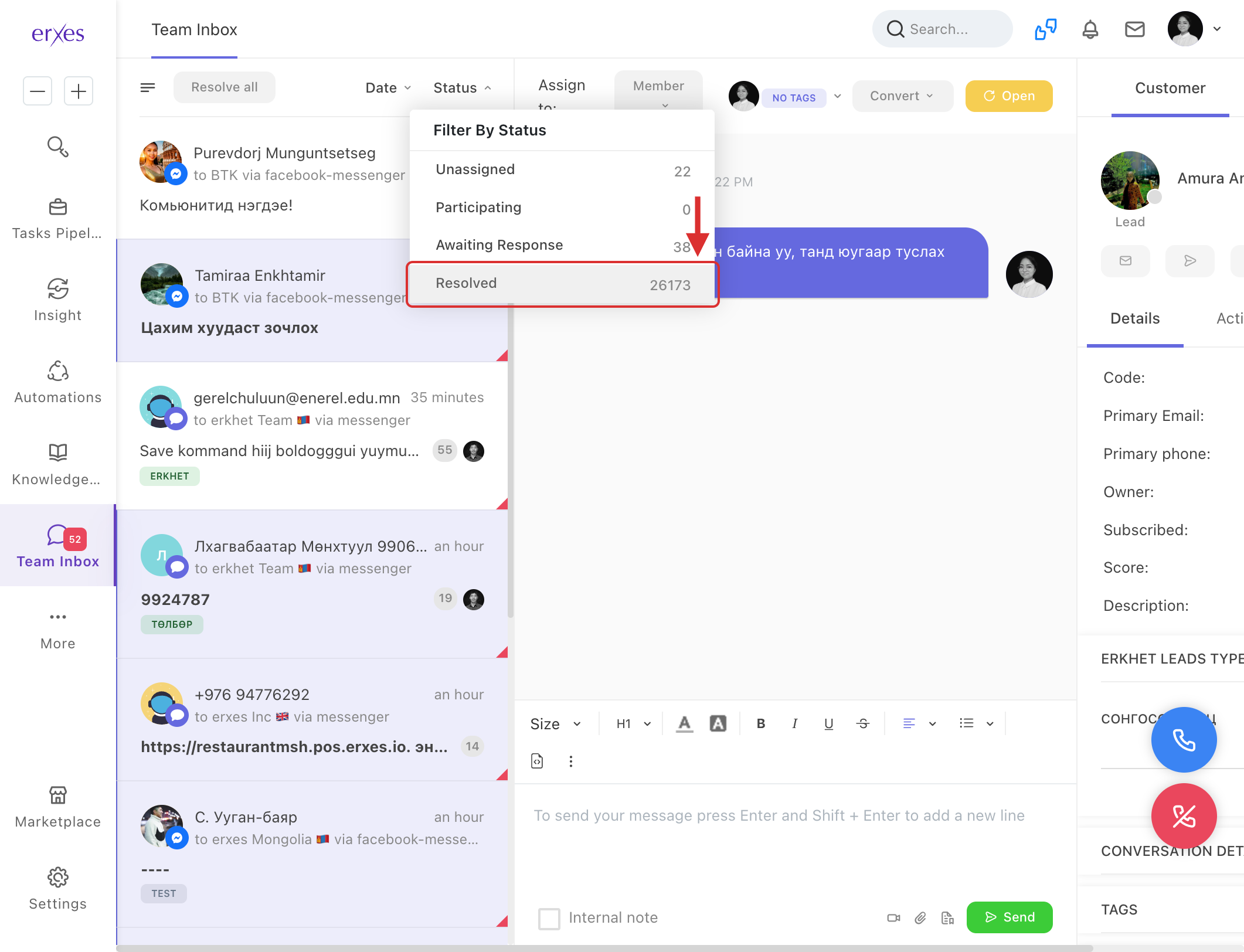
- To view resolved conversations:
Go to Status → Resolved.
Assign a Conversation to a Team Member
- Open a conversation.
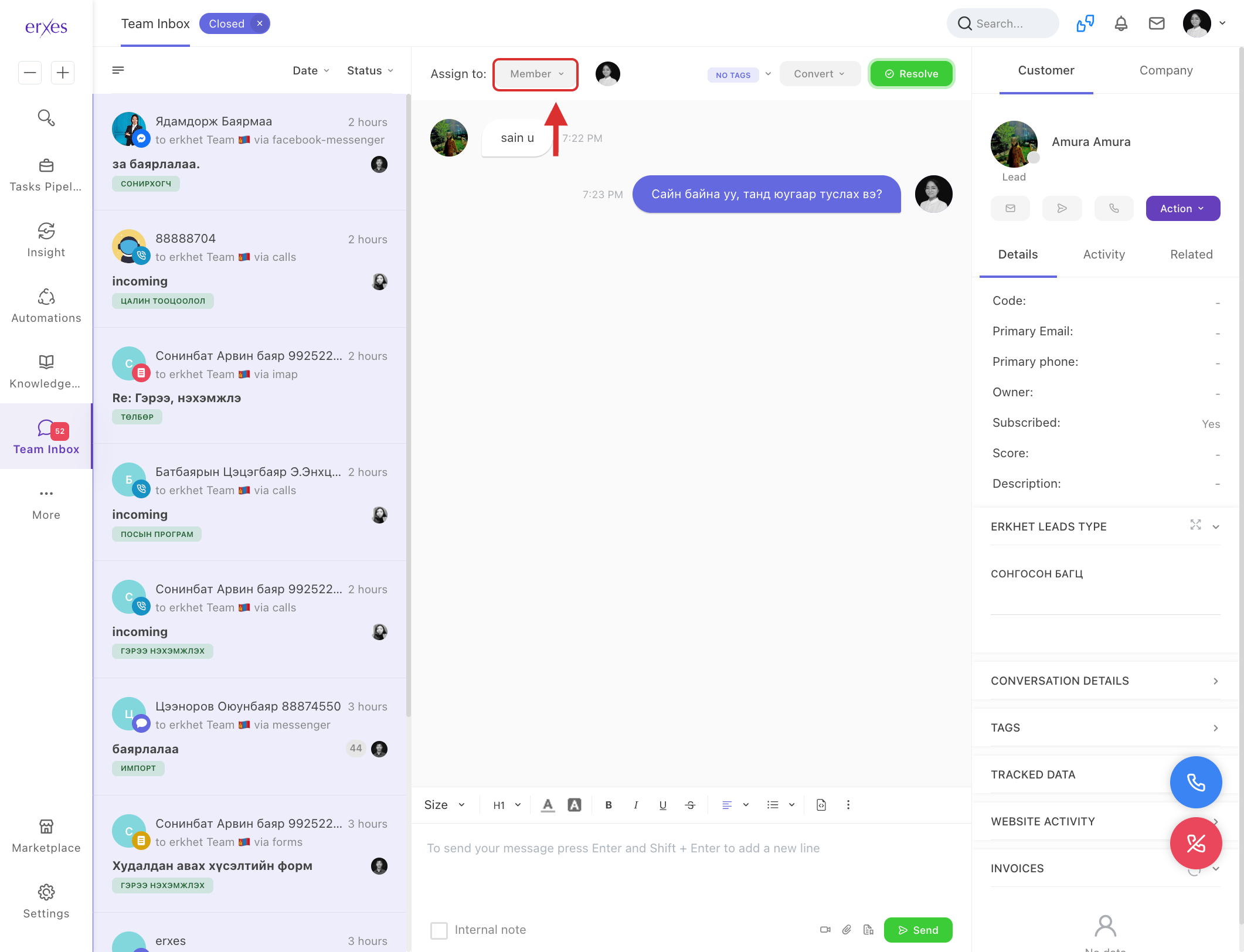
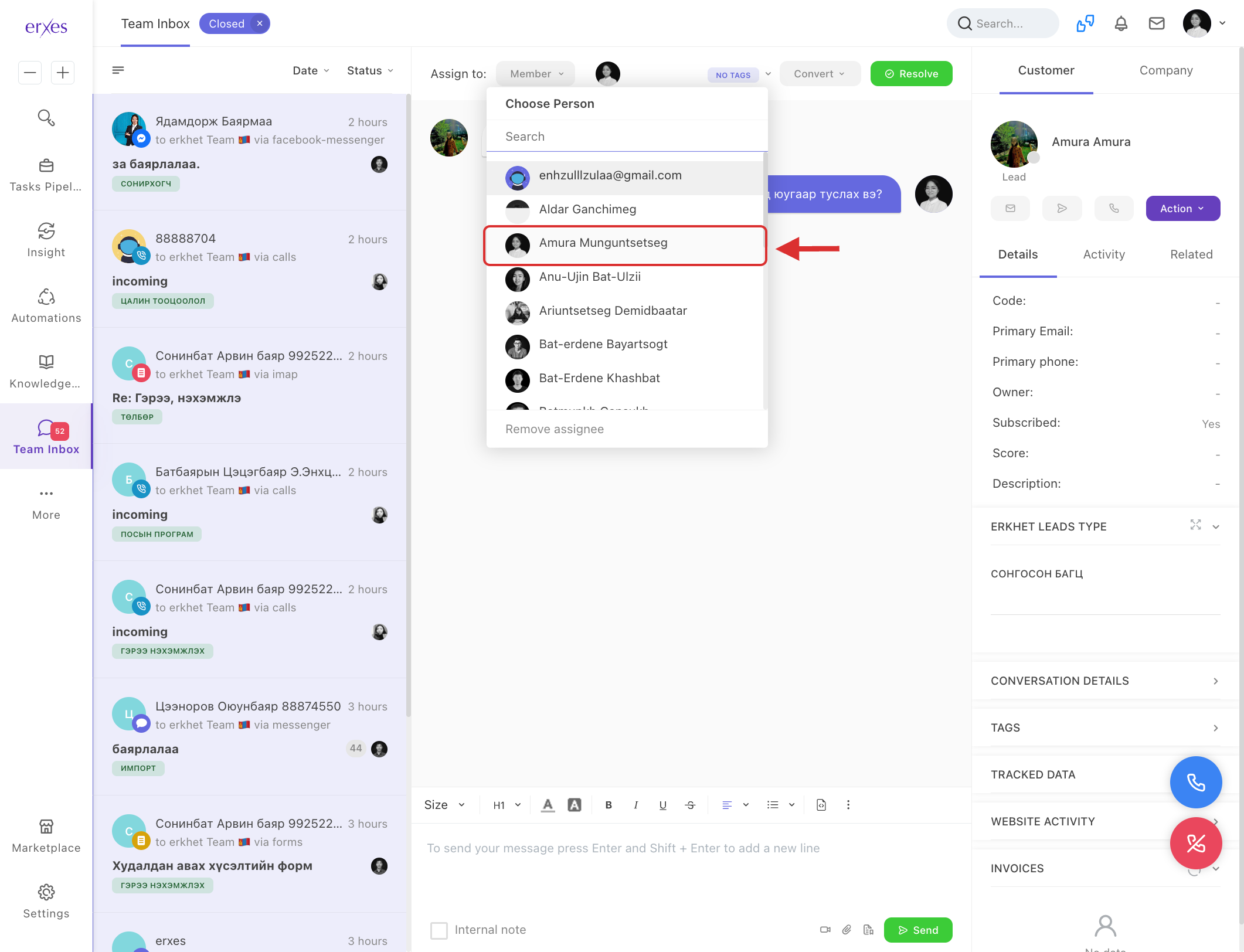
- In the "Assign to: Member" dropdown (top left), choose the Team member who will handle the response.
- This assigns responsibility for the conversation.
Filter Conversations
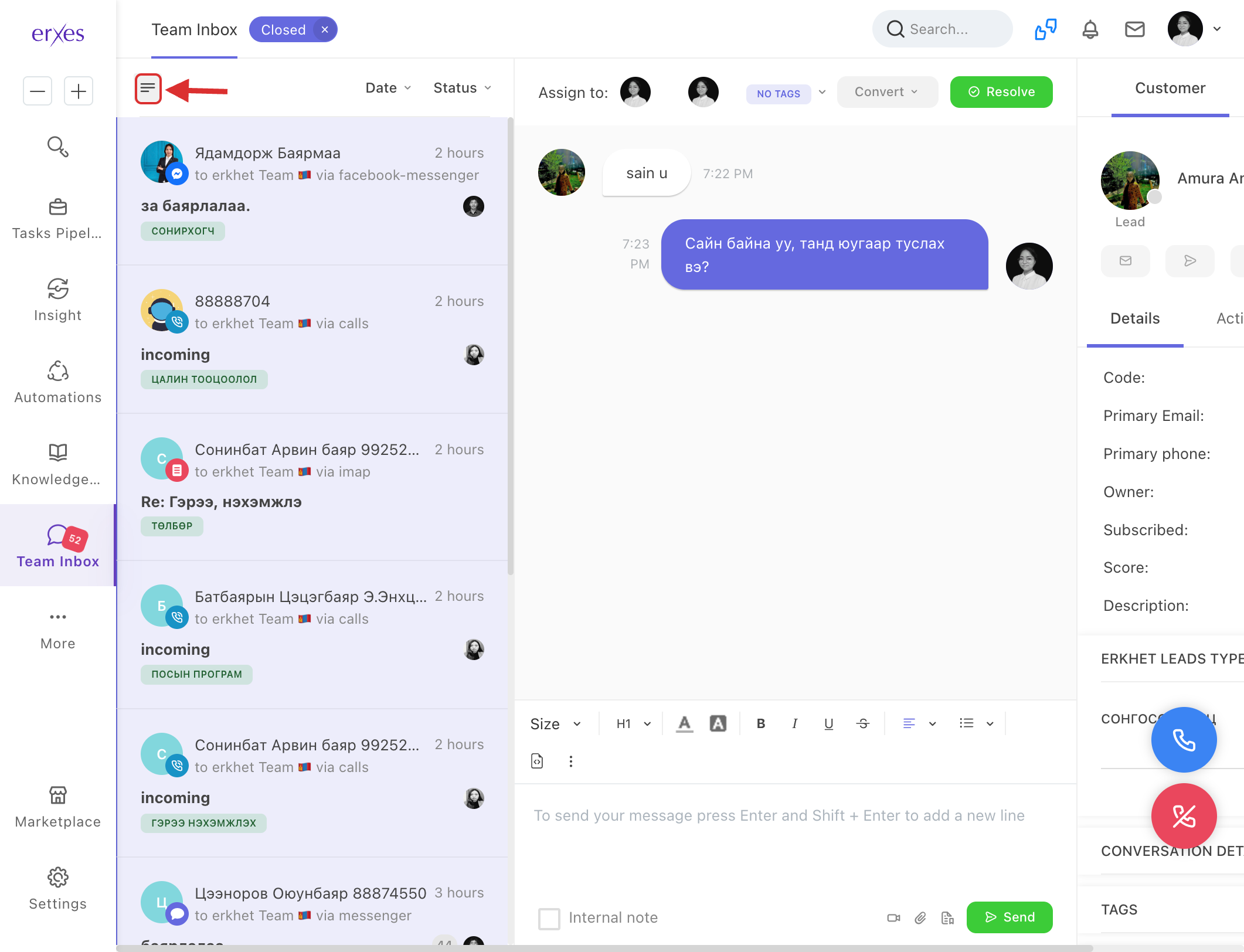
- Click the three lines (☰) icon in the top-left corner.
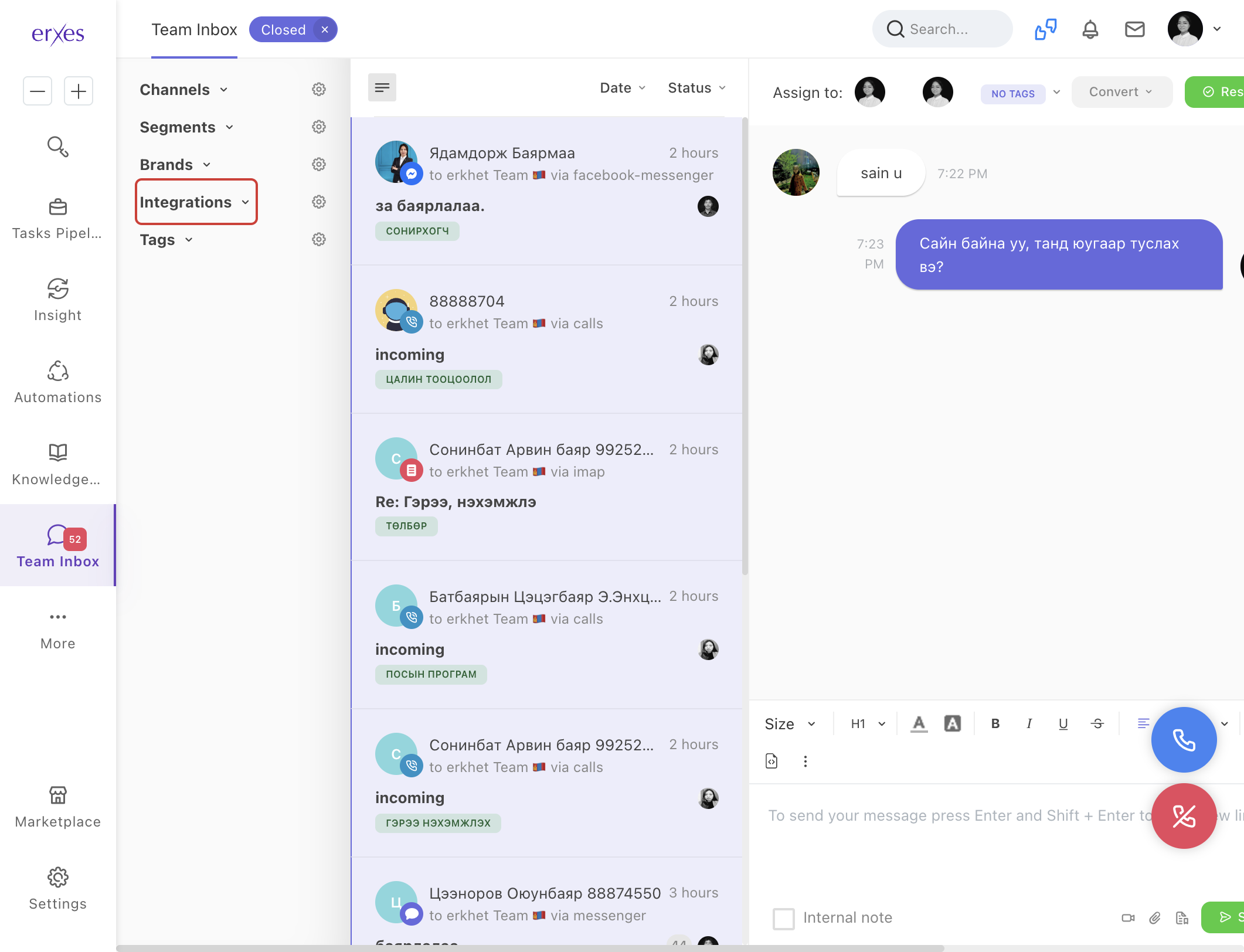
- Filter by:
- Channel (e.g., Webchat, Email, Messenger)
- Brand
- Segment
- Integration
- Tag
- Click the desired filter value to display matching conversations.
Example: Selecting Integration → Facebook Messenger will show only Facebook conversations.
Filter Conversations by Date
- Click the Date filter in the Teaminbox view.
- Choose the date range and click Filter.
- All relevant conversations will appear.
Use Canned Responses
- In the reply area, type a keyword from a saved/canned response.
- Choose from the suggested responses.
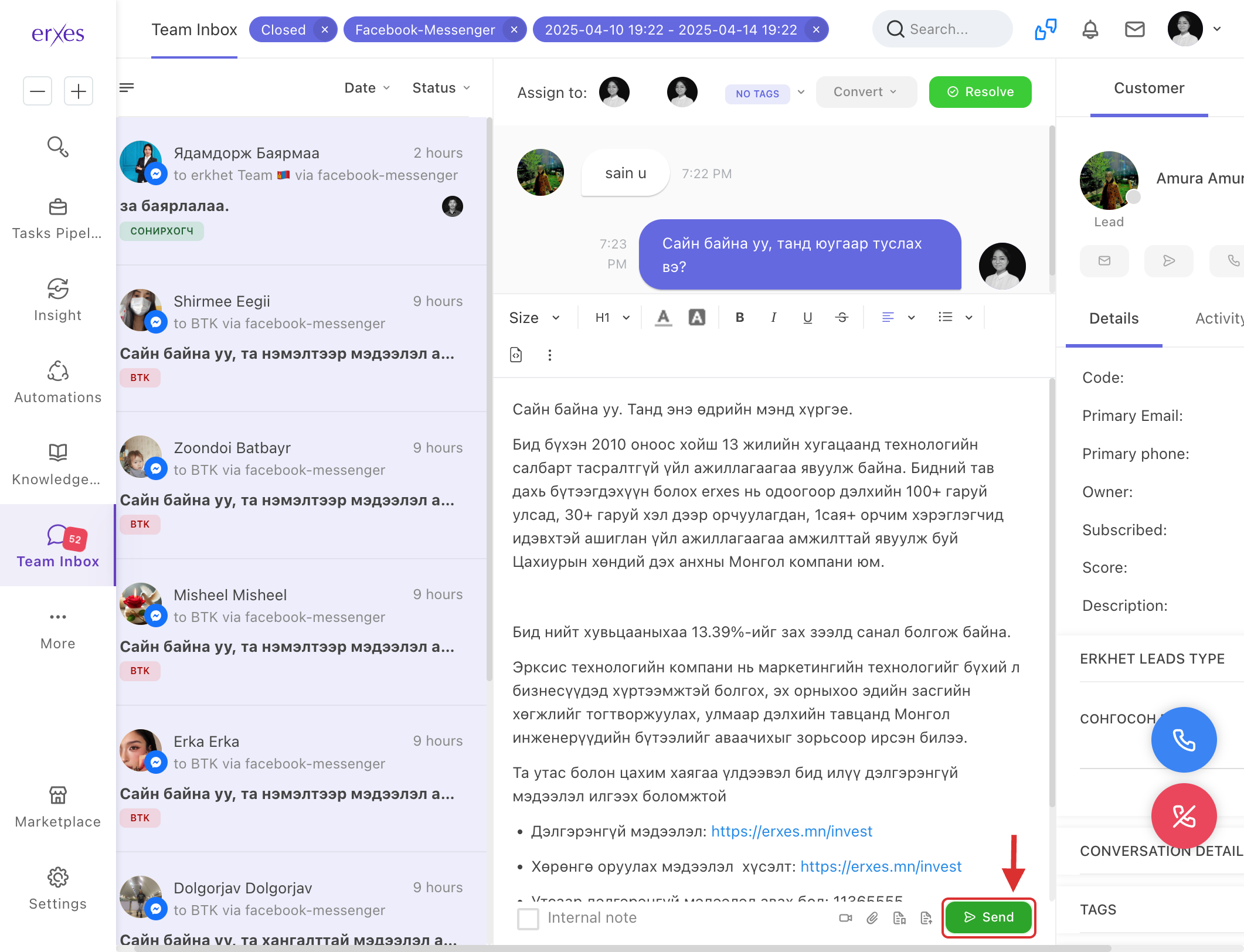
- Click Send to send the selected message.
View a Customer’s Conversation History
- On the right-hand side, under the Customer Info panel, click Activity.
- You will see all previous messages and calls with that Customer.
View Customer Feedback (Tickets)
- In the Customer Info panel, click Related.
- Click on Ticket to view related feedback or support requests.
Illustrated instructions
1. Go to the Teaminbox module
- You will enter the Teaminbox module.
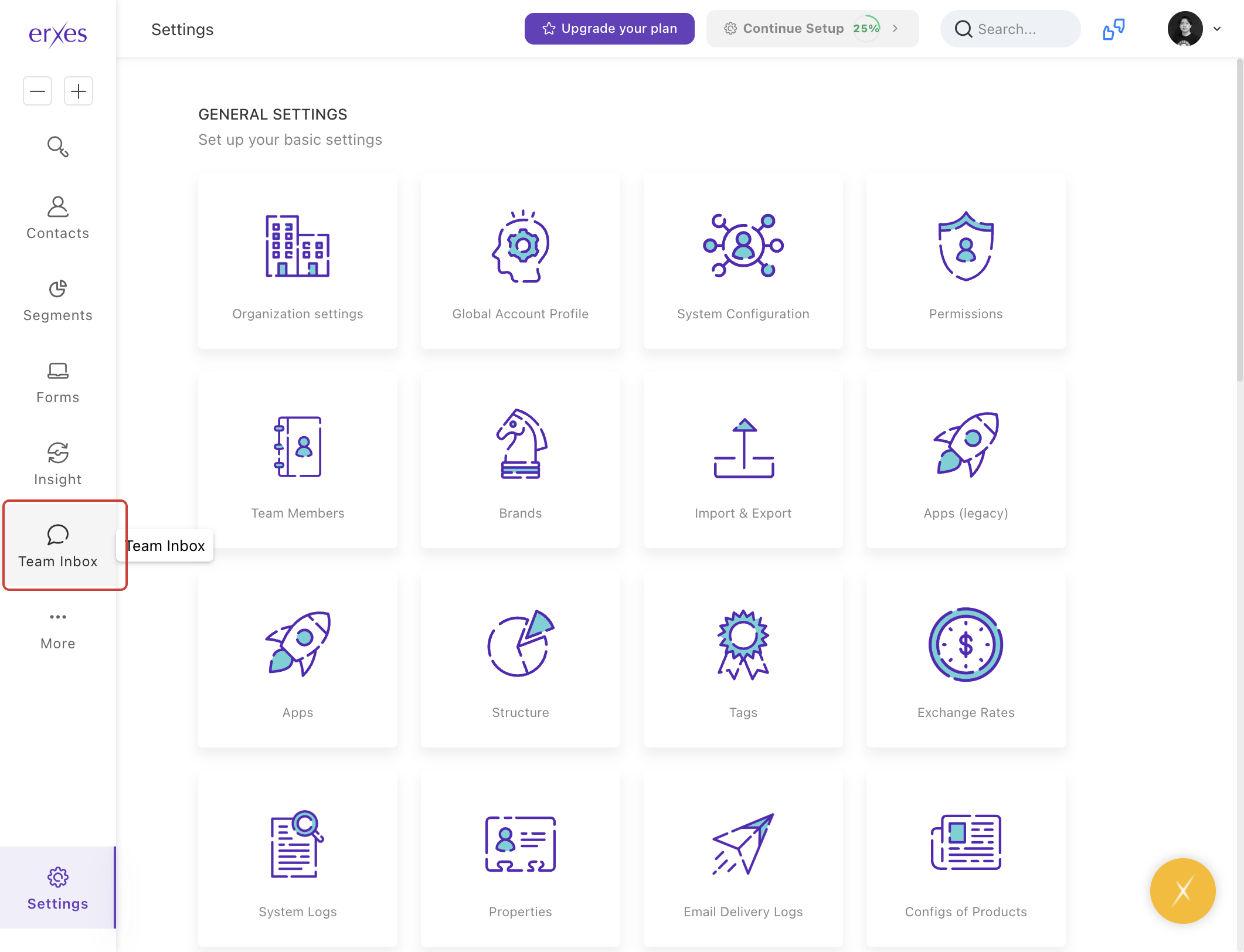
- You will see a list of all conversations.
Reply to conversation
- Click on the unit conversation from the user.
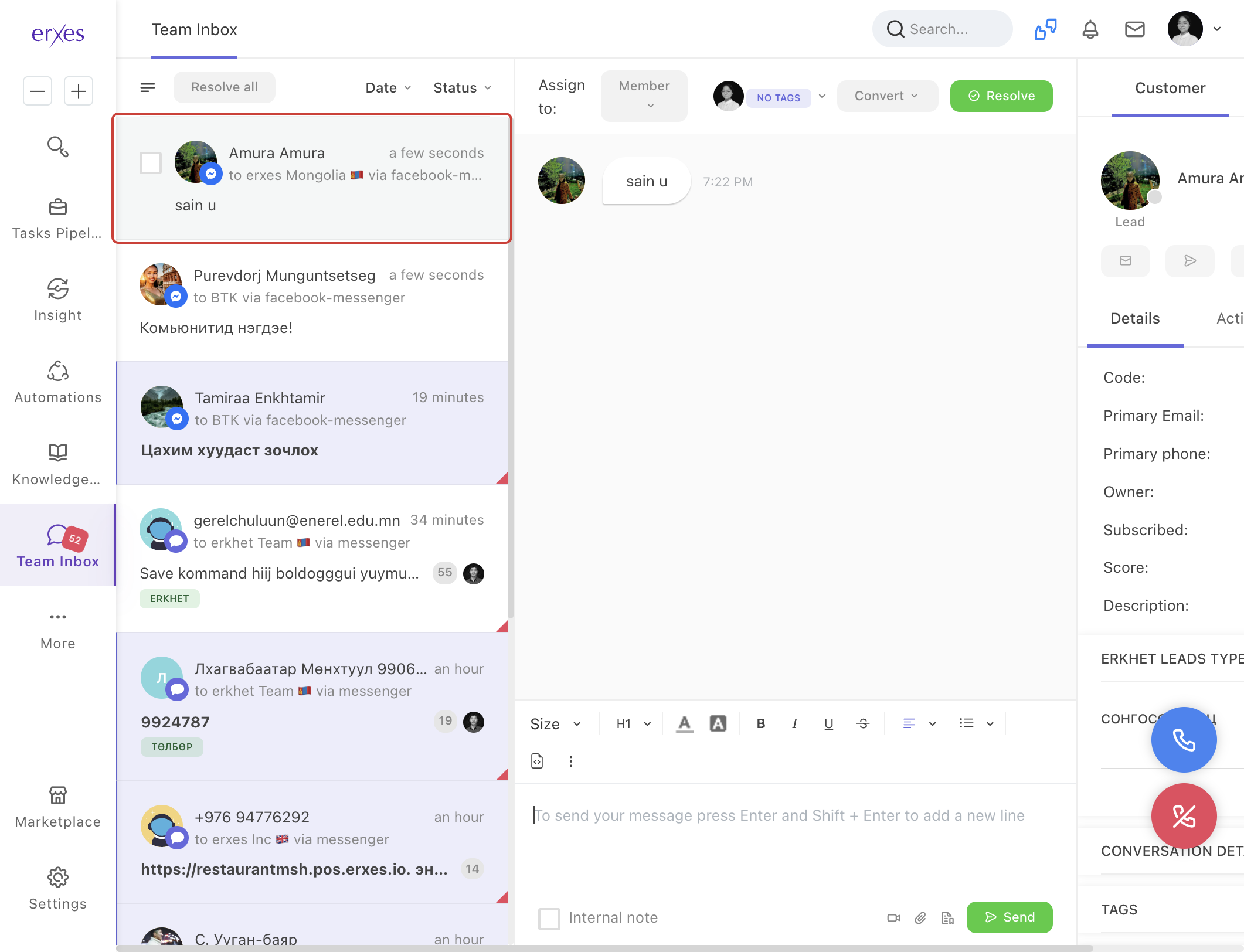
- In the " To send your message " section, users can write the content they want to reply to,
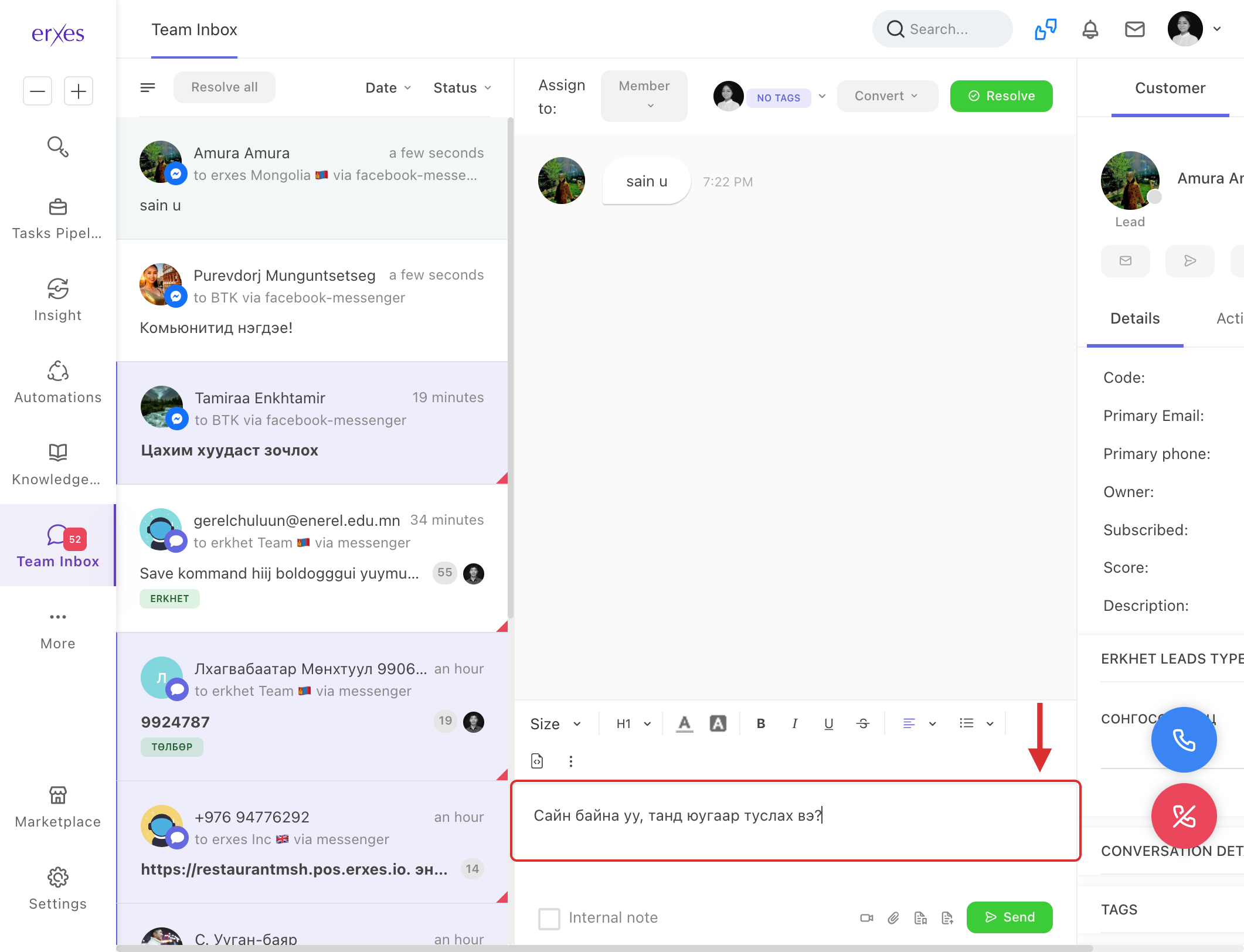
- Click the Send button to send.
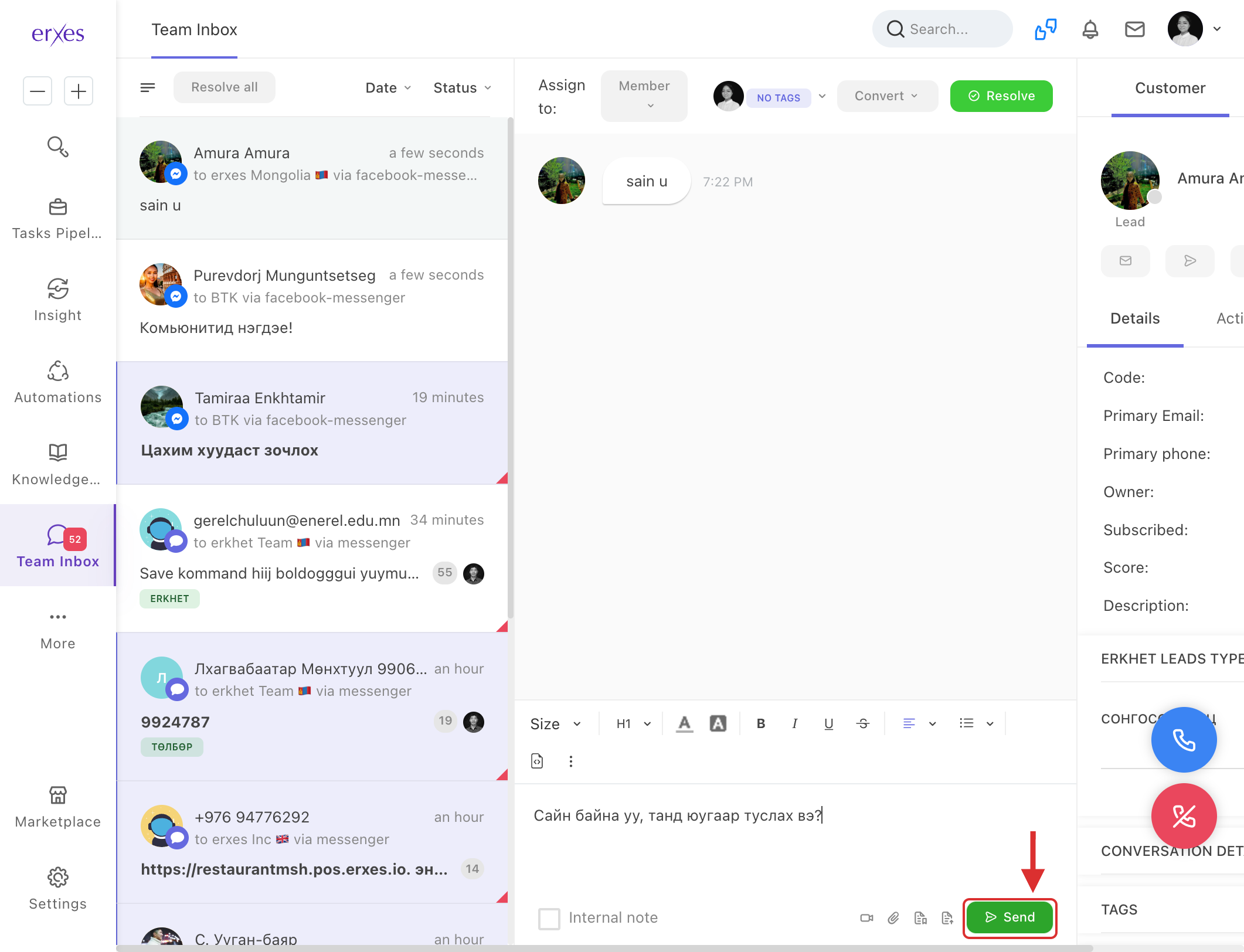
Conversation blocking field
- Click on the unit conversation from the user.
- Click "Resolve" in the upper right corner to close the conversation.
Note: This will give the contact a full response and indicate that the conversation is over. If the user re-enters the chat, "Resolve" = exits the "Closed" state and the new conversation will appear in the Teaminbox.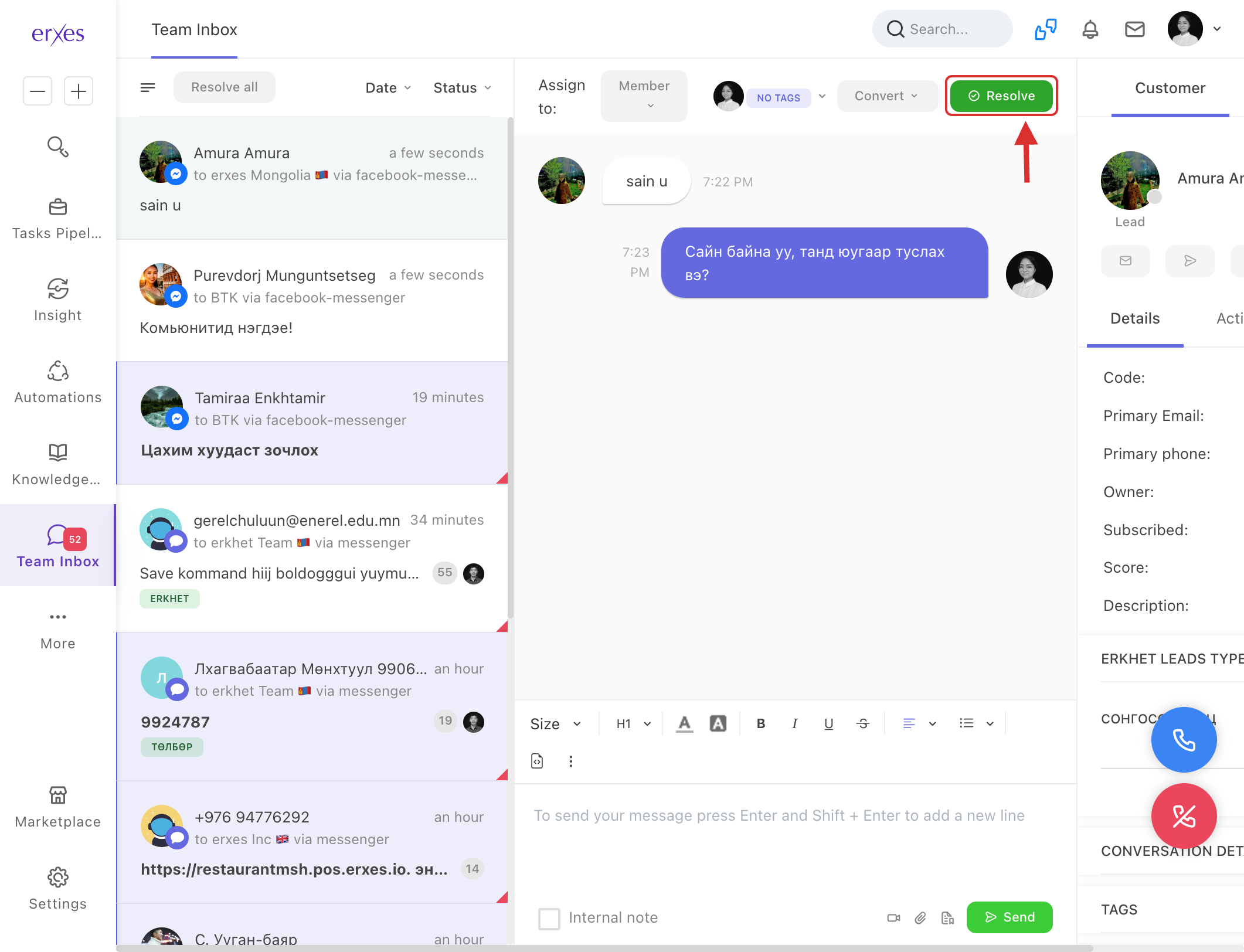
- To view closed conversations, go to "Status" -> "Resolved"
Select "Employee" in the dialogue.
- Click on the unit conversation from the user.
- Selecting an Employee in the "Assign to: Member" section in the upper left corner will indicate that the employee will respond or has responded to the conversation.
Filter conversations
- Click on the "3 lines" in the upper left corner .
- Select the field to filter from among the fields Channel , Brand , Segment , Integration , and Tag .
- Clicking on the filter value will display the relevant conversations.
For example: If you search for Integration - Facebook messenger, only conversations from Facebook messenger will be displayed.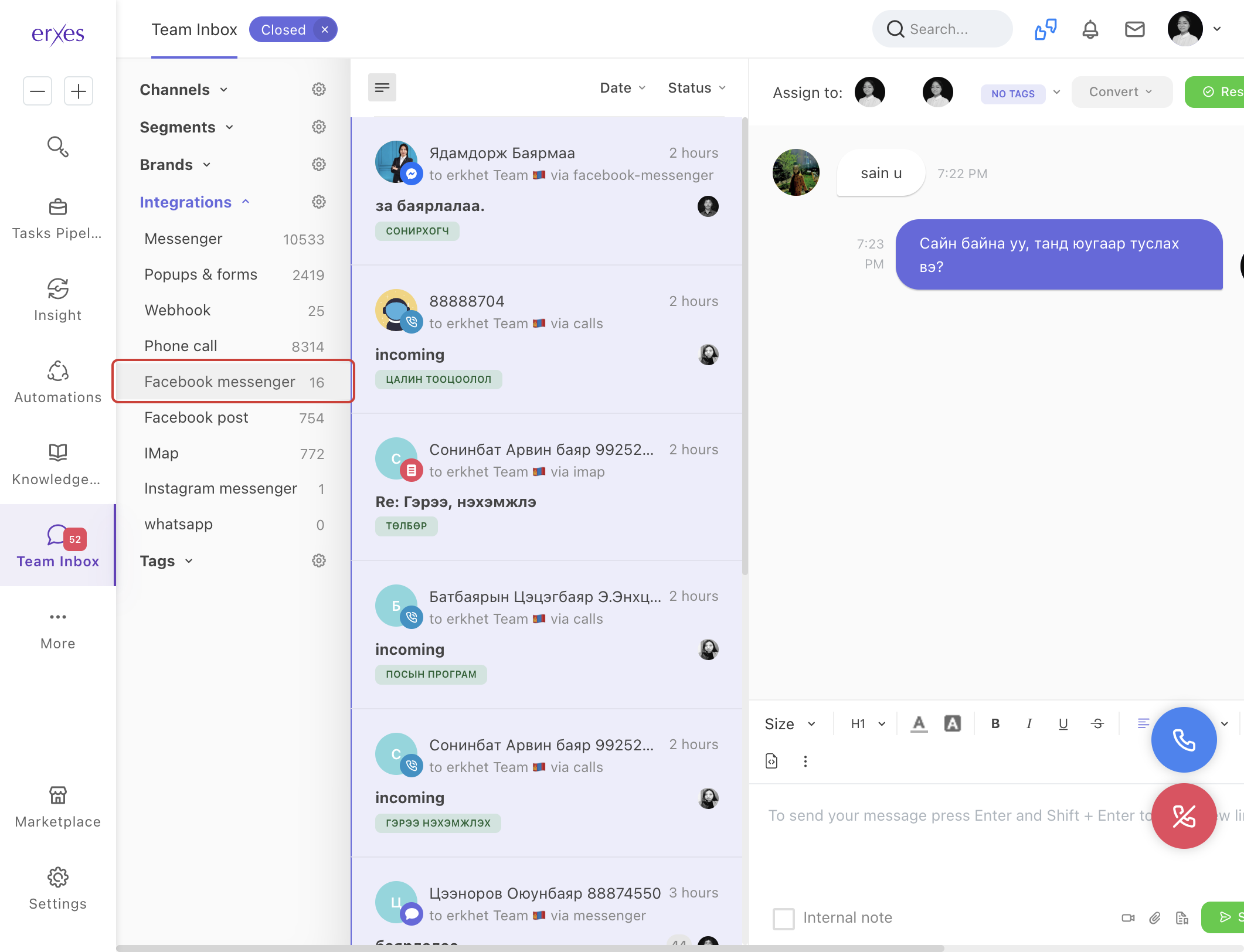
Filter conversations by date
- Click on the "Date" section of the conversation .
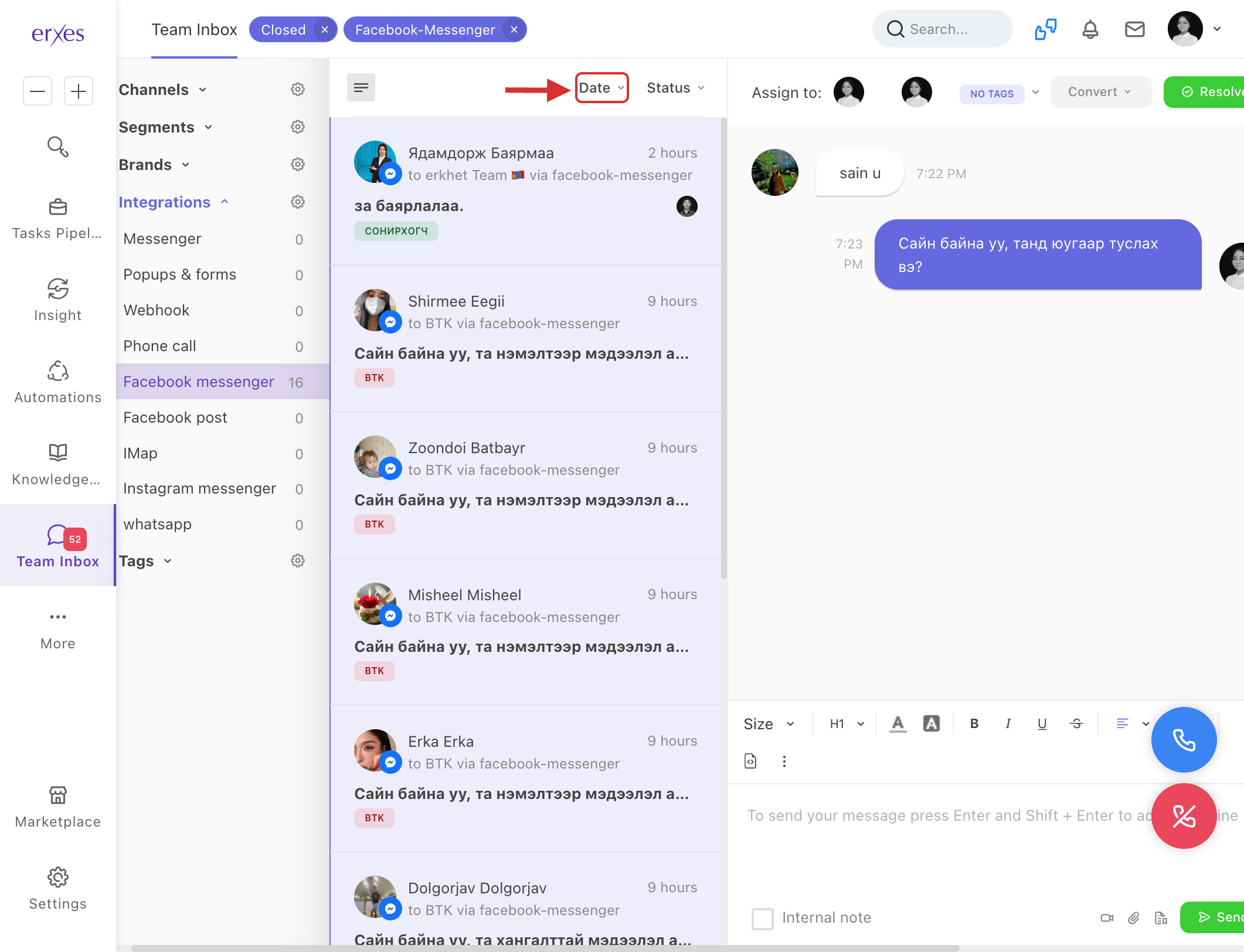
- Enter the date and click the "Filter" button.
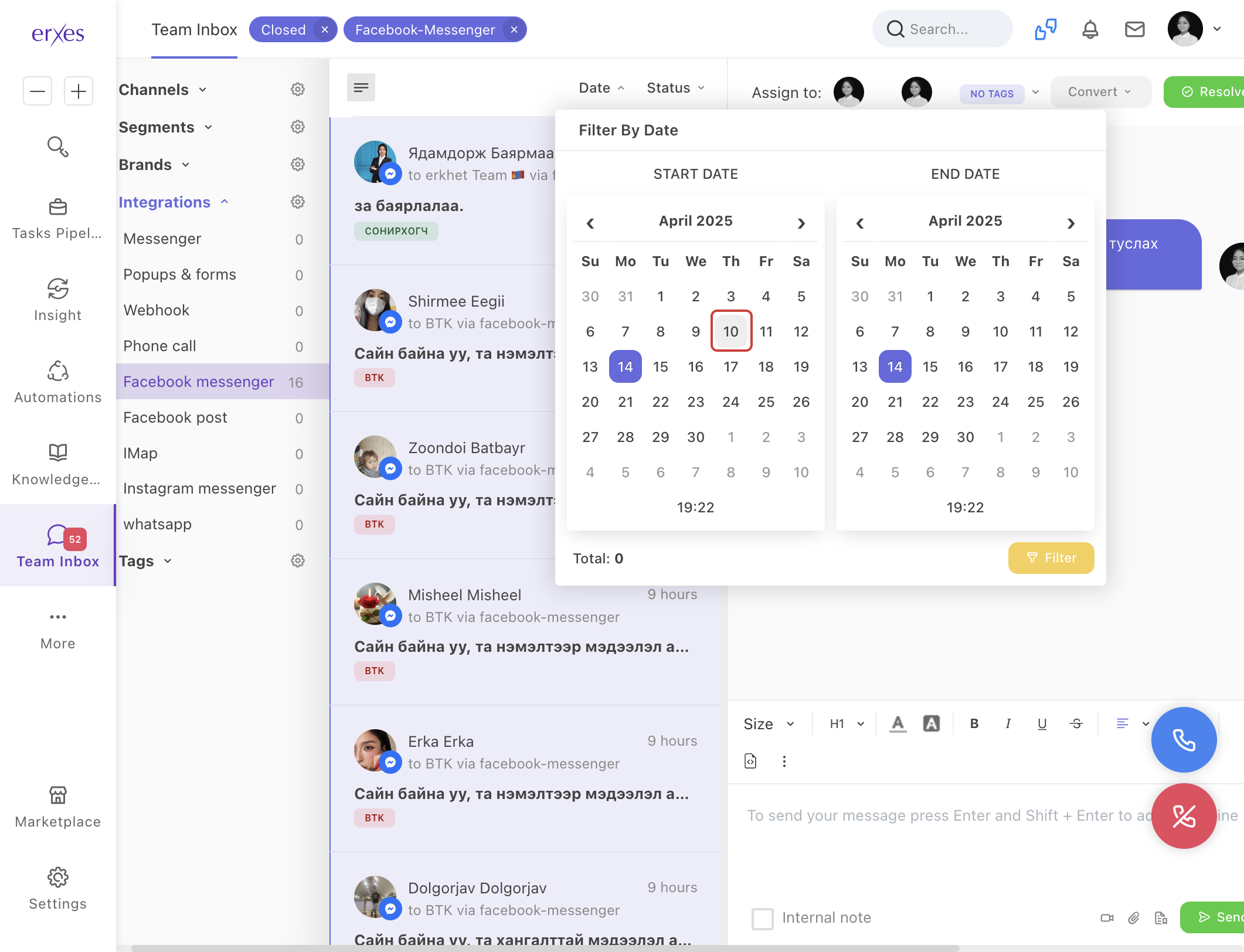
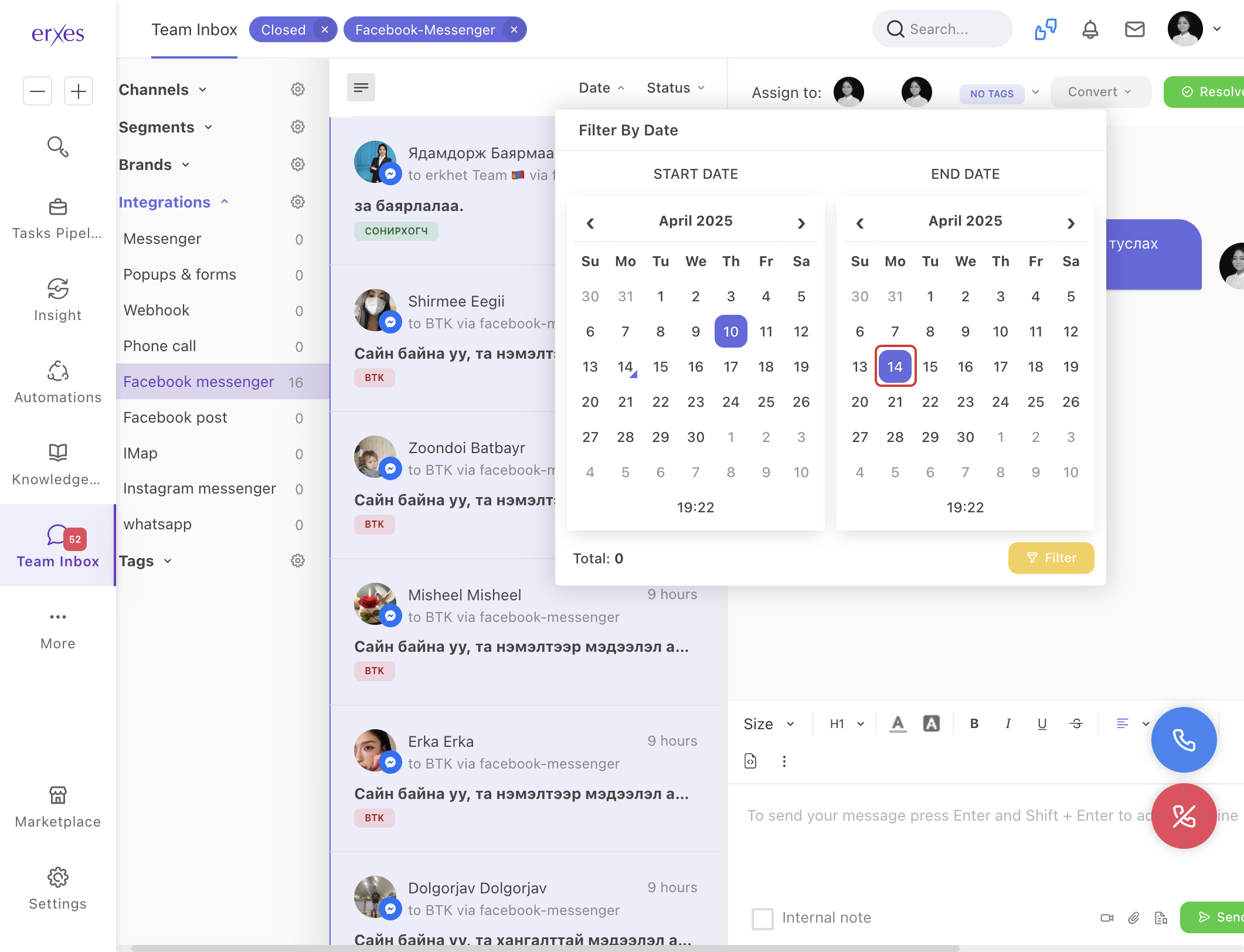
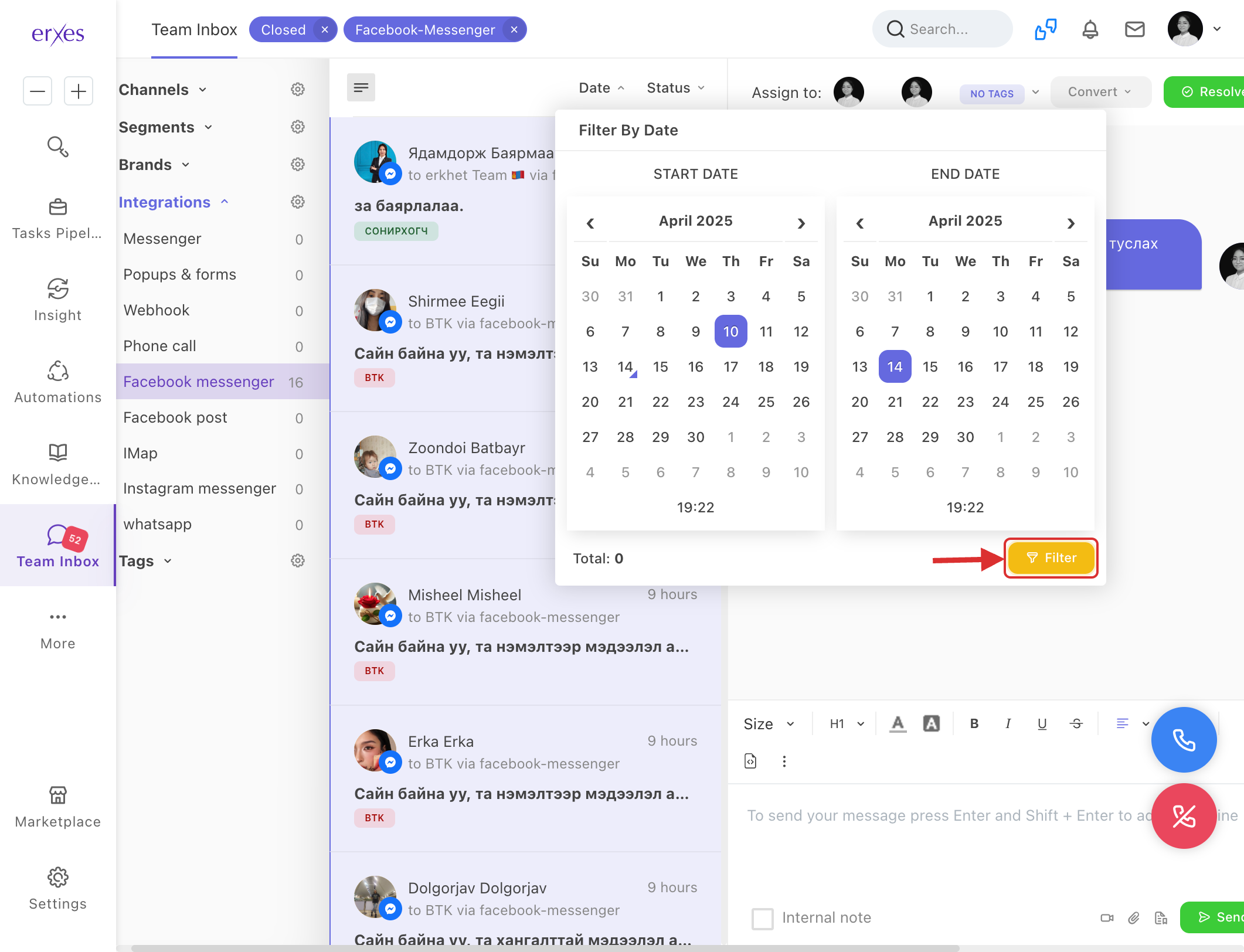
- Related conversations will be displayed.
Use canned responses in conversations
- Enter the keyword contained in the title or content of the pre-prepared answer.
- Choose from the answers that appear,
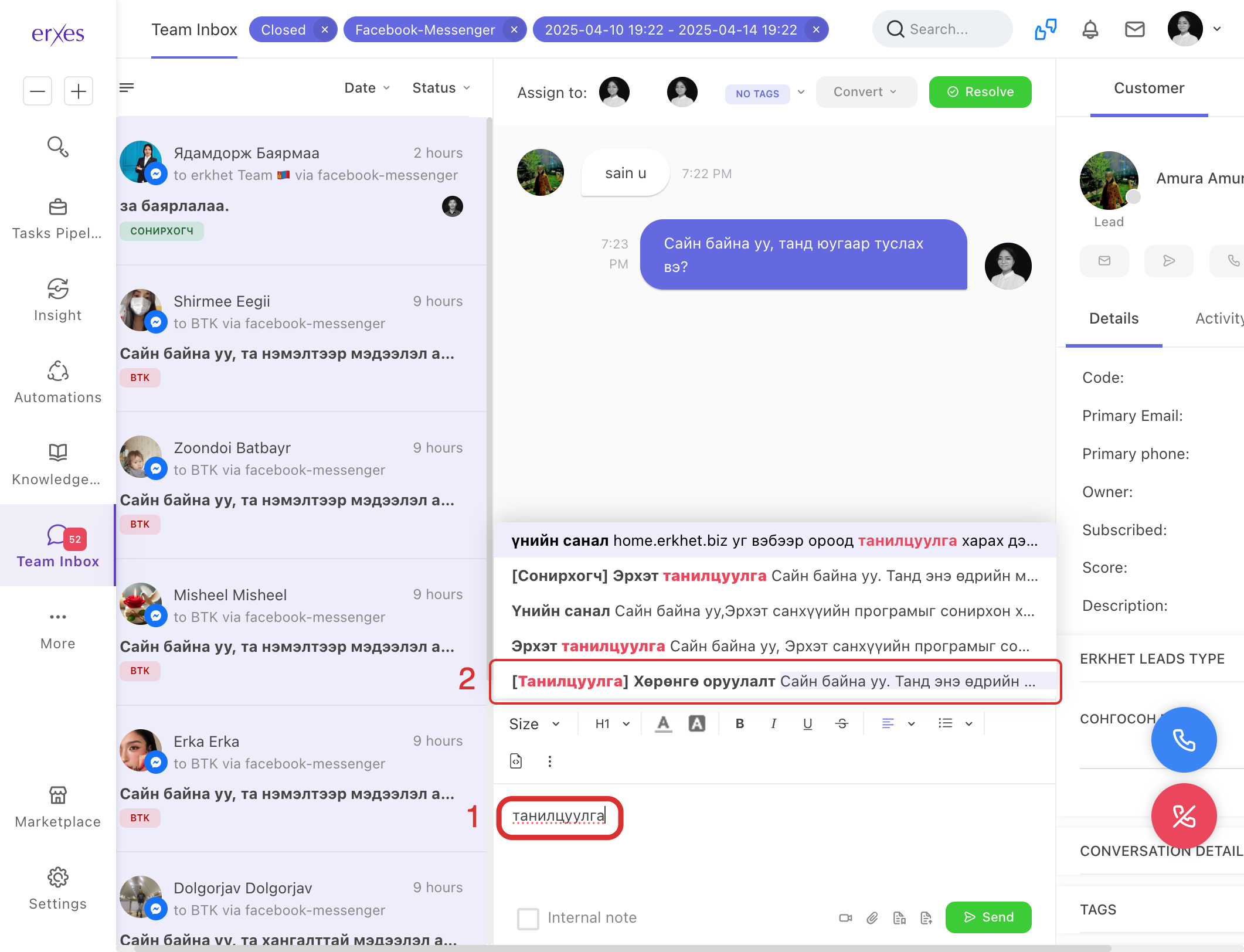
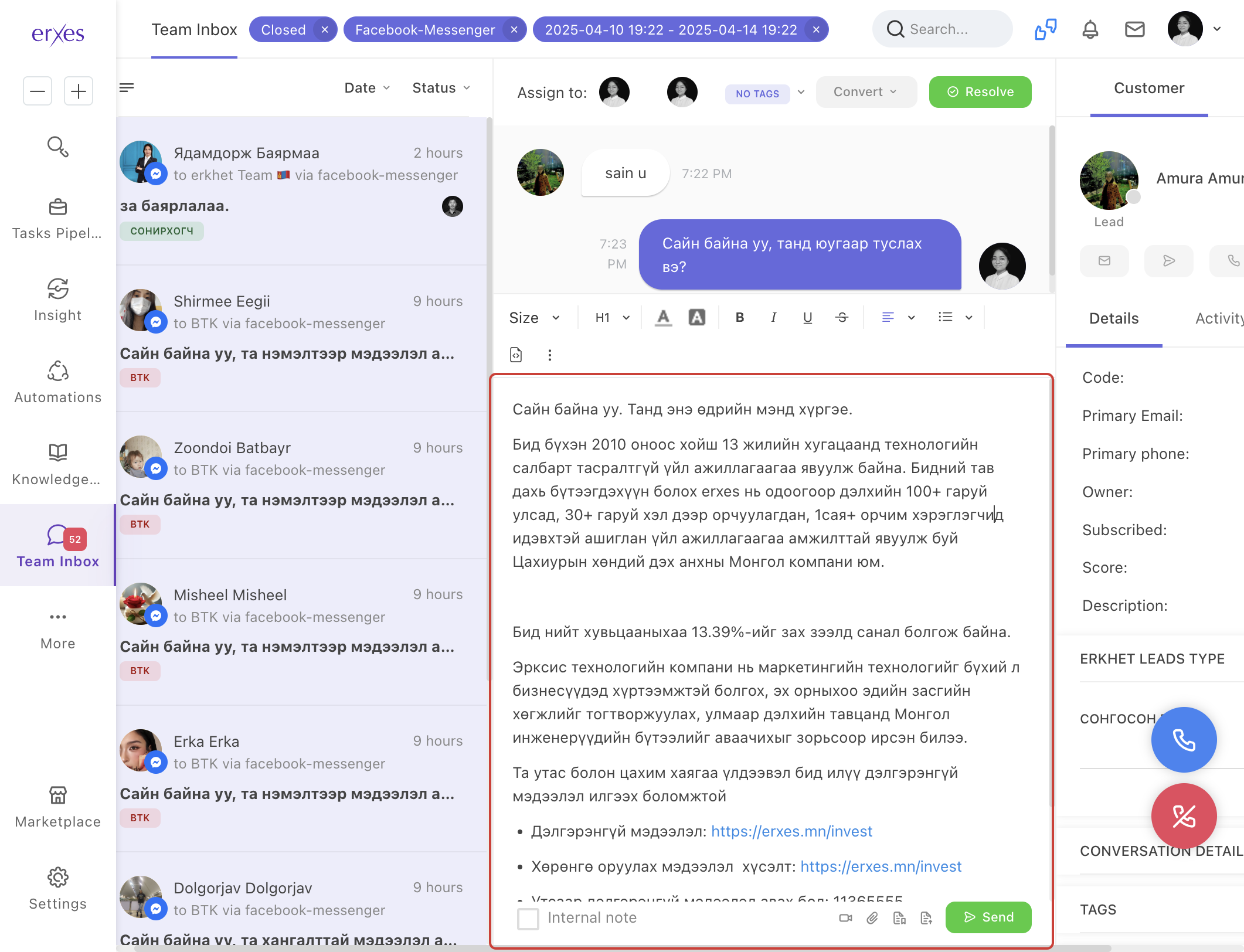
- Click the Send button to send.
View a user's previous conversation history
- Click on "Activity" in the User area on the right .
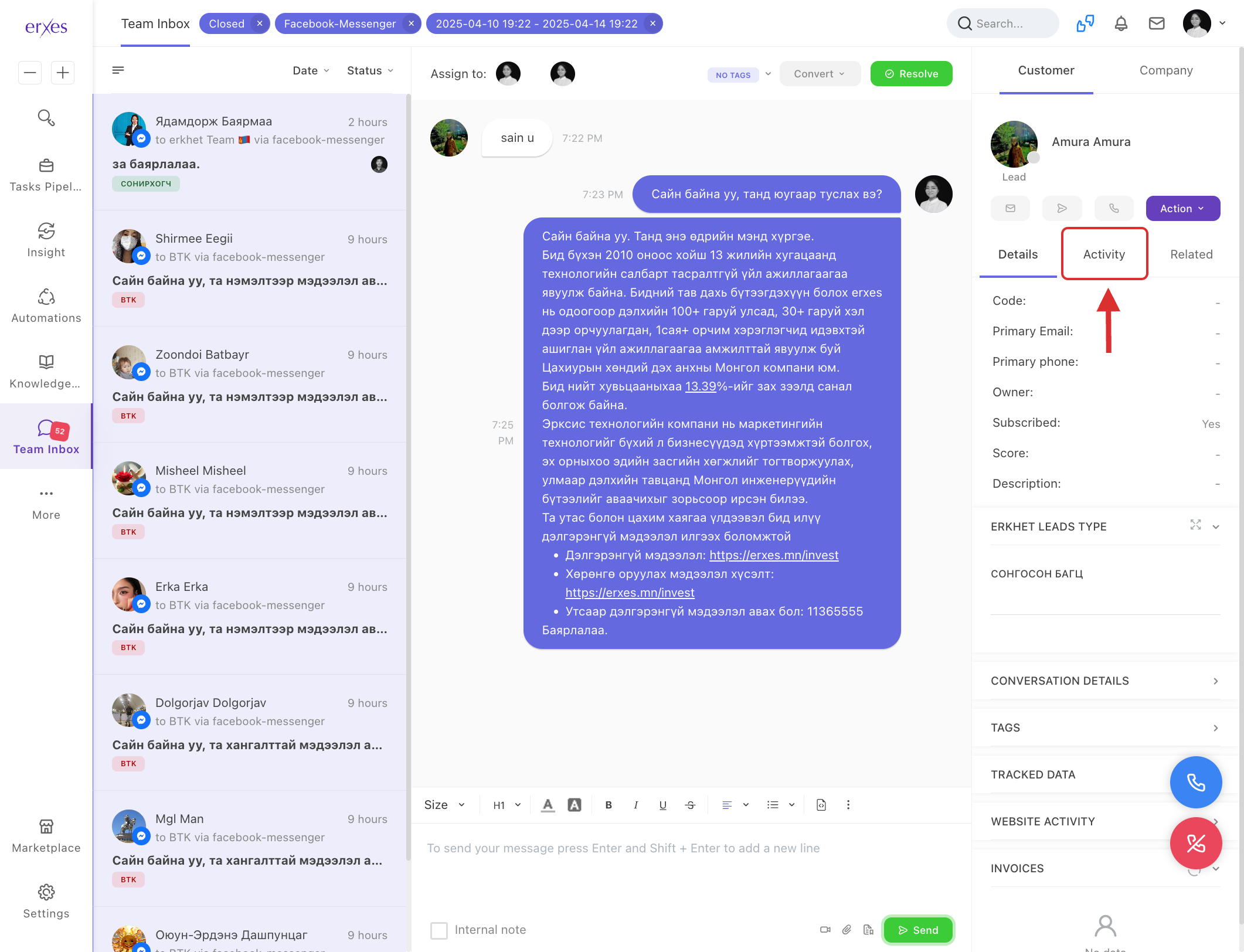
- All conversations, including previous calls and messages, will be visible.
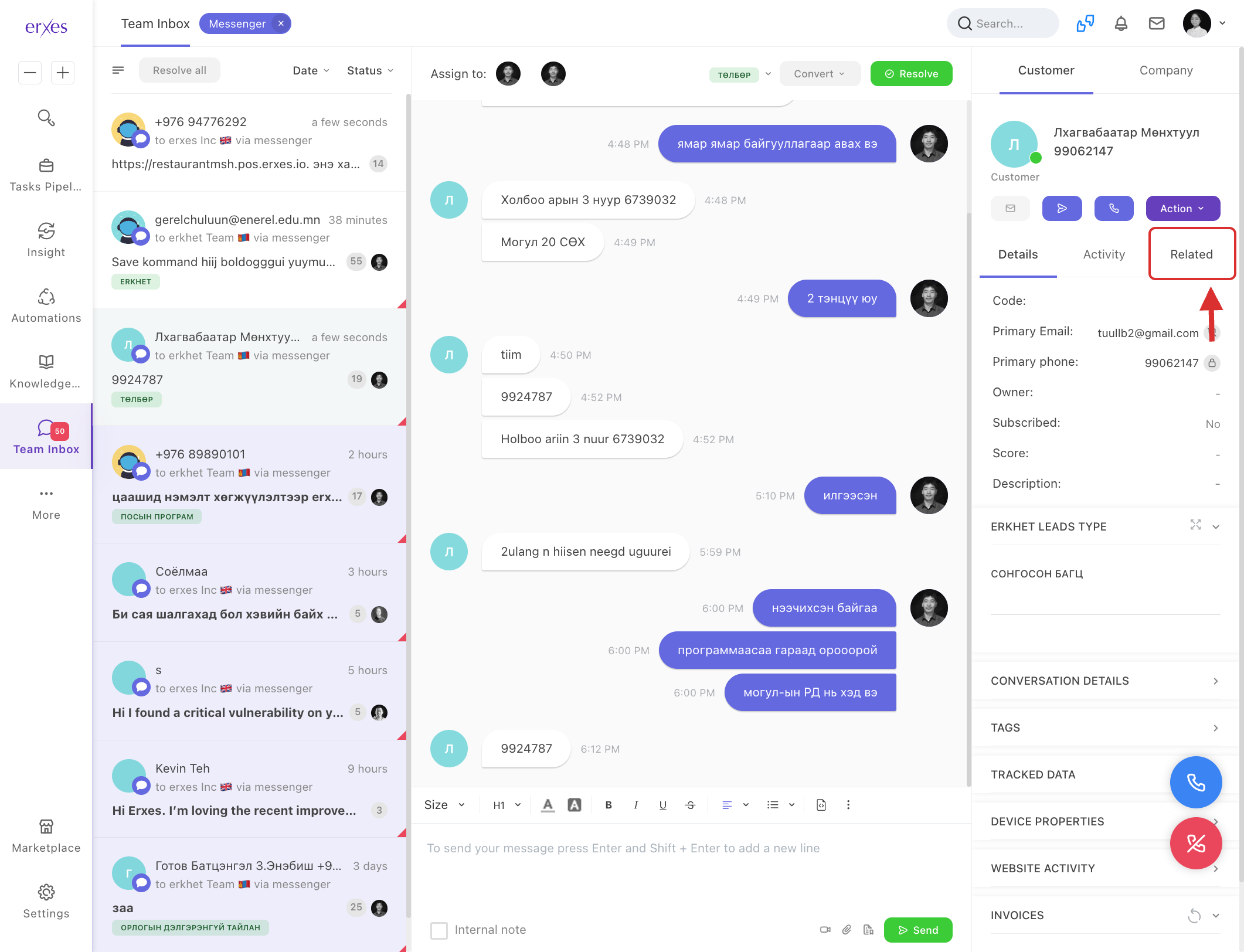
View customer feedback information
- Click on "Related" in the User field on the right .
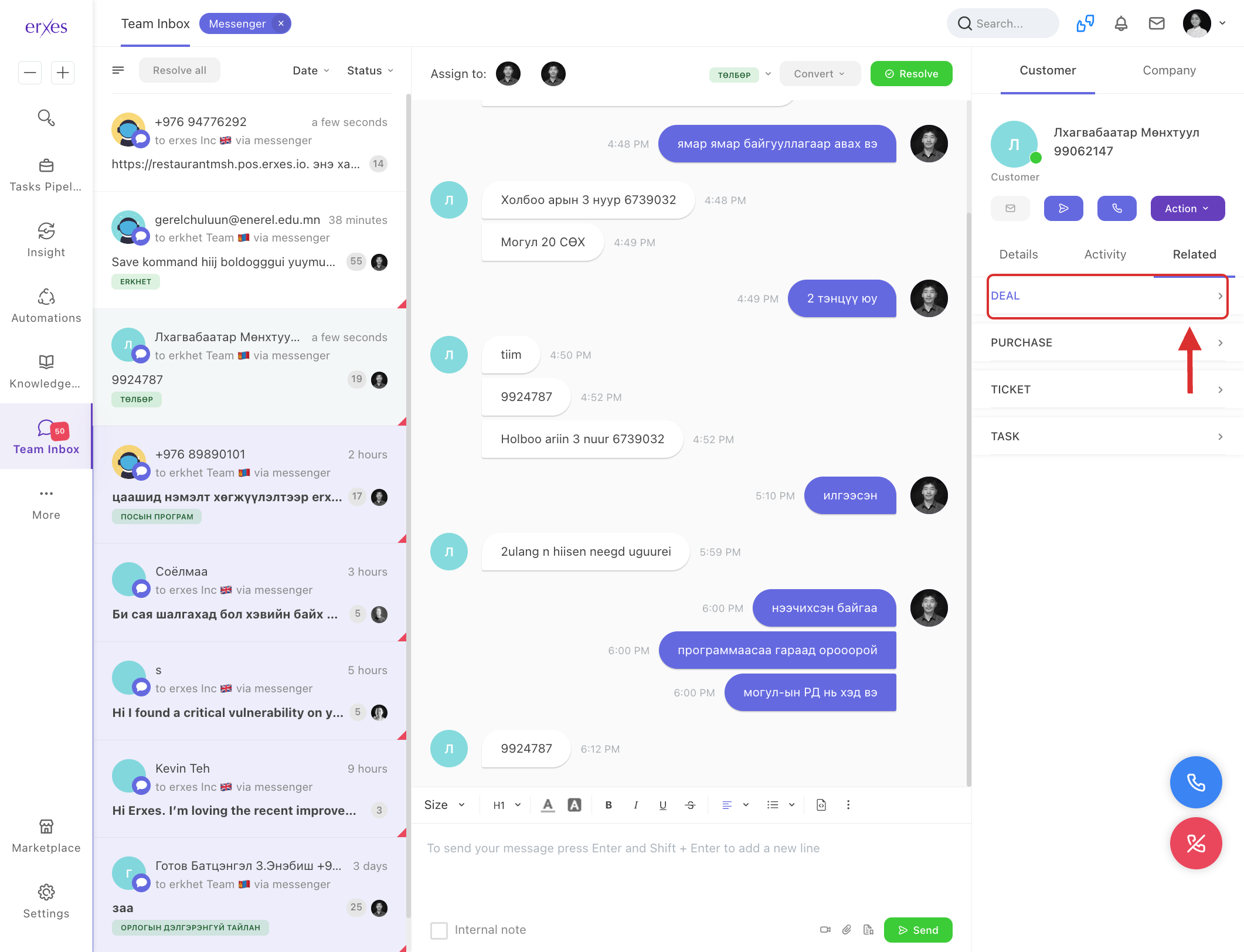
- Click on Ticket .
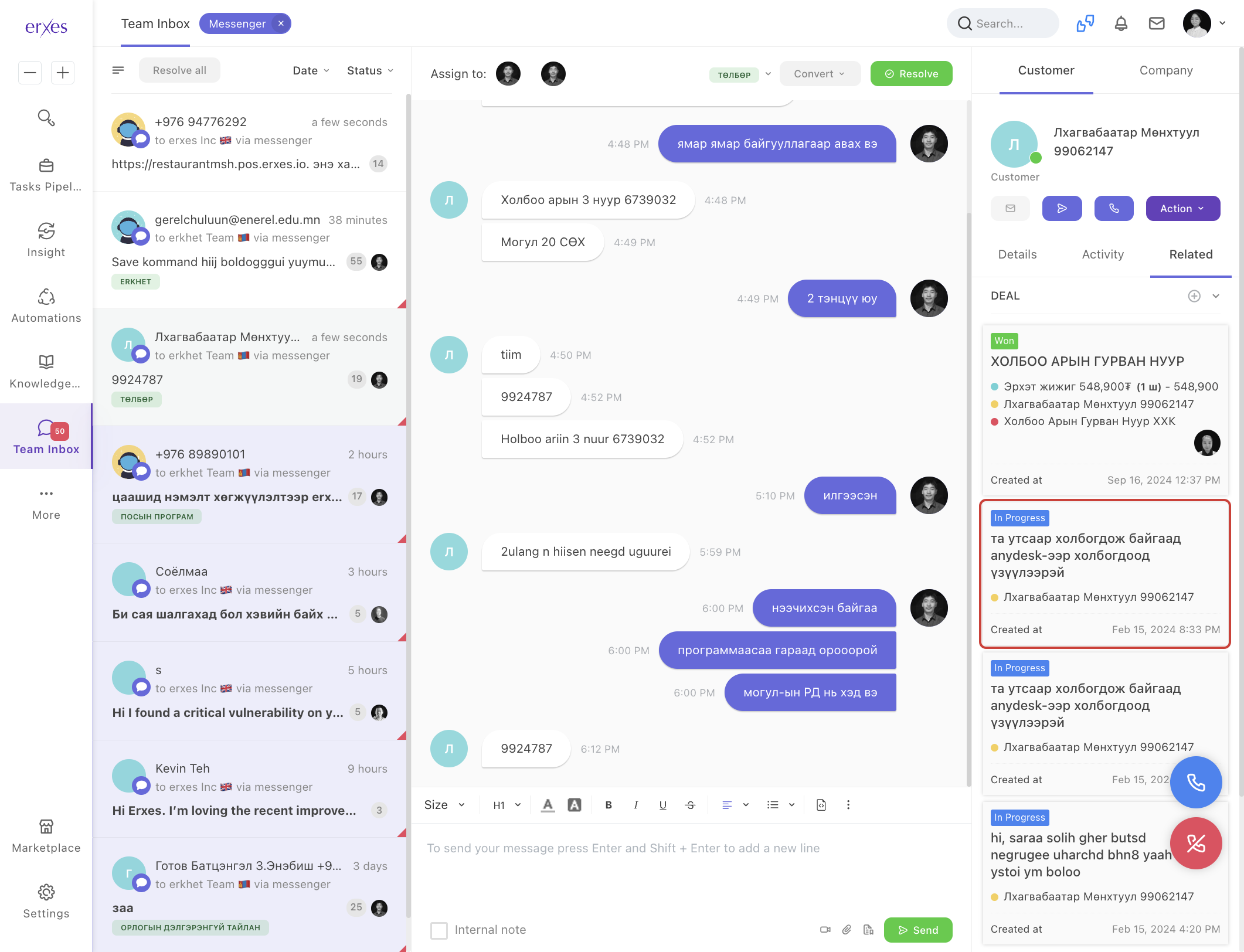
Related feedback information will be displayed.






