Guides

All topics
erxes XOS
Sales
Settings
Account
Workspace
Developers
Core Modules
Broadcasts
Documents
Automations
Segments
Contacts
Plugins
Operation
Sales
Frontline
Tourism
Content
Accounting
Agents
Company Brain
Mongolian
Loyalty
6. Instructions for Registering and Resolving Customer Feedback and Complaints
This guide helps simplify the process of documenting and managing feedback or complaints from Customers through a clear pipeline.
Create a Feedback and Complaints Board
- Go to the Settings menu.
- Select Ticket Pipeline.
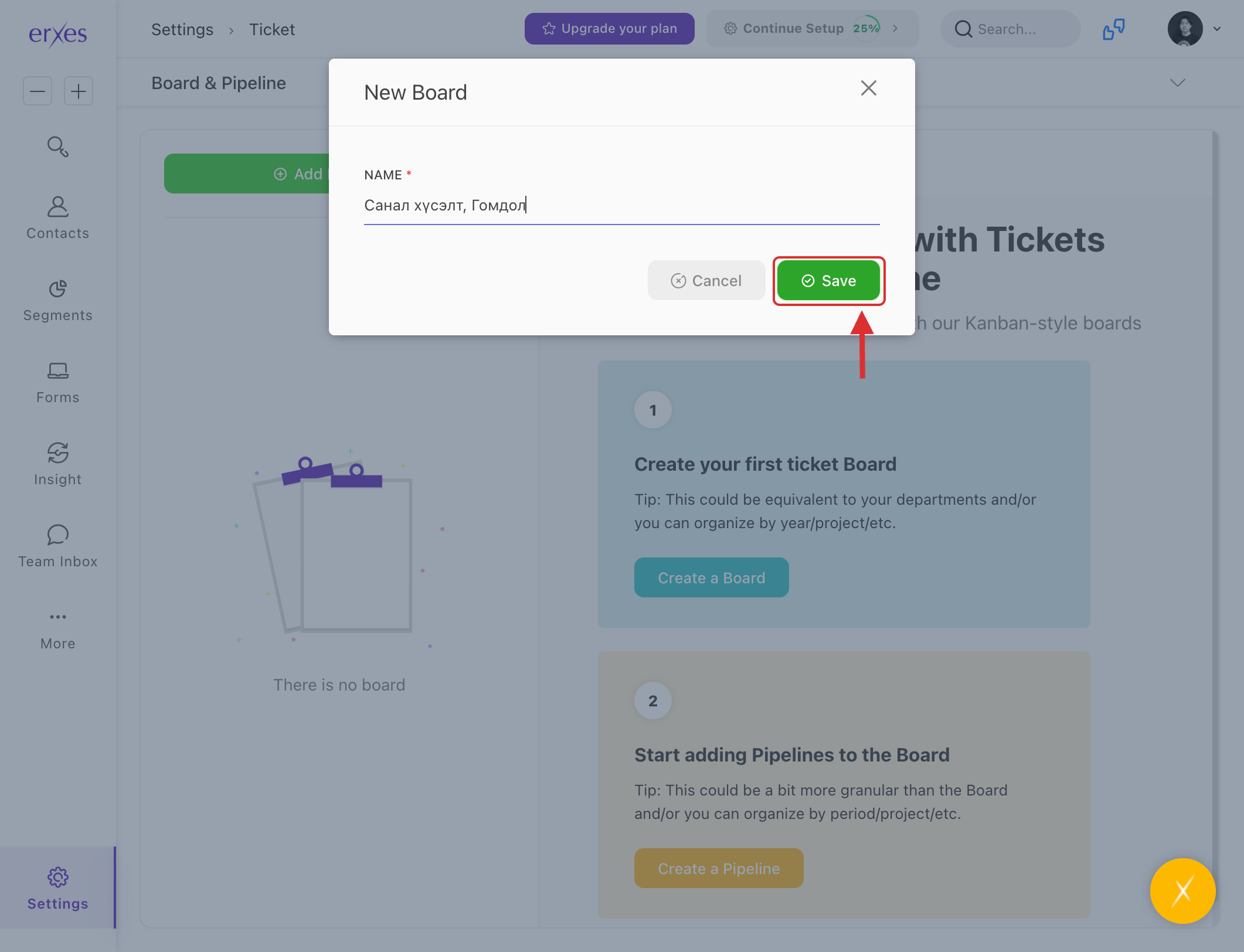
- Click Add New Board, enter the name “Feedback and Complaints”, and click Save.
Set Up the Feedback Resolution Pipeline
- Click Add New Pipeline.
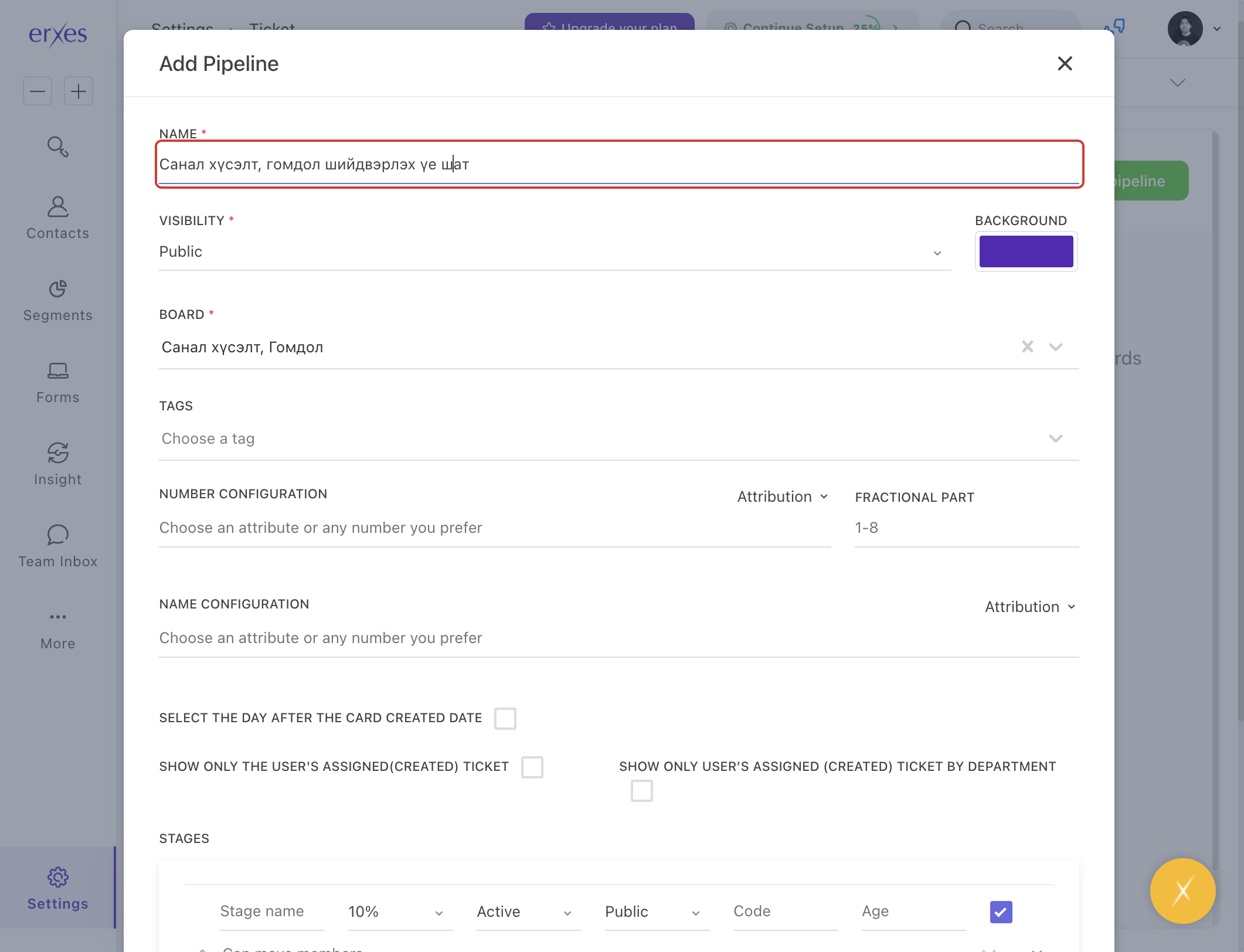
(This pipeline allows you to track and manage the stages of feedback and complaint resolution.) - In the Name field, enter: “Feedback and Complaints”.
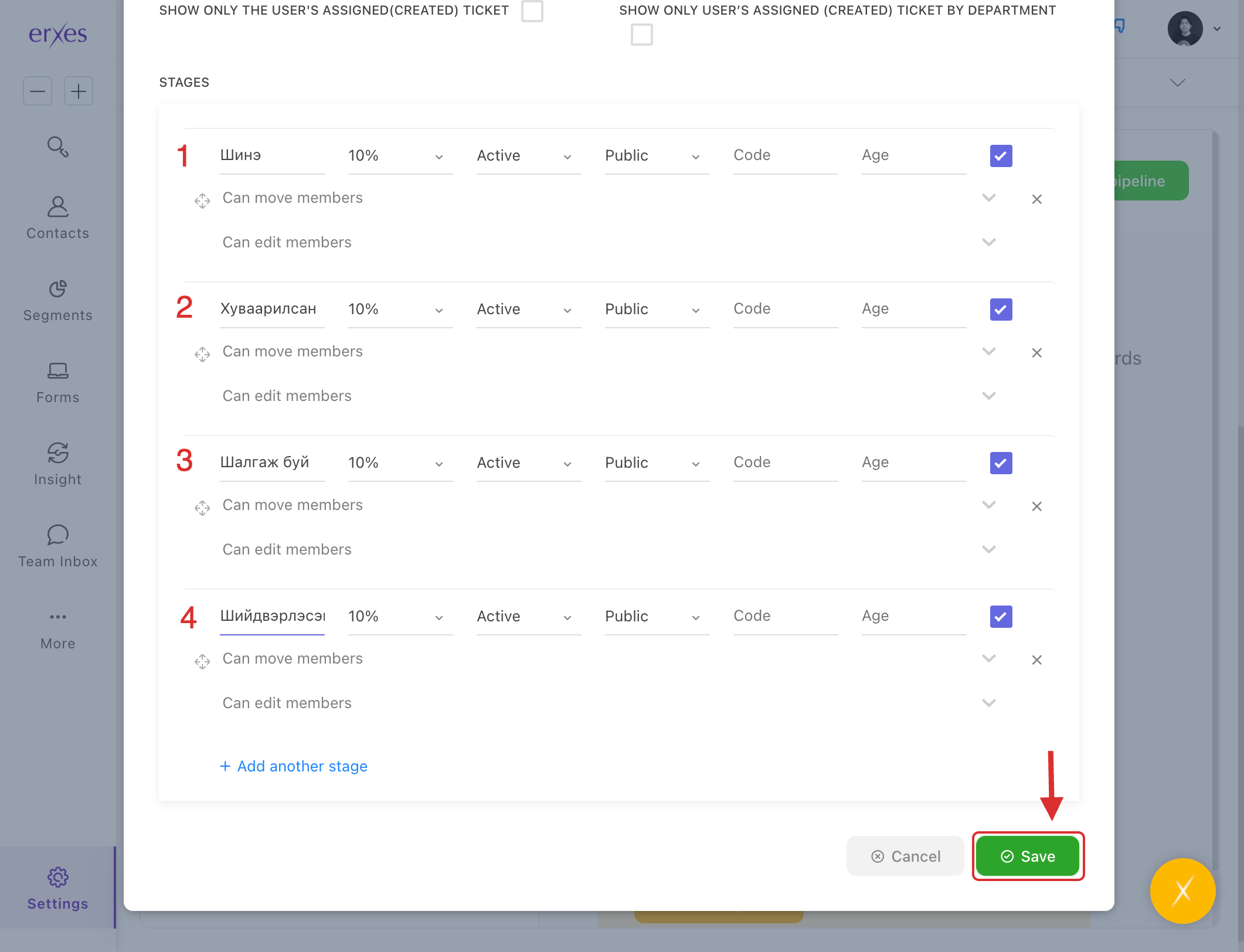
- Click Add Another Stage, enter: “New”.
- Click Add Another Stage, enter: “Distributed”.
- Click Add Another Stage, enter: “Checking”.
- Click Add Another Stage, enter: “Resolved”.
Note: You can add more stages if necessary, but having too many stages may make the process more complicated.
Register Feedback and Complaints from a Conversation
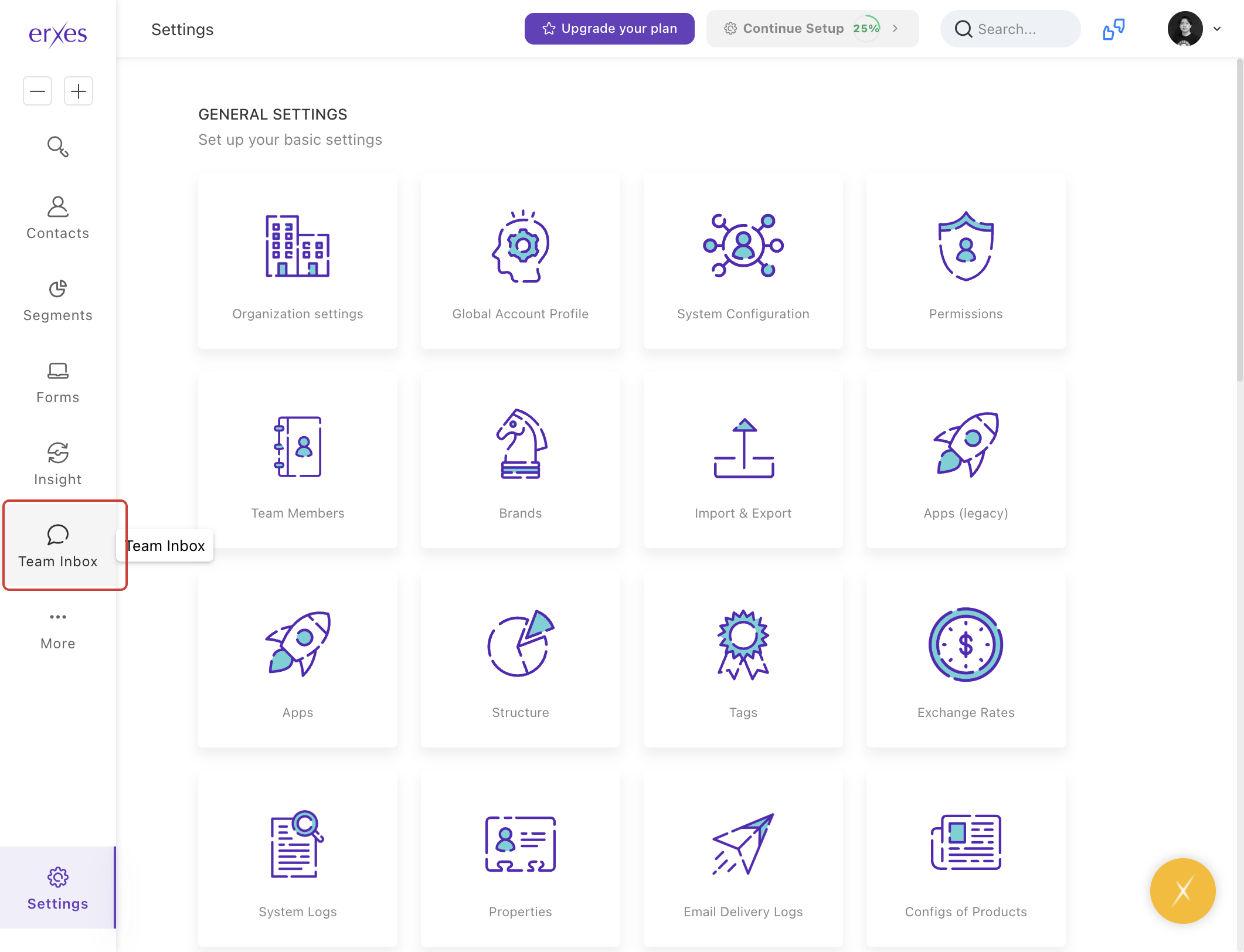
- Go to the Teaminbox and open the relevant conversation.
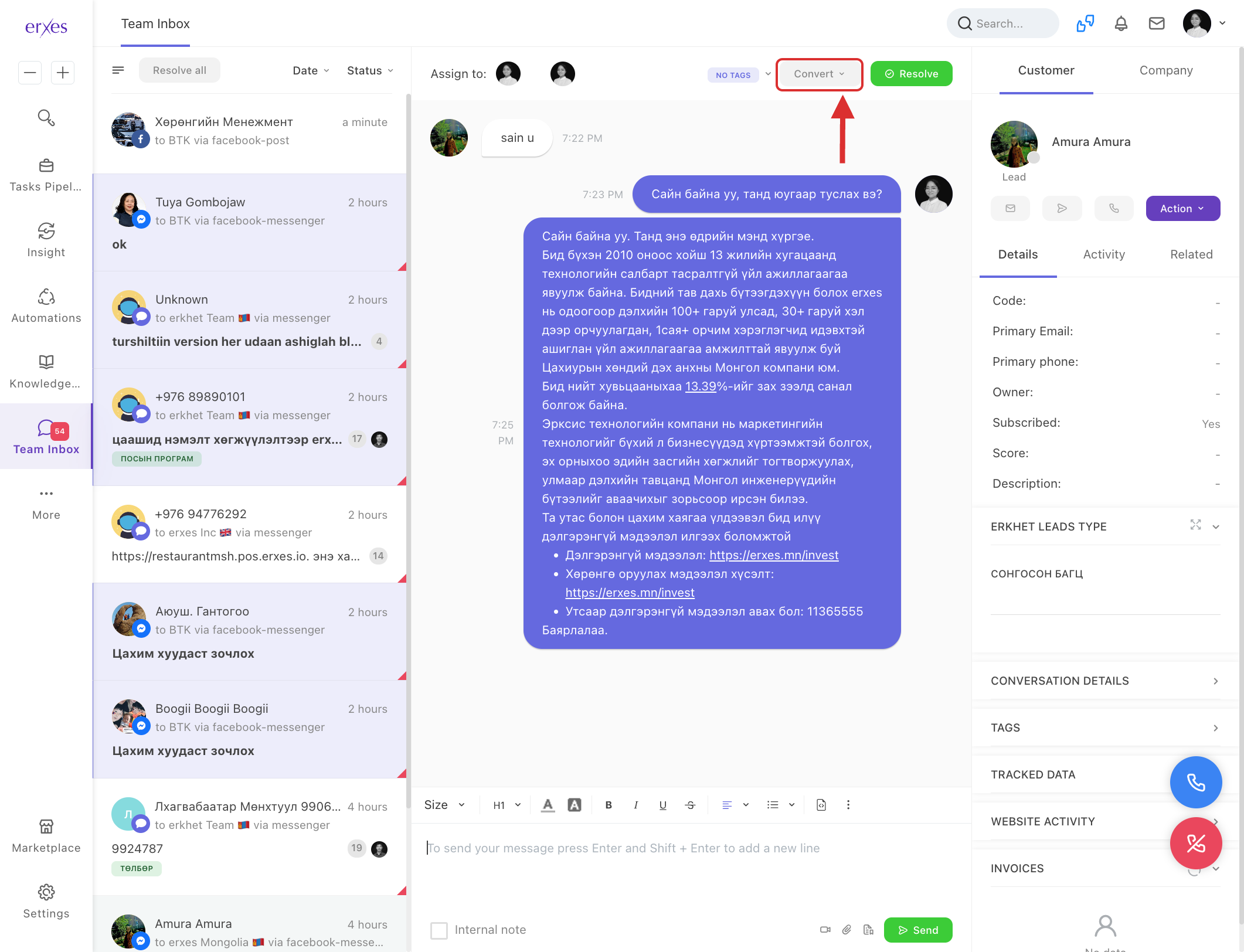
- Click the Convert button in the upper right corner.
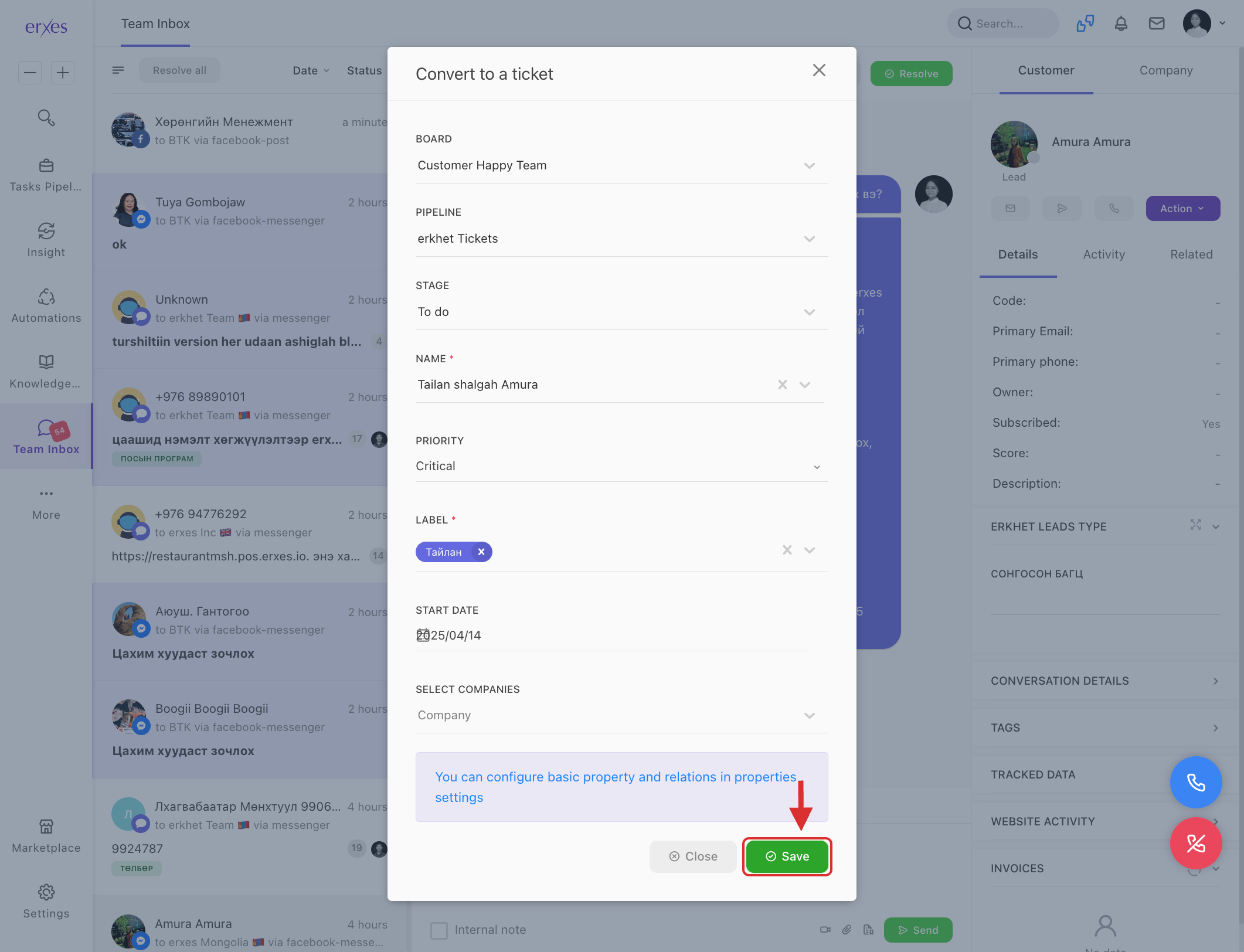
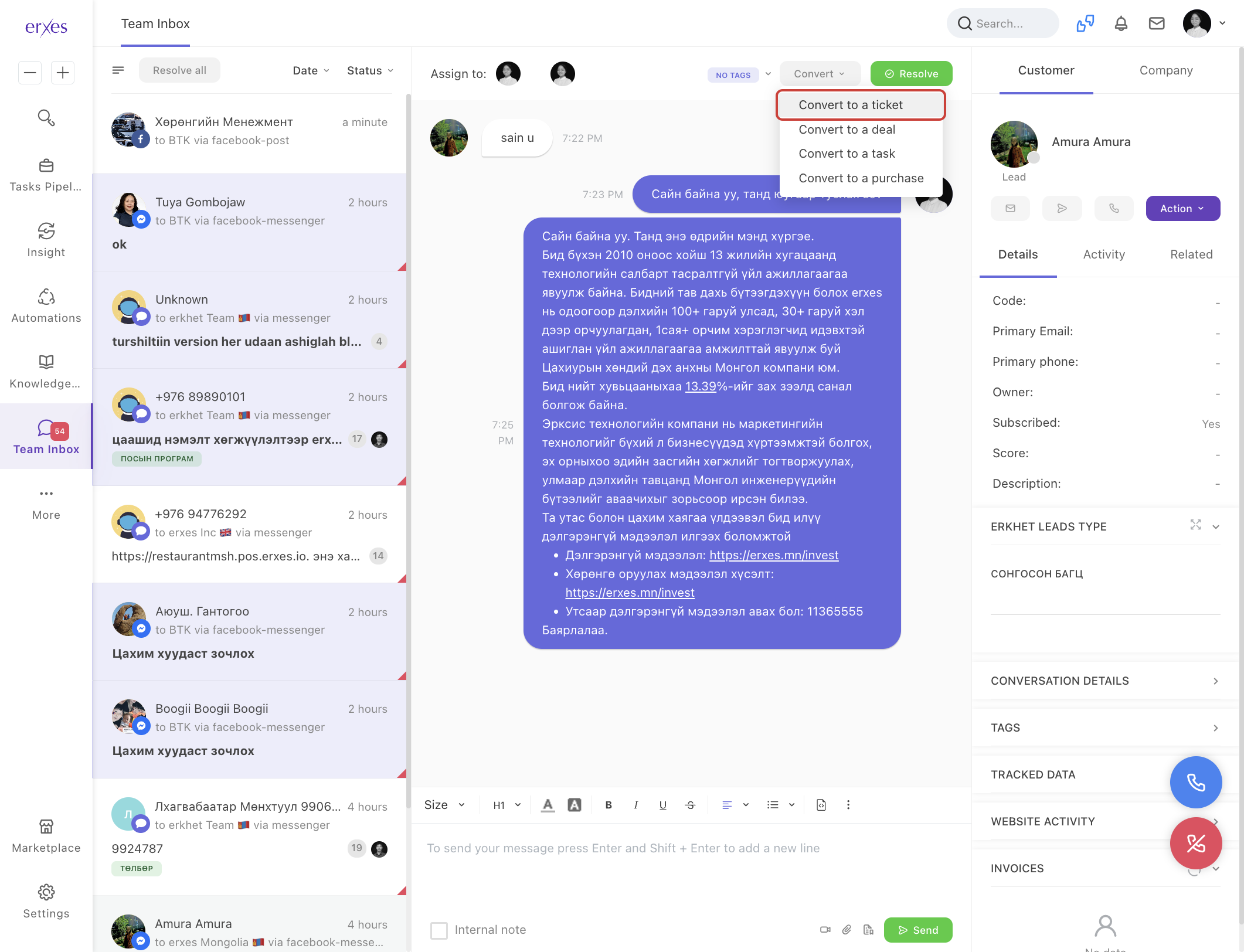
- Choose Convert to a ticket.
- In the Name field, briefly describe the content of the complaint (e.g., “Late Delivery” or “Product Quality Concern”).
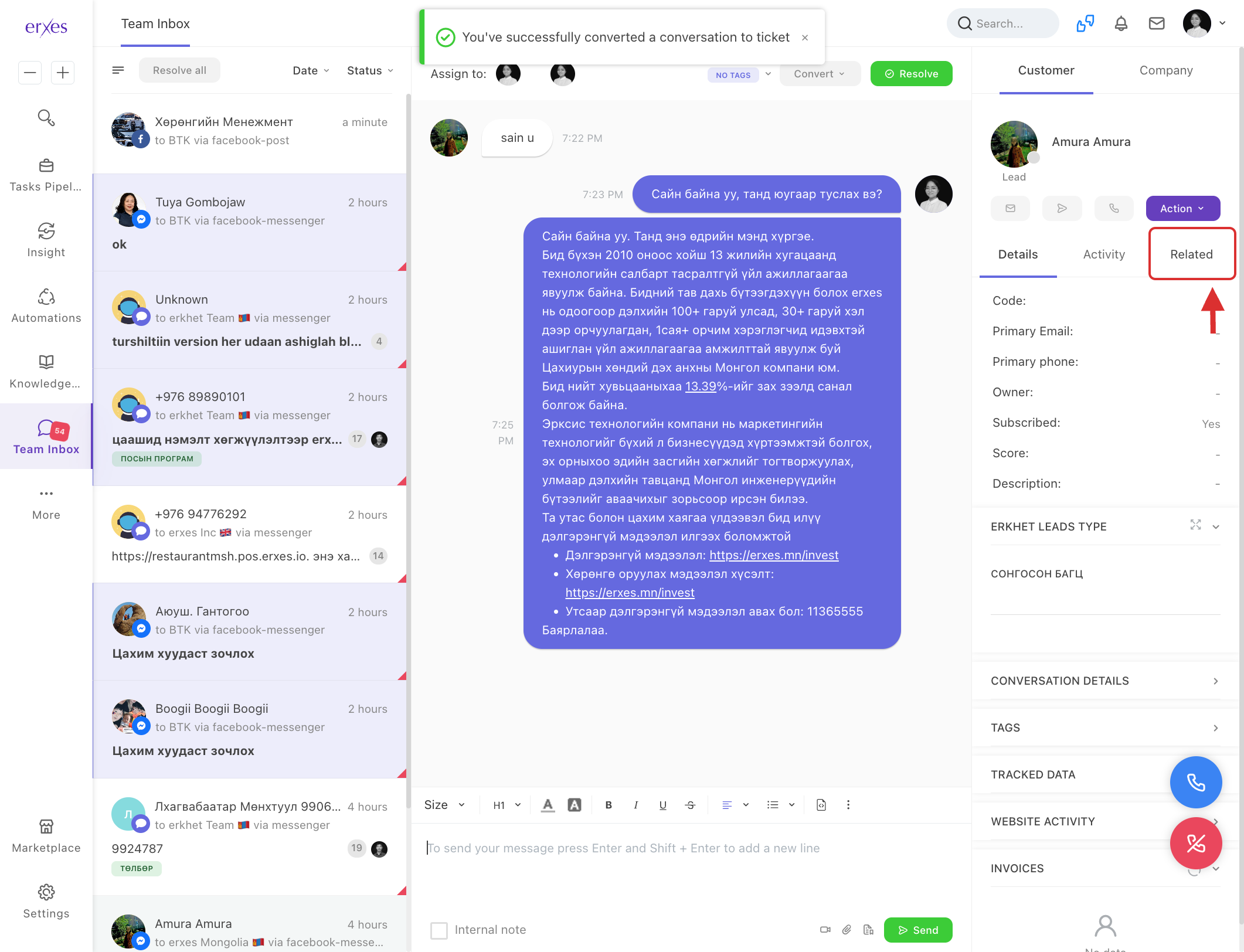
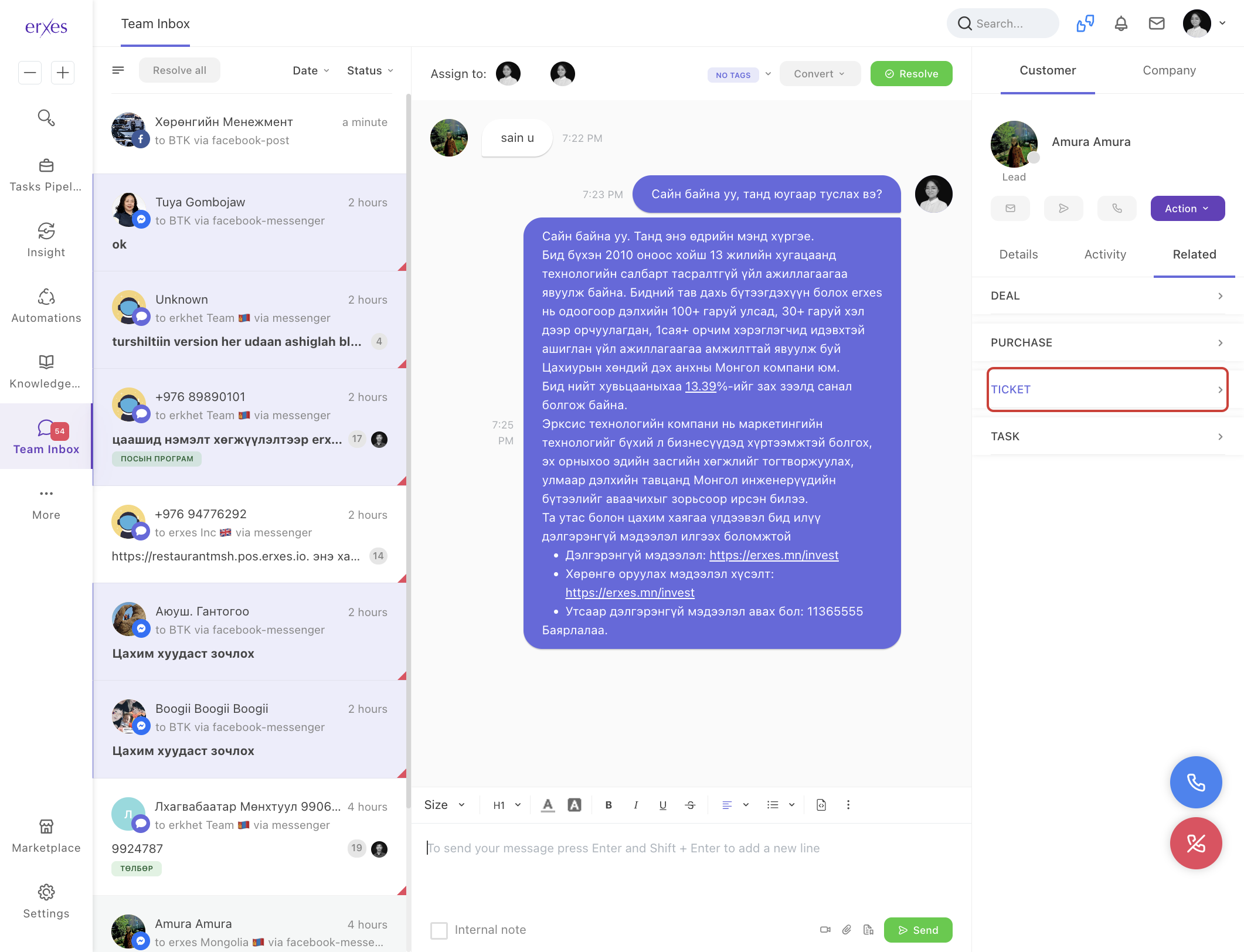
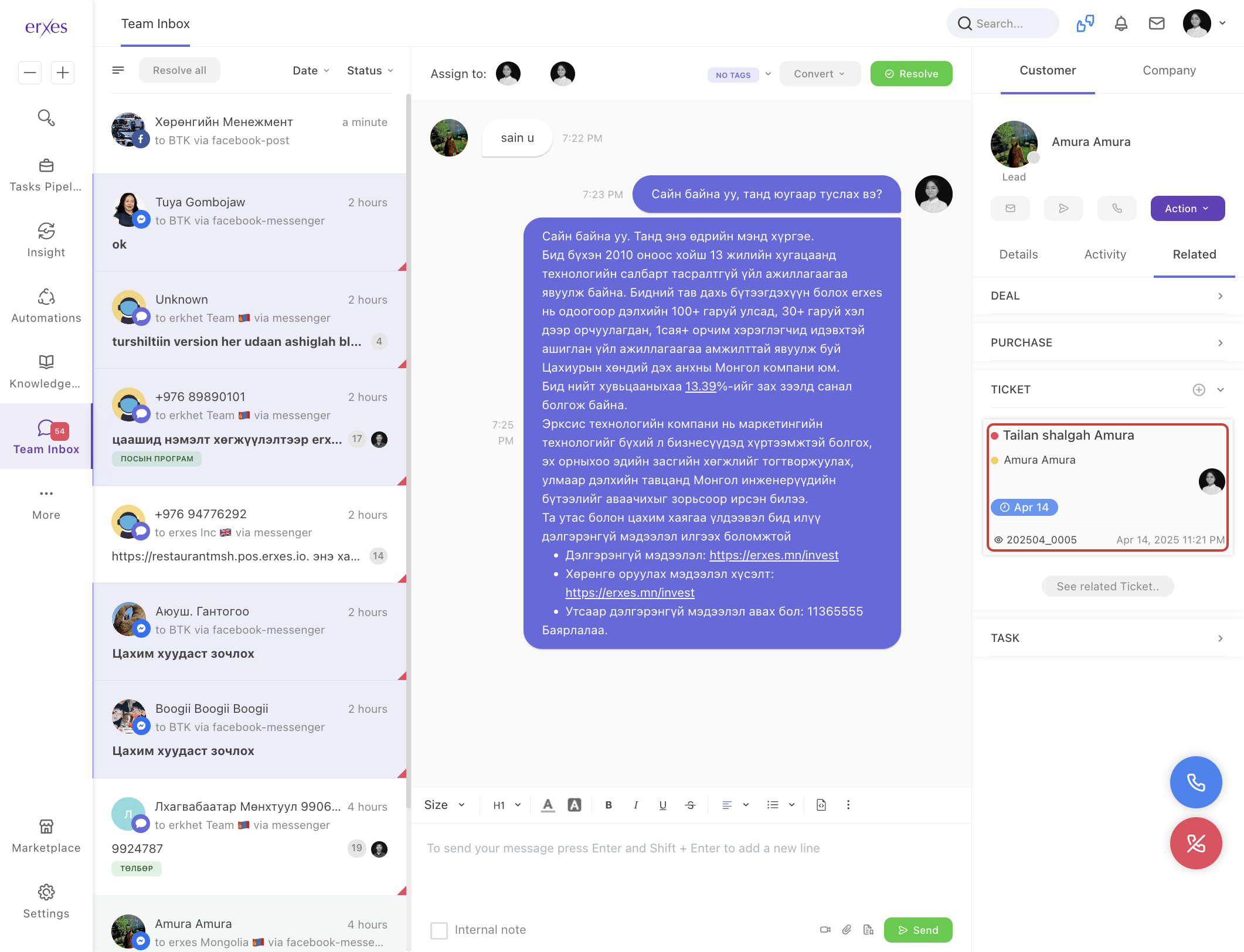
- Click Save to register the complaint.
Illustrated instructions:
Create a field for registering feedback and complaints
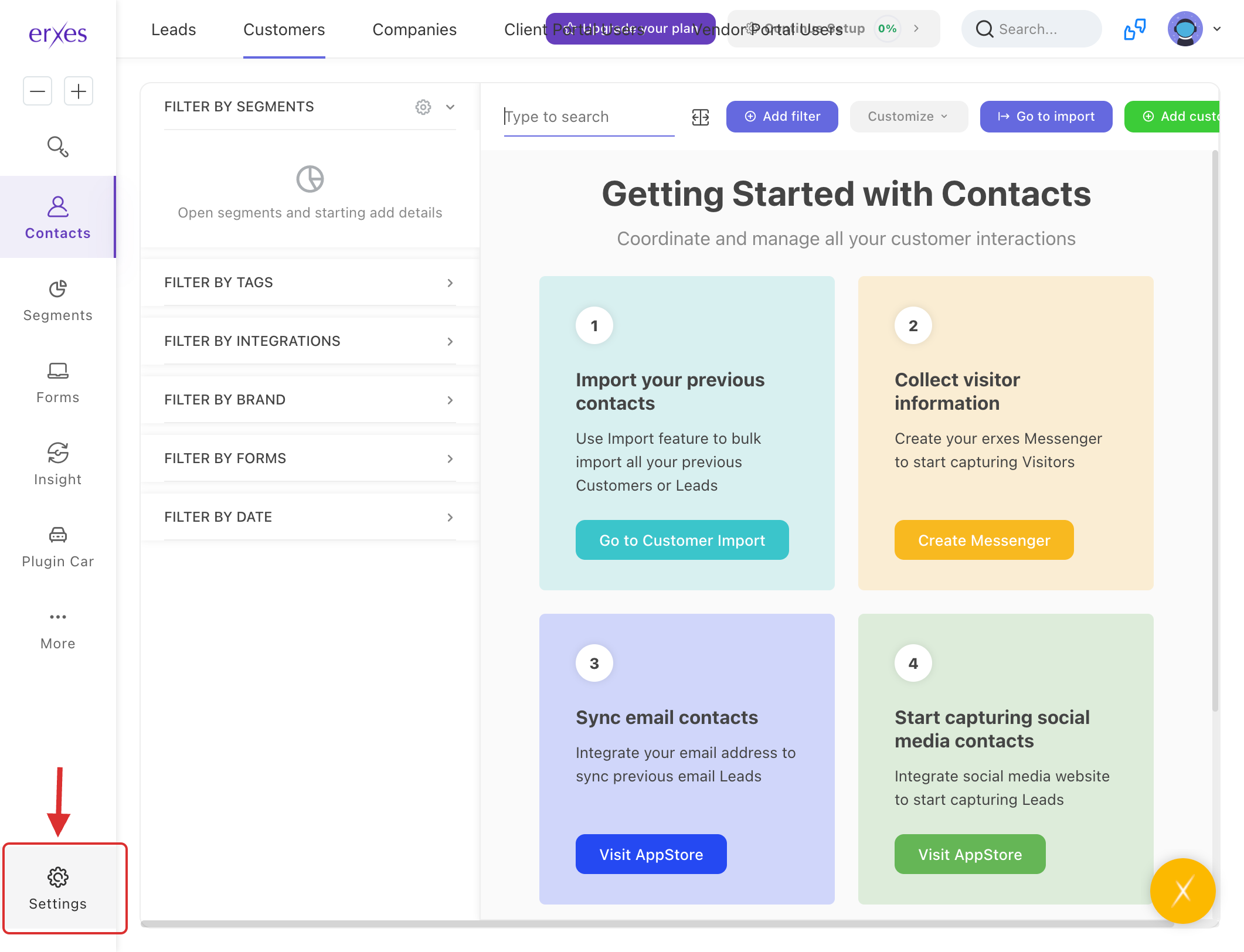
- Go to Settings .
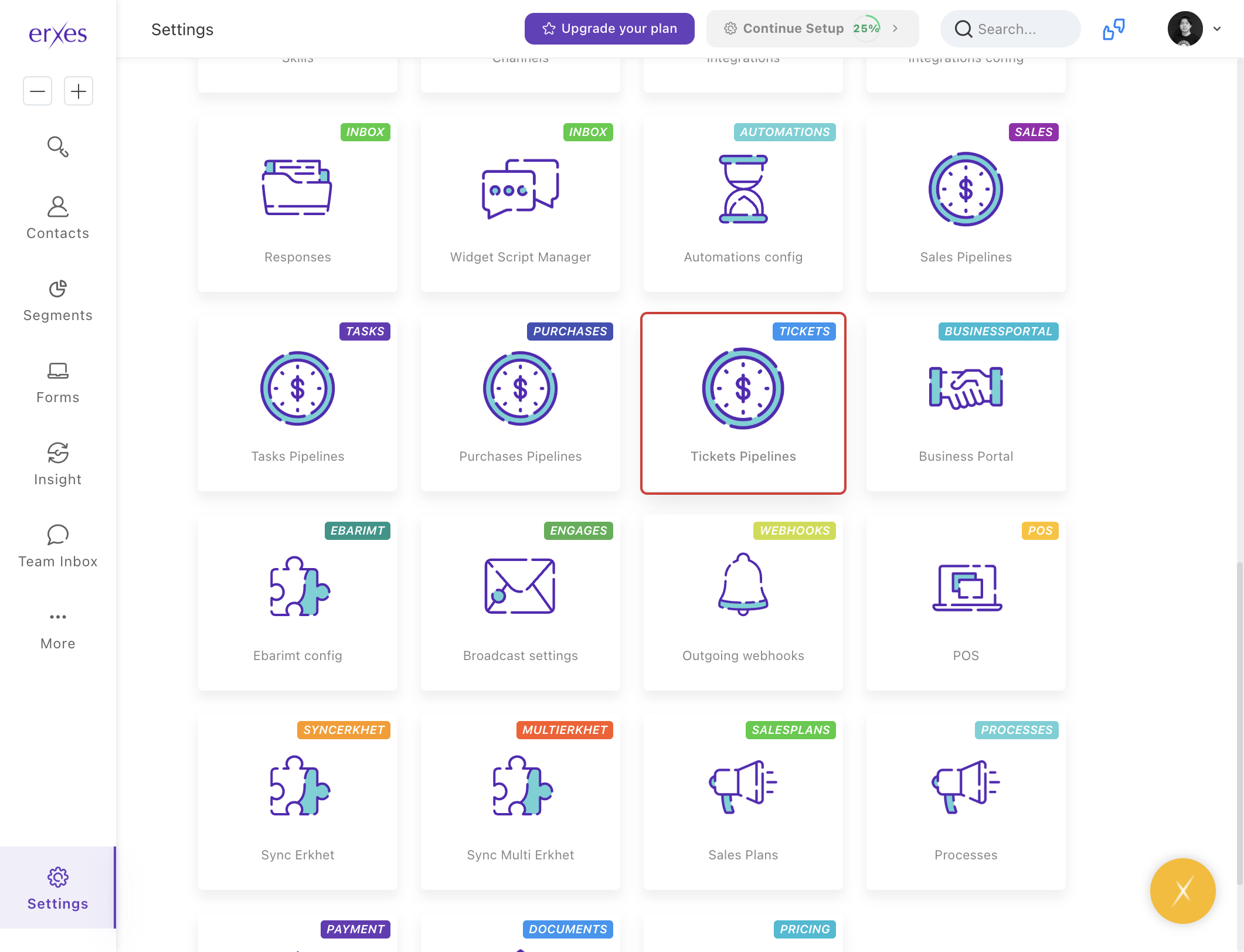
- Select Ticket Pipeline .
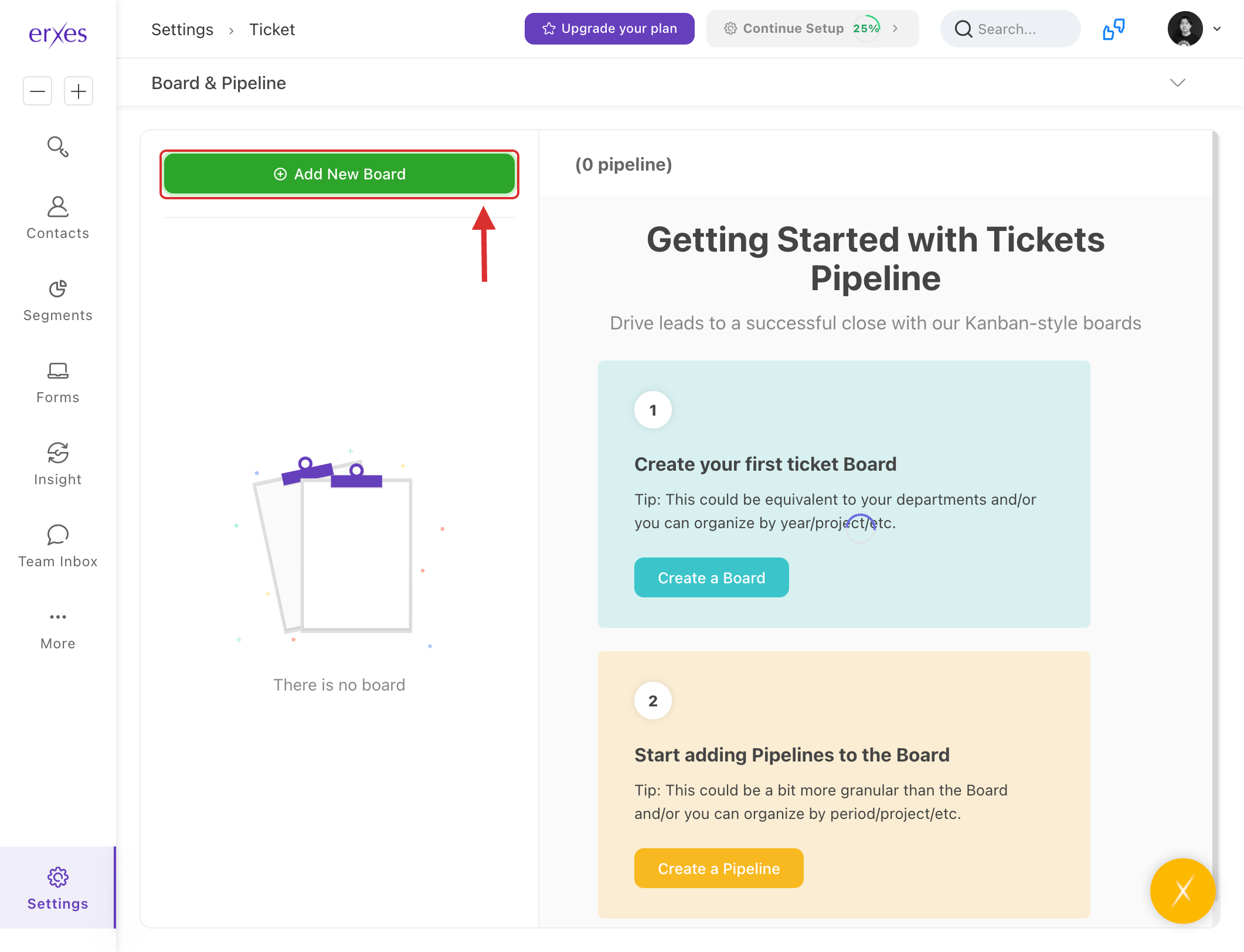
- Click Add New Board , type "Feedback and Complaints," and click Save .
- Click Add New Pipeline .
(Note: A field that allows you to manage the stages and steps of resolving feedback and complaints).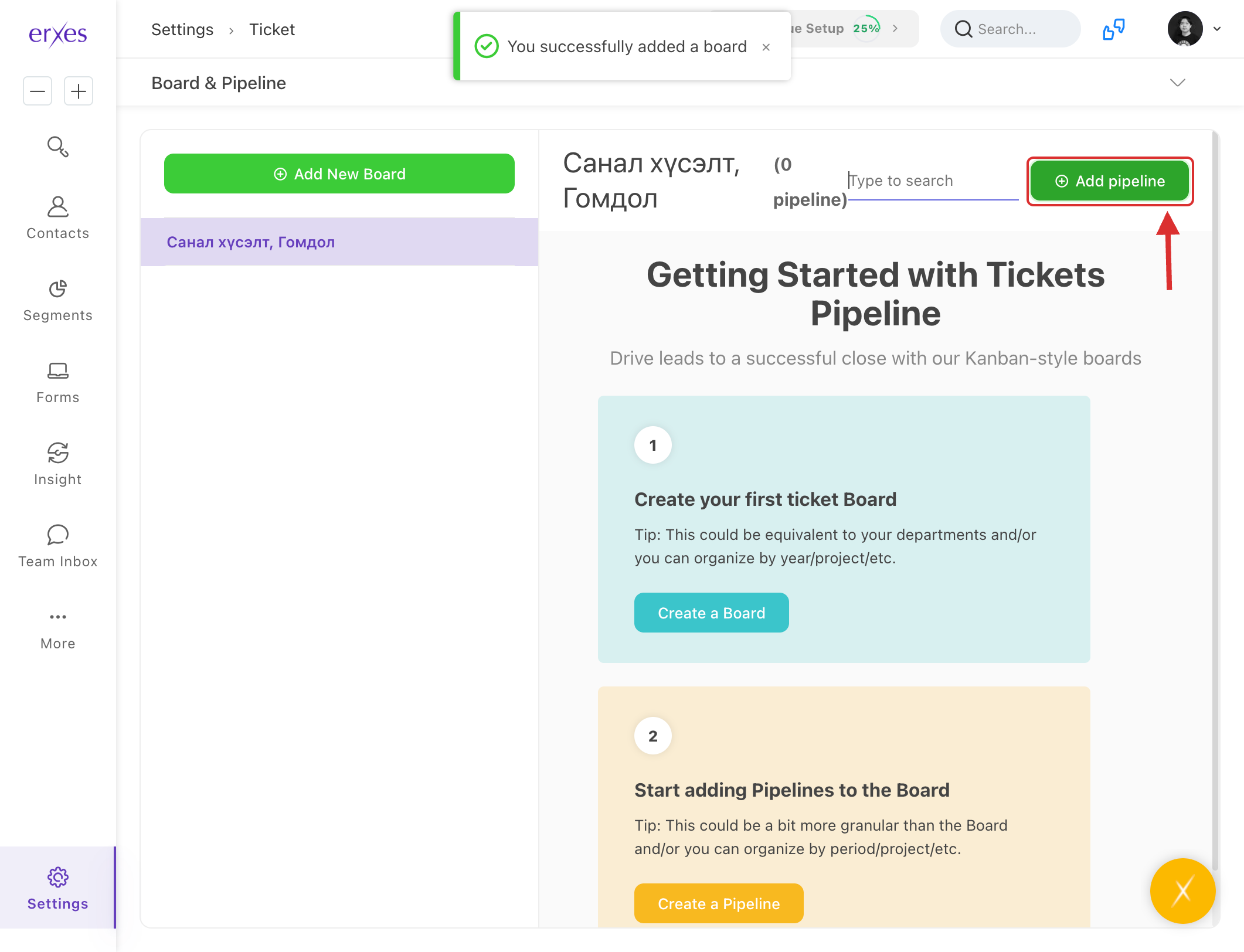
- In the Name field, type "Feedback and Complaints".
- Click Add Another Stage and type "New" in the Stage Name field.
- Click Add Another Stage and type "Distributed" in the Stage Name field.
- Click Add Another Stage and type "Checking" in the Stage Name field.
- Click Add Another Stage and type "Resolved" in the Stage Name field.
( Note: You can create as many stages as you want, but it's not a good idea to have too many.)
- Click the Save button to save.
Registering feedback and complaints
- Go to the Teaminbox conversation.
- Click the Convert button in the upper right corner .
- Click Convert to a ticket.
- In the Name field, enter the general content of the complaint.
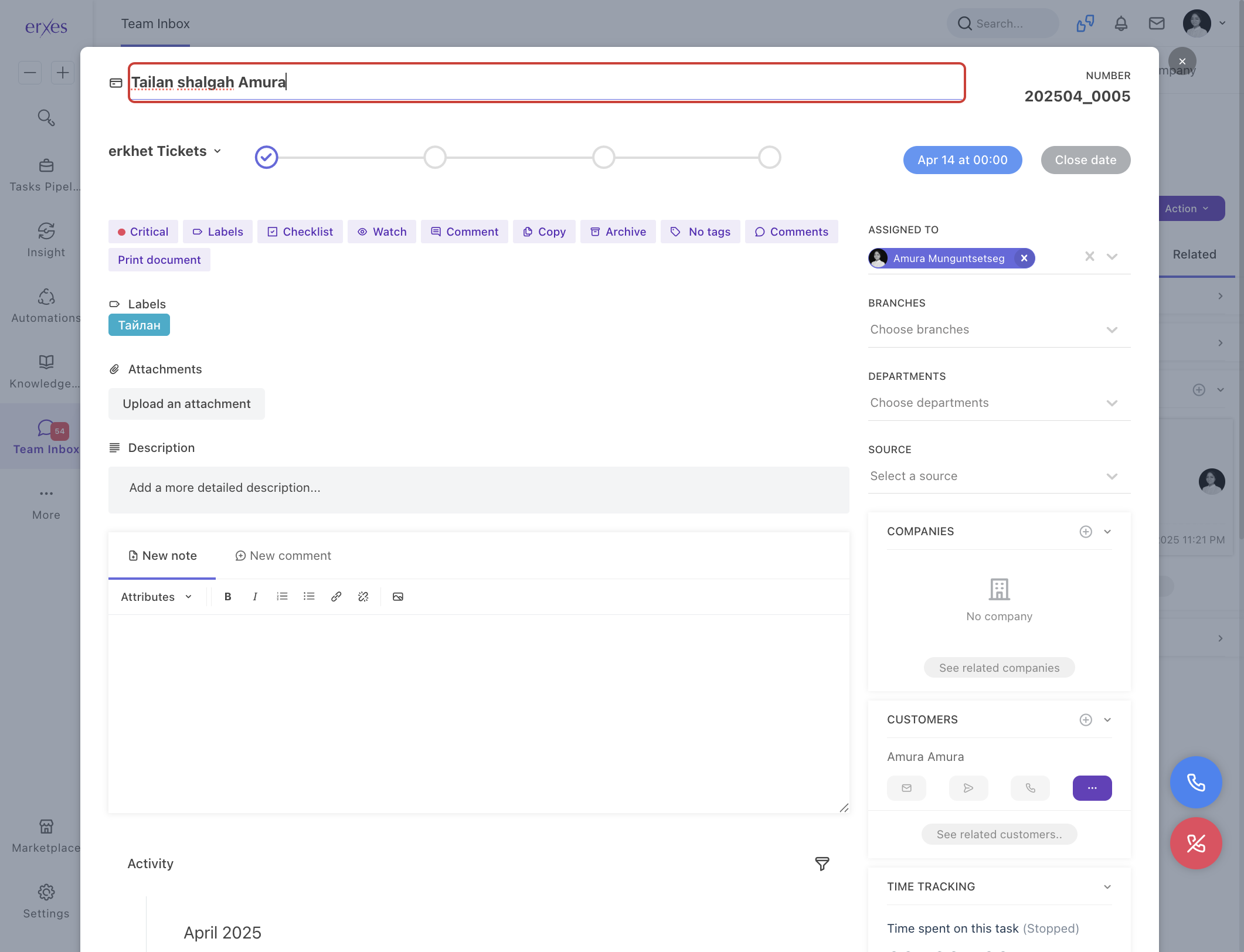
- Click the Save button to save.