Guides

All topics
erxes XOS
Sales
Settings
Account
Workspace
Developers
Core Modules
Broadcasts
Documents
Automations
Segments
Contacts
Plugins
Operation
Sales
Frontline
Tourism
Content
Accounting
Agents
Company Brain
Mongolian
Loyalty
7. Creating a 7-Day Customer Service Report and Custom Charts
This tutorial explains how to generate a weekly report specifically for the Customer Service Team and how to create a custom chart in the Insight module.
Prepare a Report for the Last 7 Days
- Go to the Insight menu.
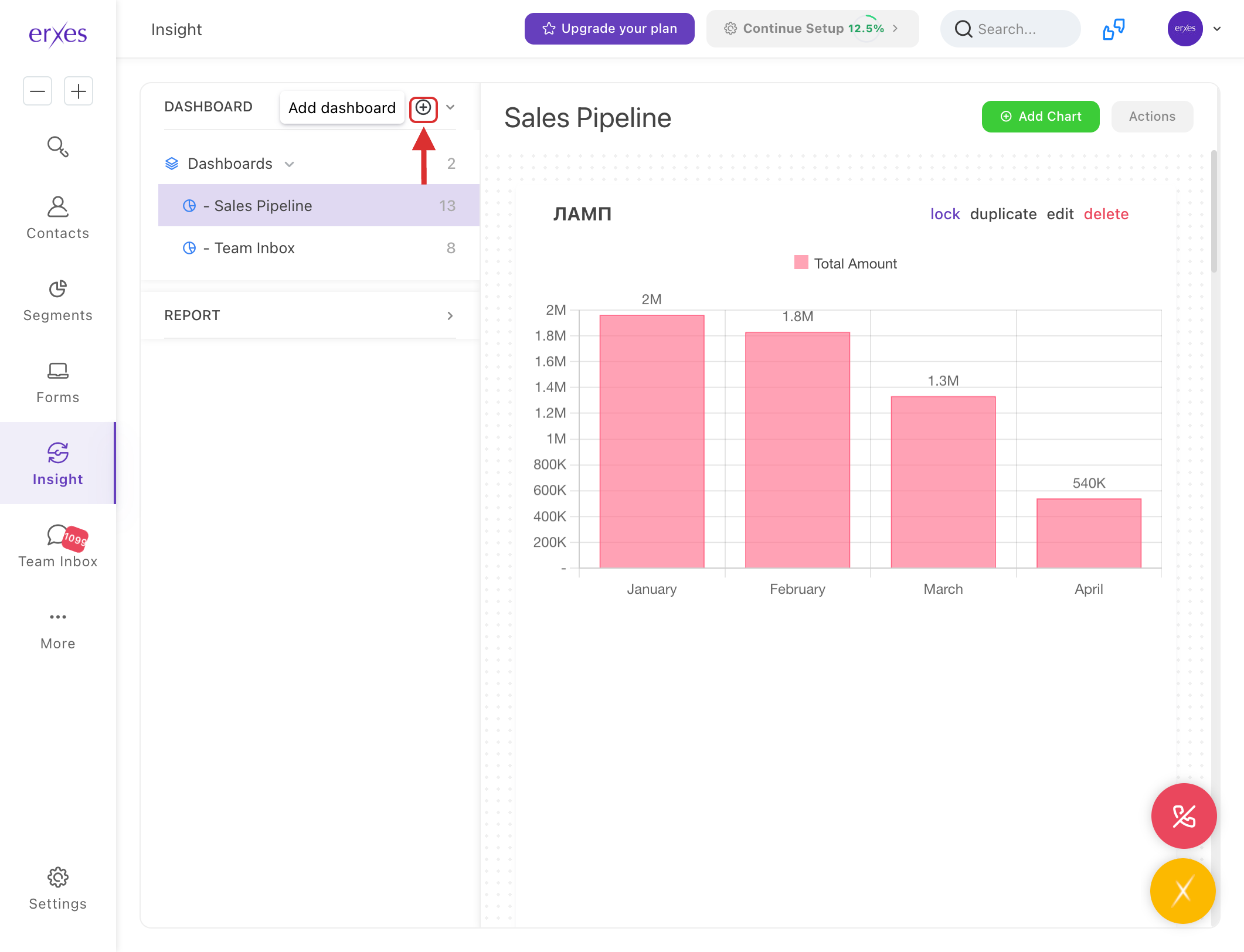
- Click Add a Dashboard.
- In the Dashboard name field, enter: "Last 7 Days Report".
- In the Choose Section field, enter: "Customer Service Team".
- Click on the Inbox chart.
- Check the following values:
- Total conversations count by source
- Total conversations count
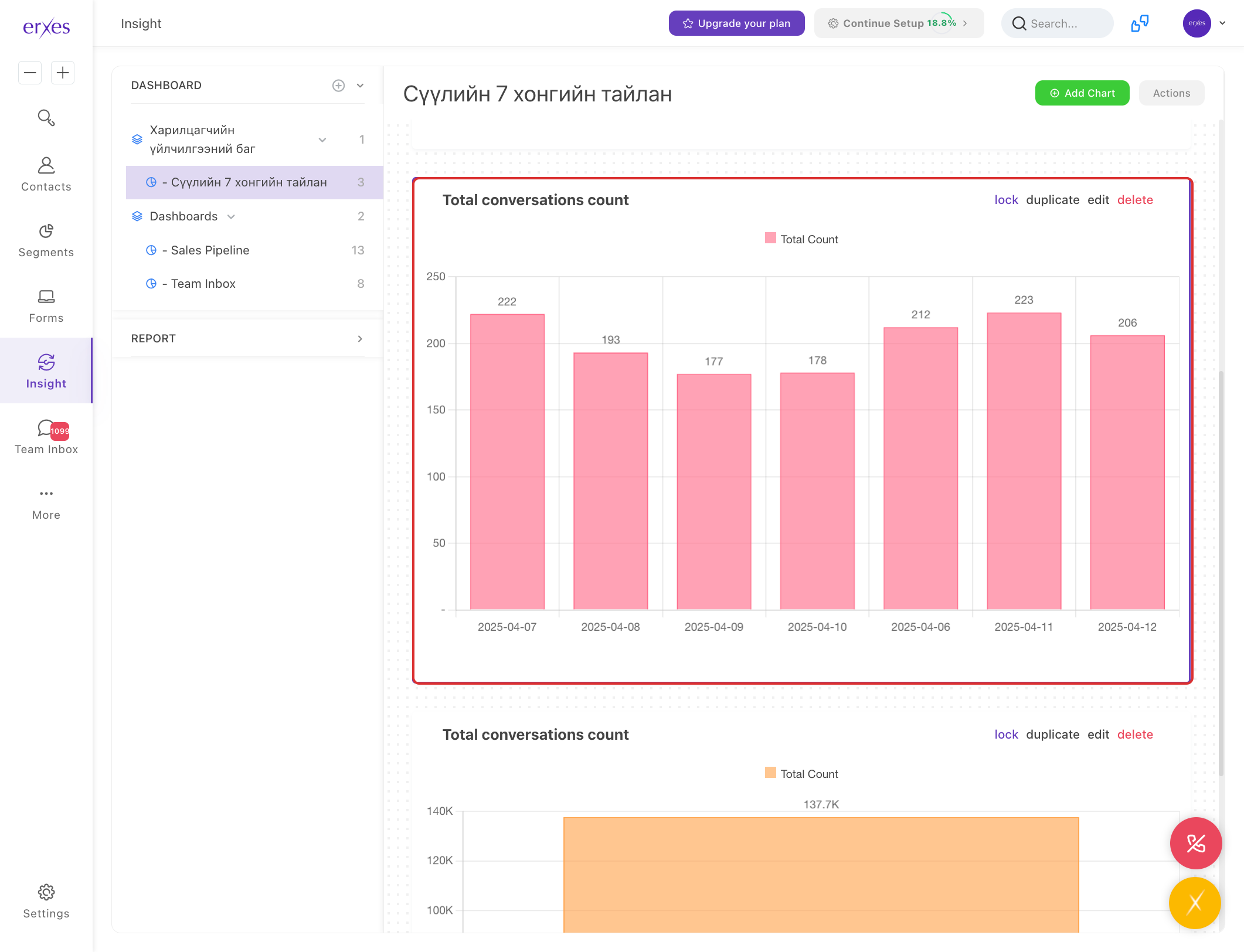
- Click Save to generate and save the report.
Create a New Chart
- Click Add Chart.
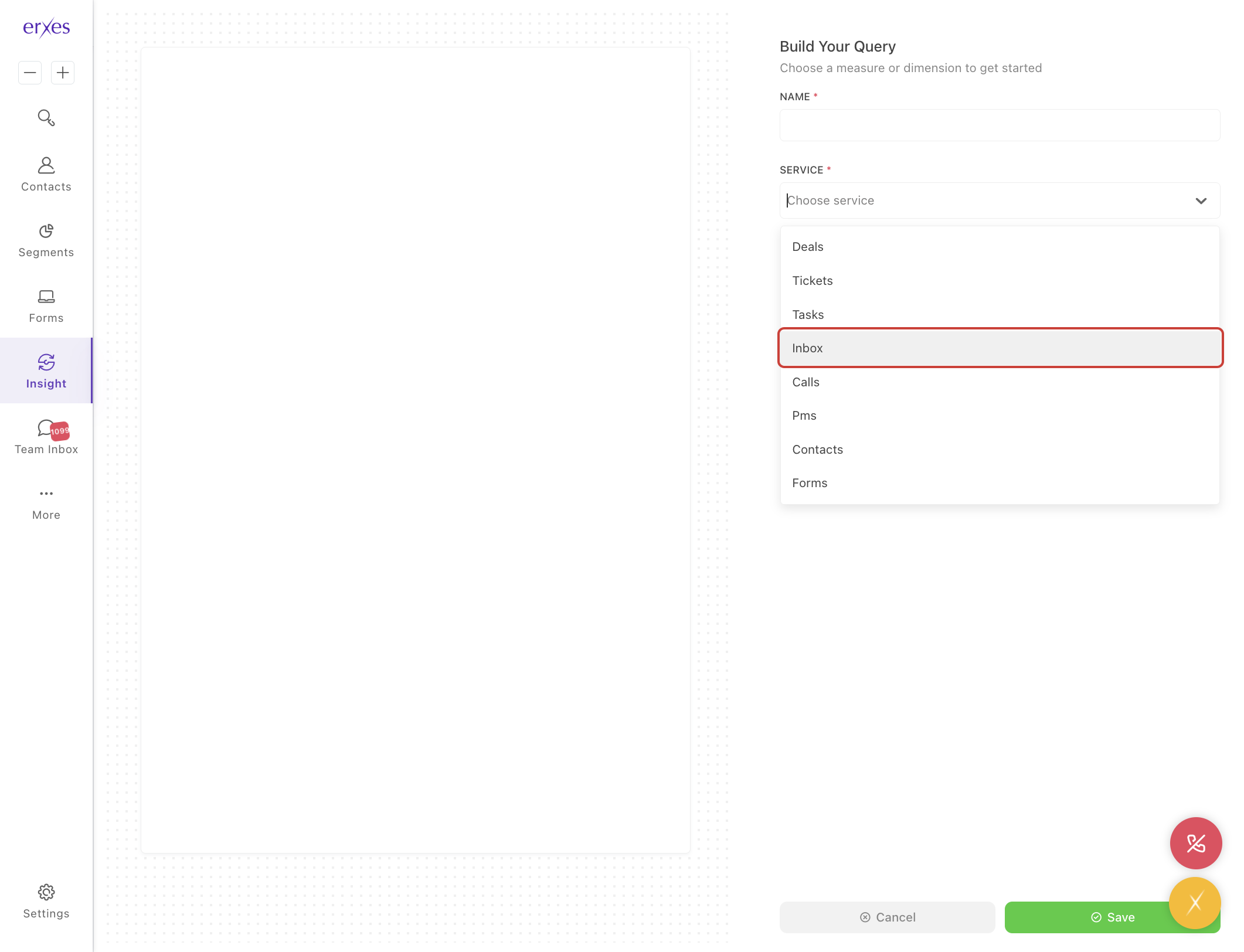
- In the Service section, select: Inbox.
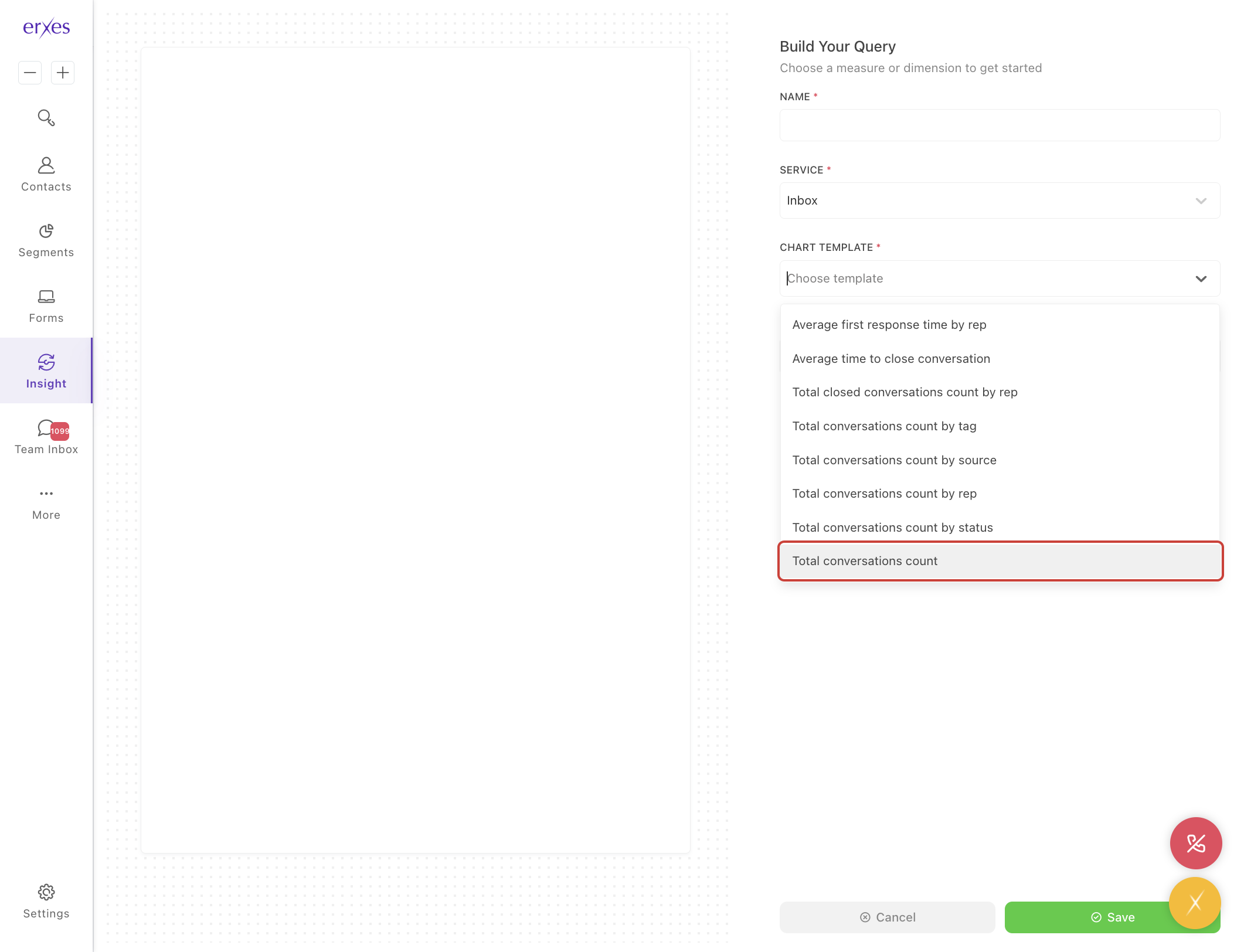
- In the Chart template section, choose: Total conversations count.
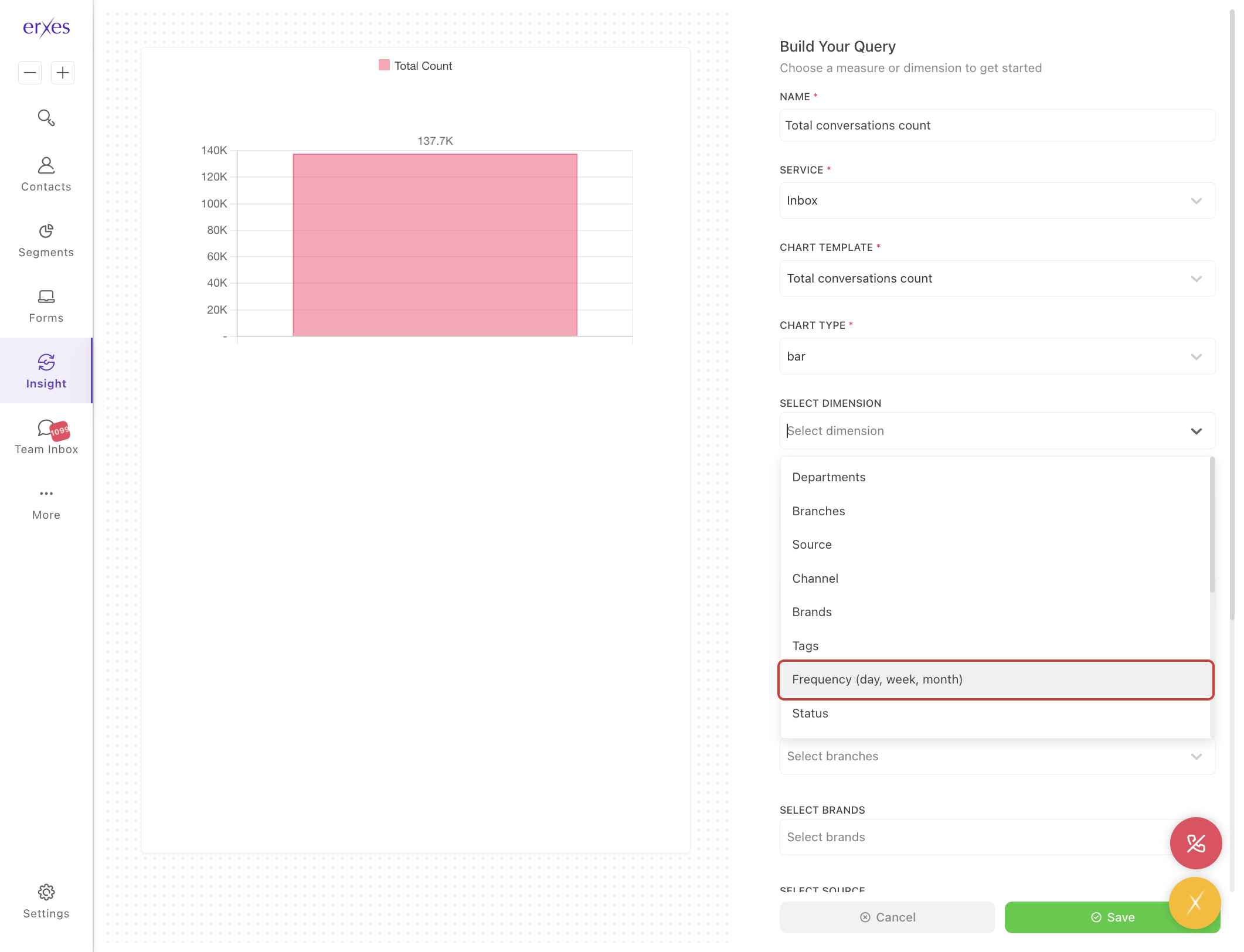
- In the Select dimension section, choose how you want to break down your data:
- Source – Channels such as Facebook, Instagram, web form, call, etc.
- Tag – Categorized labels.
- Frequency – By time period (daily, weekly, etc.).
- Assign to – Responsible Team member.
- Status – Closed, Open, etc.
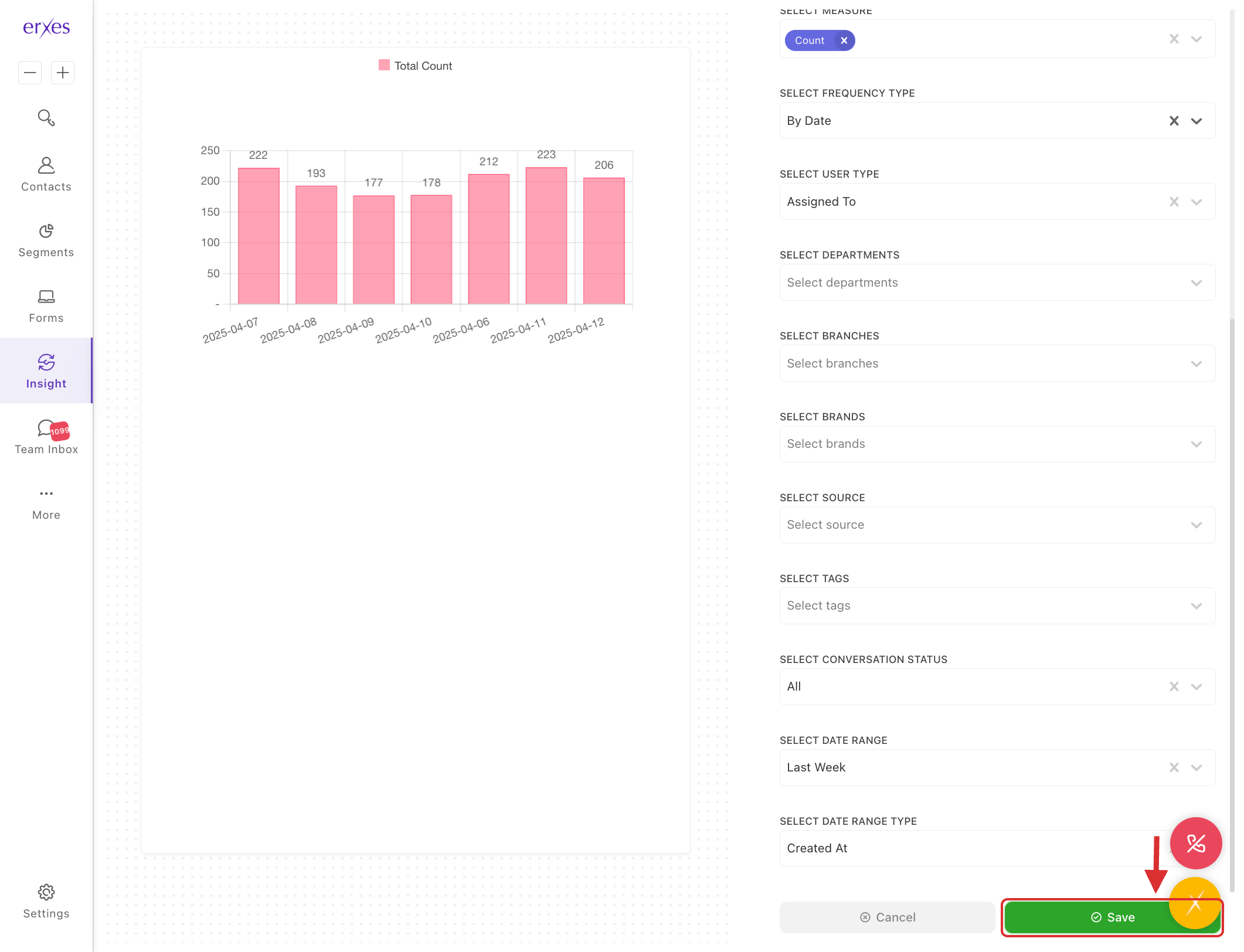
- In the Chart type section, choose how your data should be displayed:
- Bar – Column chart
- Pie – Circular chart
- Line – Line graph
- Table – Tabular format (recommended for overview)
In the Name section, enter your desired chart name.
Note: It’s best to enter the name last, as entering it first may result in the name being removed after choosing the chart template.
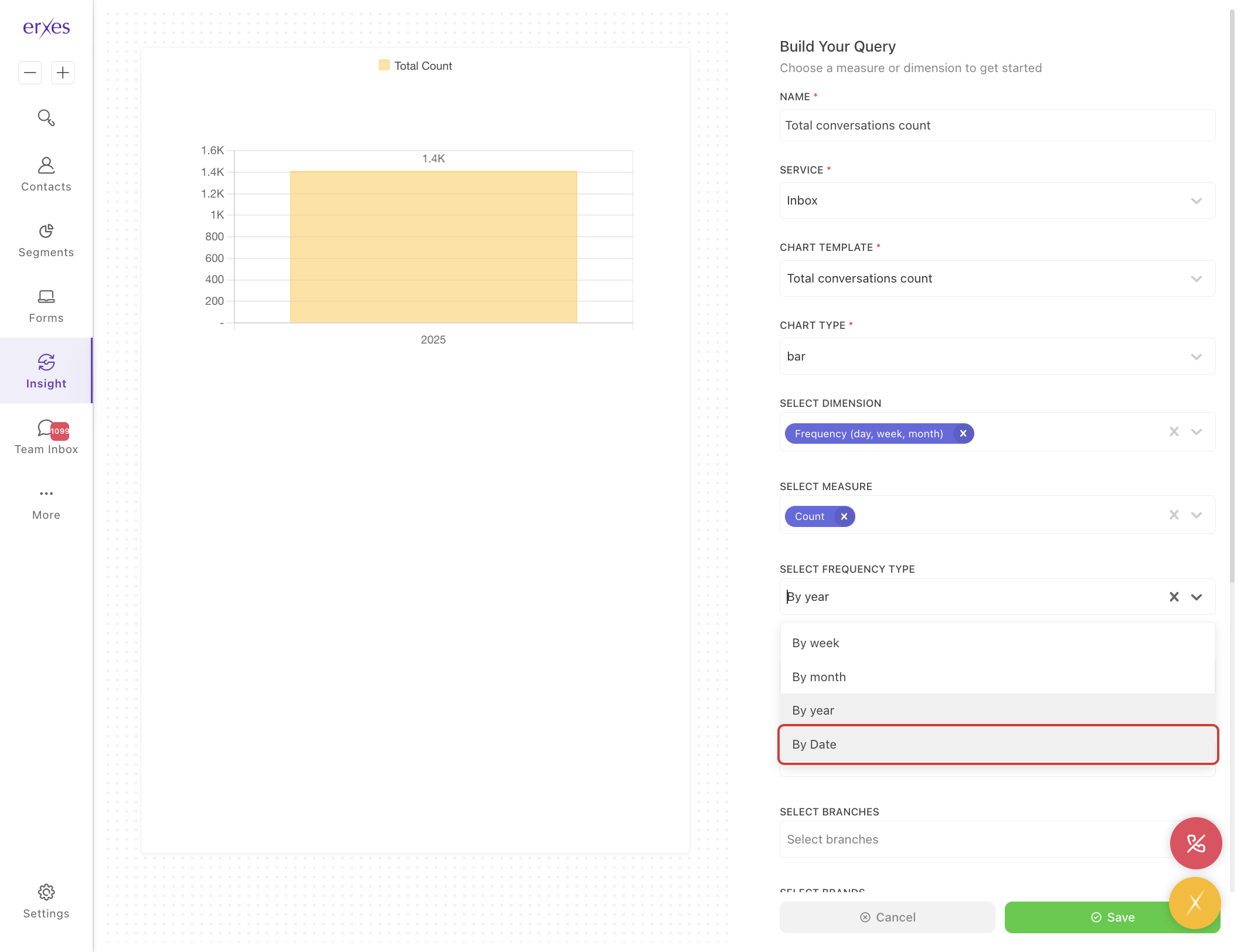
- In the Select date range section, choose your reporting time frame:
- Today
- Yesterday
- This Week
- Last Week
- This Month
- Last Month
- This Year
- Last Year
- Click Save to finish creating the chart.
Illustrated instructions:
Prepare a report for the last 7 days
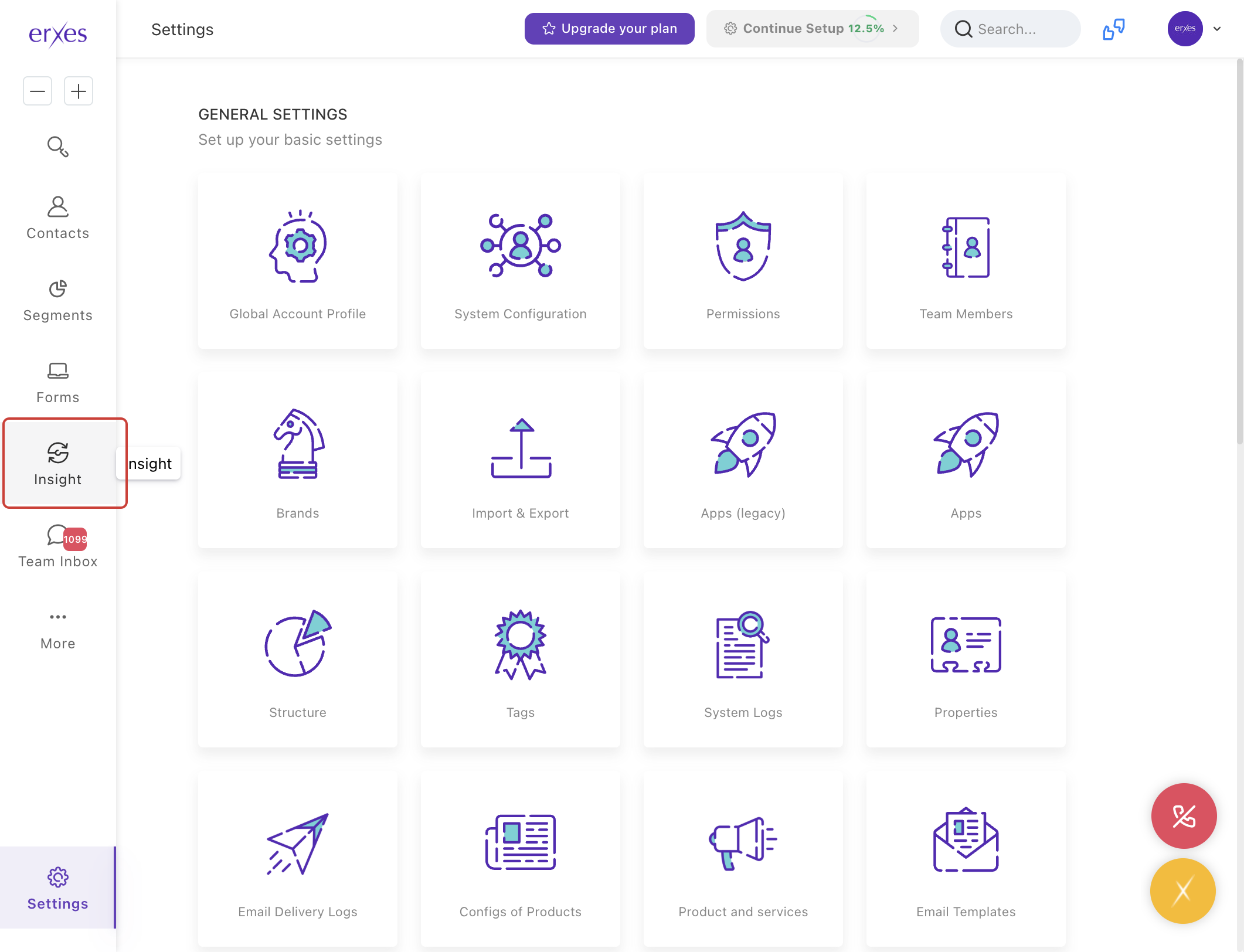
- Go to the Insight menu.
- Click Add a Dashboard .
- In the Dashboard name field, name it "Last 7 Days Report"
- In the Choose Section section, name it "Customer Service Team".
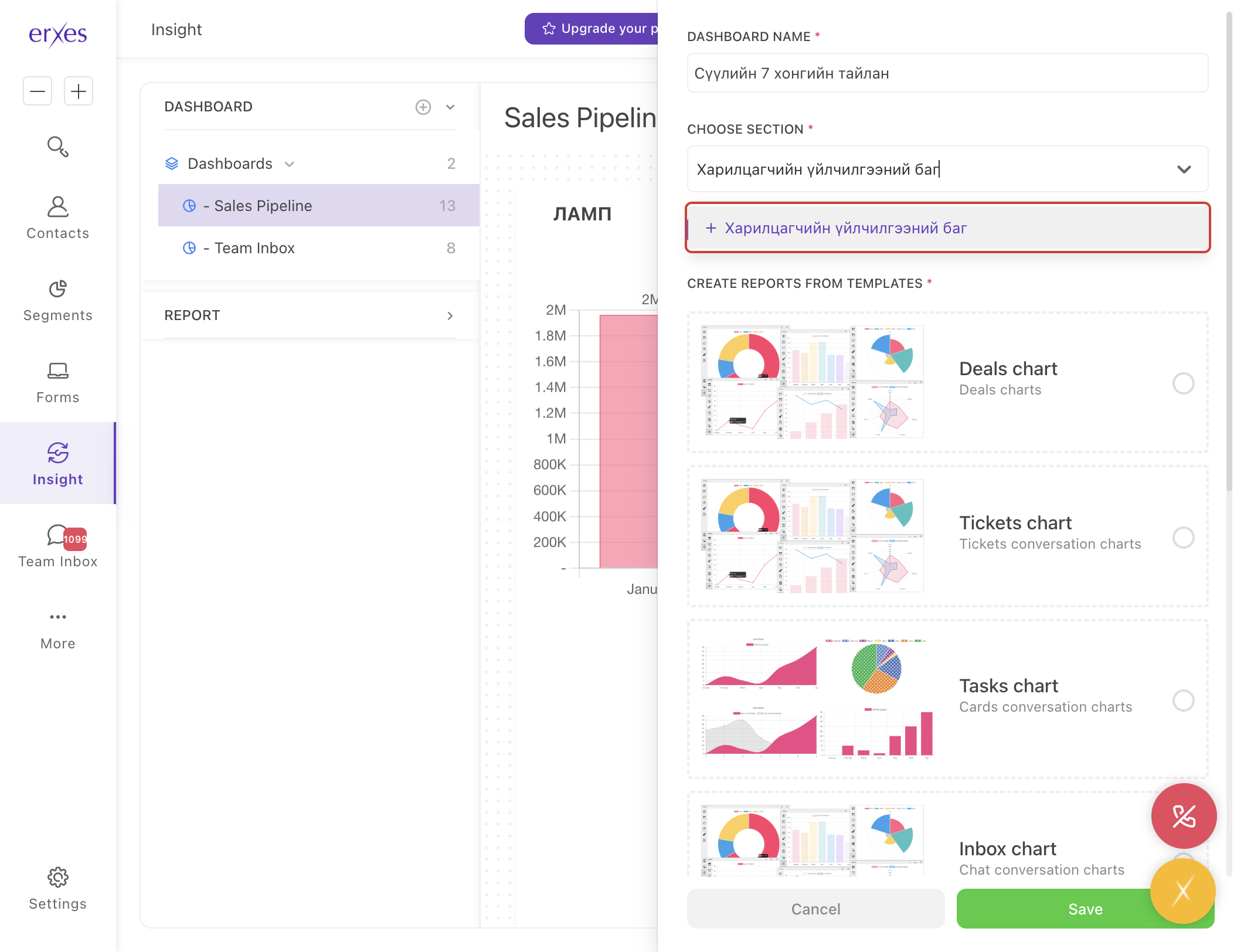
- Click on the Inbox chart .
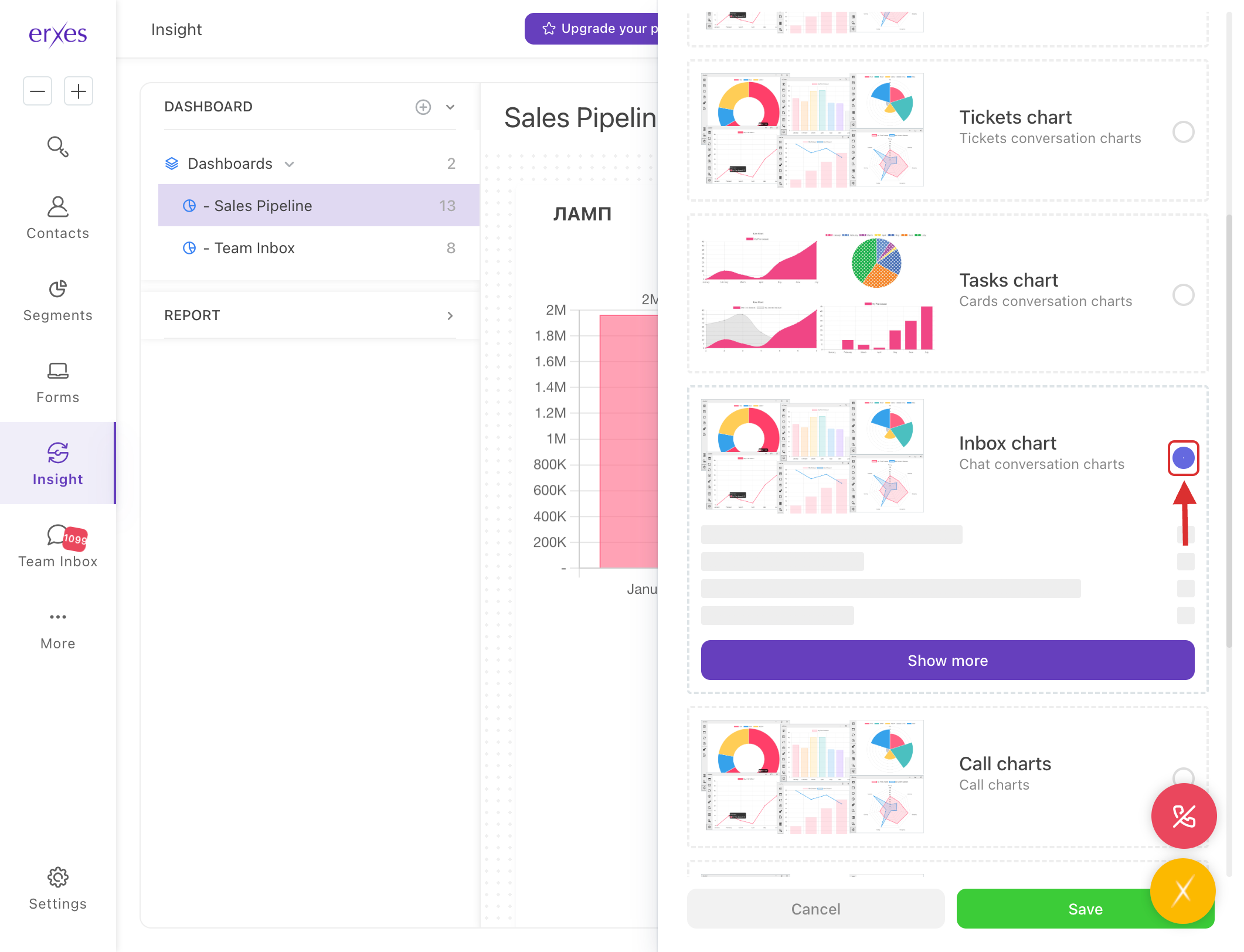
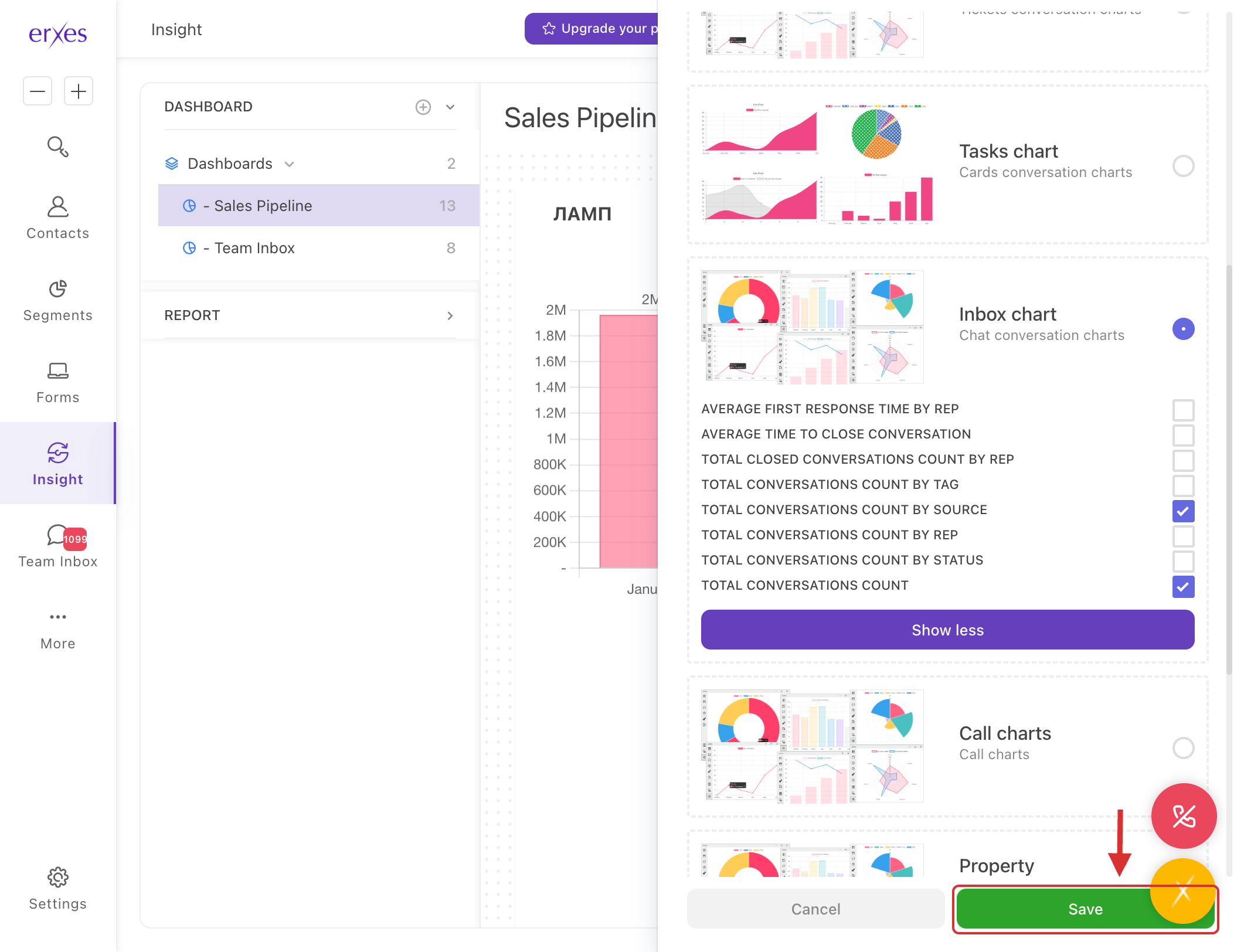
- Check the values below:
- Total conversations count by source
- Total conversations count
- Click the Save button to get the report.
Create a new chart
- Click Add Chart .
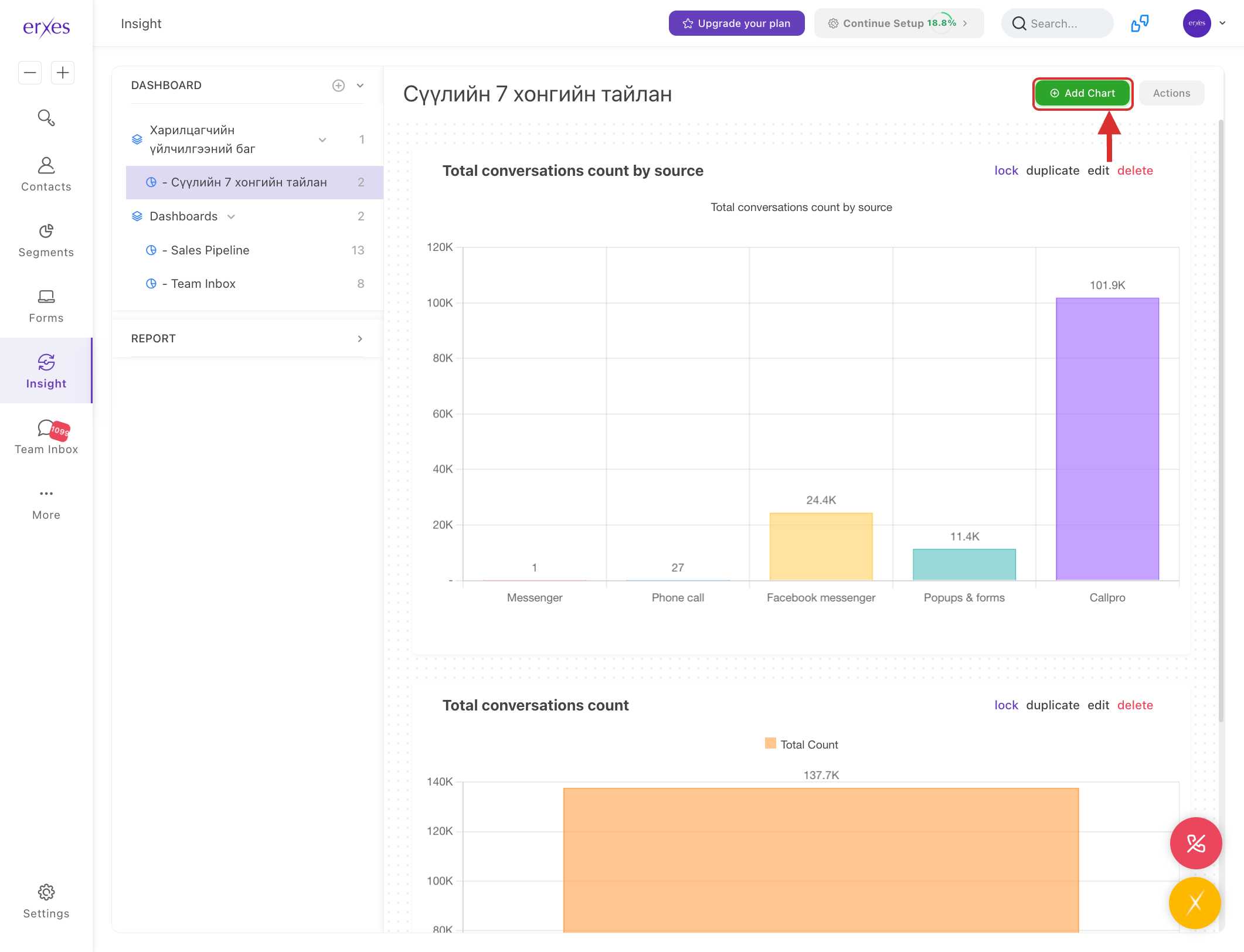
- In the Service section, select Inbox .
- In the Chart template section , select Total conversations count .
In the Select dimension section, enter the information you want to sort your data by:
- Source : Through incoming channels (facebook, instagram, form, call, etc.)
- Tag : Created by category
- Frequency : Periodically
- Assign to : Responsible employee
- Status : Closed, Not Closed, etc.
In the Chart type section, select the type of chart you want to view:
- Bar : By the column
- Pie : In circular division
- Line : Linear design
- Table : By table (highest usage)
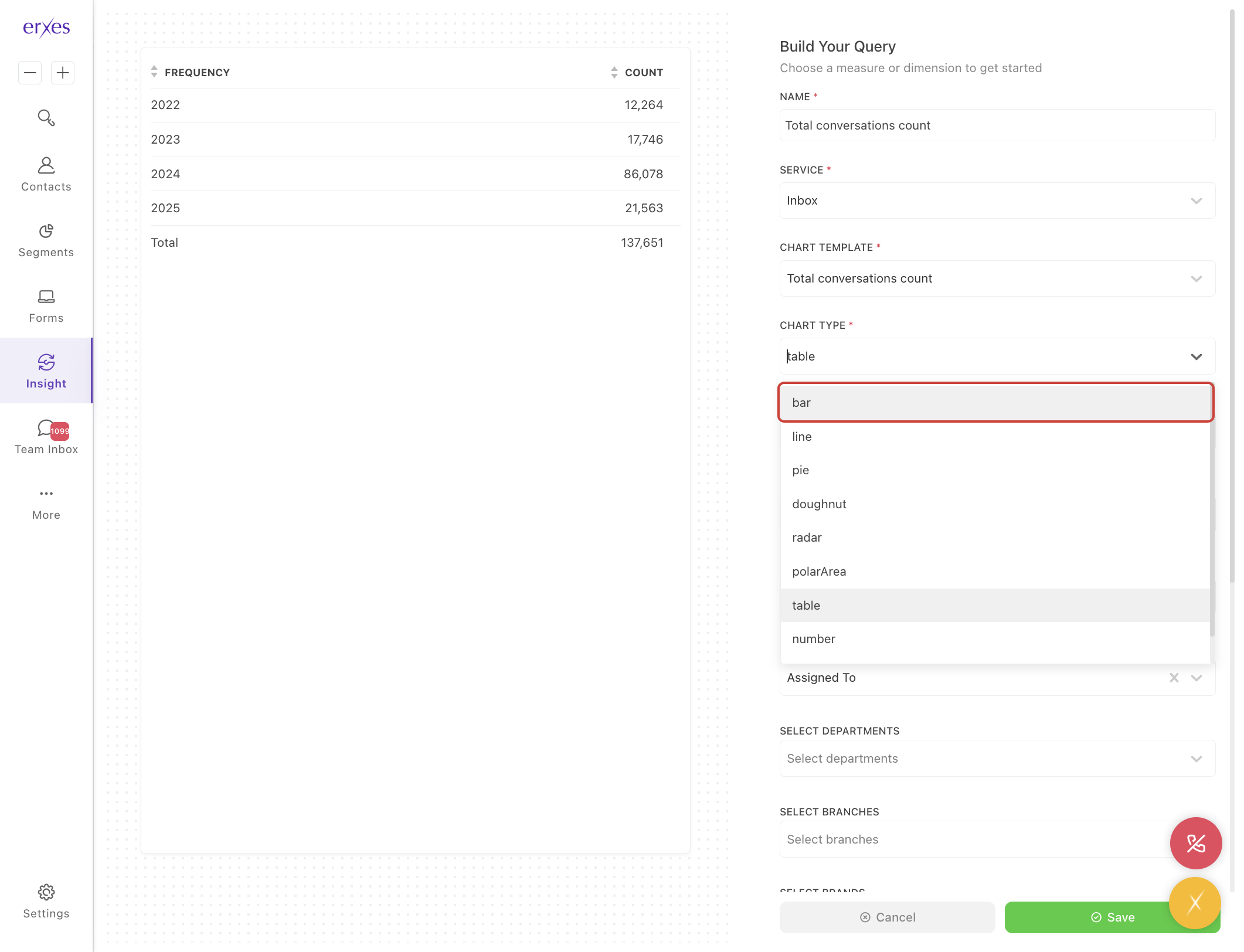
- In the Name section, give it your desired name (Note: It is best to give it last, as it is deleted when you first give it a name after selecting the Chart template).
- In the Select date range section, select the date range for the report.
- Today : Today
- Yesterday : Yesterday
- This week : This week
- Last week : Last week
- This Month : This month
- Last Month : Last month
- This Year : This year
- Last Year : Last year
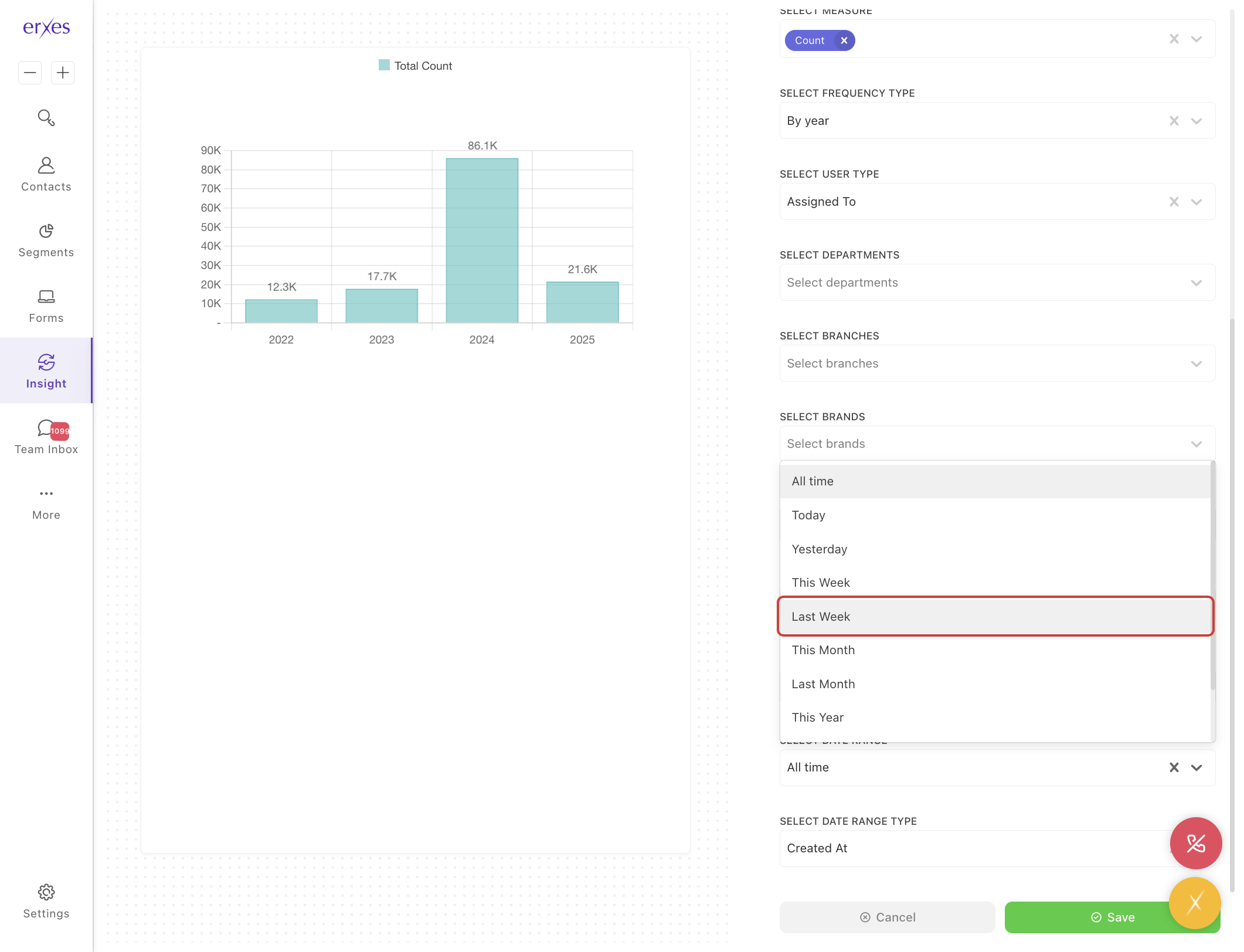
- Click the Save button to save.