
Guides

All topics
erxes XOS
Sales
Settings
Account
Workspace
Developers
Core Modules
Broadcasts
Documents
Automations
Segments
Contacts
Plugins
Operation
Sales
Frontline
Tourism
Content
Accounting
Agents
Company Brain
Mongolian
Loyalty
Connecting to Facebook Post
This guide will help you connect your Facebook Page's post comments to erxes correctly and troubleshoot if needed.
Connect Facebook Post
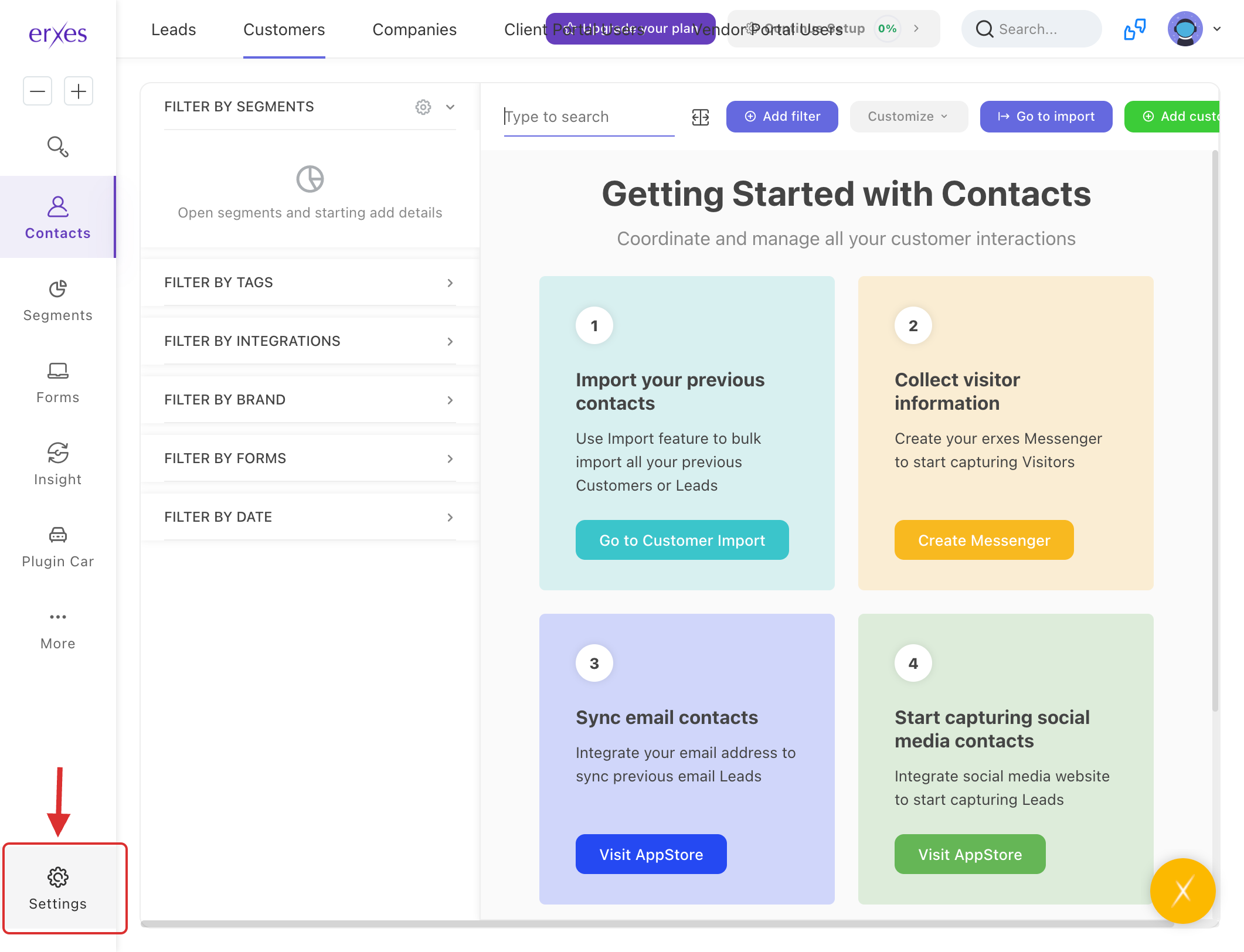
- Go to Settings.
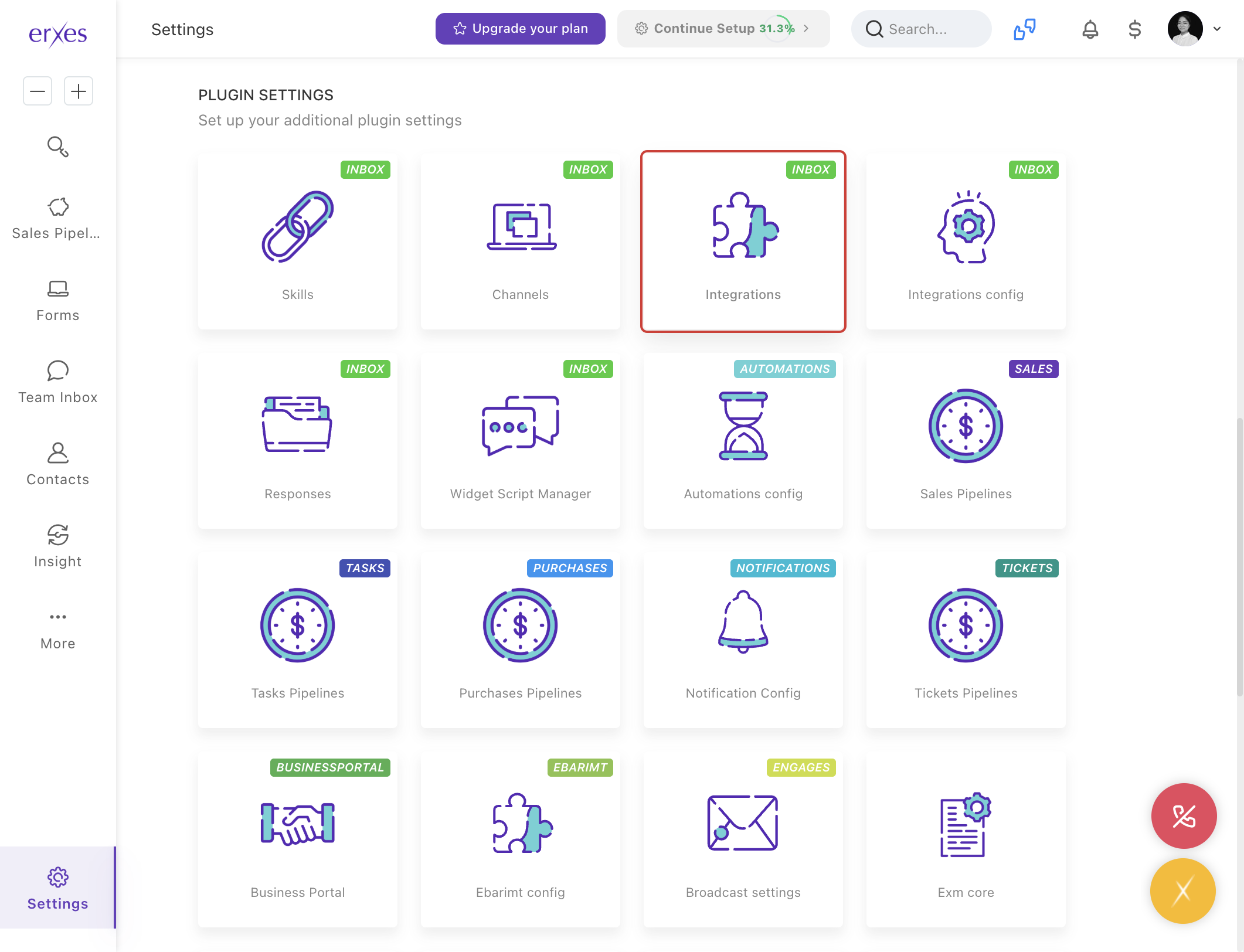
- Navigate to Integration.
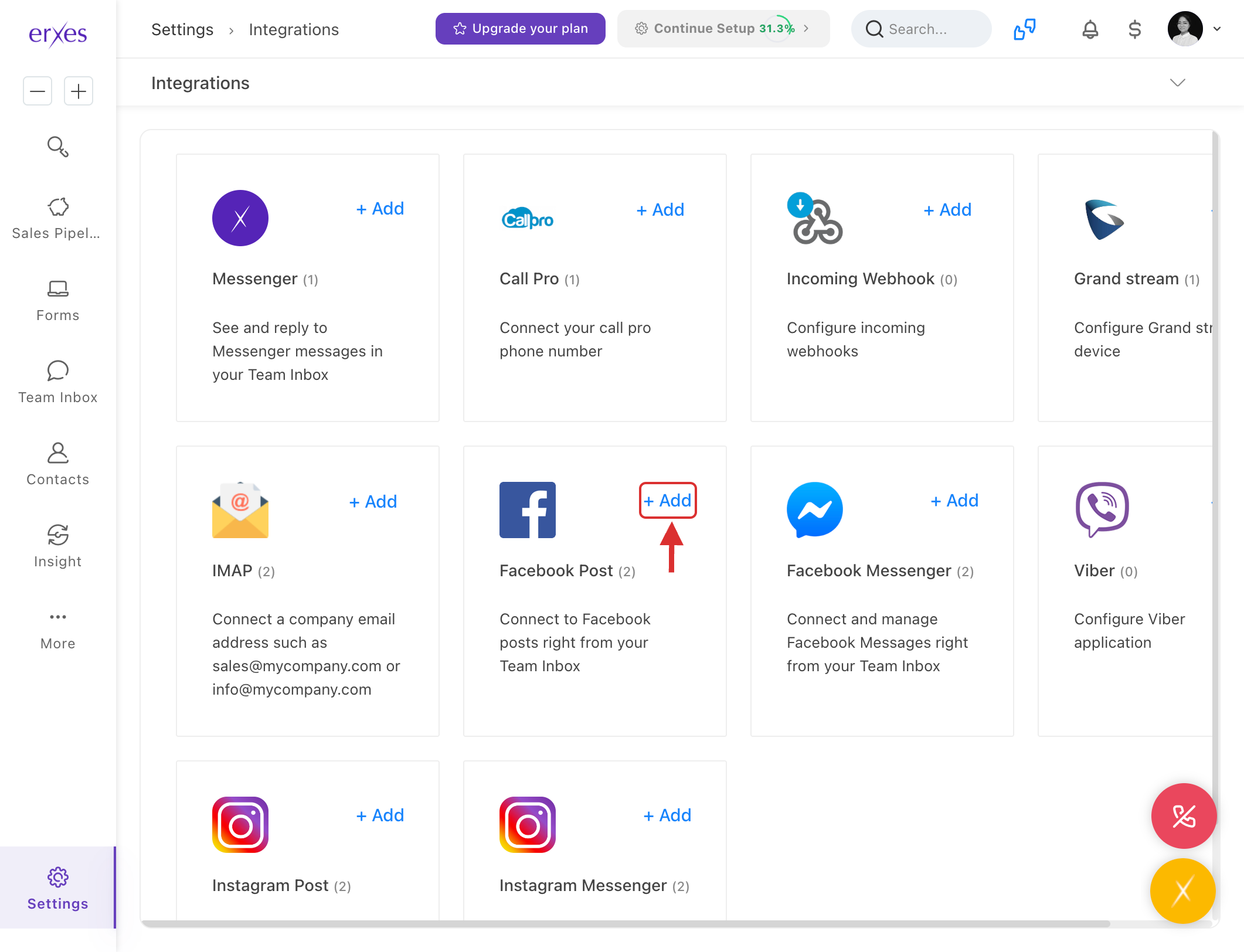
- Select Facebook Post and click +Add.
Click Continue with Facebook and log in using the Admin account of the Facebook Page you want to connect.
Important:
- The account must have Admin rights.
- If not, the connection will fail.
- Once connected, if the Admin account’s password is changed, the connection will break.
- We recommend using a dedicated Admin account (non-personal and not in use for other purposes).
- If Admin rights are revoked, the connection will be lost, and only the Admin can reconnect.
- Click Next.
- Click Select next to your Facebook Page name — it must be Selected.
- In the Integration Name field, enter: [Fb post] Facebook Page Name
- Select a Brand.
- If not available, click Create Brand, then select it.
- Select a Channel.
- If not available, click Create Channel, then select it.
- Click Save.
Test the Integration
- Go to your Facebook Page and comment on any post.
- Open the Team Inbox in erxes.
- Check if the comment appears in the conversation list.
- In the To send your message section, write a reply.
- Confirm that the reply is shown as a response to the customer’s post on Facebook.
If Facebook Post Comments Are Not Appearing in Team Inbox
1. Check if the Team member is part of the Channel
- Go to Settings → Channel
- Open the relevant Channel
- Ensure your erxes account is listed in the Members section
2. Check if the Channel is properly selected in Facebook Post integration
- Go to Settings → Integration
- Find Facebook Post
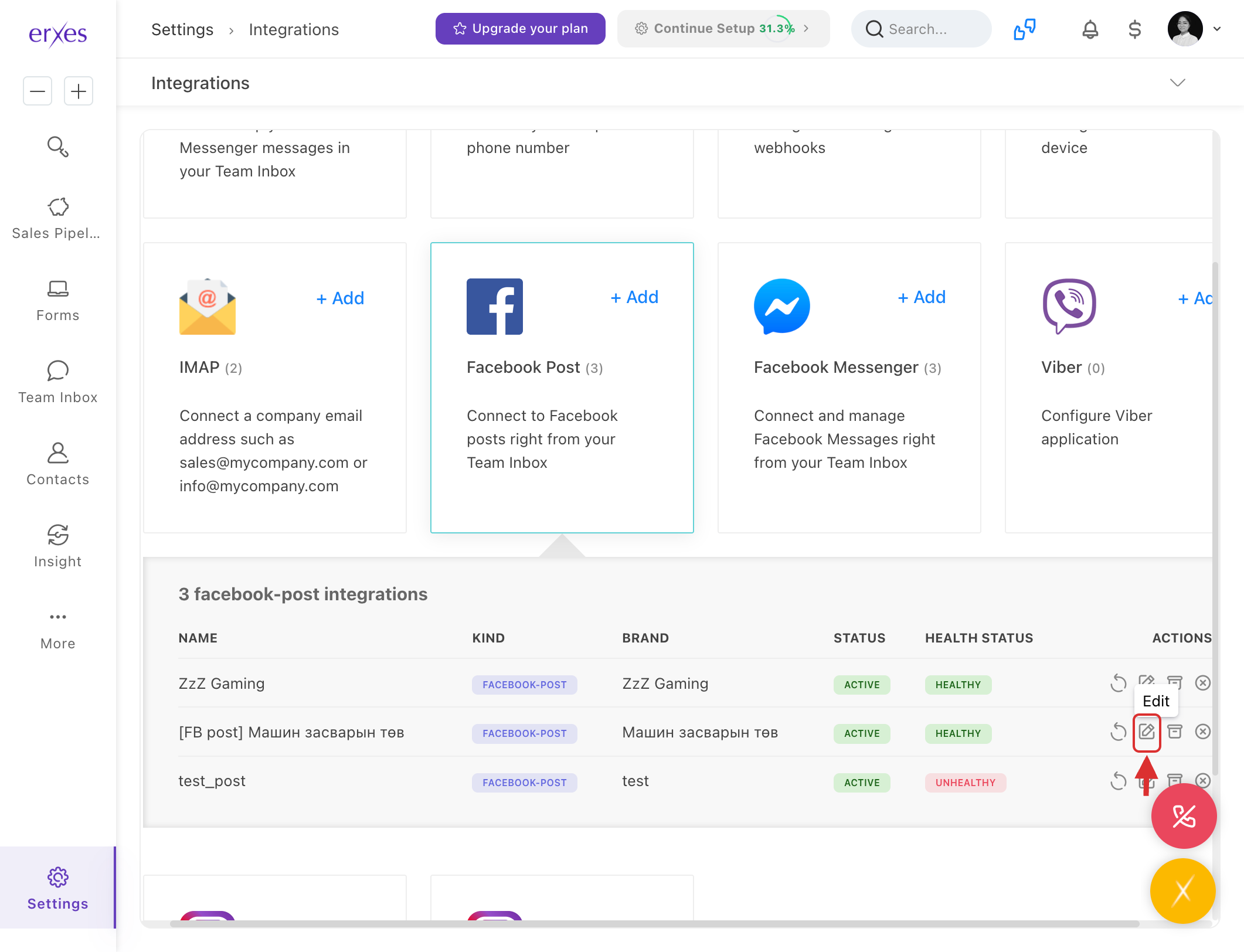
- Click Edit
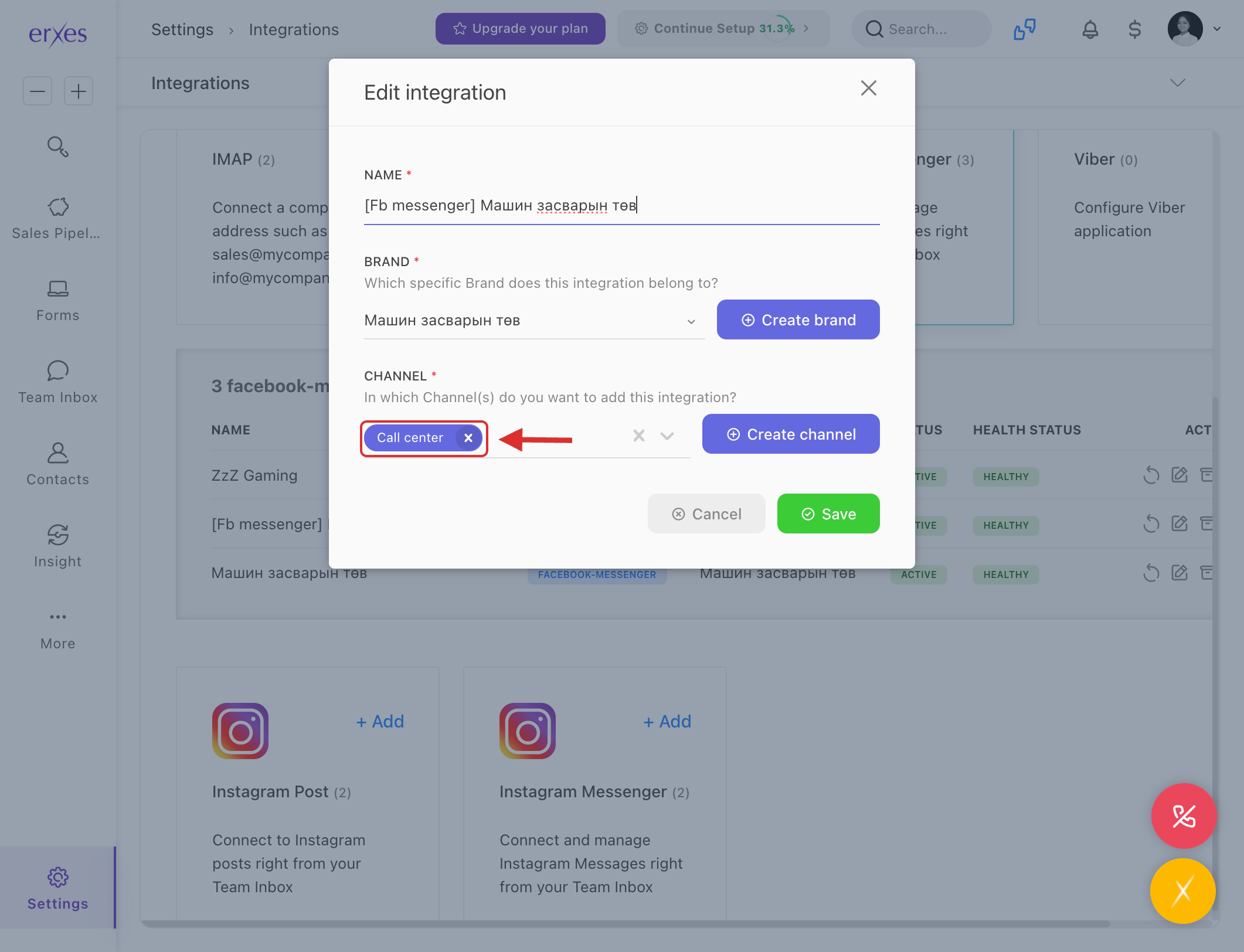
- Confirm a Channel is selected
3. Recheck the Facebook connection
- Go to Settings → Integration
- Click +Add under Facebook Post
- Click Next
- If Select appears next to the Page, it means the connection is broken
- Select the Page
- Re-enter Integration name, Brand, and Channel
- Click Save
If the page cannot be selected, assume the connection is still valid. Retry the test or contact the erxes Support Team for assistance.
Illustrated instructions :
- Go to Settings .
- Go to Integration .
- Select Facebook Post and click +Add .
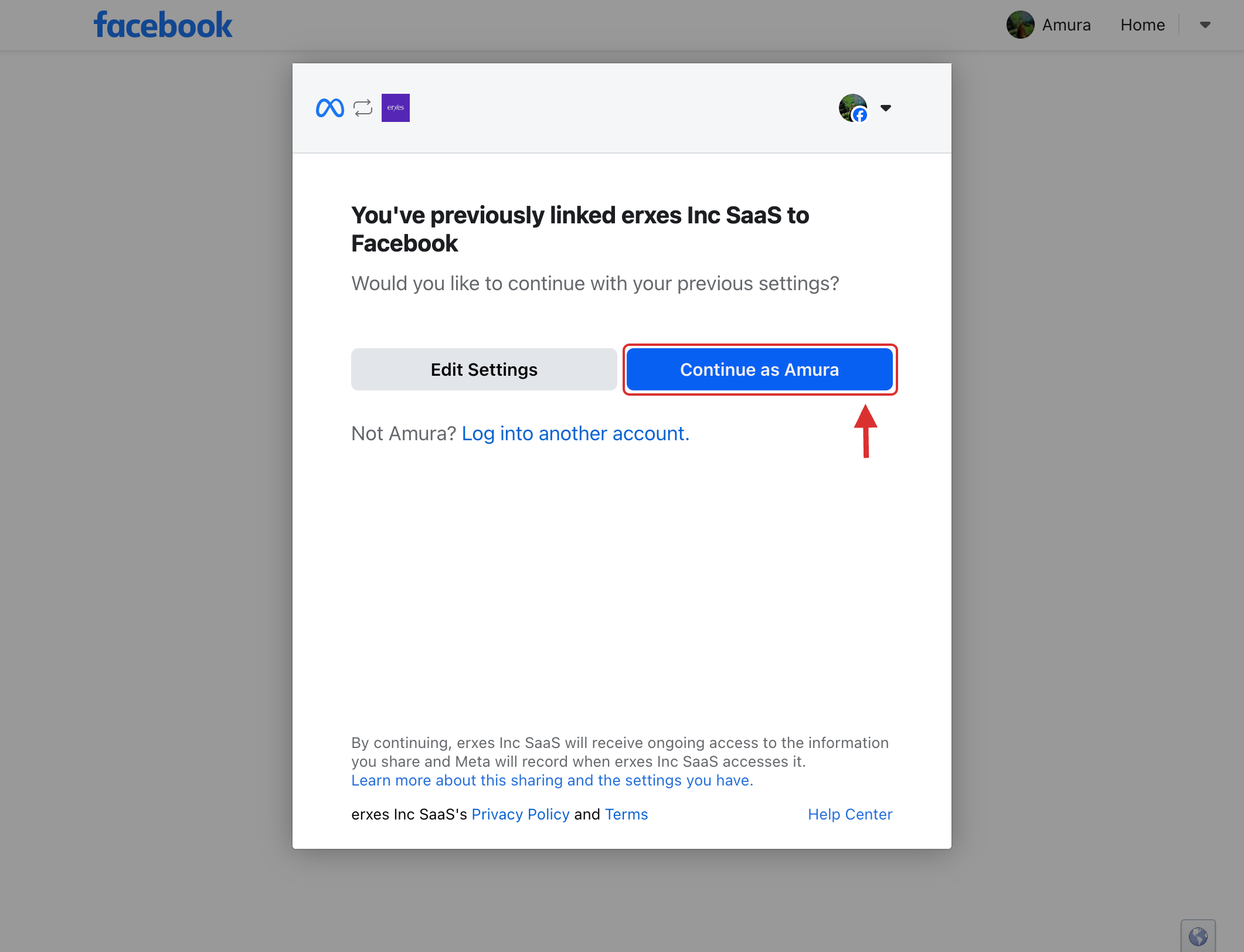
Click Continue with Facebook and log in with the "Admin" account of the Facebook page you want to connect to .
- Note : If the account is not an "Admin" account, the connection will not be successful, and the "Admin" account that has been connected cannot change its Facebook password. The connection will be disconnected every time you change it. Therefore, Erxis recommends that you create a non-personal, unused account for the "Admin" account and connect to it.
- If the "Admin" account's "Admin" rights are revoked, the connection will be lost. Only the "Admin" account will be able to reconnect properly, so it is necessary to select the correct "Admin" account.
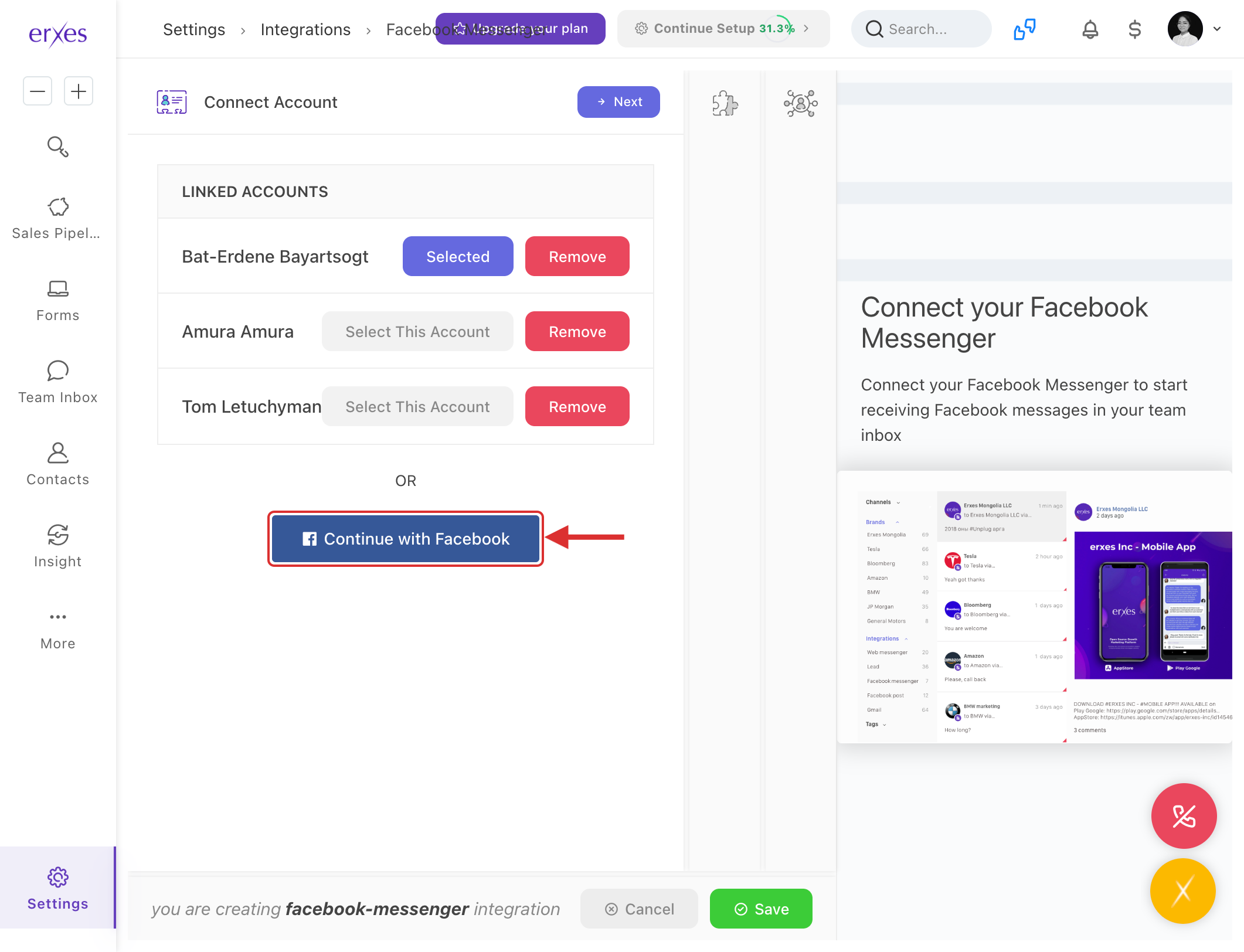
- Click the Next button.
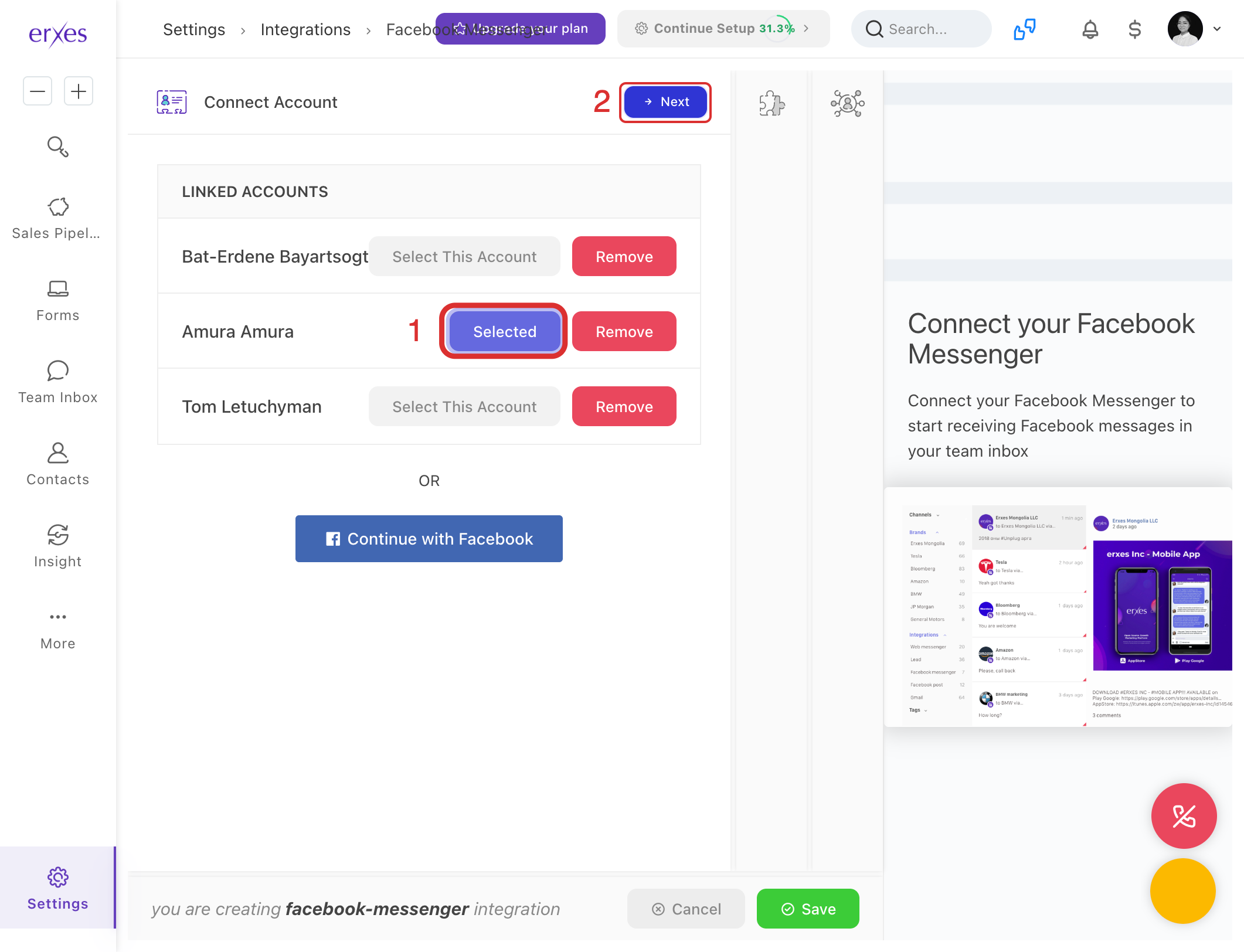
Click Select next to the Facebook page name .
- It must be Selected .
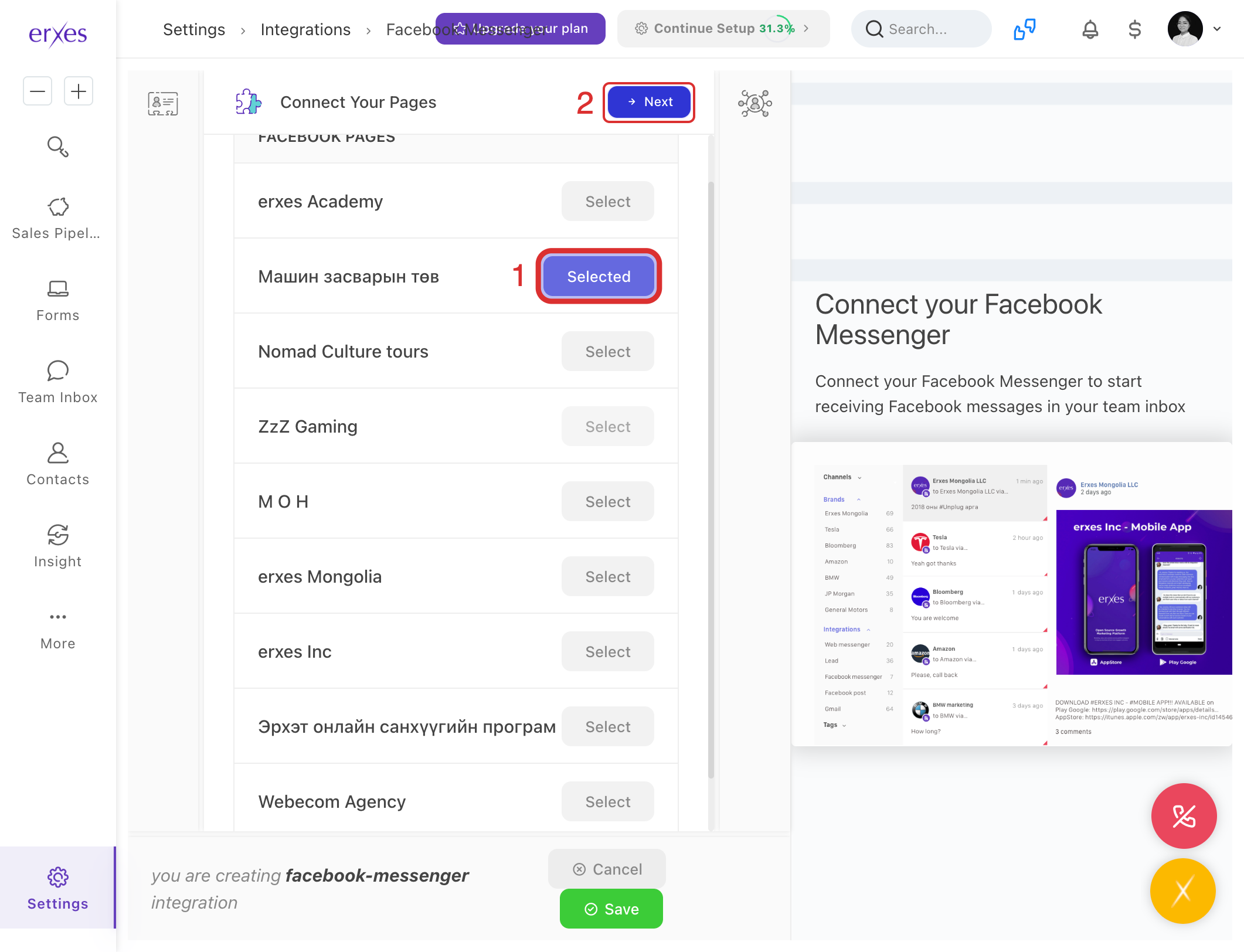
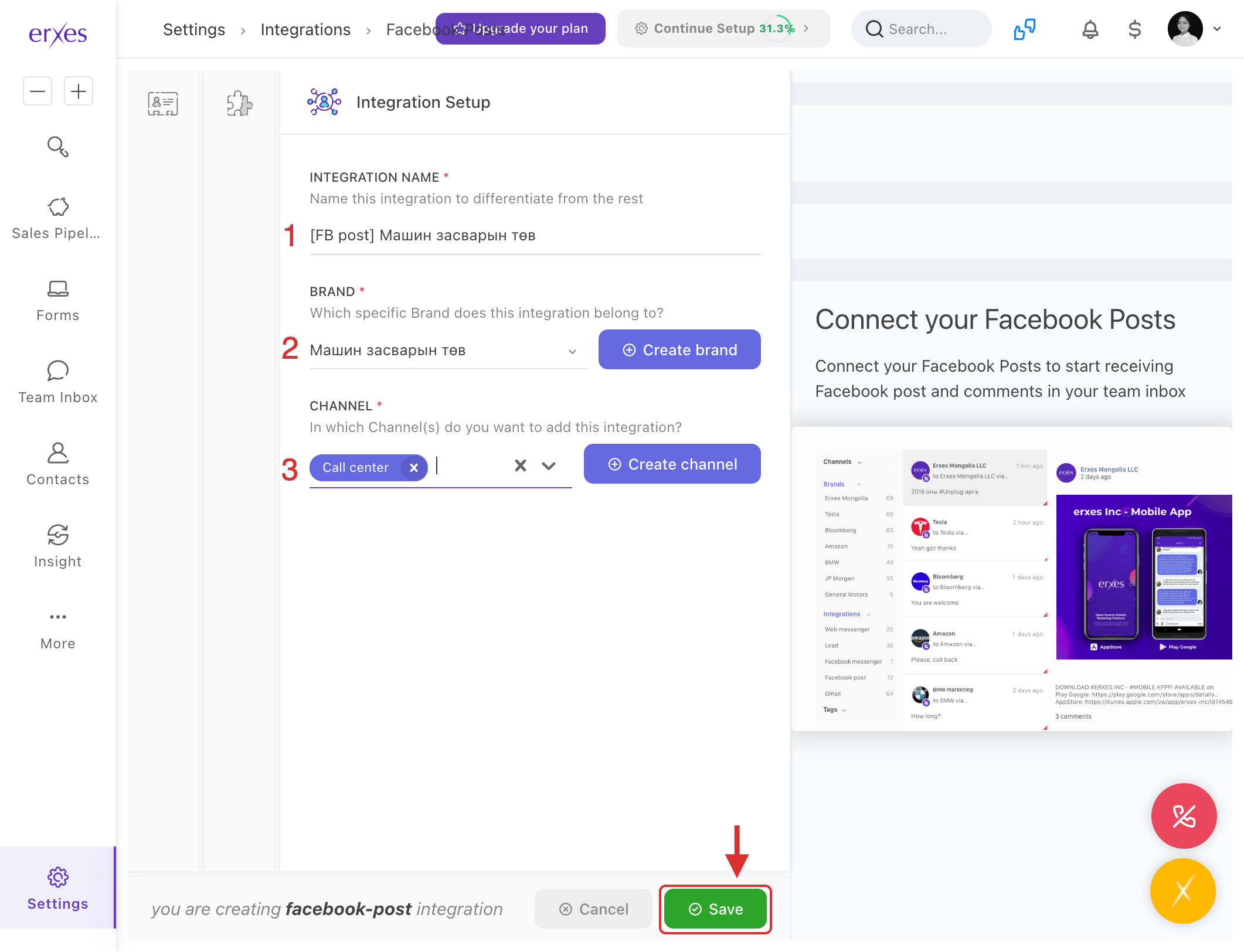
- In the Integration Name field, enter [Fb post] as the Facebook page name .
- Select the Brand section. (If you haven't created one, you can create one by clicking Create Brand and selecting it).
- Select the Channel section. (If you haven't created one, you can create one by clicking Create Channel and selecting it).
- Click the Save button to save the settings.
Test and check:
- Write a comment under the post on the Facebook page.
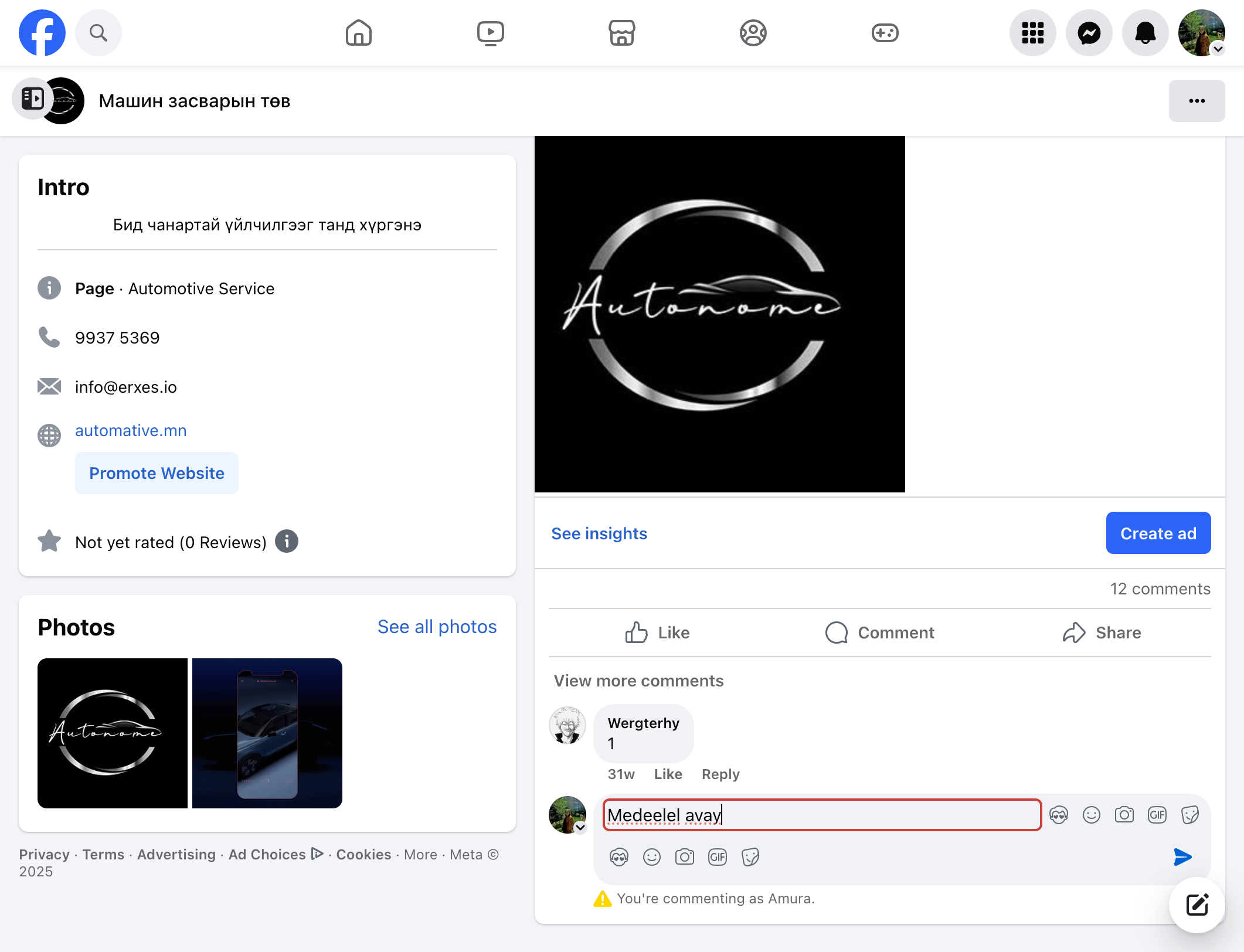
- Go to the erxes Team Inbox window.
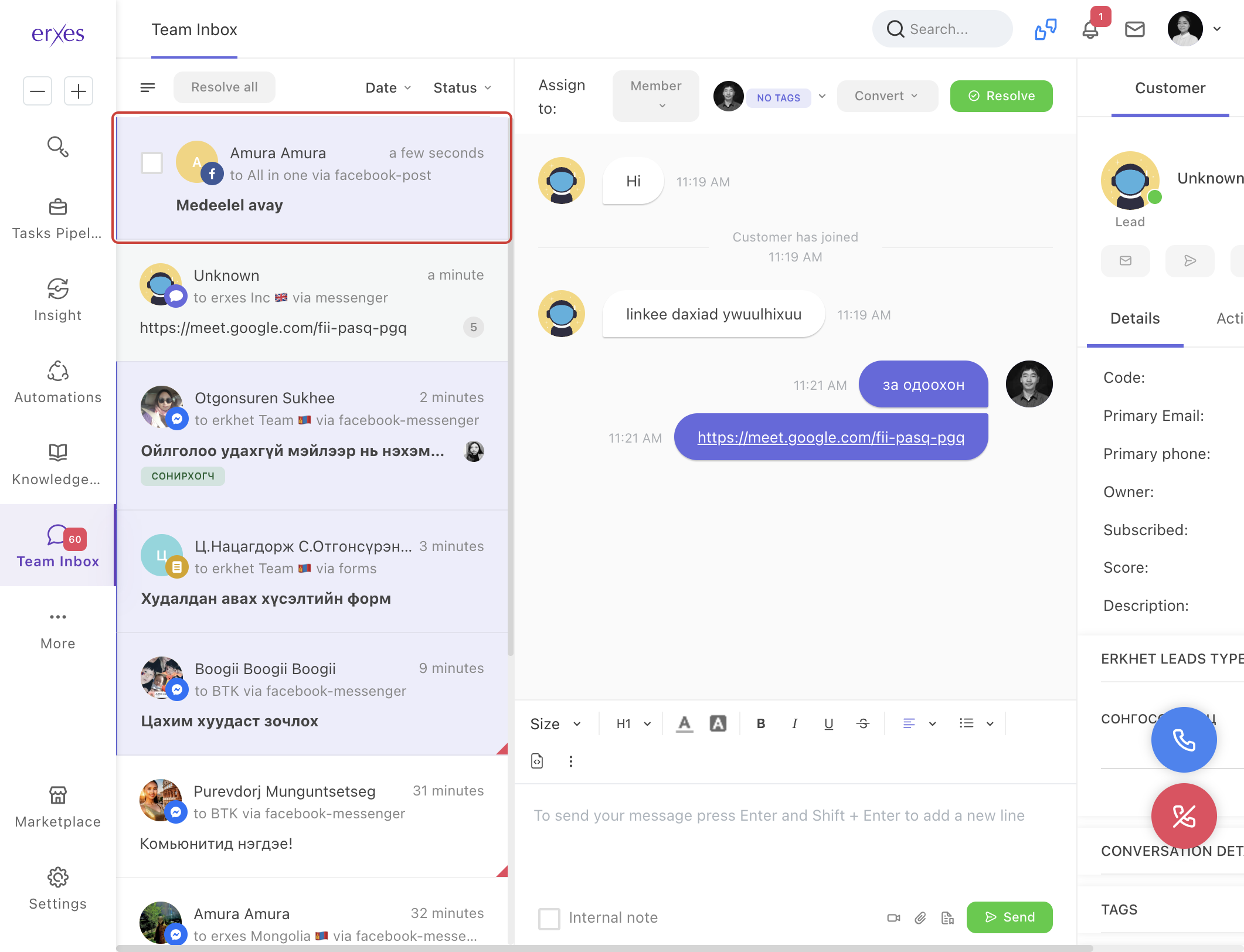
- The post you wrote will be successful if it enters this section.
- In the " To send your message " section, type your response to the conversation and check if it reaches the user's post on the other side.
If a Facebook Post is not arriving in TeamInbox, here are some things to check:
Check if the erxes account you are checking is included in the channel:
- Go to Settings .
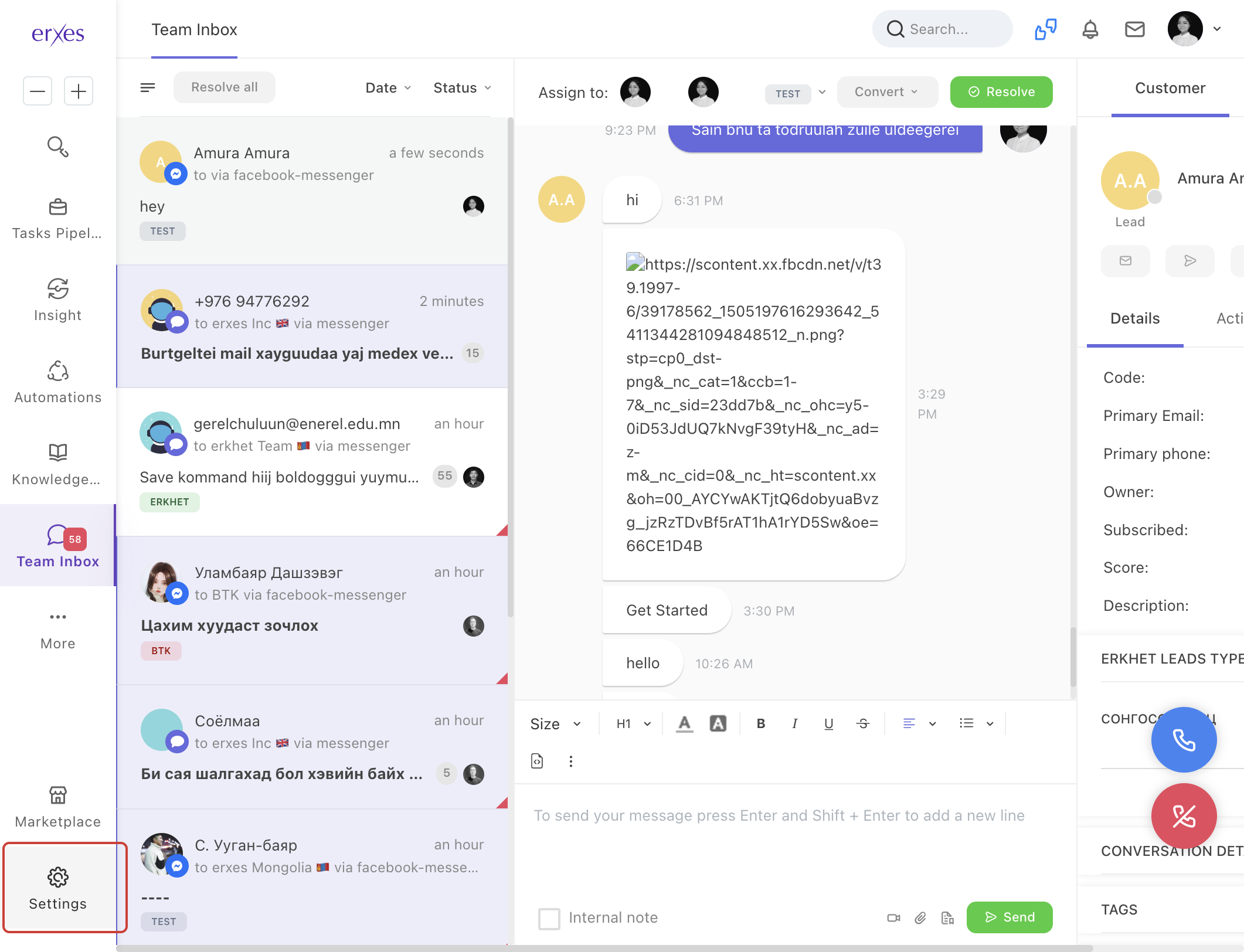
- Go to Channel .
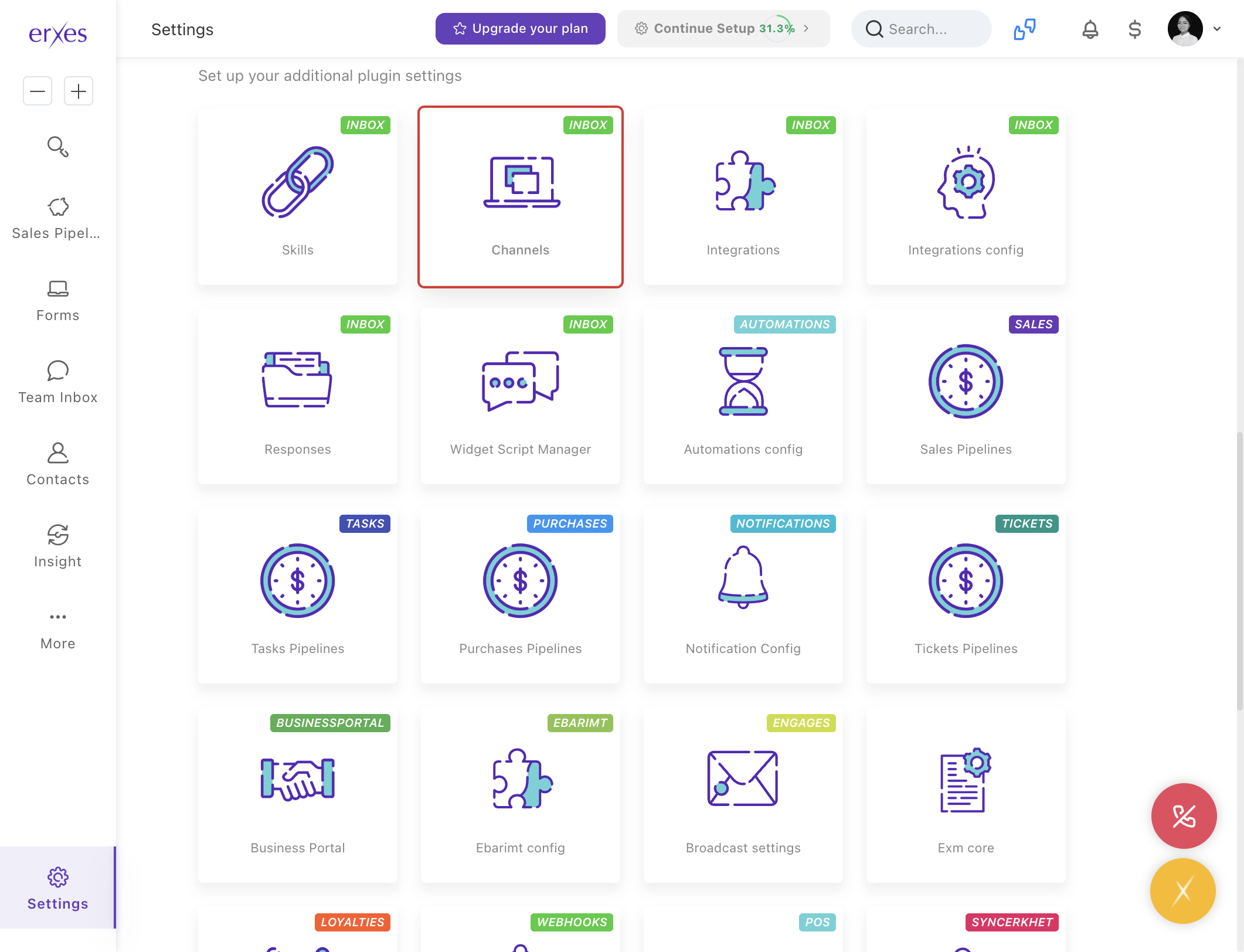
- Check if your information is in the Member section (erxes Account name).
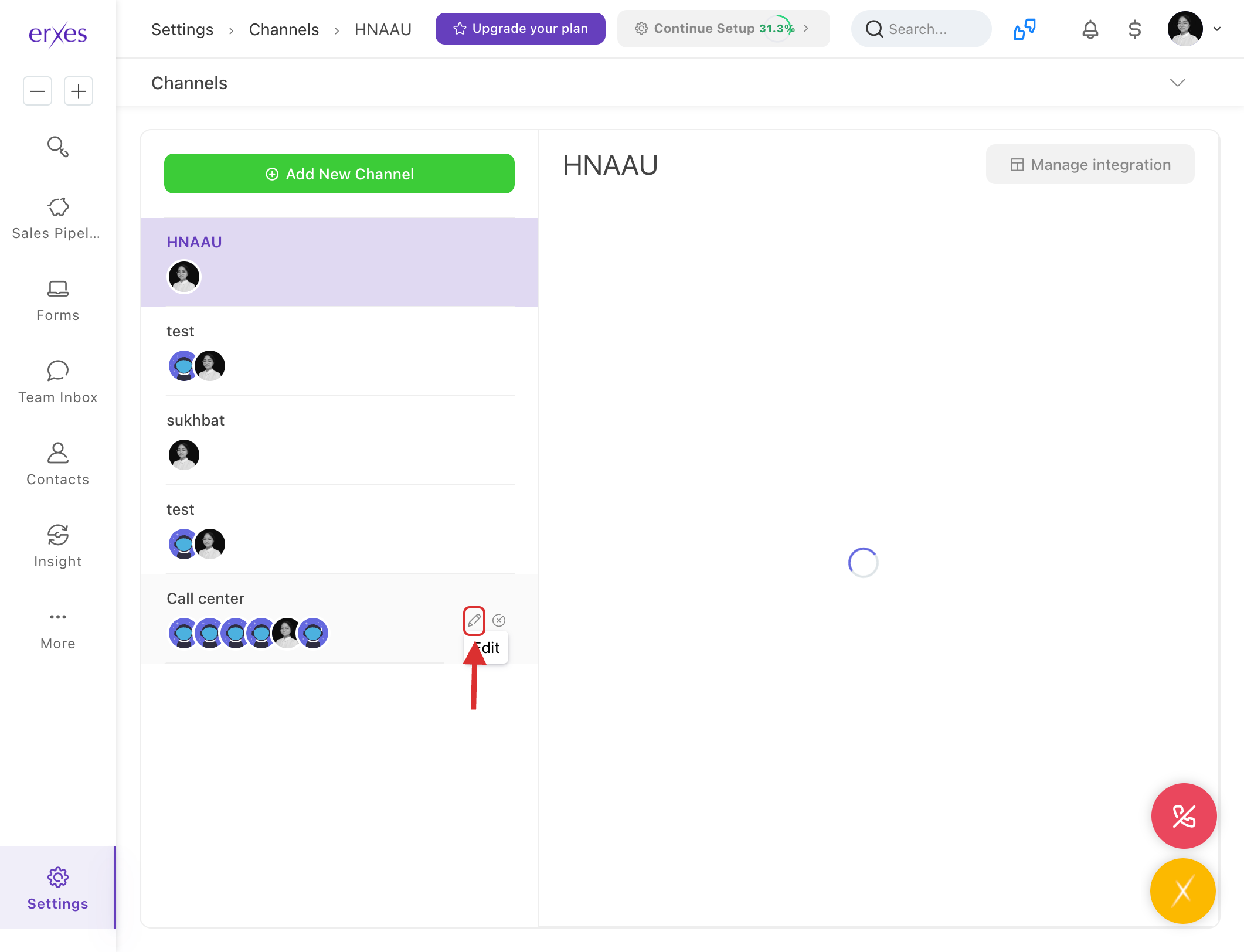
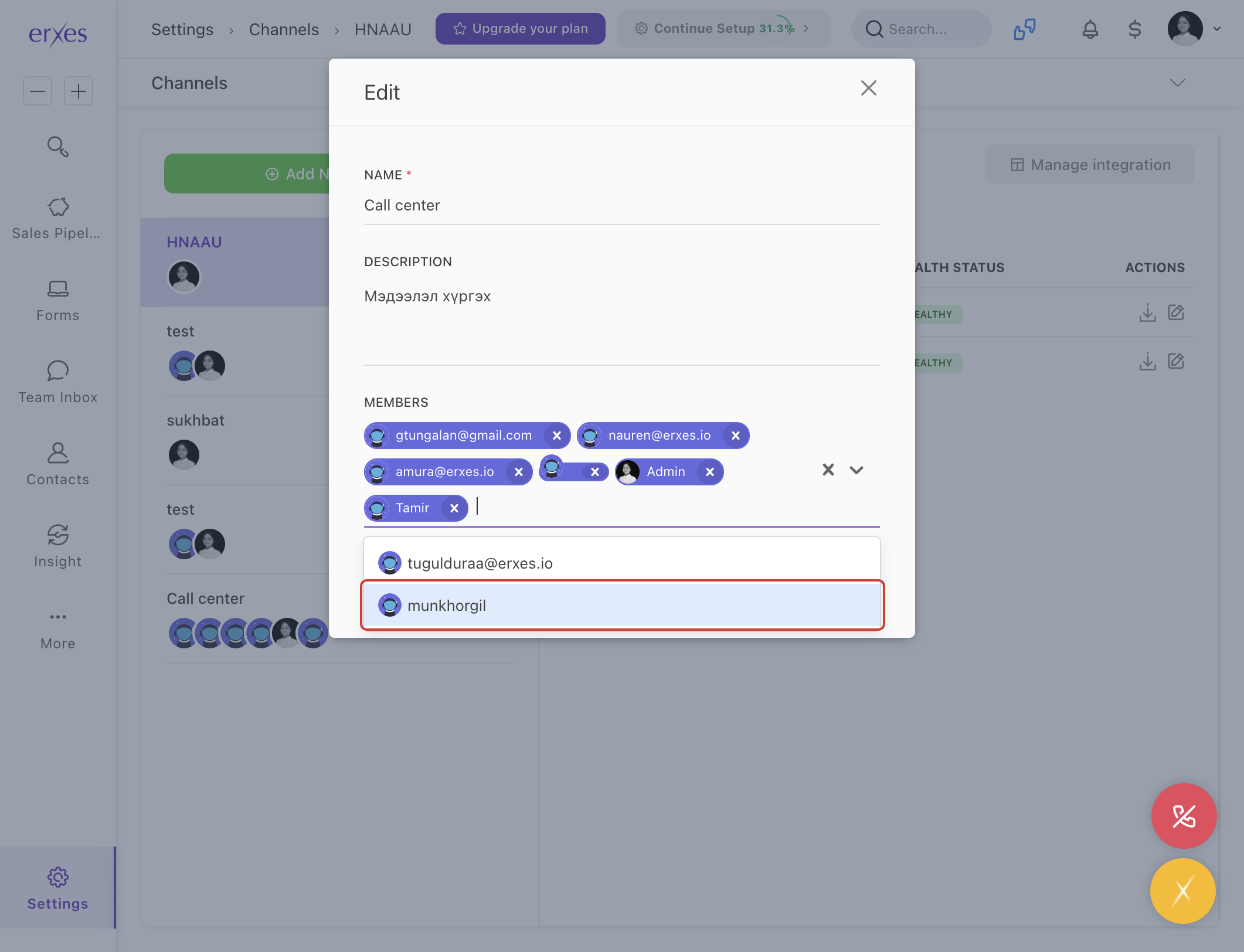
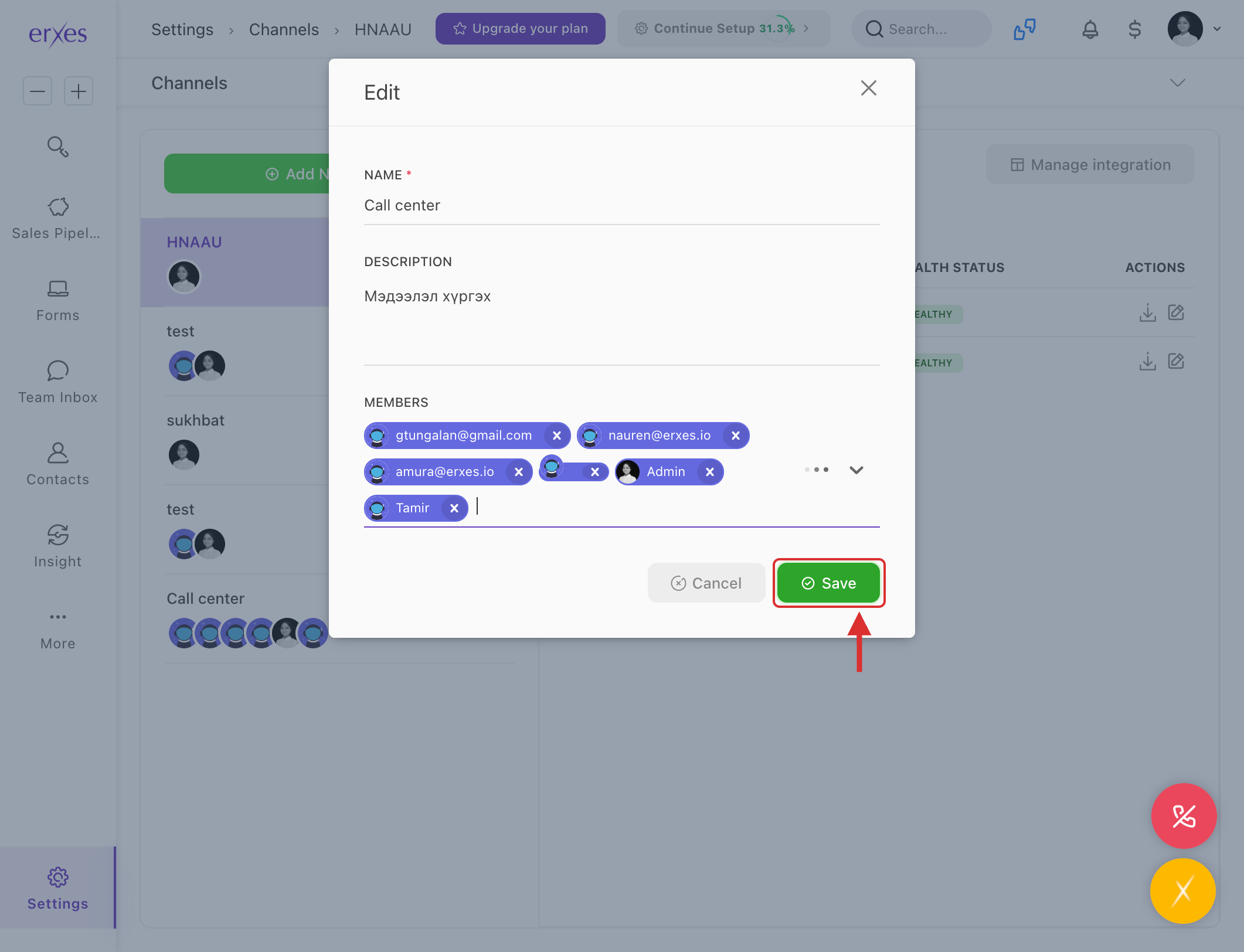
Check if Channel is selected in Facebook connection:
- Go to Settings .
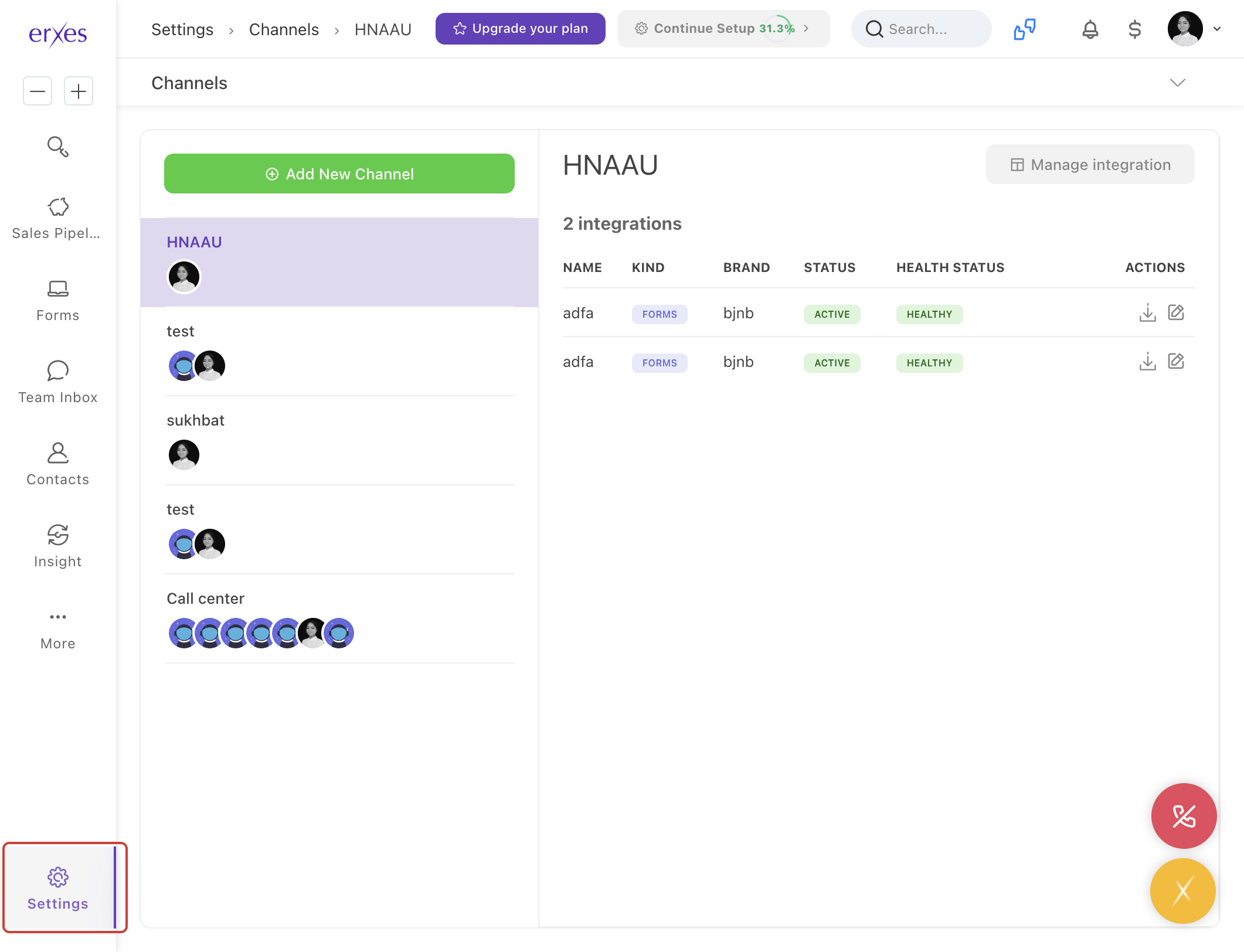
- Go to Integration .
- Click on Facebook Post .
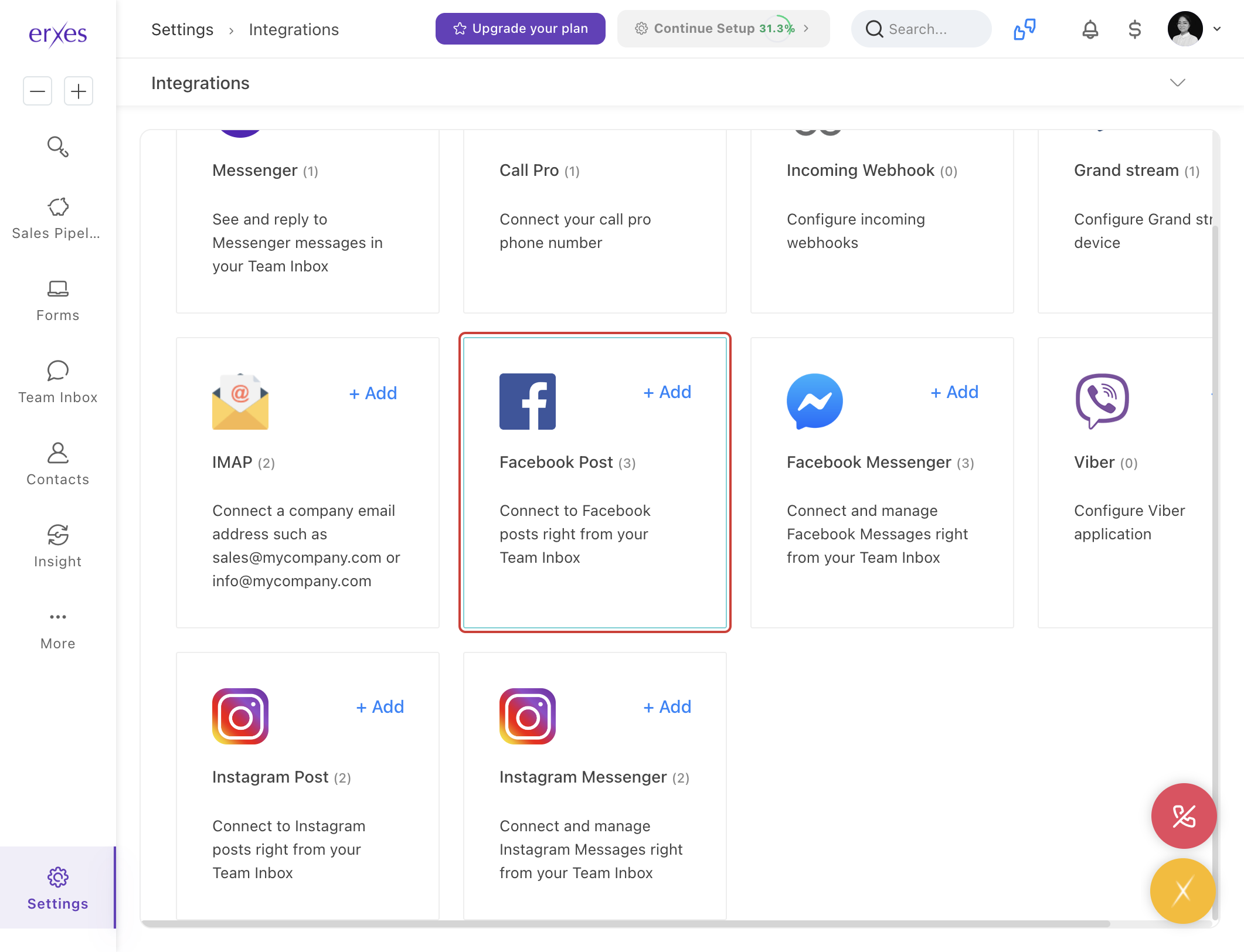
- Click the Edit button and make sure Channel is selected.
Check your Facebook connection again:
- Go to Settings .
- Go to Integration .
- Click +Add in the Facebook Post section .
- Click the Next button.
- Click Select next to the Facebook page name .
- If Select is available , consider the connection missing and select Integration name , Brand , and Channel again to save.
If you are unable to select , please assume the connection was successful and try other methods again, or contact our support team for assistance.






