Guides

All topics
erxes XOS
Sales
Settings
Account
Workspace
Developers
Core Modules
Broadcasts
Documents
Automations
Segments
Contacts
Plugins
Operation
Sales
Frontline
Tourism
Content
Accounting
Agents
Company Brain
Mongolian
Loyalty
Connecting Web Messenger
Step 1: Add and Configure Web Messenger
- Go to Settings.
- Navigate to Integration.
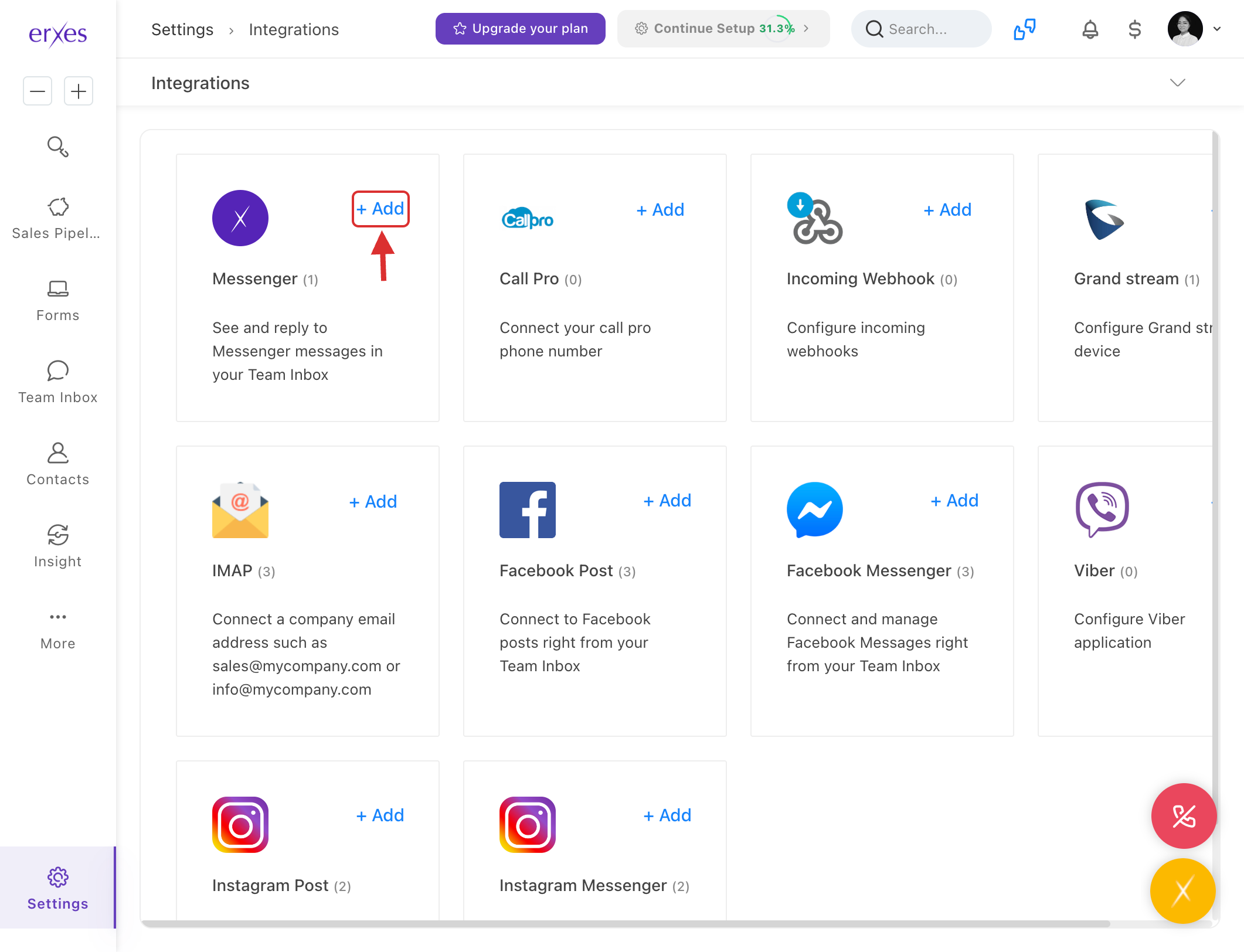
- In the Messenger section, click +Add.
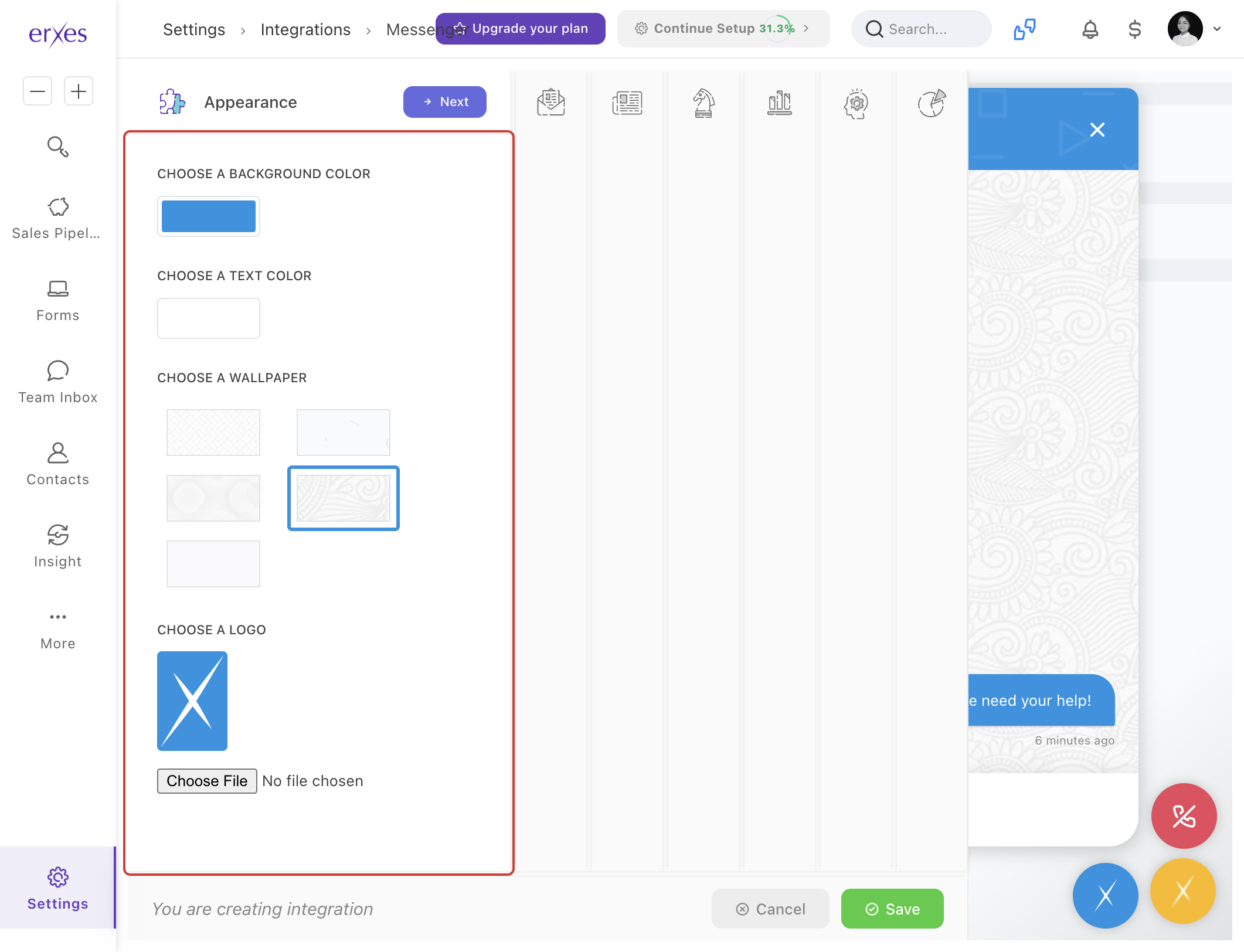
- Appearance section:
- Enter your branding colors for the messenger to match your website's theme.
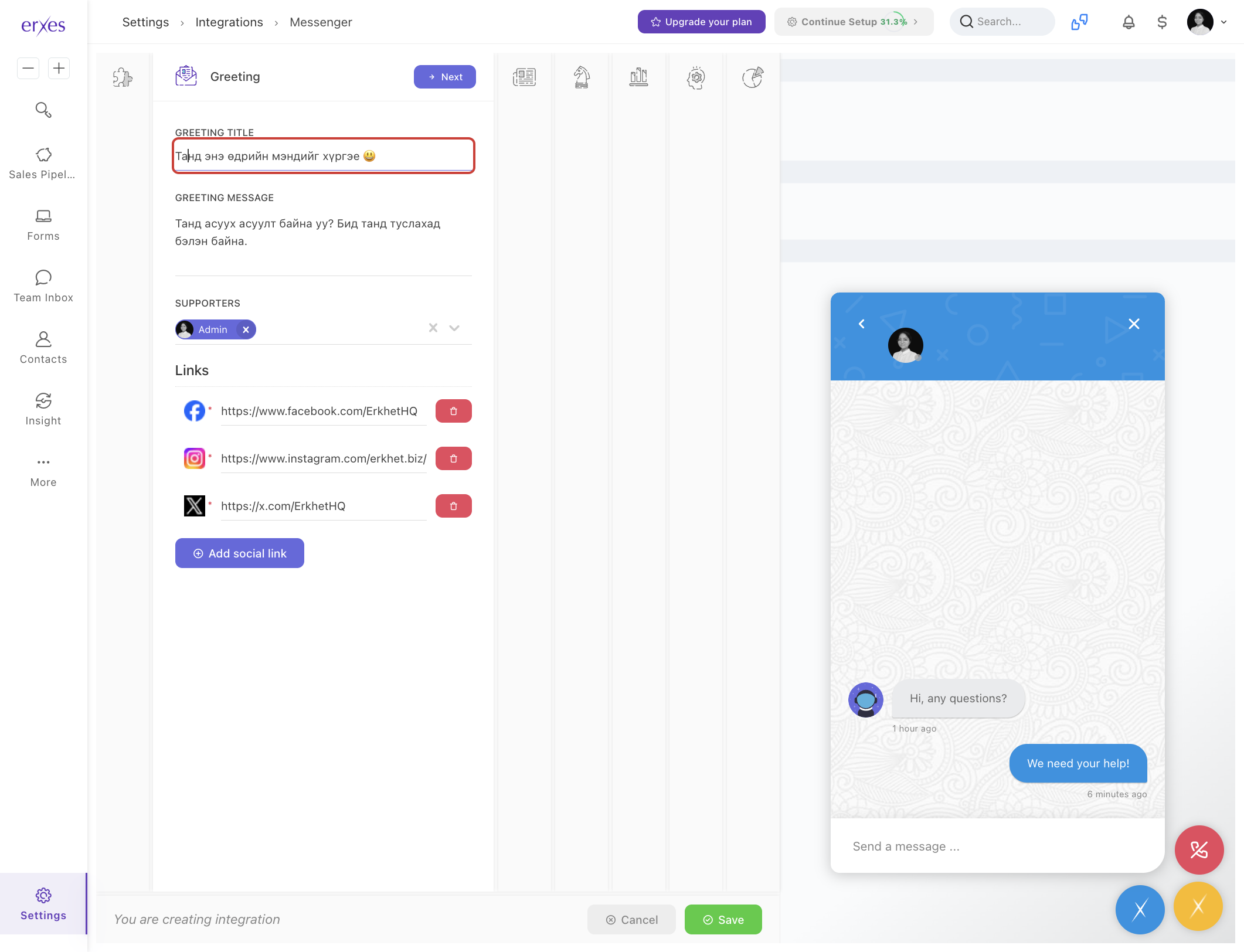
- Greeting section:
- Select the information and customer service team members that will appear when a customer first enters the messenger.
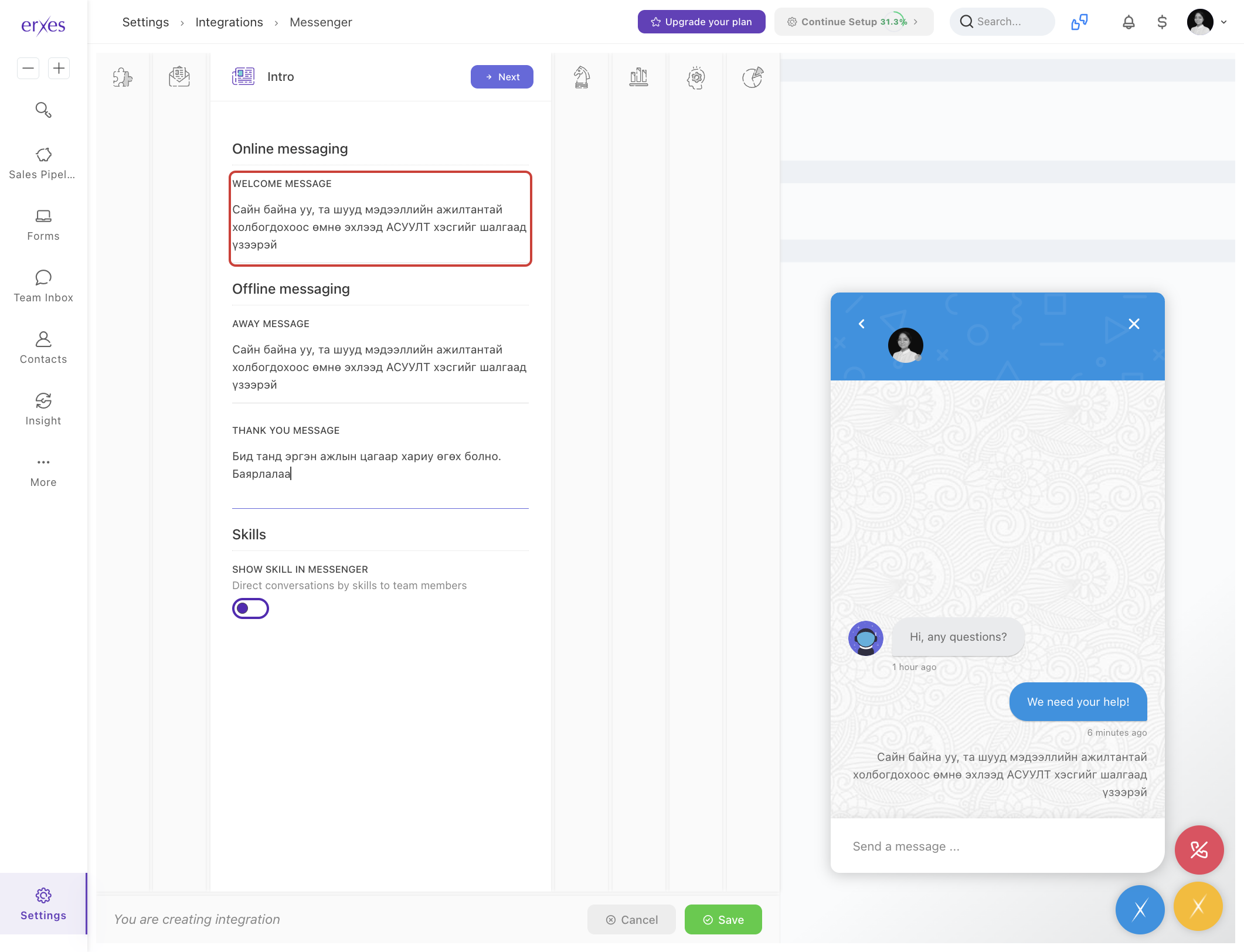
- Intro section:
- Configure the message that will appear to offline users when they initiate a chat while the support team is unavailable.
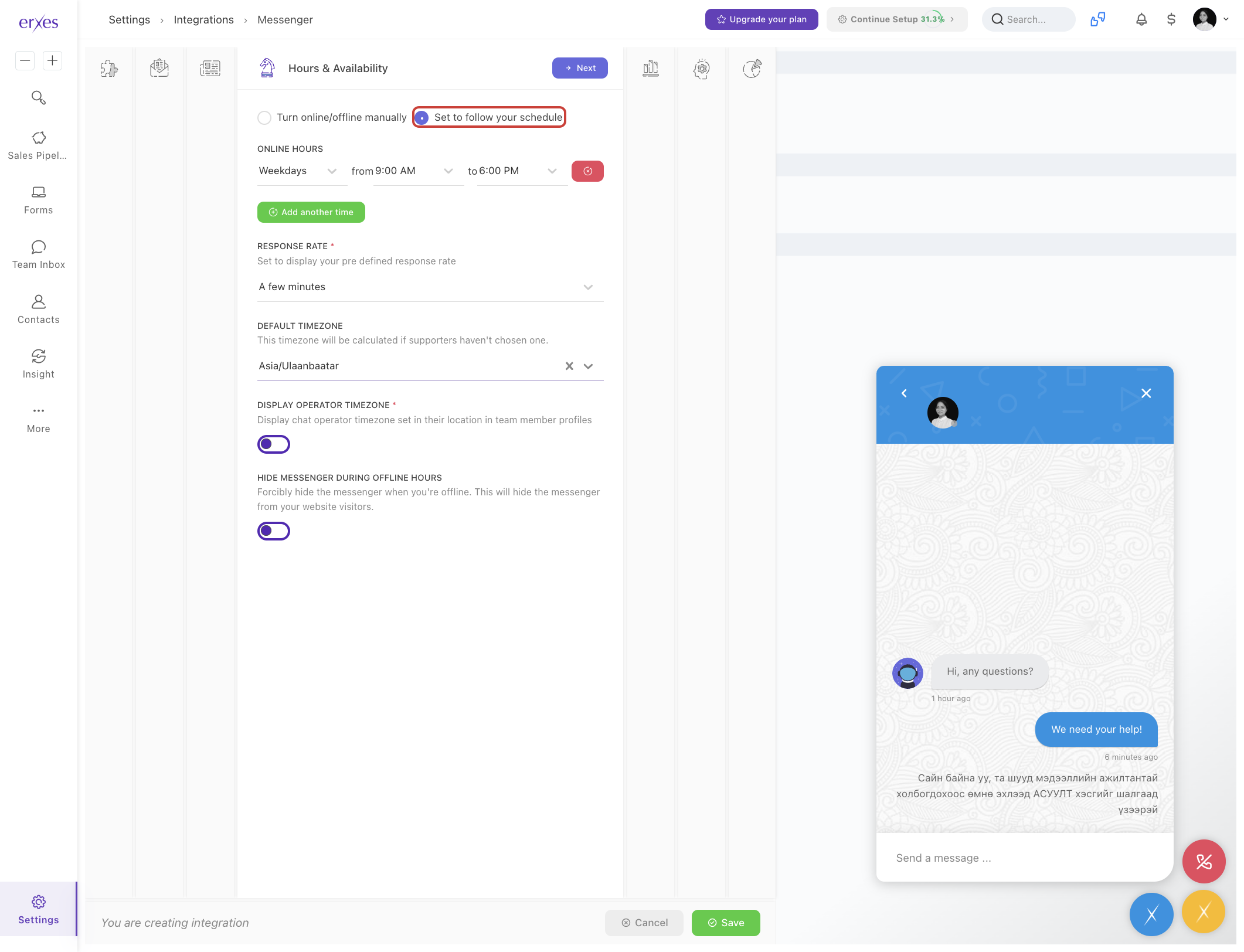
- Hours & Availability section:
- Set your working hours to specify when your support team is available to respond in the messenger.
- Config Setup section:
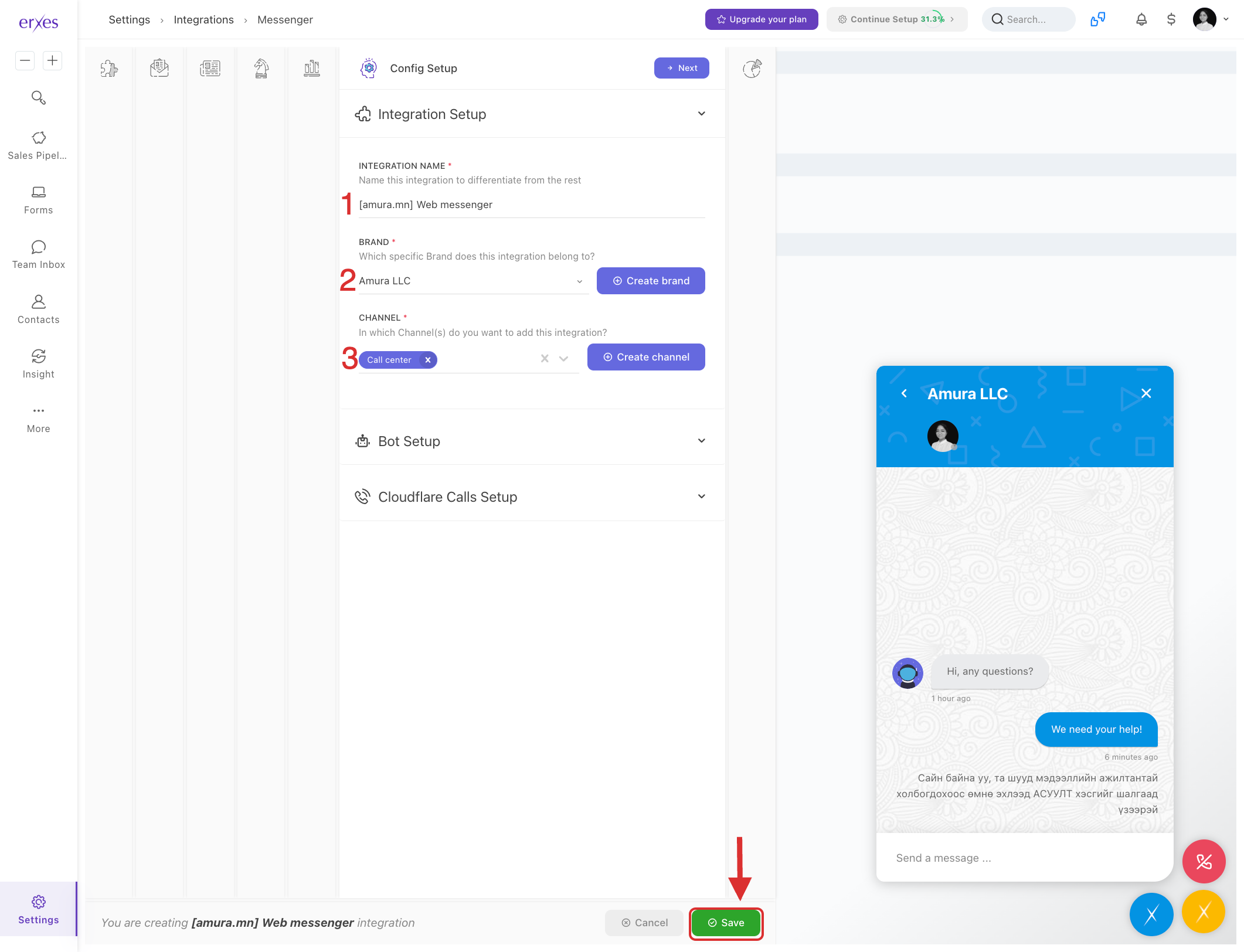
- In the Integration name field, enter [Web messenger] Website.
- Select the Brand section.
- If you haven’t created a brand, click Create Brand and select it.
- Select the Channel section.
- If you haven’t created a channel, click Create Channel and select it.
- Click Save to save the settings.
Step 2: Test the Web Messenger
- Go to Settings.
- Navigate to Integration.
- Click on Messenger.
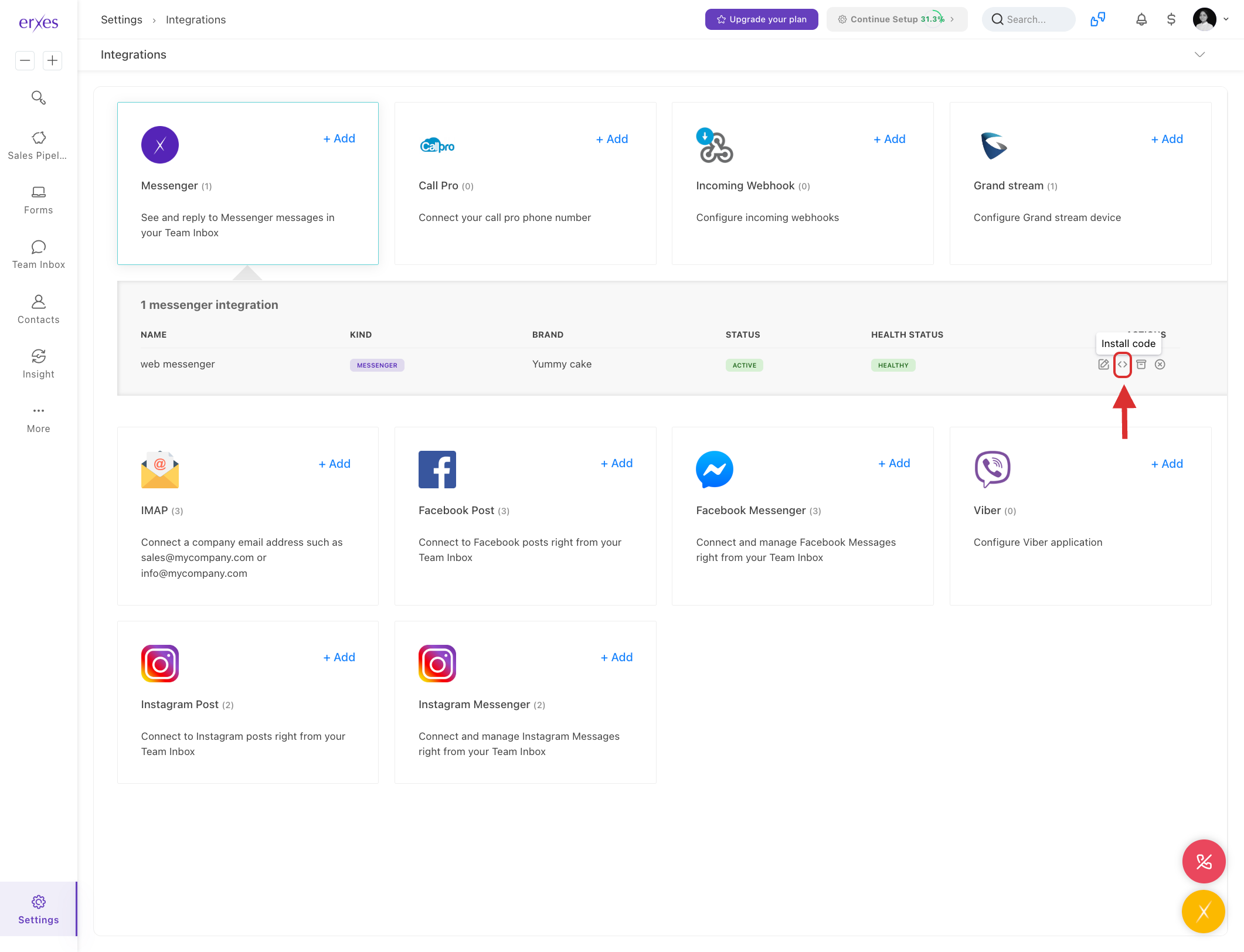
- Click on the "<>” icon from the Actions menu next to the Web Messenger name.
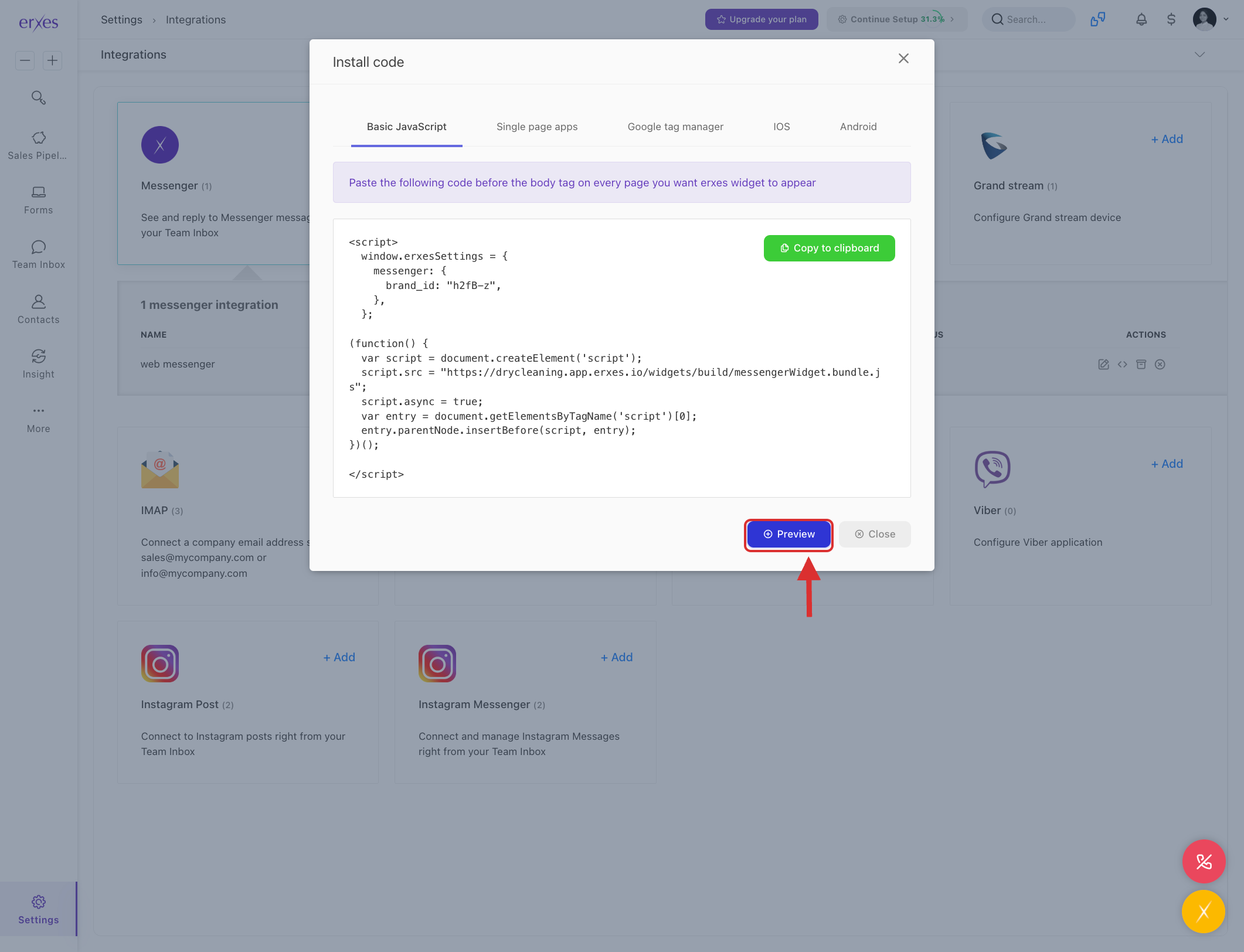
- Click Preview.
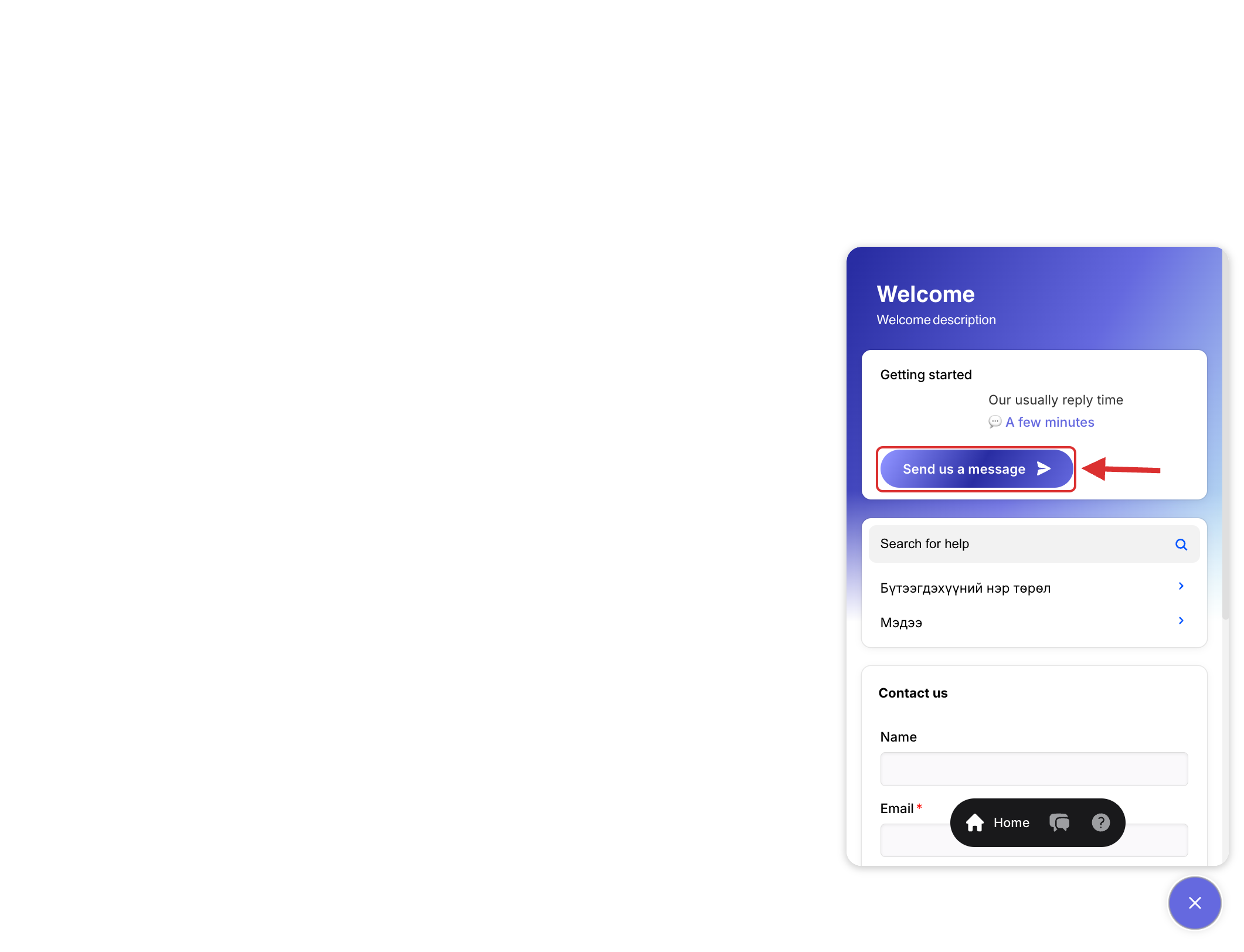
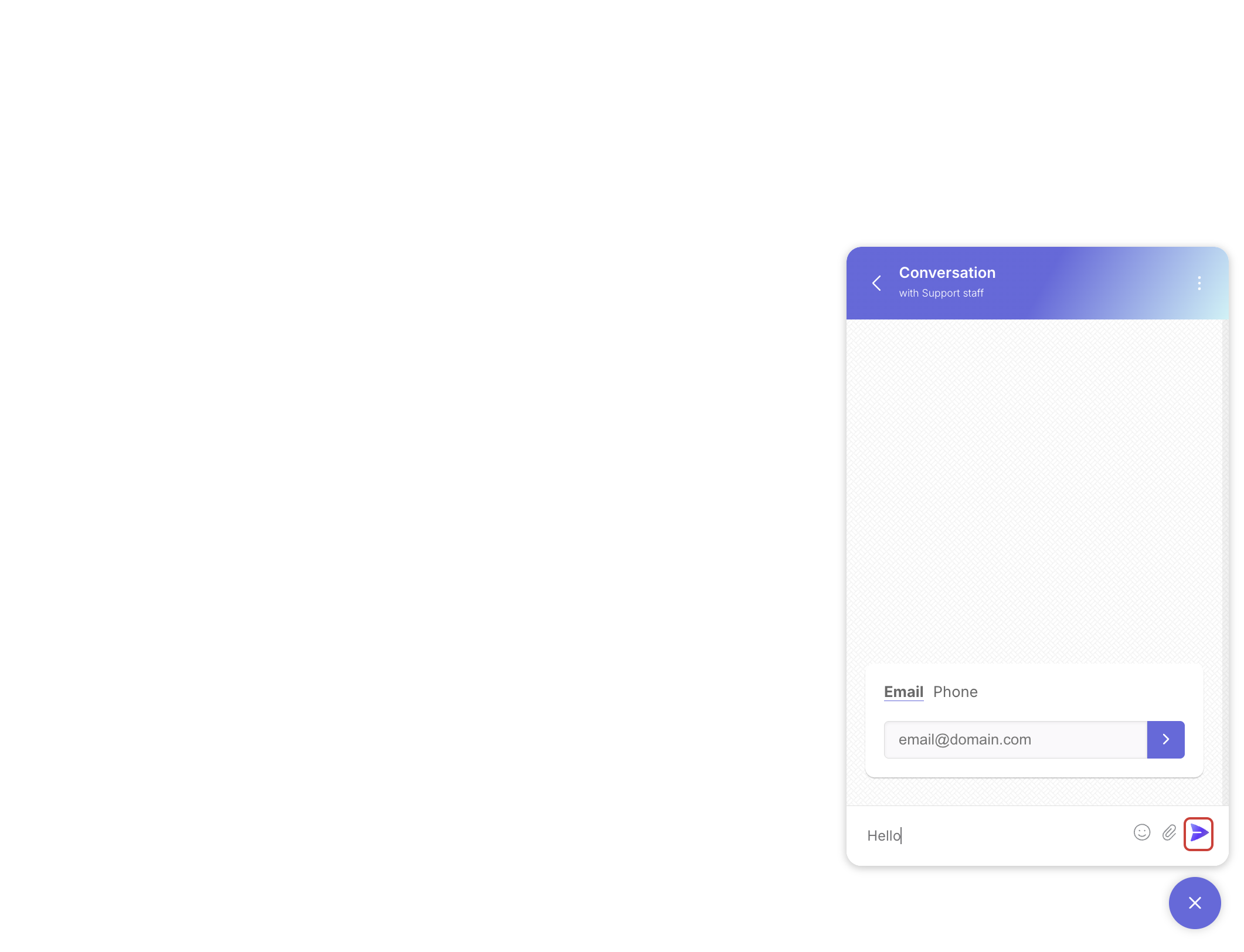
- In the window that appears, click on the chat circle in the lower right corner to start writing a chat.
- Test if the messenger responds correctly based on the configured settings.
Step 3: Troubleshooting (If Web Messenger is not Coming to TeamInbox)
1. Check if your erxes account is included in the Channel
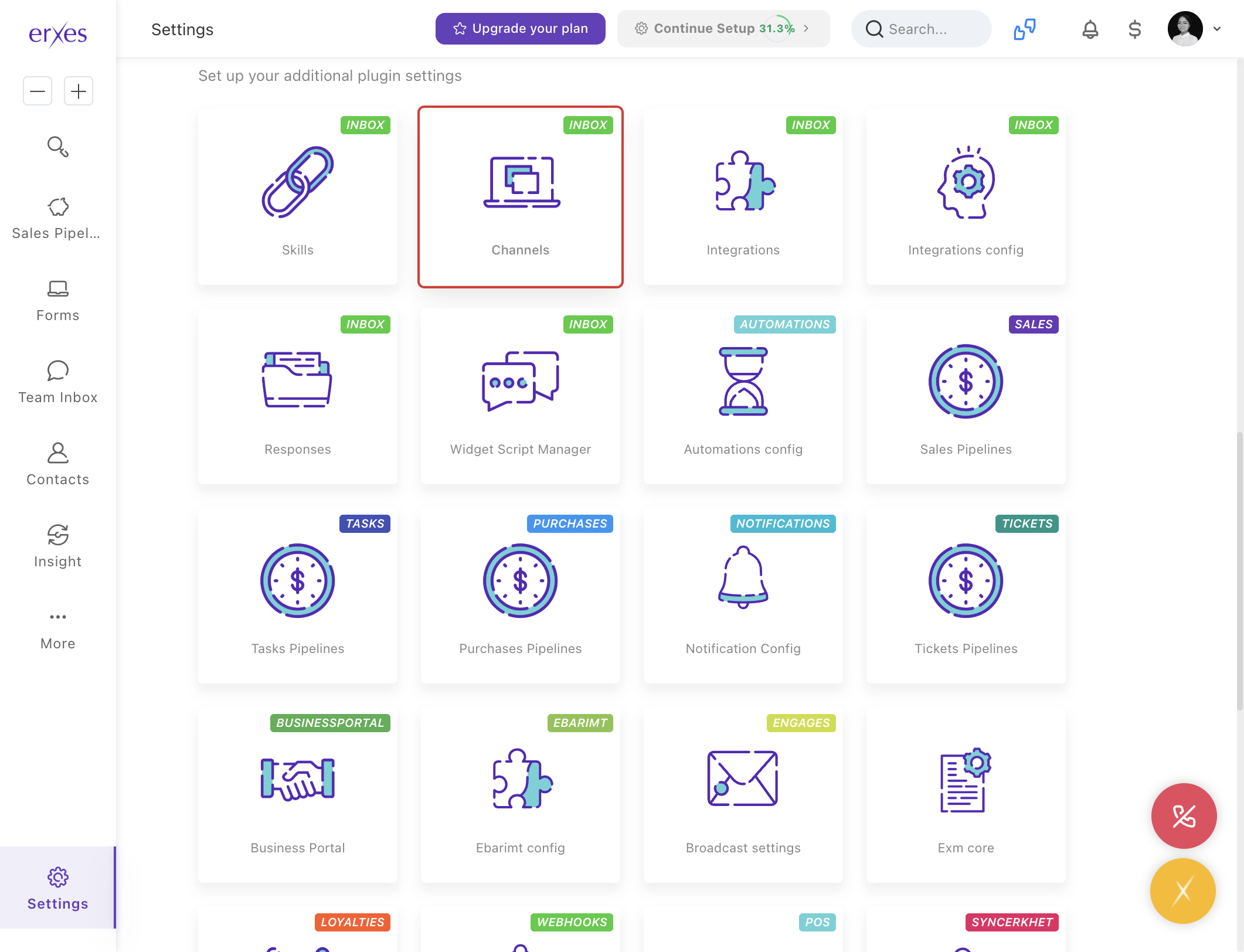
- Go to Settings → Channel.
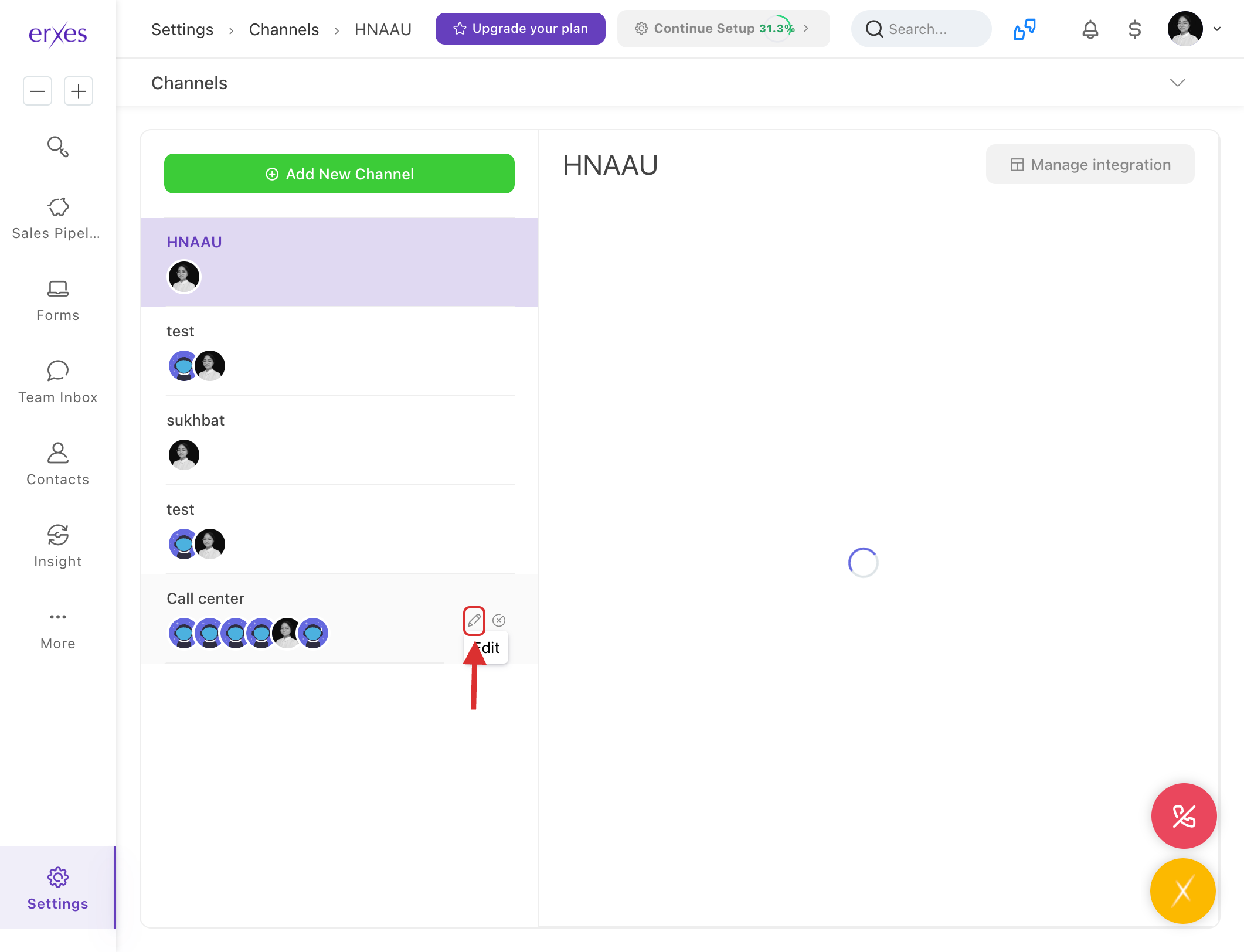
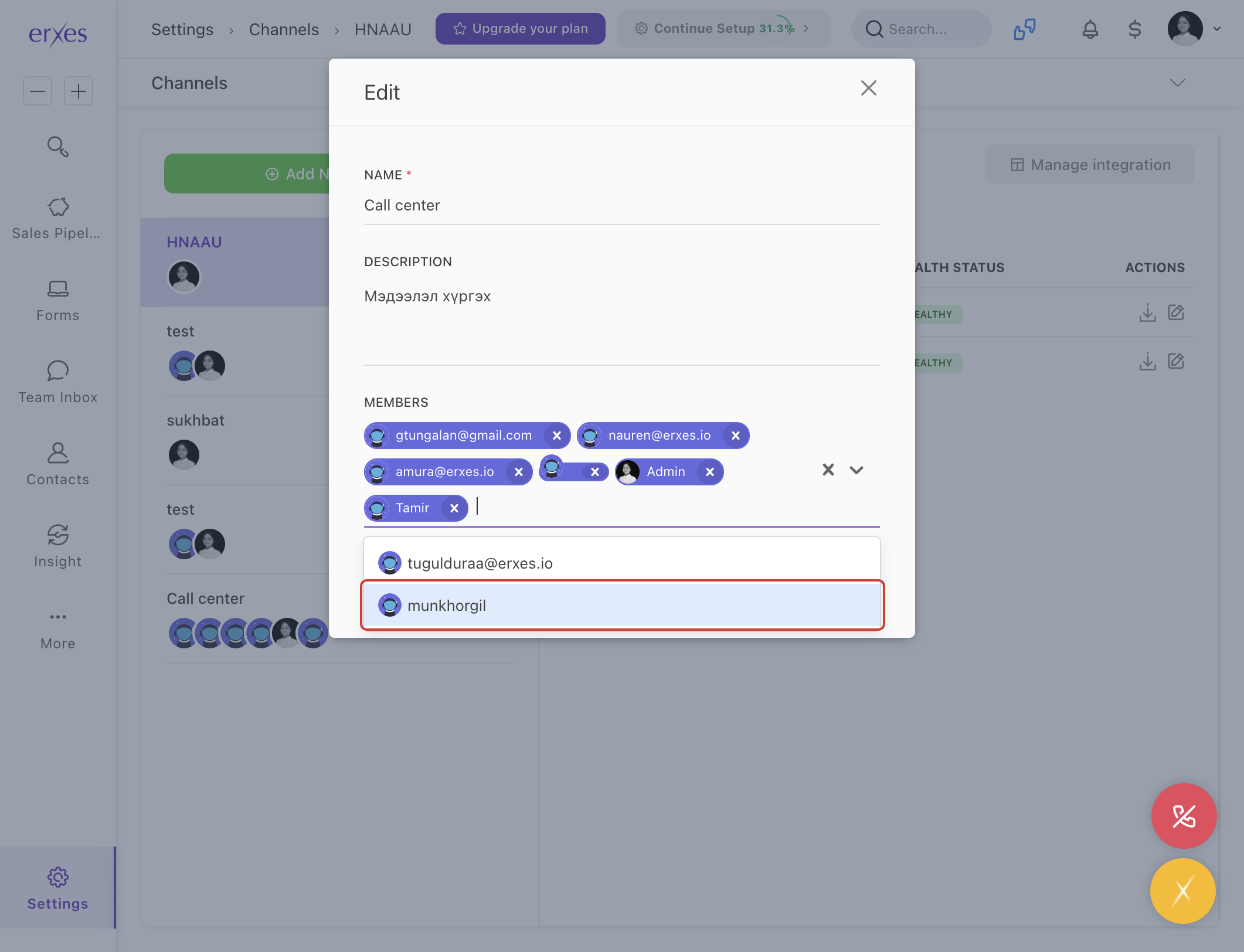
- Check if your erxes account name is listed in the Member section.
2. Ensure Channel is selected for Web Messenger connection
- Go to Settings → Integration.
- Click on Web Messenger.
- Click Edit and ensure the Channel is selected.
By following these steps, you should have Web Messenger properly connected and working in your erxes system, allowing your team to manage and respond to customer communications in real time.
Illustrated instructions:
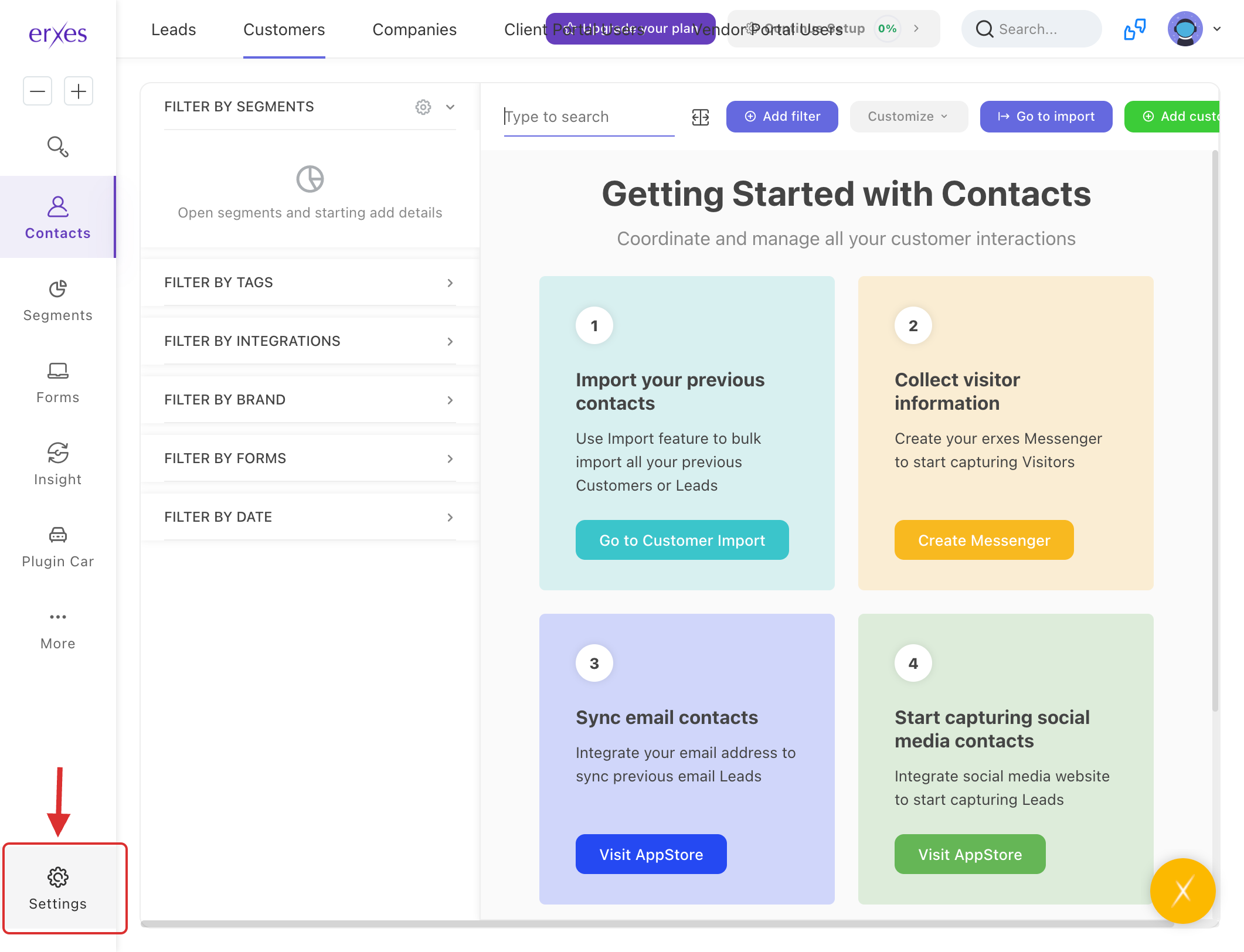
- Go to Settings
- Go to Integration
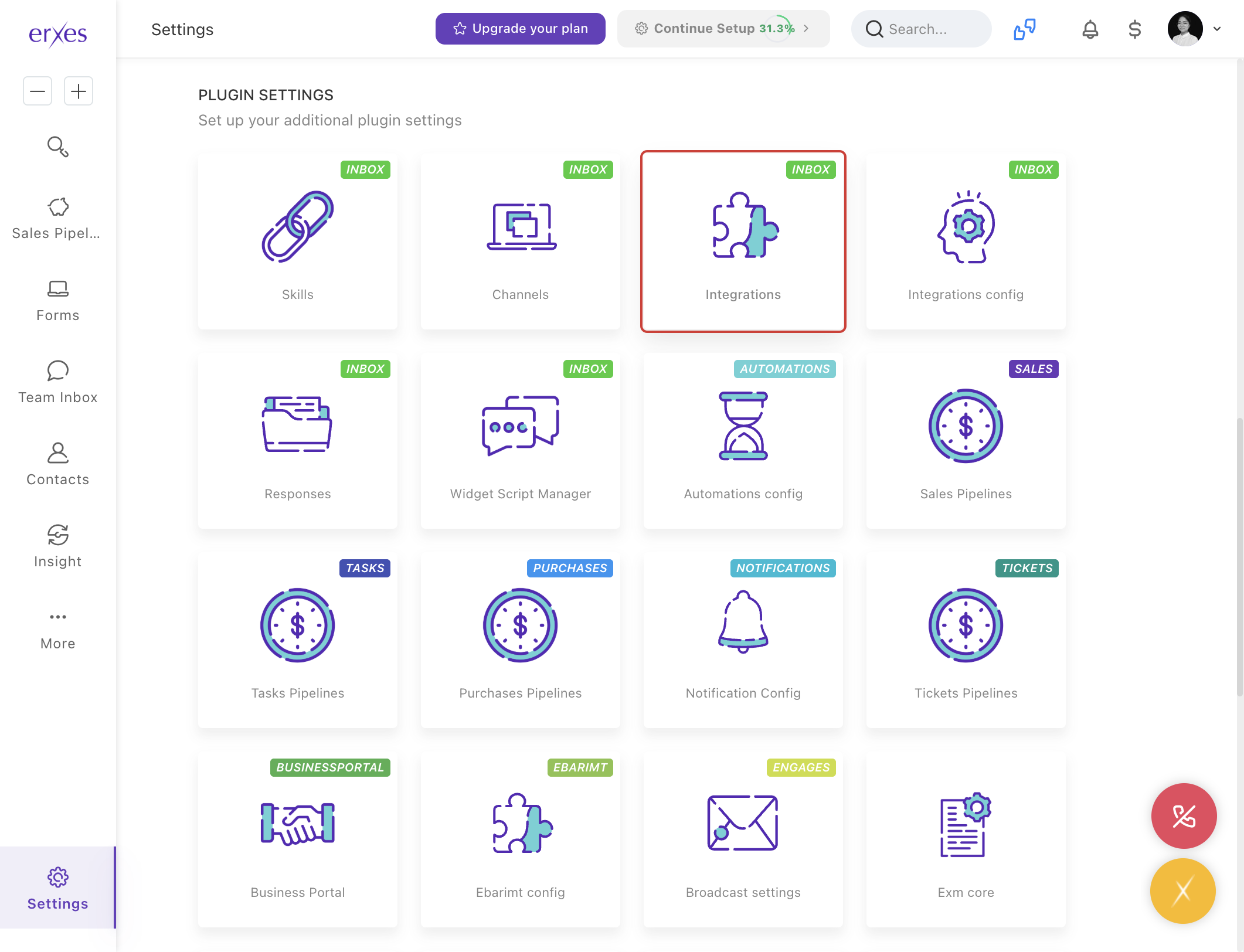
- Click +Add in the Messenger section .
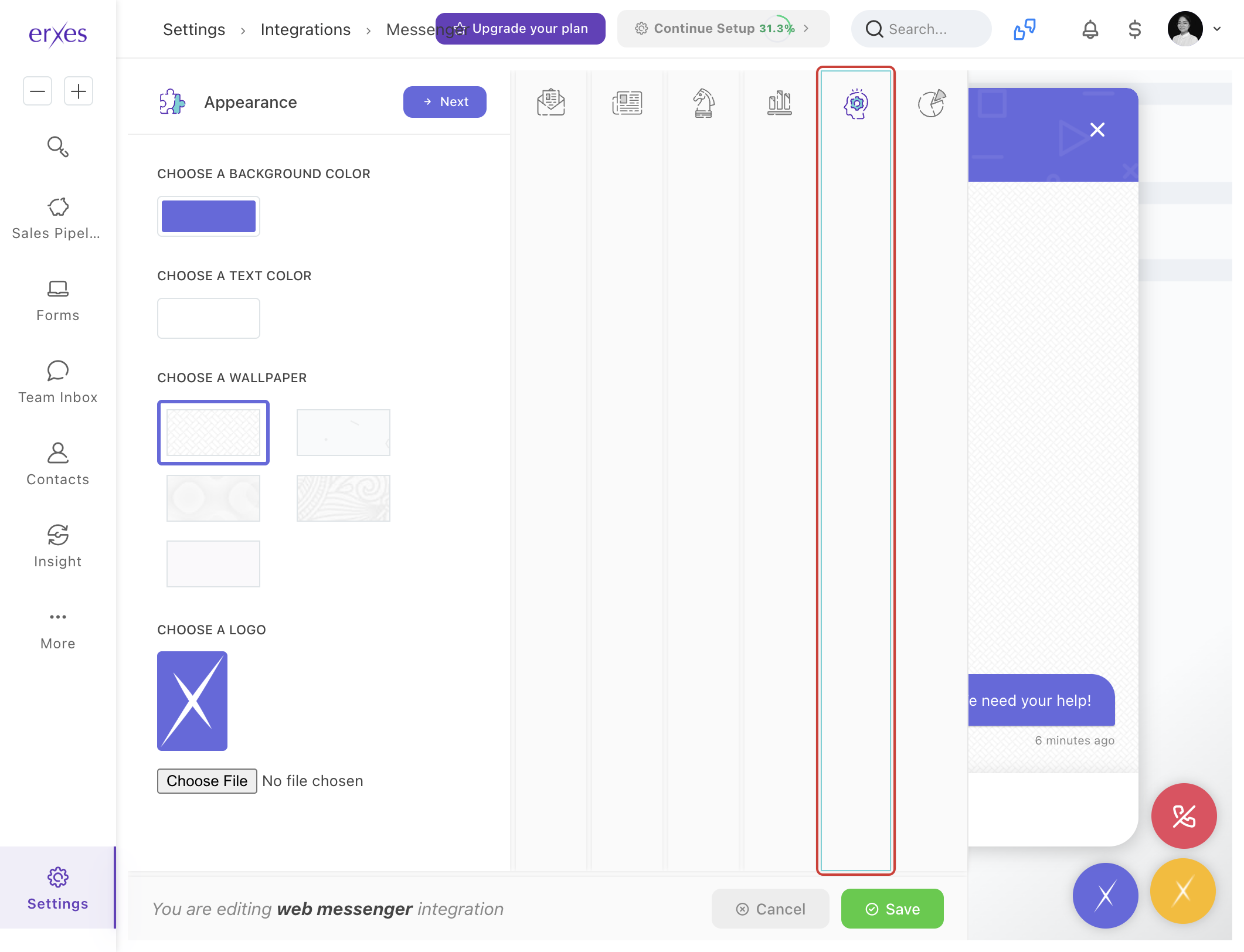
- In the Appearance section, enter information such as branding colors.
- In the Greeting section, select the information and customer service team members that will appear when the customer first enters the messenger.
- Configure the message that appears in the Intro section to offline users.
- You can set your working hours in the Hours & Availability section.
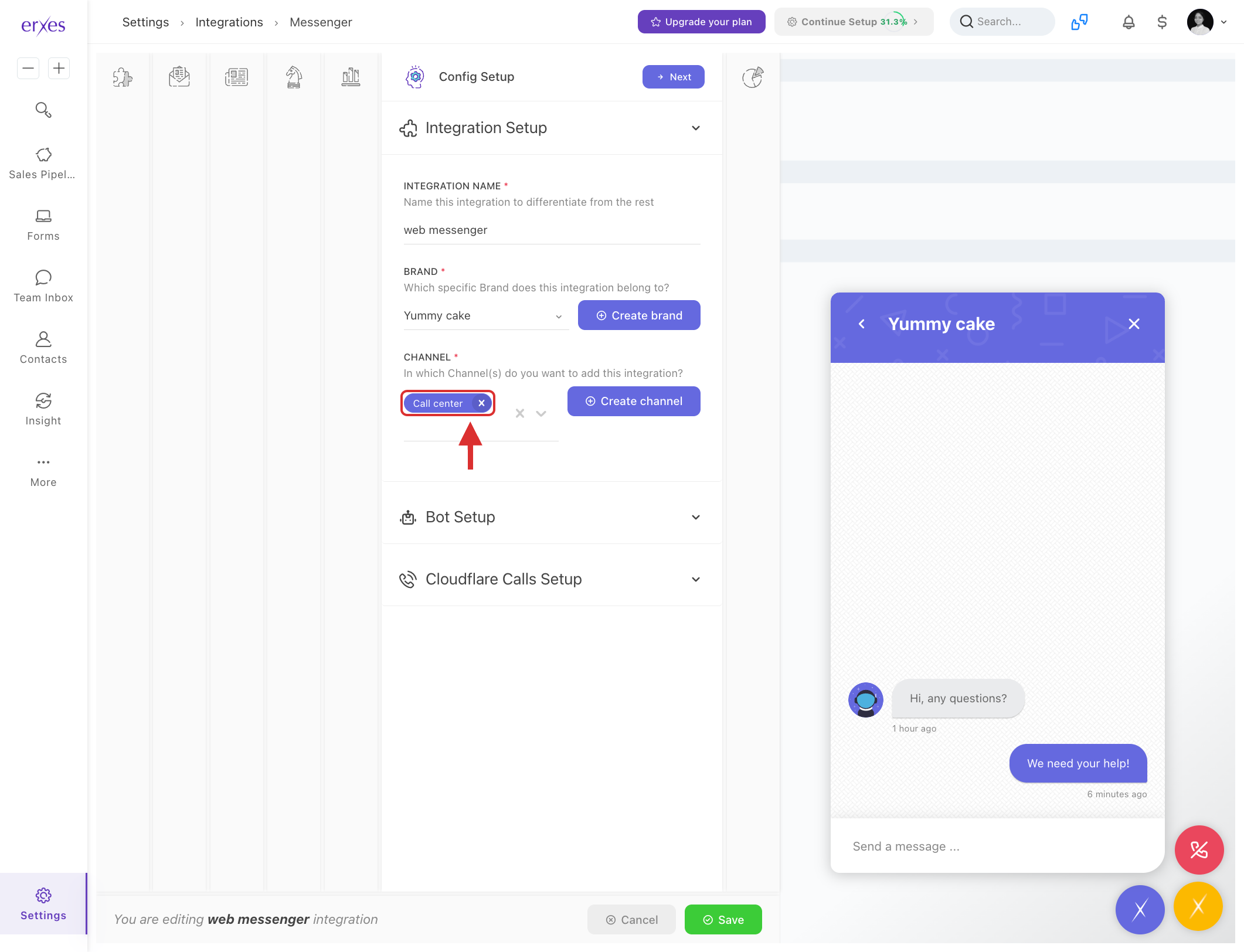
- In the Config Setup section:
- In the Integration name field, enter “[Web messenger] Website”
- Select the Brand section.
- Select the Channel section.
- Click the Save button to save the settings.
Try it:
- Go to Settings
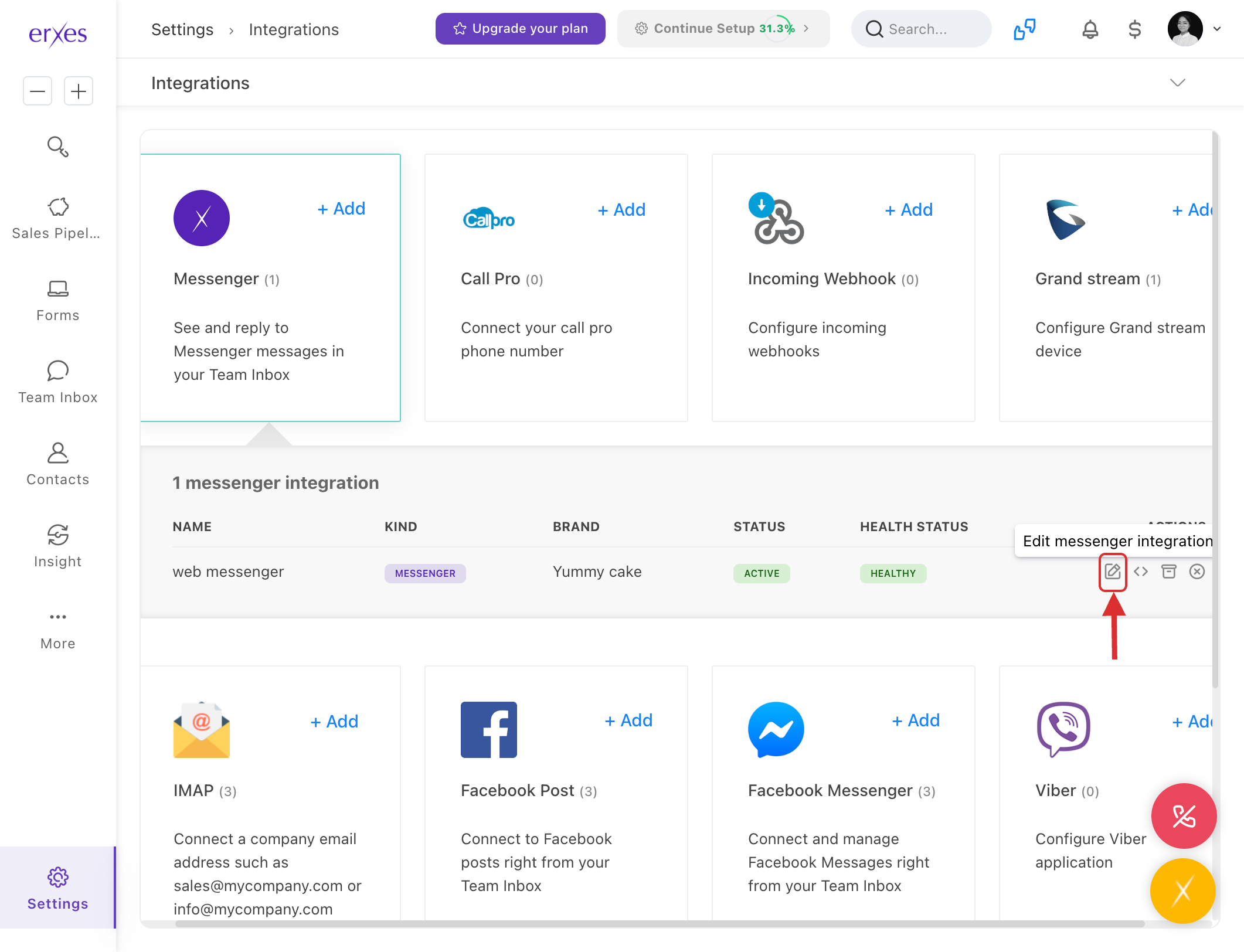
- Go to Integration
- Click on Messenger
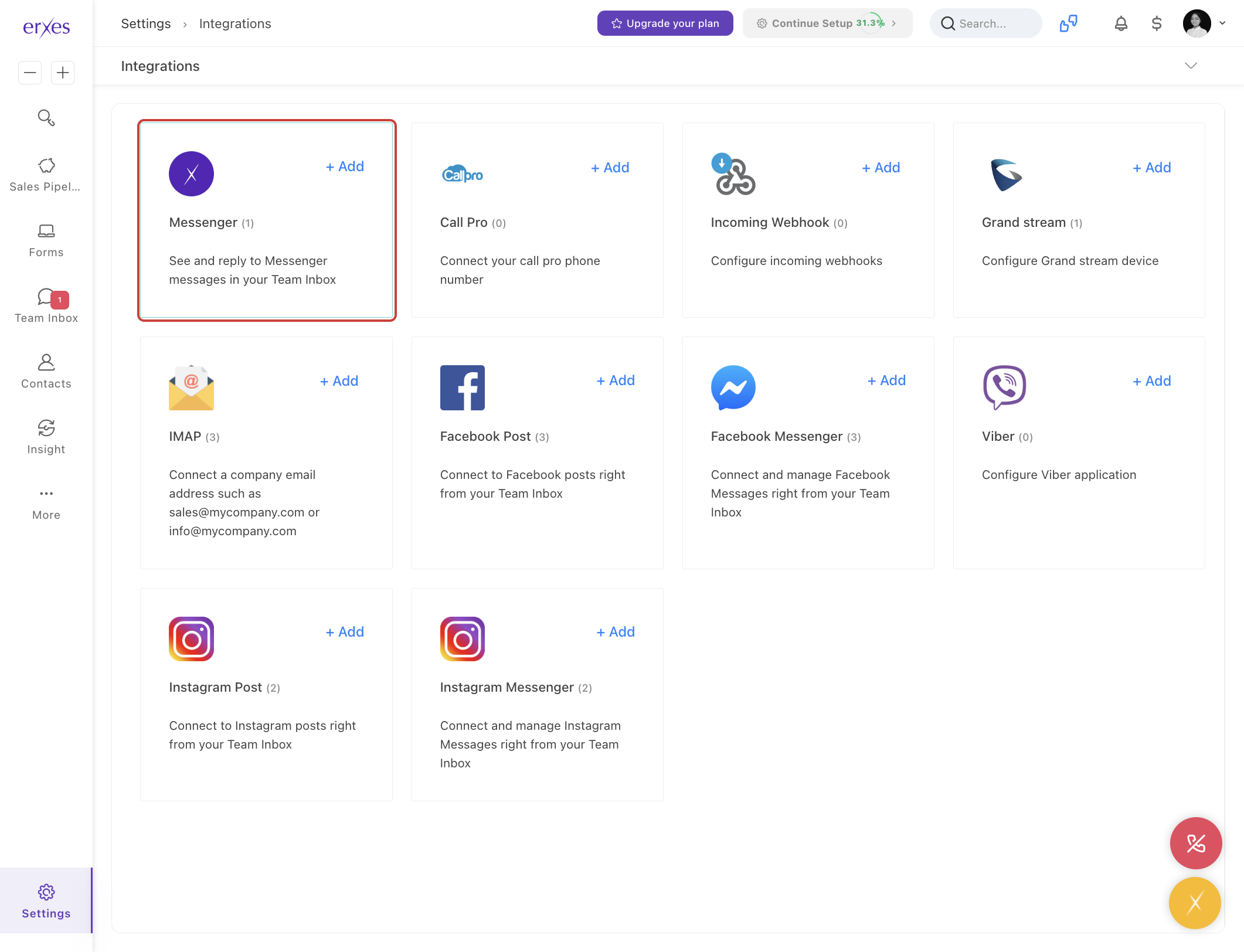
- Click on “ <> ” from the Actions menu next to the Messenger name.
- Click on Preview.
- In the window that appears, click on the circle in the lower right corner to try writing a chat.
If Web Messenger is not coming to TeamInbox, here are some things to check:
1. Check if the erxes account you are checking is included in the Channel:
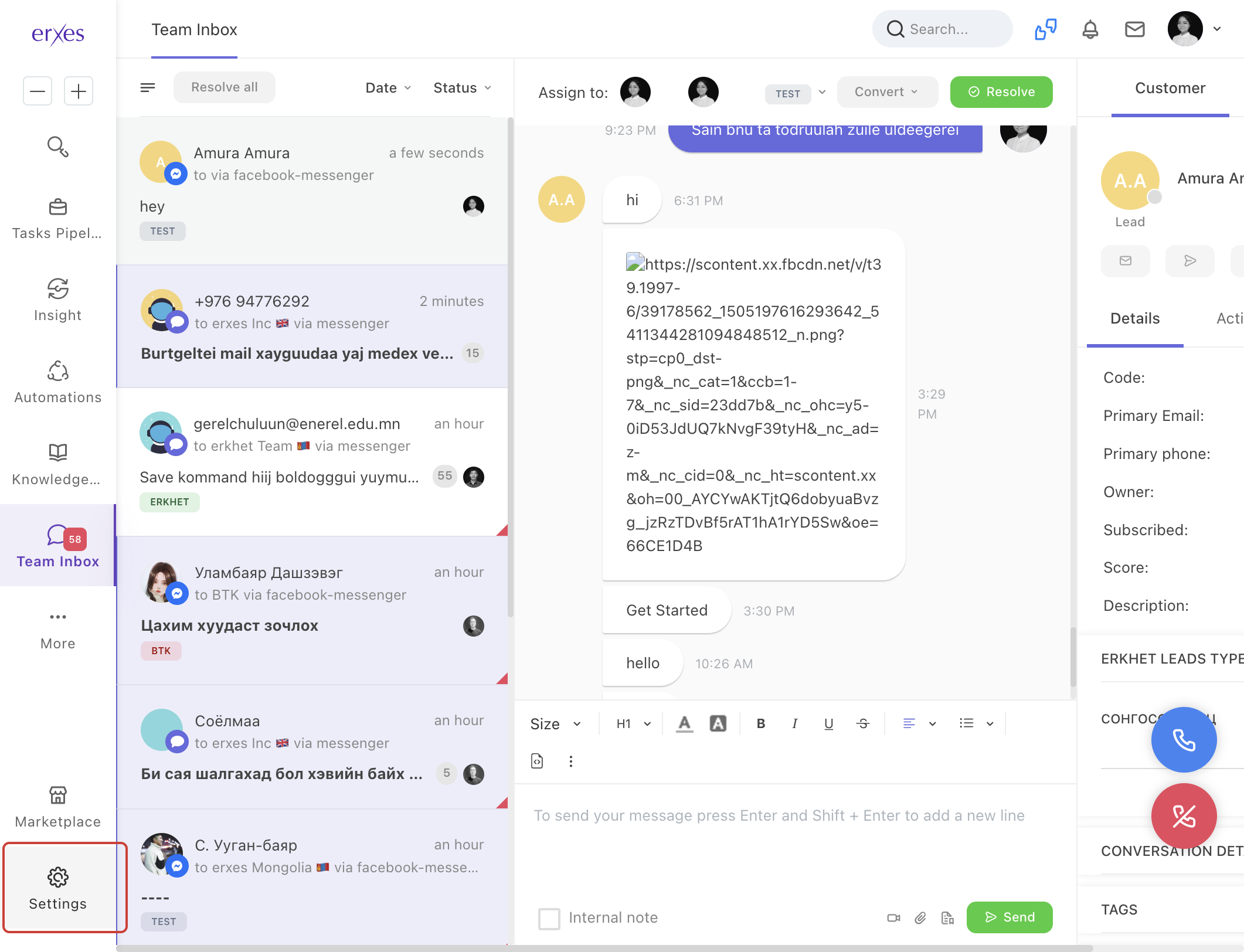
- Go to Settings
- Go to Channel
- Check if your information is in the Member section (erxes Account name)
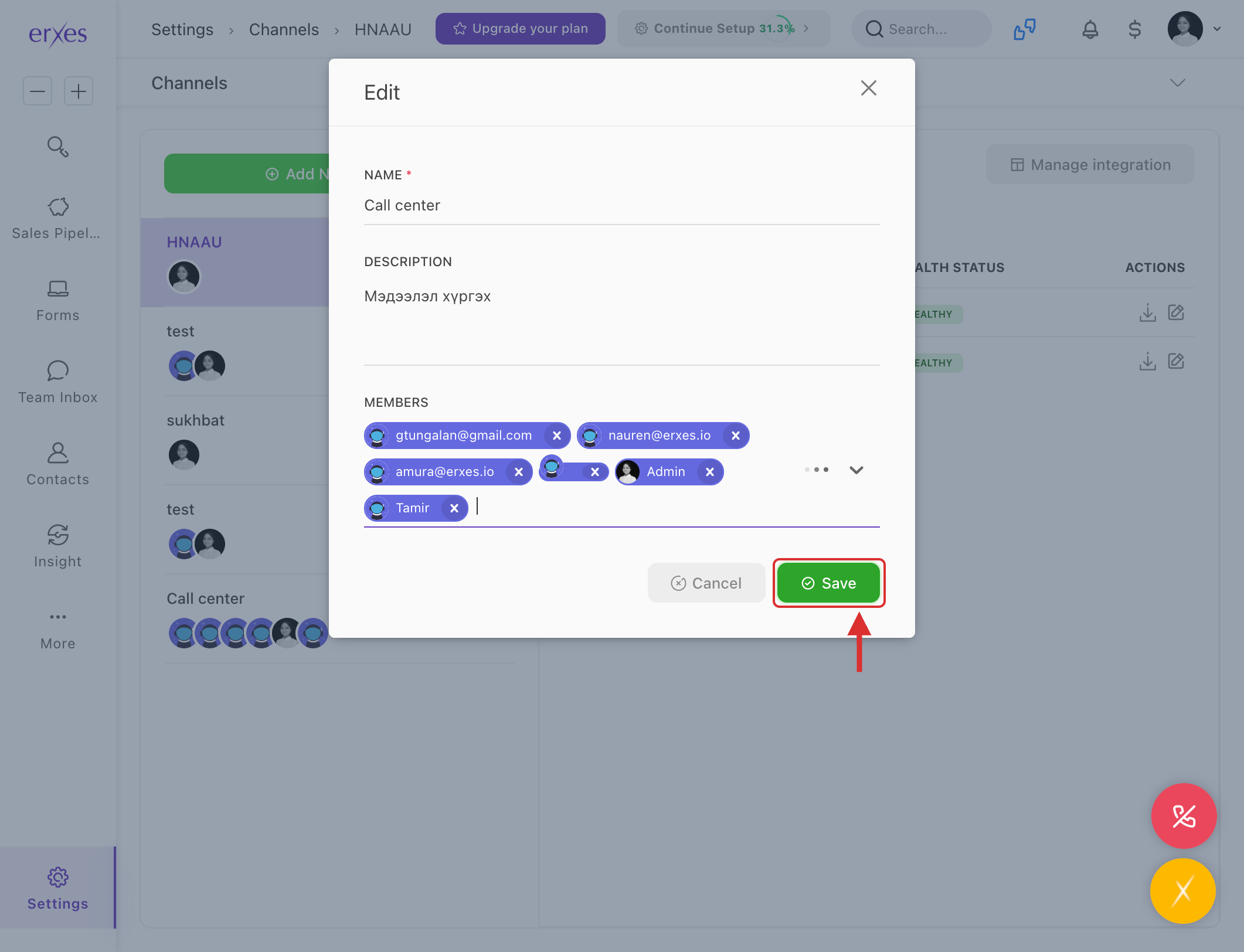
2. Check if Channel is selected for the Web messenger connection:
- Go to Settings
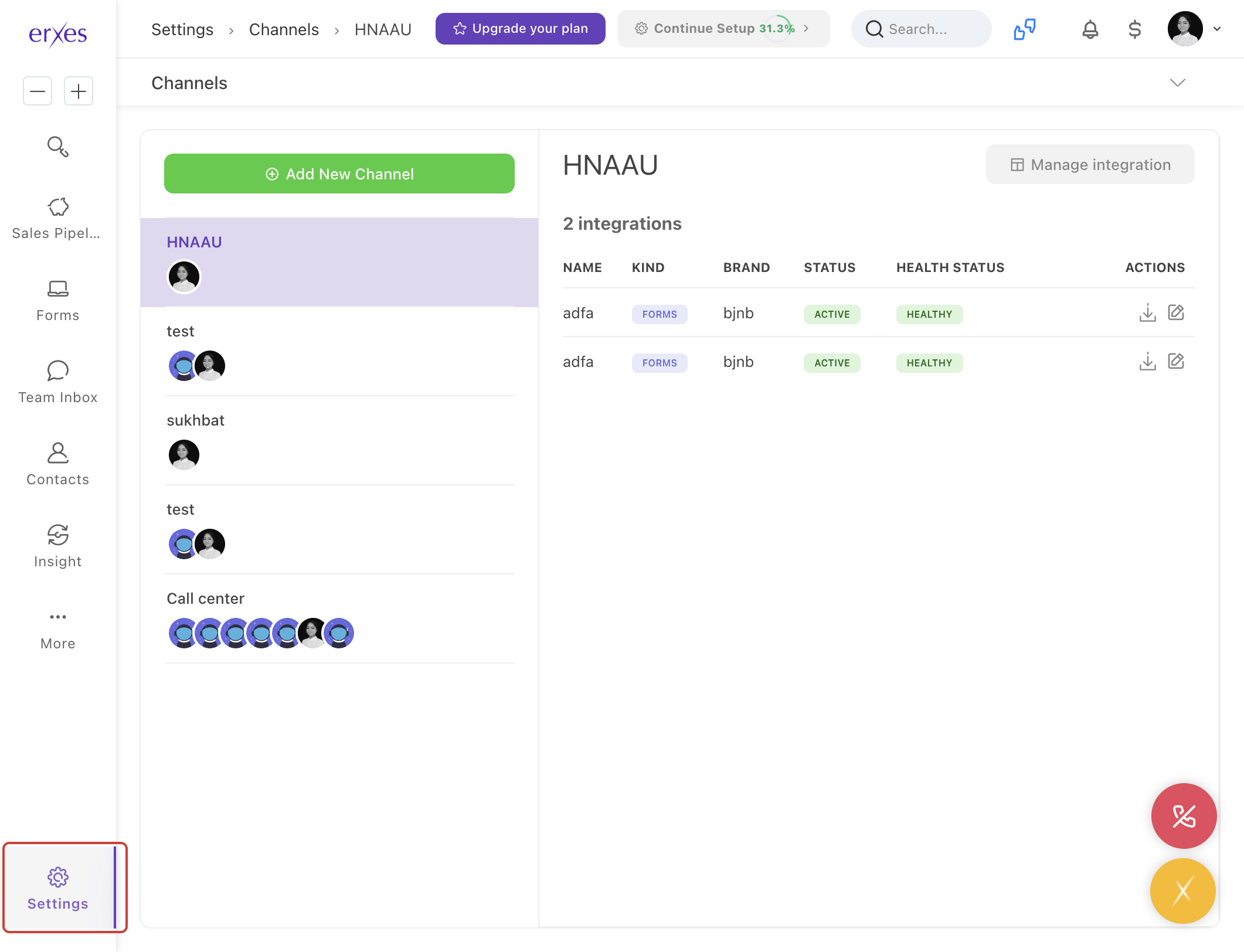
- Go to Integration
- Click on Web Messenger
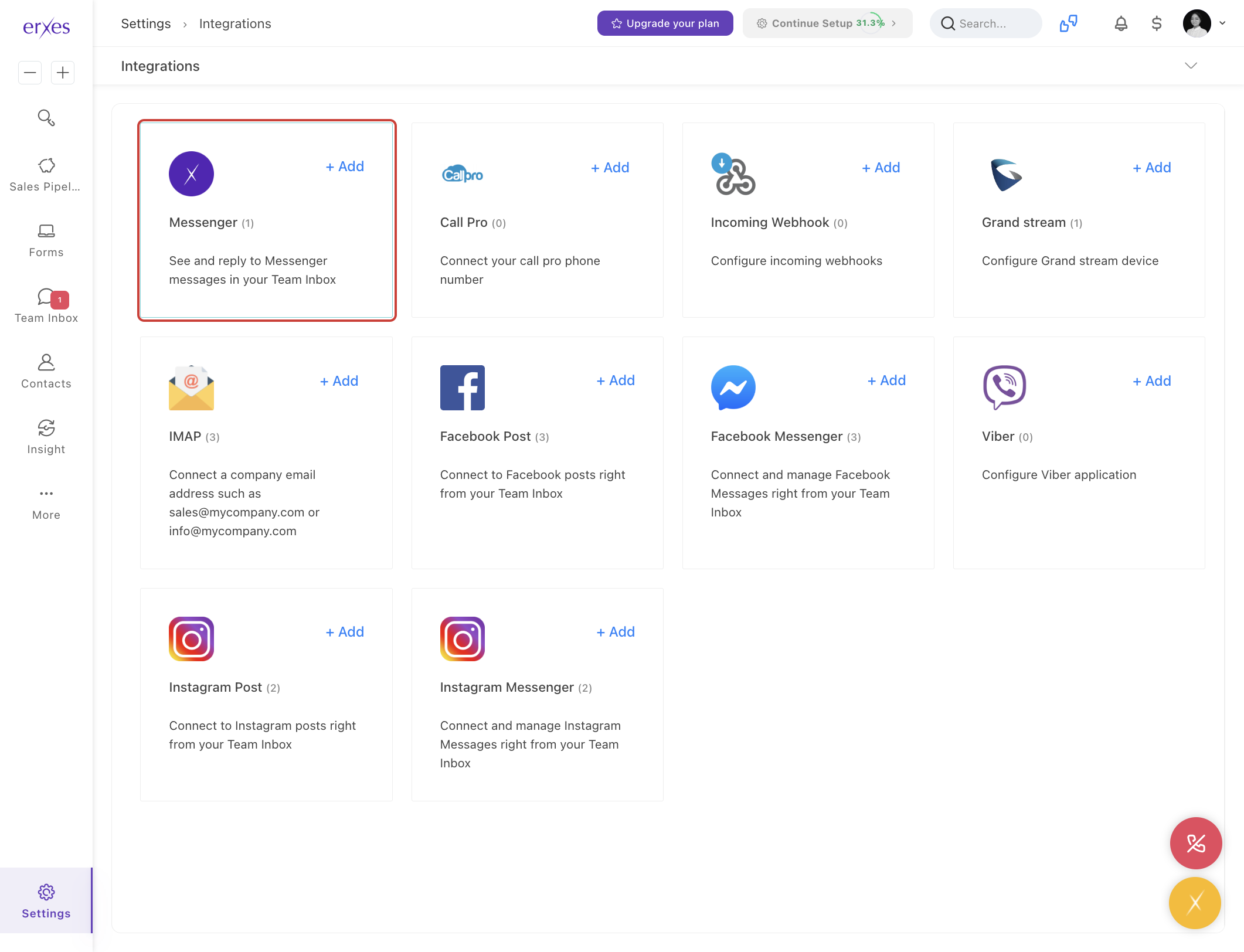
- Click the Edit button and make sure Channel is selected.