
Guides

All topics
erxes XOS
Sales
Settings
Account
Workspace
Developers
Core Modules
Broadcasts
Documents
Automations
Segments
Contacts
Plugins
Operation
Sales
Frontline
Tourism
Content
Accounting
Agents
Company Brain
Mongolian
Loyalty
Connecting IMAP
Step 1: Add the IMAP Integration
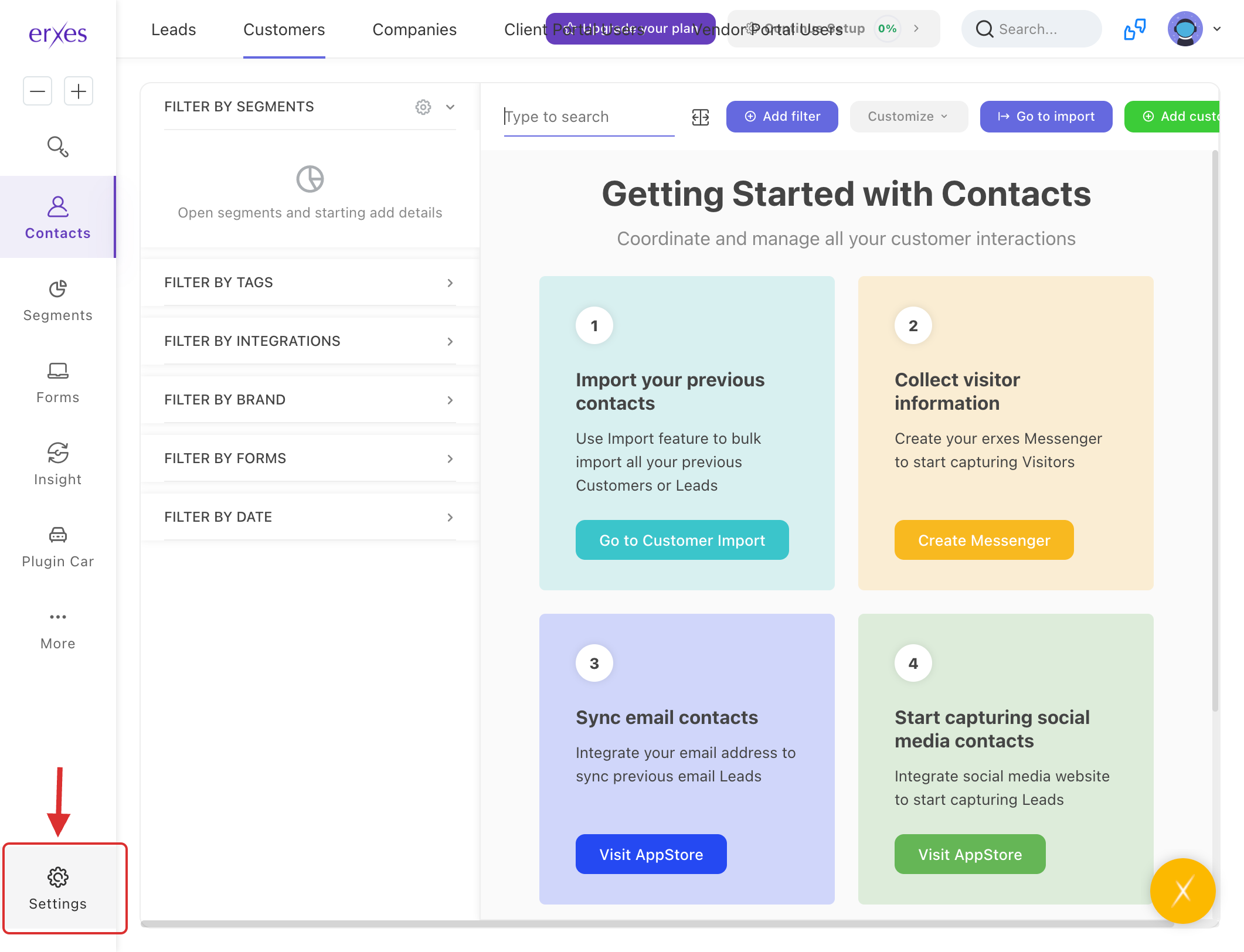
- Go to Settings.
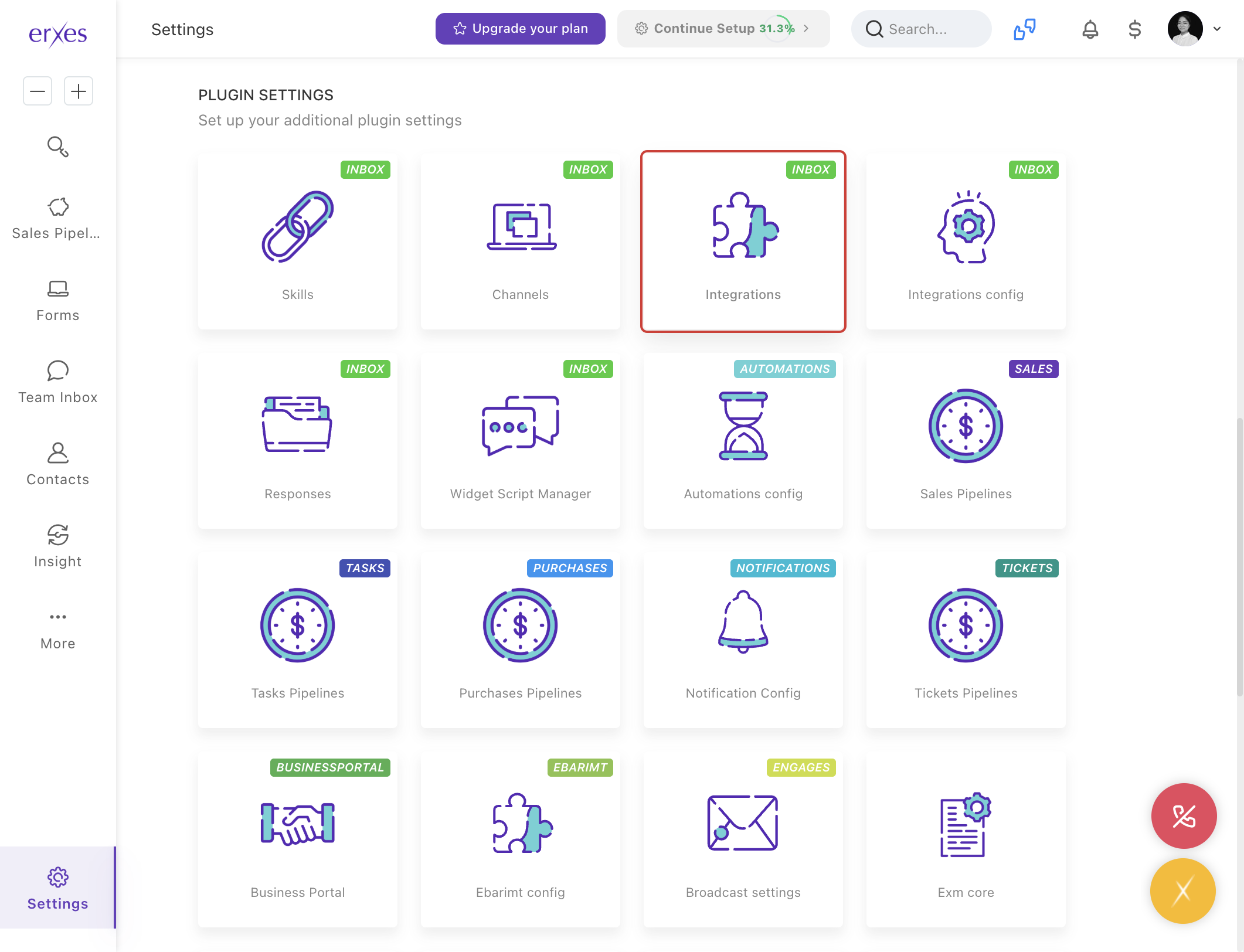
- Navigate to Integration.
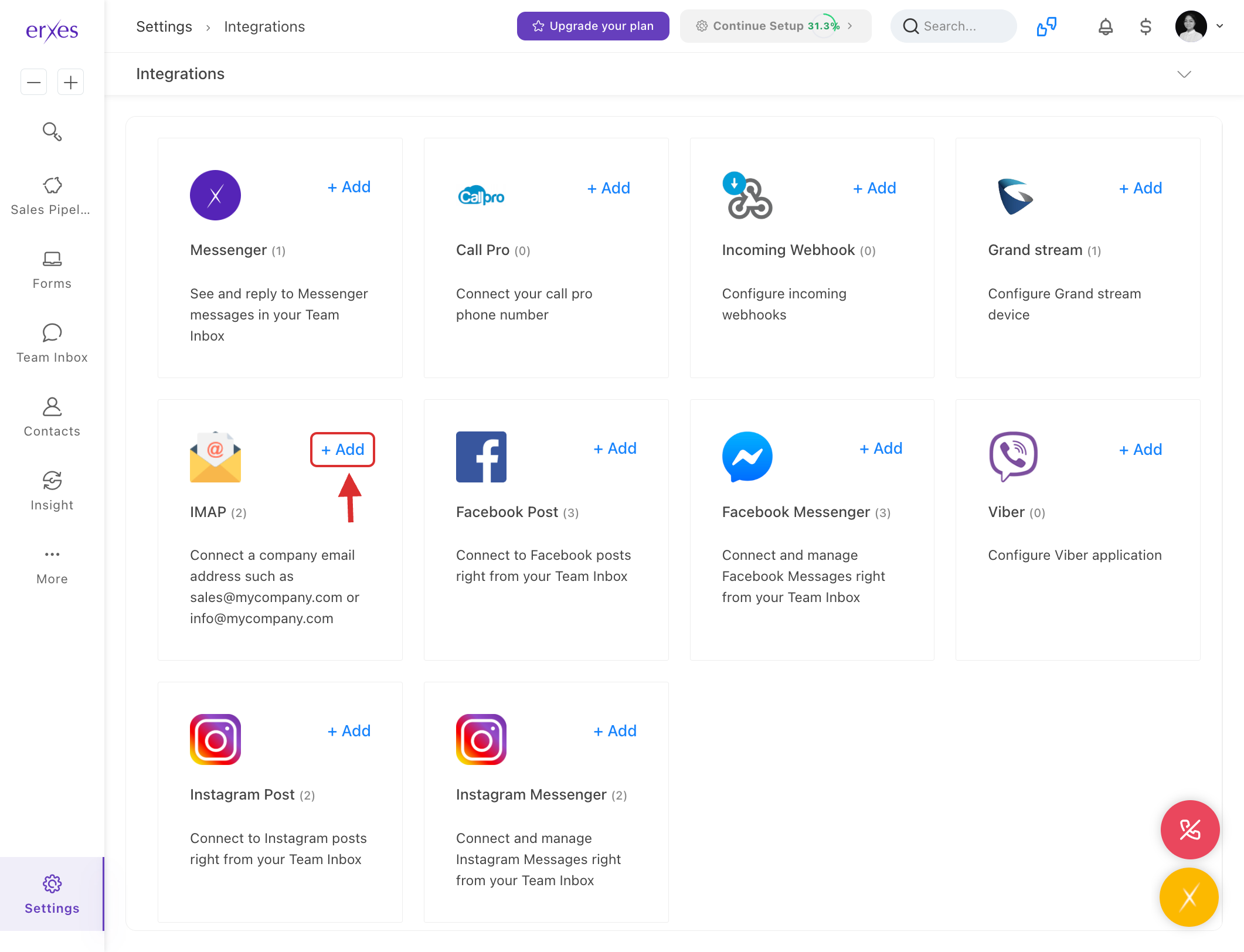
- In the IMAP section, click +Add.
Step 2: Fill in the IMAP Information
- Email Address:
- Enter the email address you want to connect.
- Host:
- Enter the IMAP server host. For example, for Gmail: imap.gmail.com.
- SMTP Host:
- Enter the SMTP server host. For example, for Gmail: smtp.gmail.com.
- SMTP Port:
- Usually, the SMTP port is 465.
- Main User:
- Enter your email address.
- User:
- Enter your email address again.
- Password:
To generate an app-specific password for Gmail, follow these steps:
a. Go to My Profile.
b. Click Manage Account.
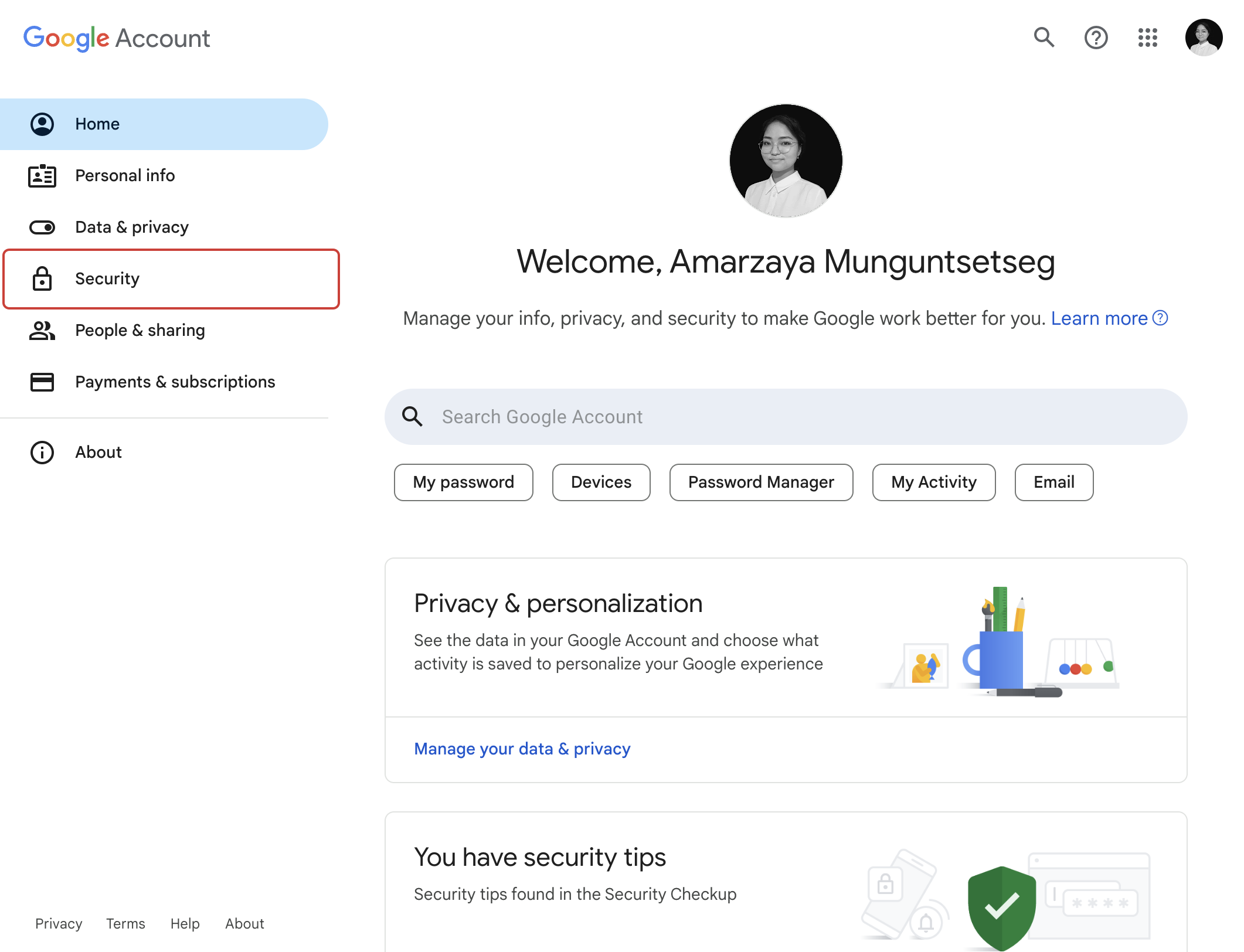
c. Select Security.
d. Enable 2-Step Verification (if not already enabled).
e. Confirm your phone number.
f. Click on the “>” arrow next to App Password.
g. In the App Name field, type "erxes".
h. Click Create.
i. Copy the generated App Password.- Enter the app password you copied into the Password field on the erxes integration page.
- Brand:
- Select the brand you want to connect to.
- Channel:
- Select the channel you want to connect to.
- Click Save to save the settings.
Step 3: Troubleshooting (If You Don’t See App Password)
- Ensure 2-Step Verification is enabled.
- If App Password is not appearing, double-check that the required fields for 2-Step Verification are correctly filled out.
By following these instructions, you’ll be able to connect your IMAP email to the erxes platform, allowing your team to track incoming and outgoing emails and manage communication seamlessly from the Team Inbox.
Illustrated instructions:
- Go to Settings
- Go to Integration
- Click +Add in the IMAP section .
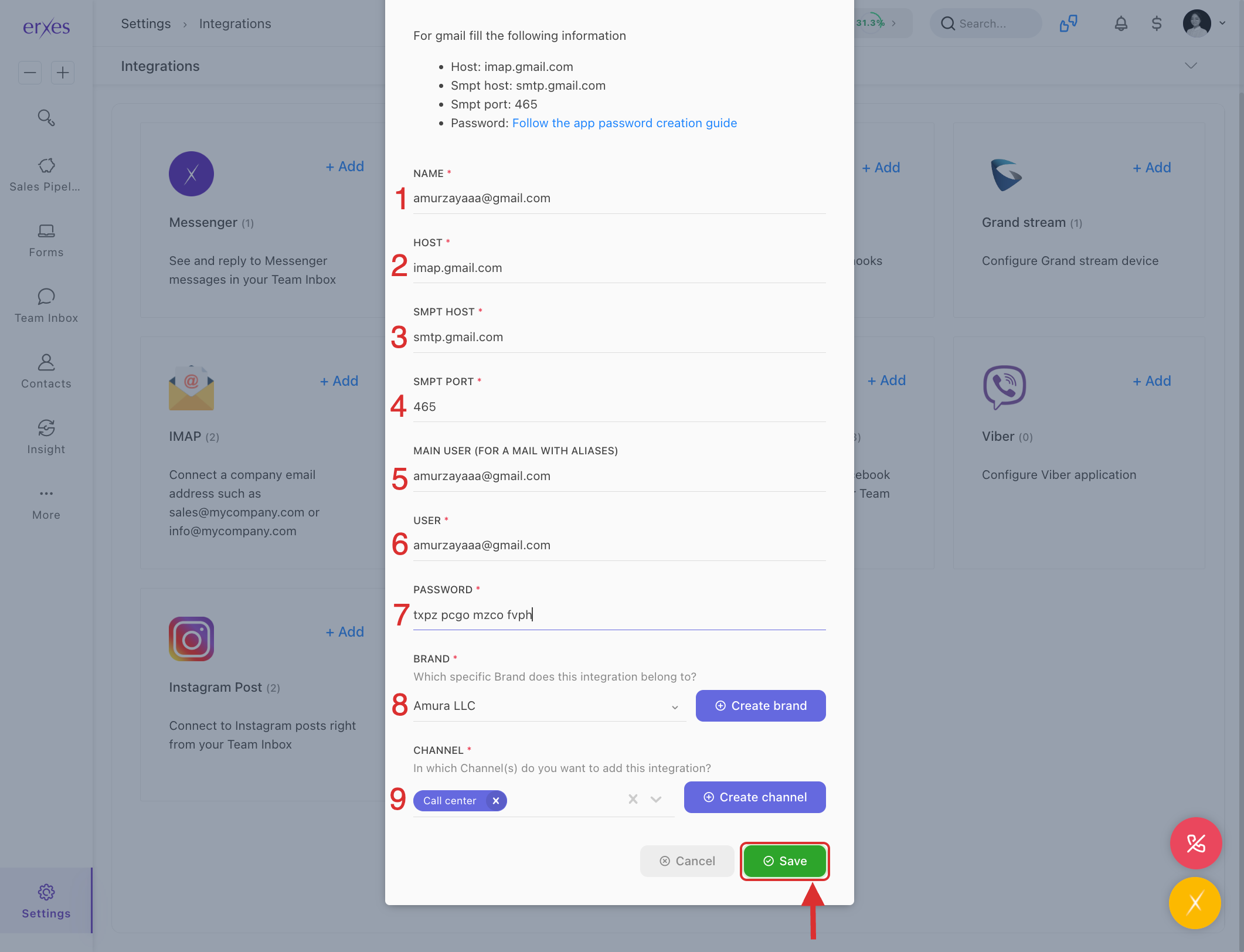
- Fill in the information below:
- Email address – The email address you are trying to connect to.
- Host – For example: imap.gmail.com
- SMTP host – For example: smtp.gmail.com
- SMTP port – Usually 465
- Main user – Enter your email address
- User – Enter your email address
- Password –
Follow the app password creation guide below.- Go to My profile
- Click on Manage account.
- Click on Security.
- Click on 2-Step verification.
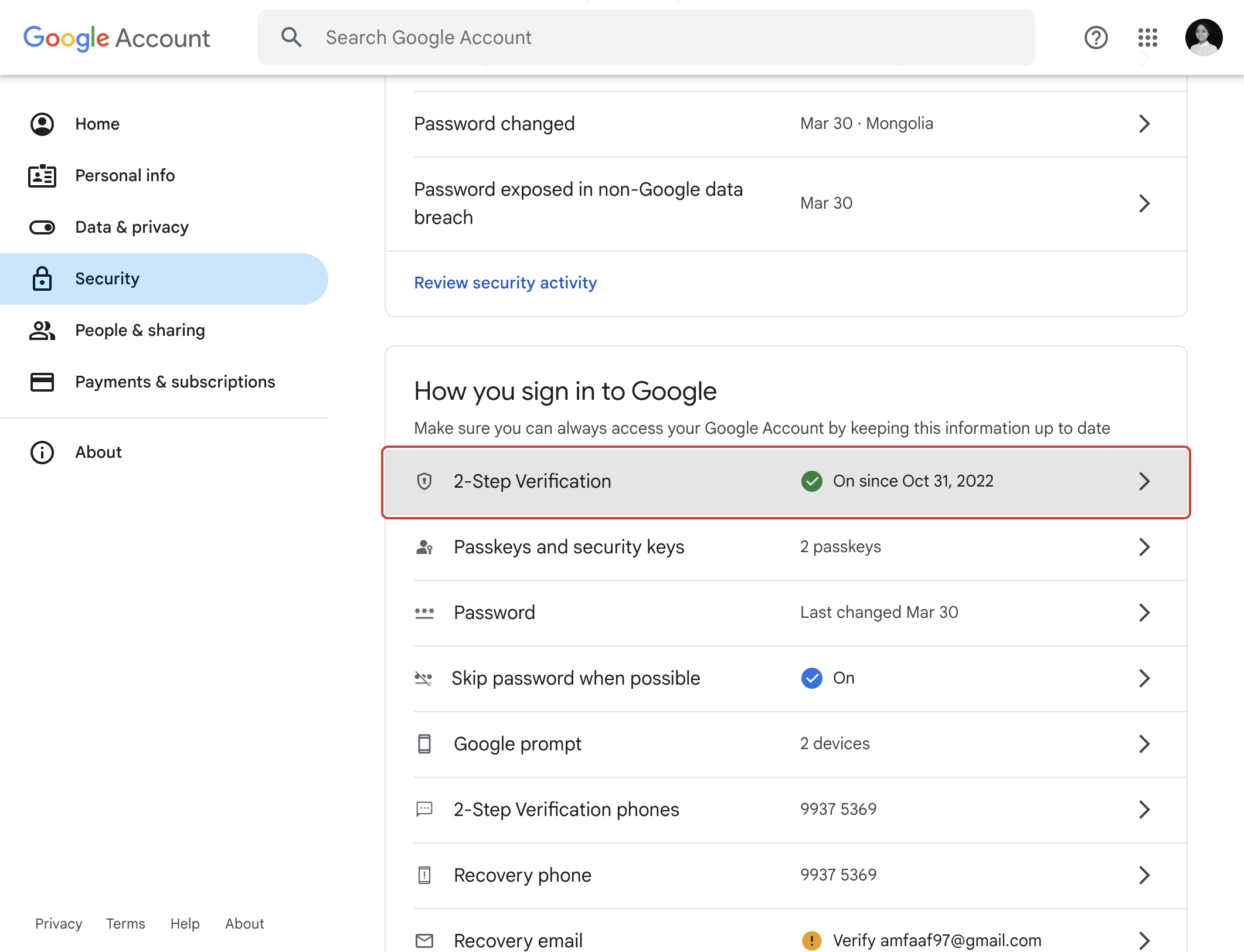
- Confirm your phone number .
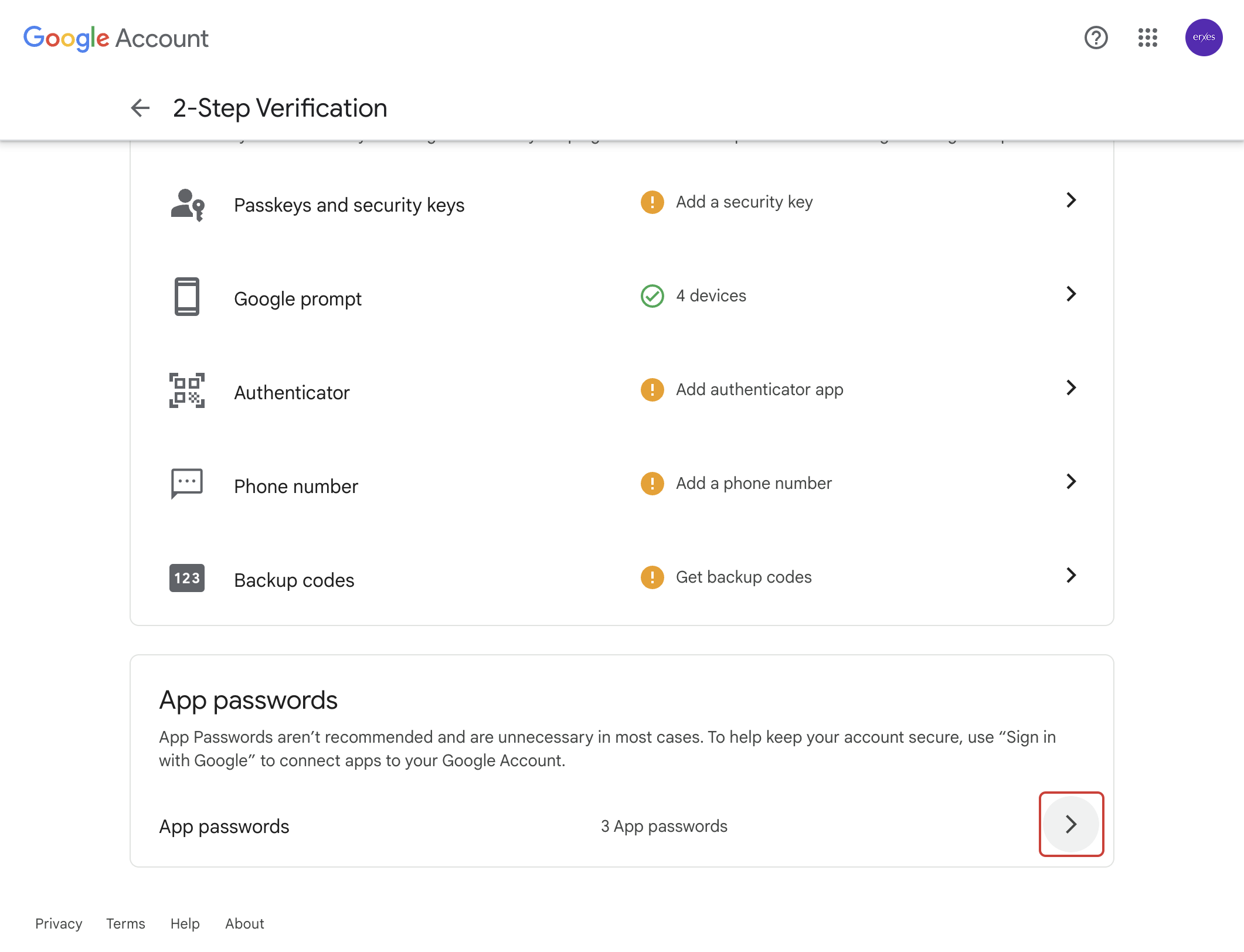
- Click on the “>” arrow next to App Password .
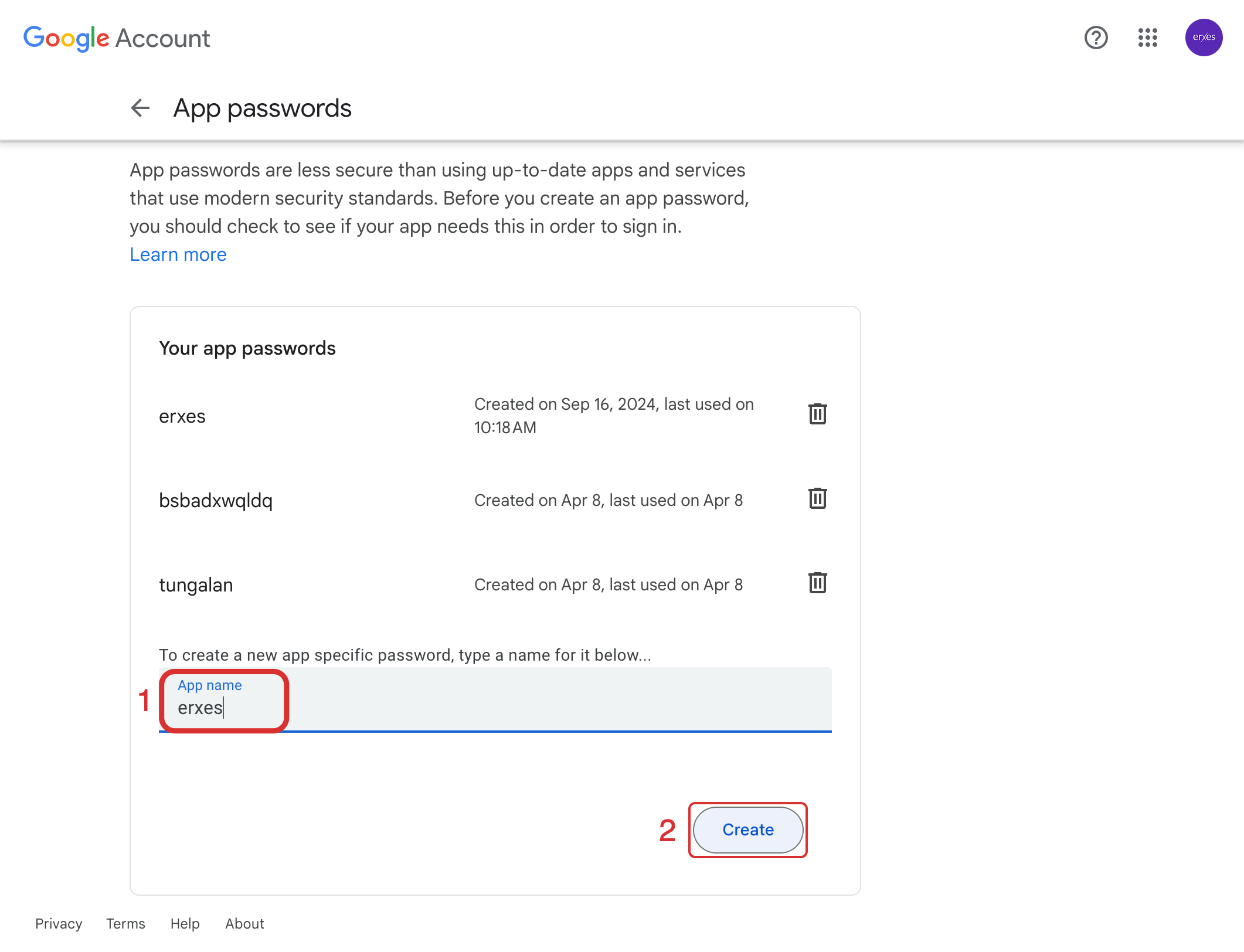
- In the App name field, type “erxes”
- Click on the Create button.
- Copy the “Password” that appears.
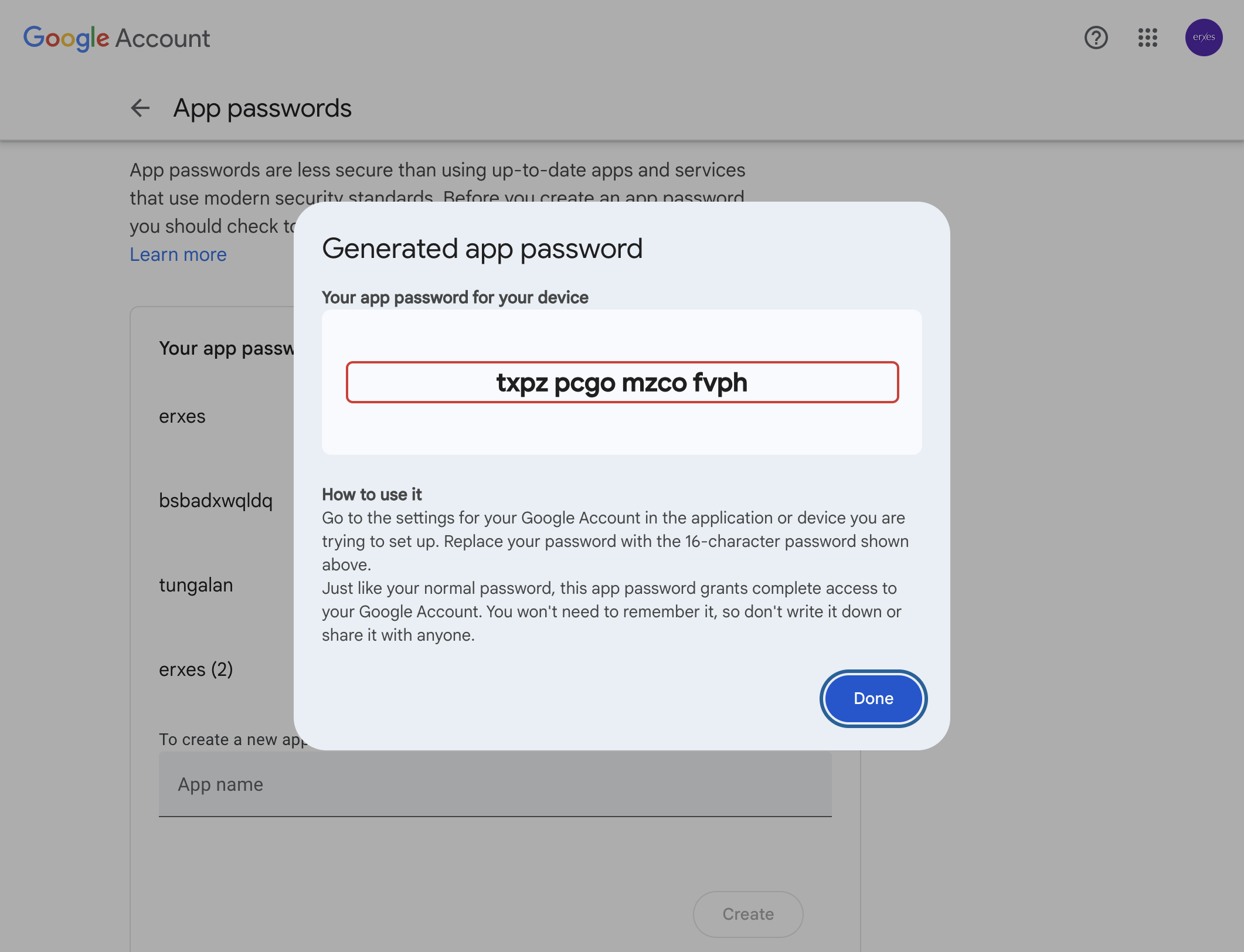
- Enter the password you copied in the erxes Integration “Password” field .
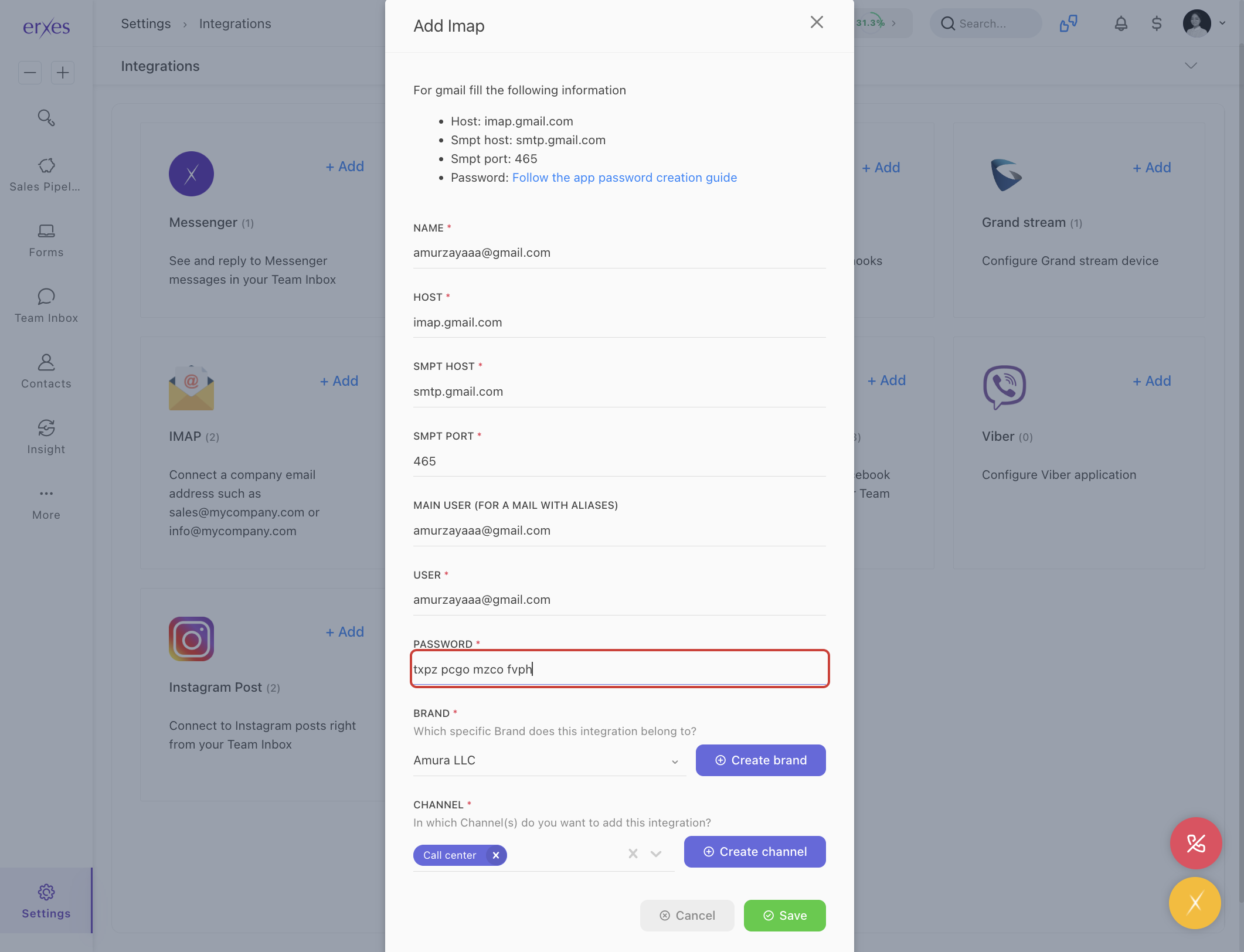
- Brand – Select the brand to connect to.
- Channel – Select the channel to connect to.
- Click the Save button to save the settings.
If you don't see App Password, check the following:
- Click on 2-Step verification and verify the required fields.






