Guides

All topics
erxes XOS
Sales
Settings
Account
Workspace
Developers
Core Modules
Broadcasts
Documents
Automations
Segments
Contacts
Plugins
Operation
Sales
Frontline
Tourism
Content
Accounting
Agents
Company Brain
Mongolian
Loyalty
Creating a Knowledge Base and Client Portal on the erxes System
This guide outlines the steps for creating a Knowledge Base with frequently asked questions (FAQs) and answers for users on the erxes system, as well as setting up a Client Portal to share it with the public.
By organizing and posting instructions, answers, and articles related to your products and services, users can solve their problems independently. Distributing this knowledge base through a public portal can reduce the burden on support services, improve user experience, and resolve common issues faster.
Step 1. Create a Knowledge Base
Question: How to create a knowledge base?
Answer:
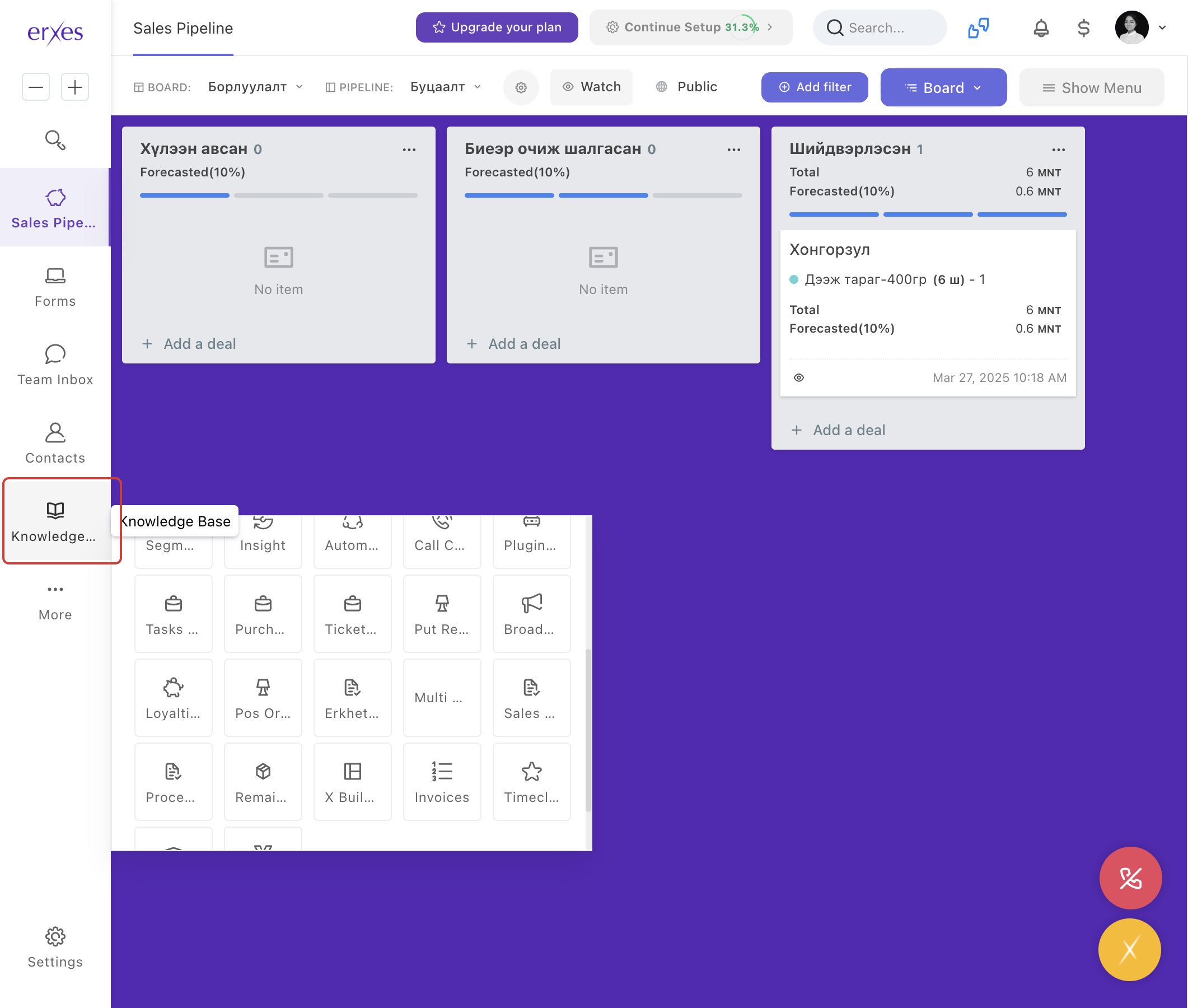
- Go to Knowledge Base.
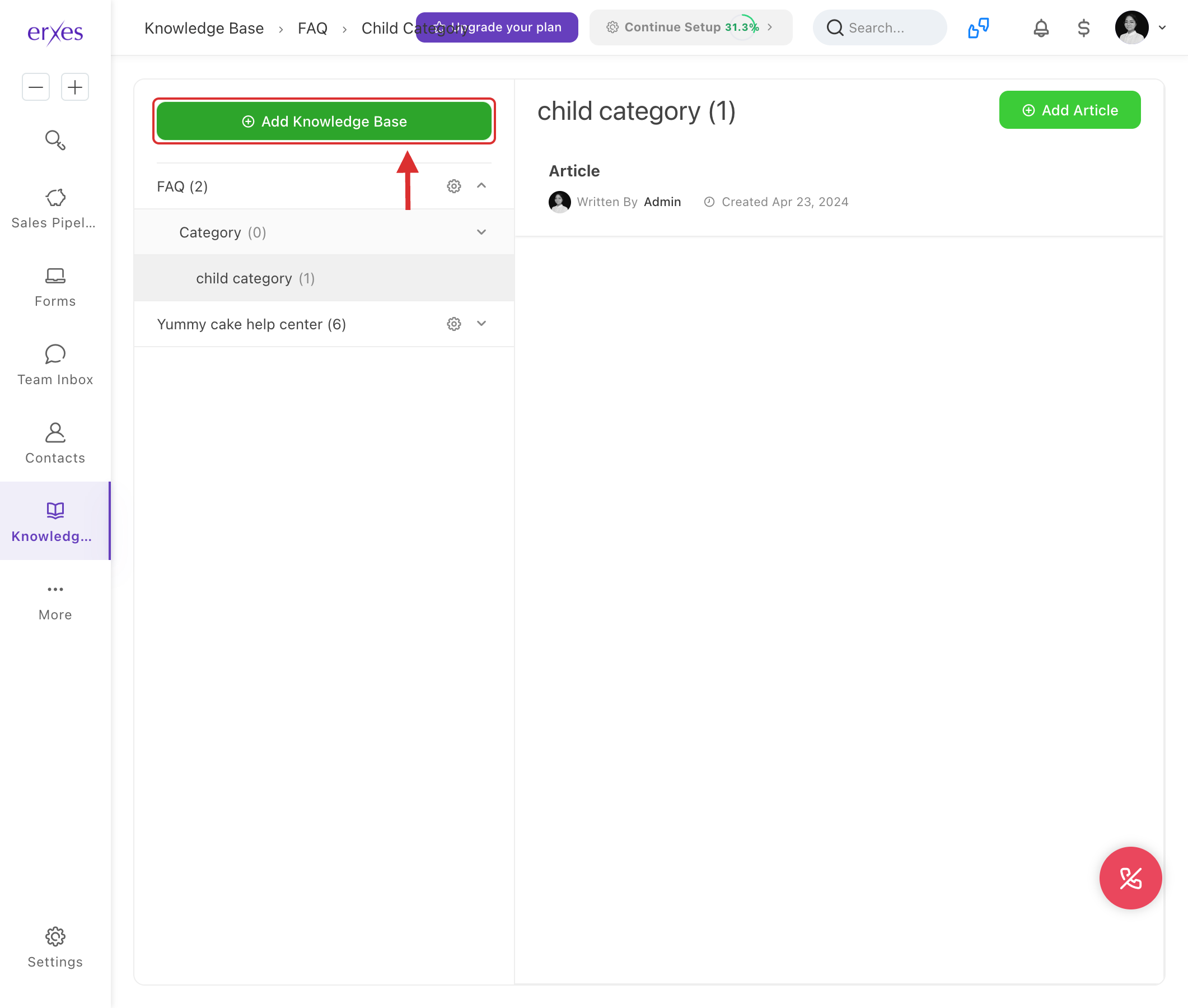
- Click on Add Knowledge Base.
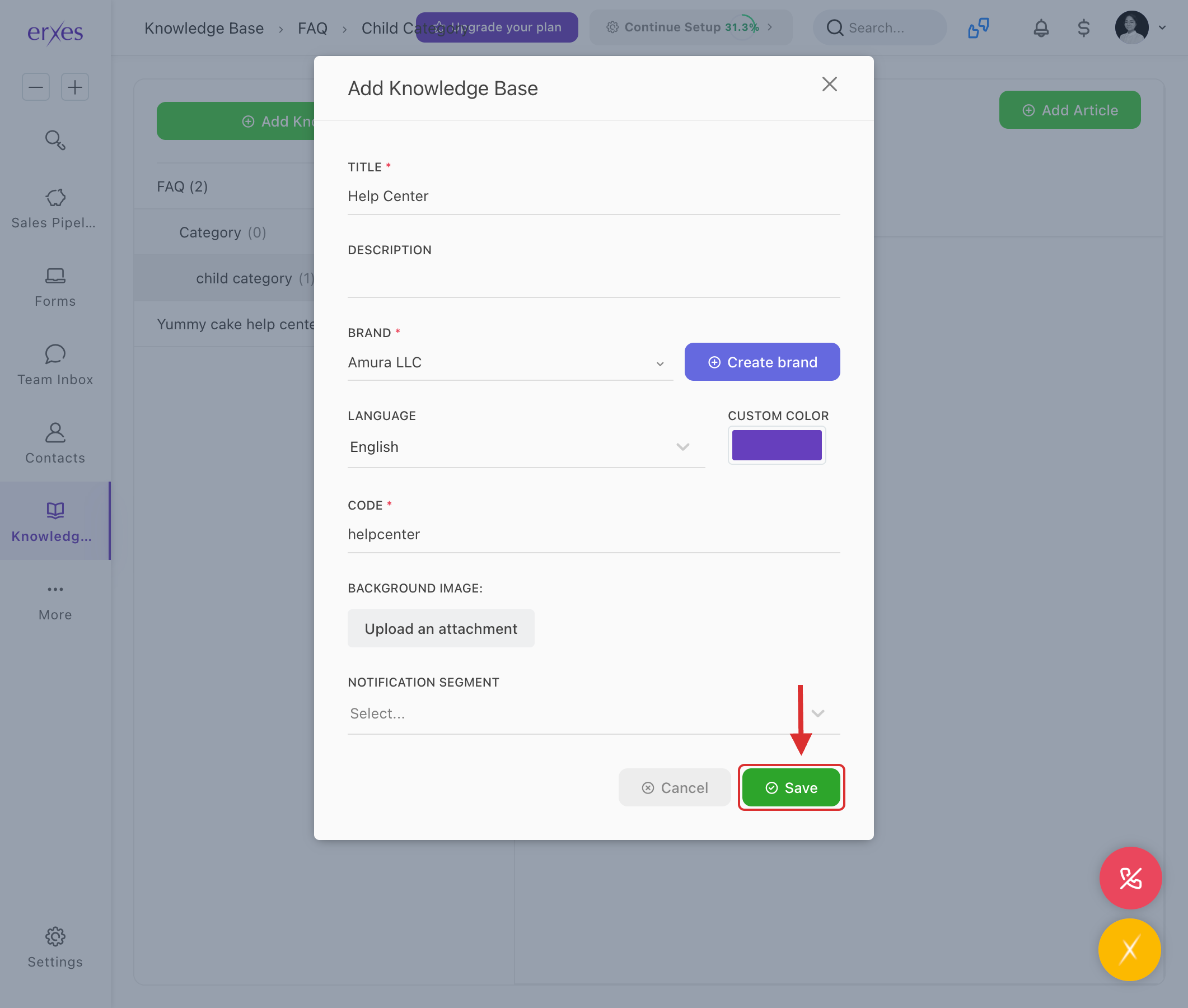
- Enter a name in the Title field.
- Select a brand.
- Enter a code (example: helpcenter).
- Click the Save button to save the knowledge base.
- Click the ⚙️ settings icon next to the name you created.
- Click Add Category to create a category:
- Title: Category name (e.g., Settings).
- Code: Any code (e.g., setup).
- Icon: Select an icon.
- Click the Save button.
- When adding a subcategory:
- Click Add Category again.
- In the Parent category section, select the category you created earlier.
- Fill in the other details and click Save.
Step 2. Add Article (Content)
Question: How do I submit a new article?
Answer:
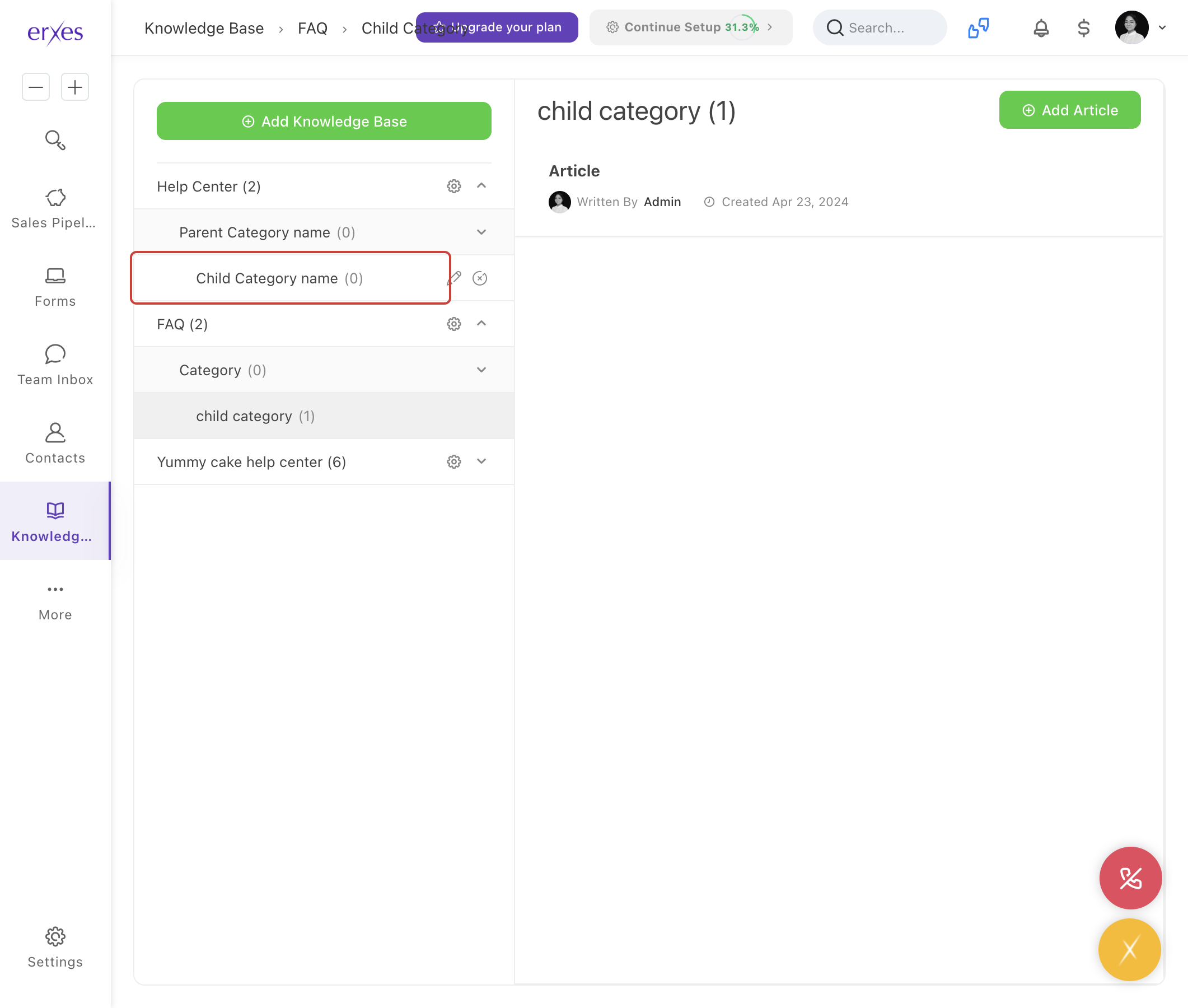
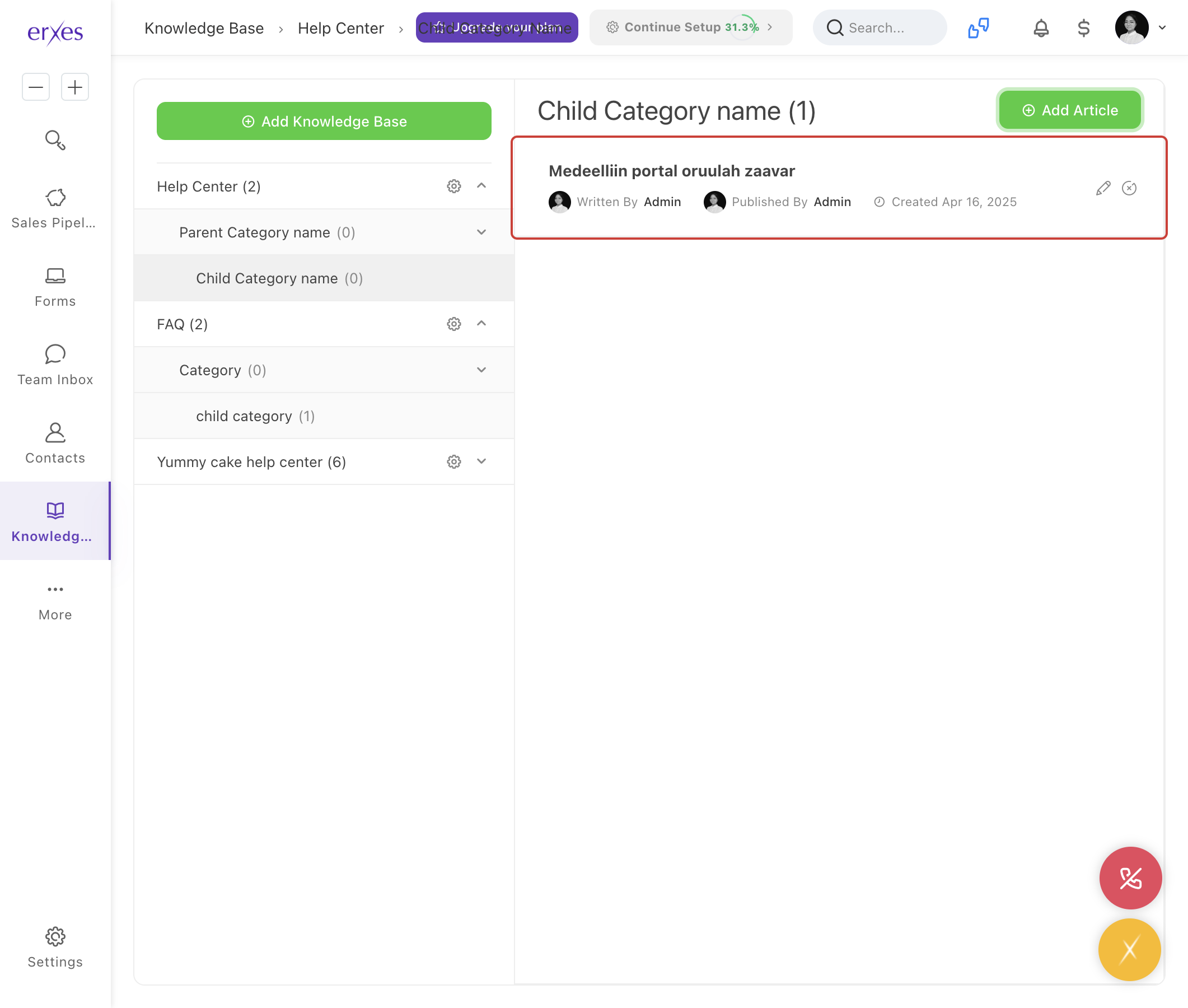
- Select a Child Category in Knowledge Base.
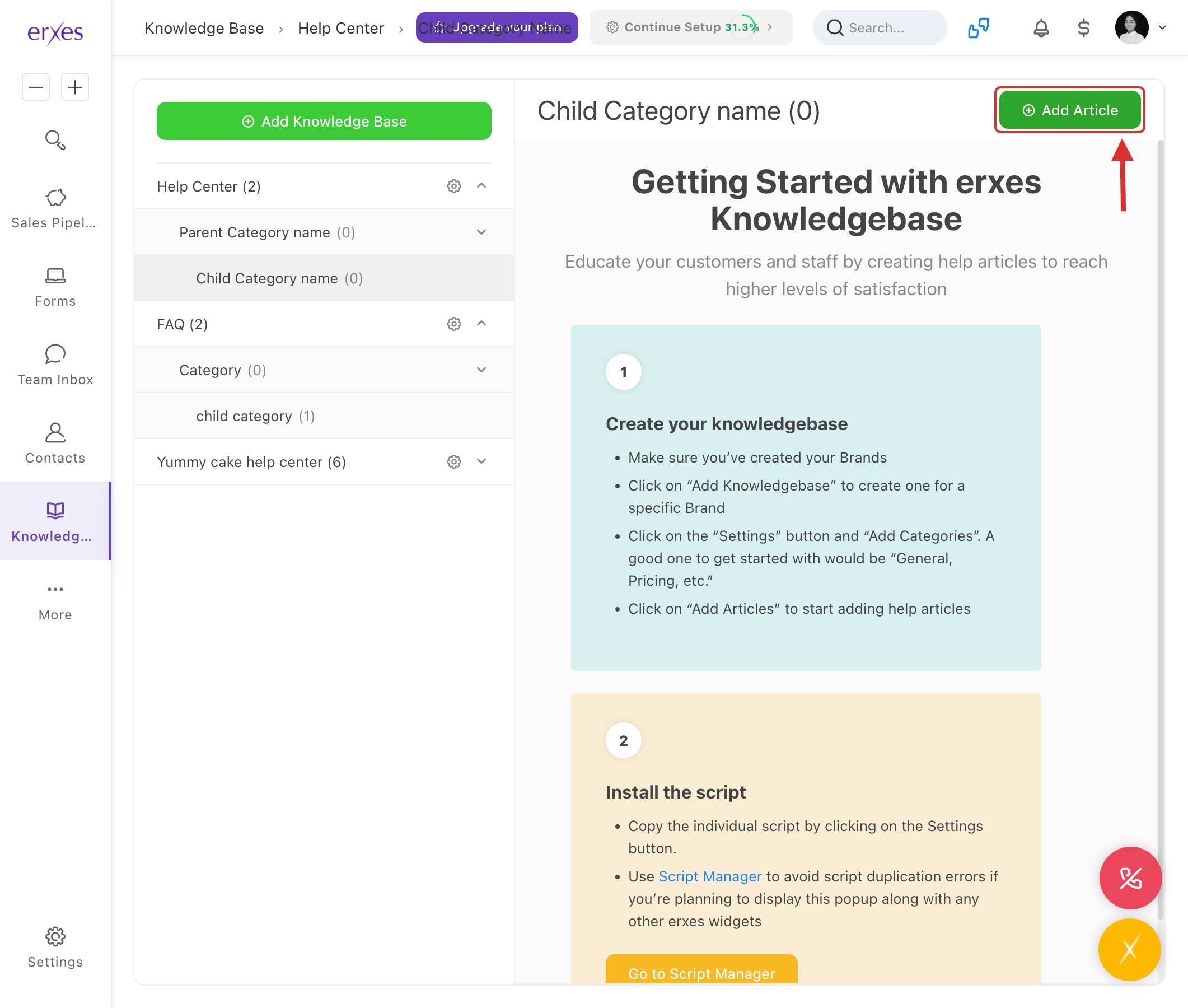
- Click the Add Article button.
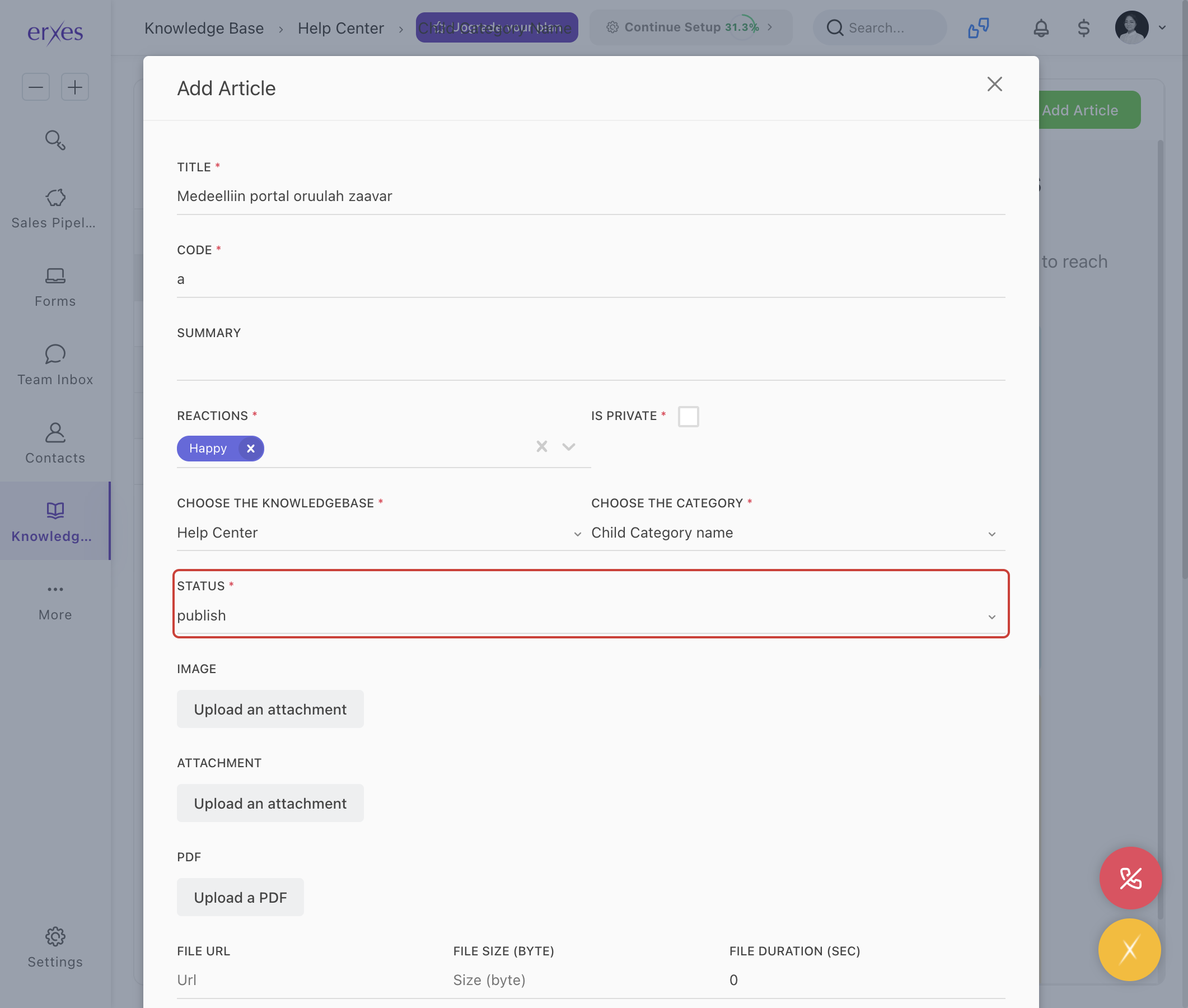
- Title: Content name (e.g., Login Instructions).
- Code: Any code (e.g., login-guide).
- Reaction: Set the user response settings.
- Status: Select Publish.
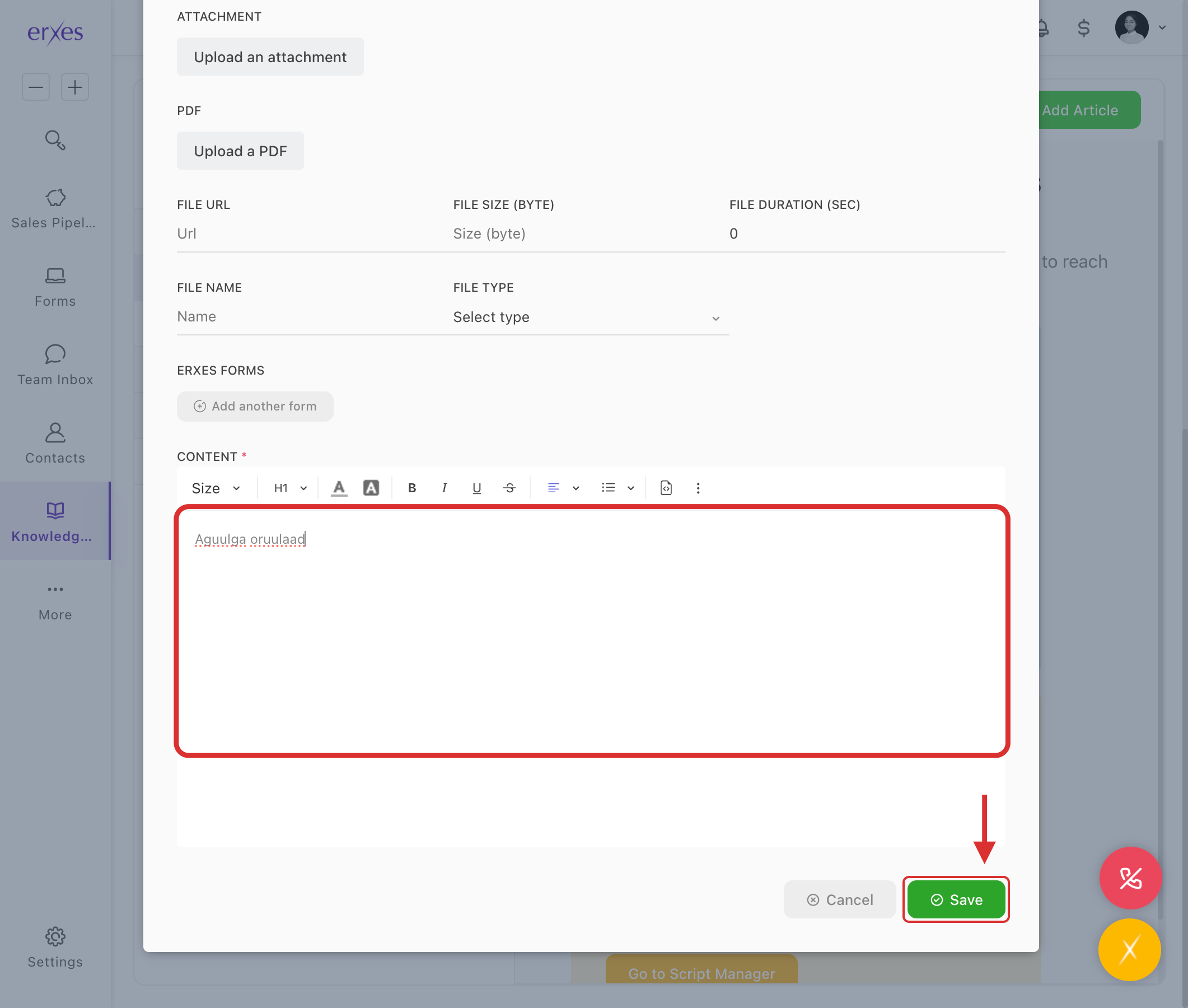
- Content: Write the article content.
- Click the Save button to save the article.
Step 3. Create a Client Portal
Question: How to create a Client Portal?
Answer:
- Go to Settings.
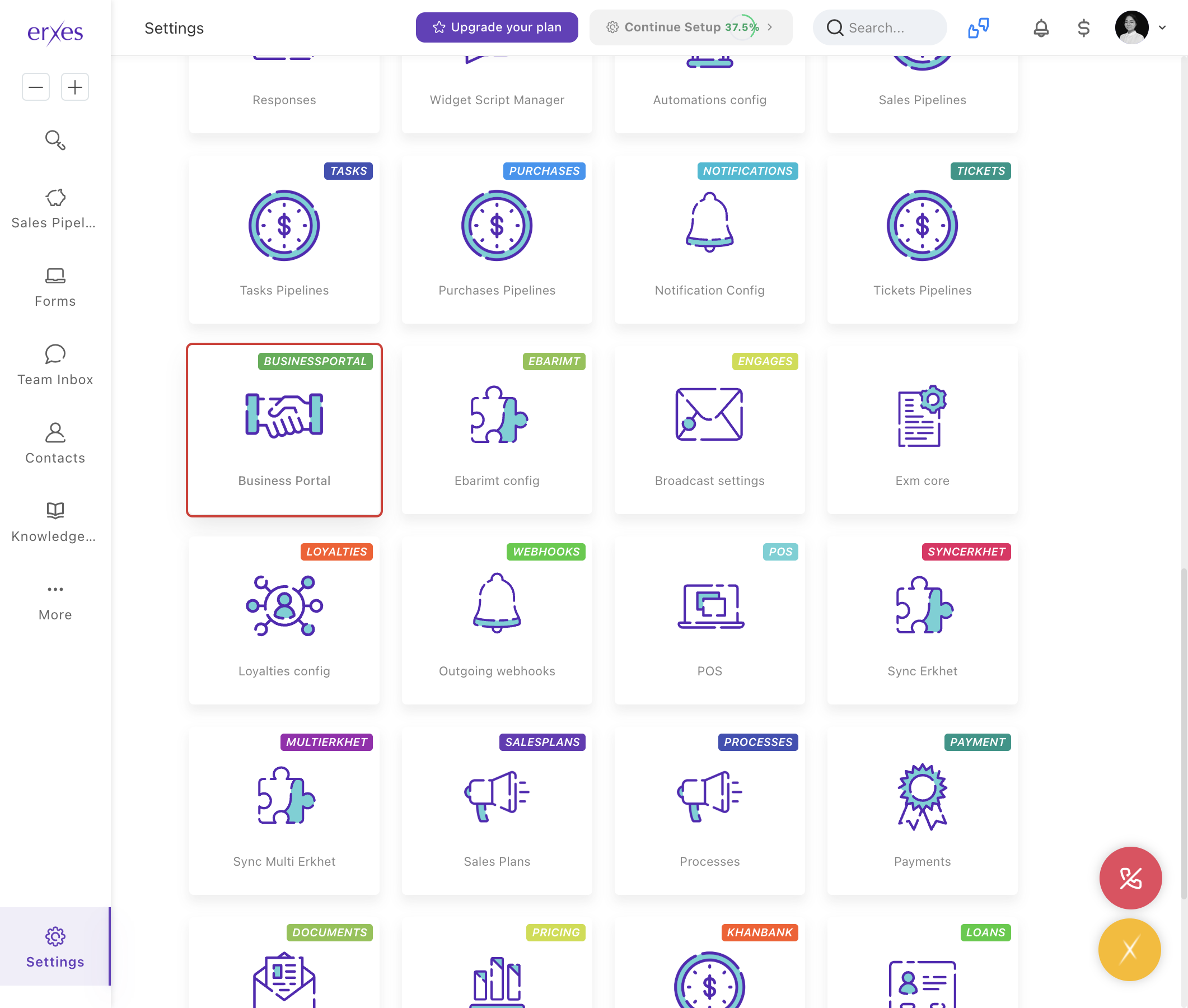
- Select Business Portal > Client Portal.
- Click Add New Client Portal.
- Portal name: Help.
- Website: https://companyname.clientportal.erxes.io/help.
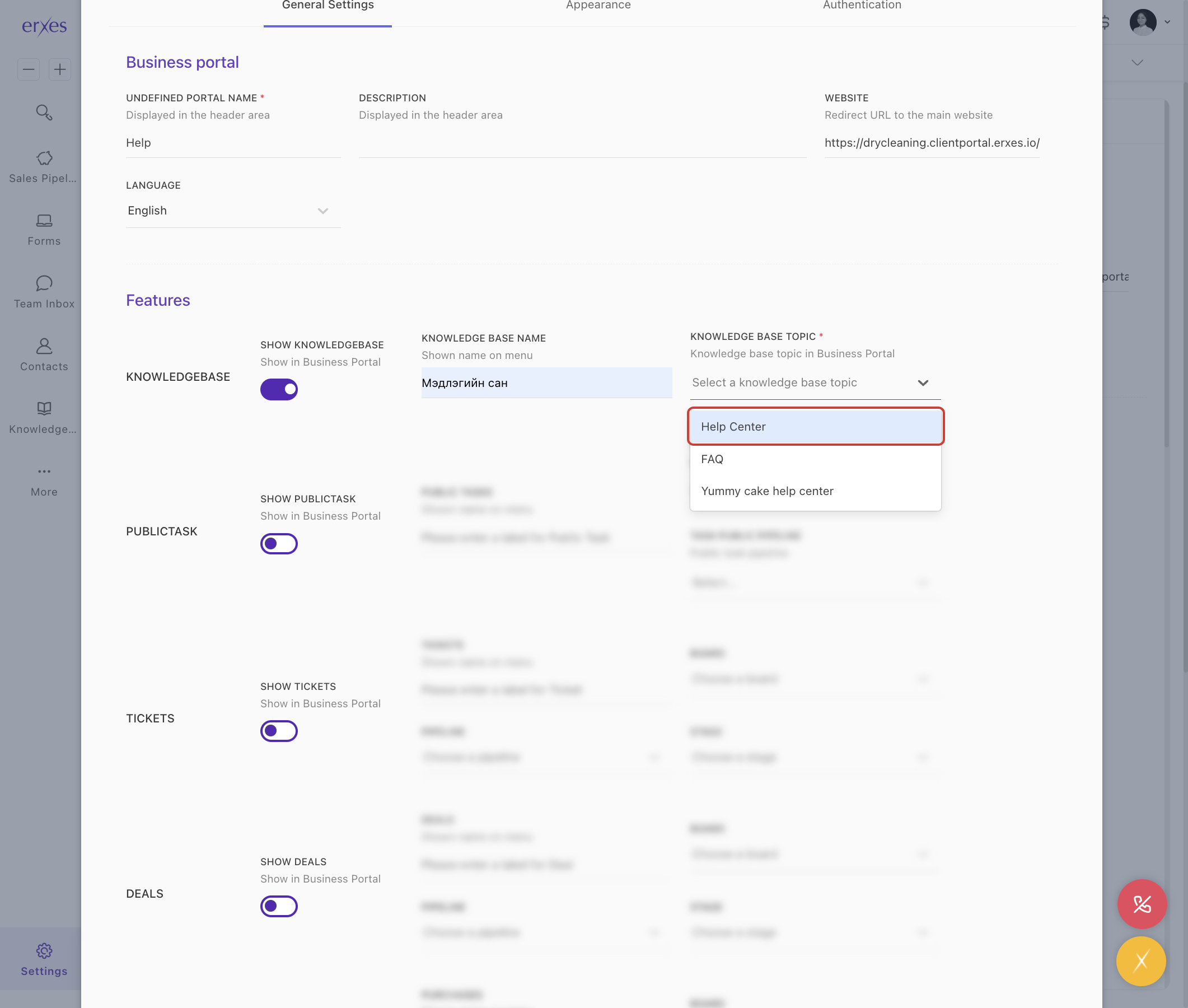
- KnowledgeBase: Check this option.
- Description: Information portal.
- Knowledge Base Topic: Select a previously created knowledge base.
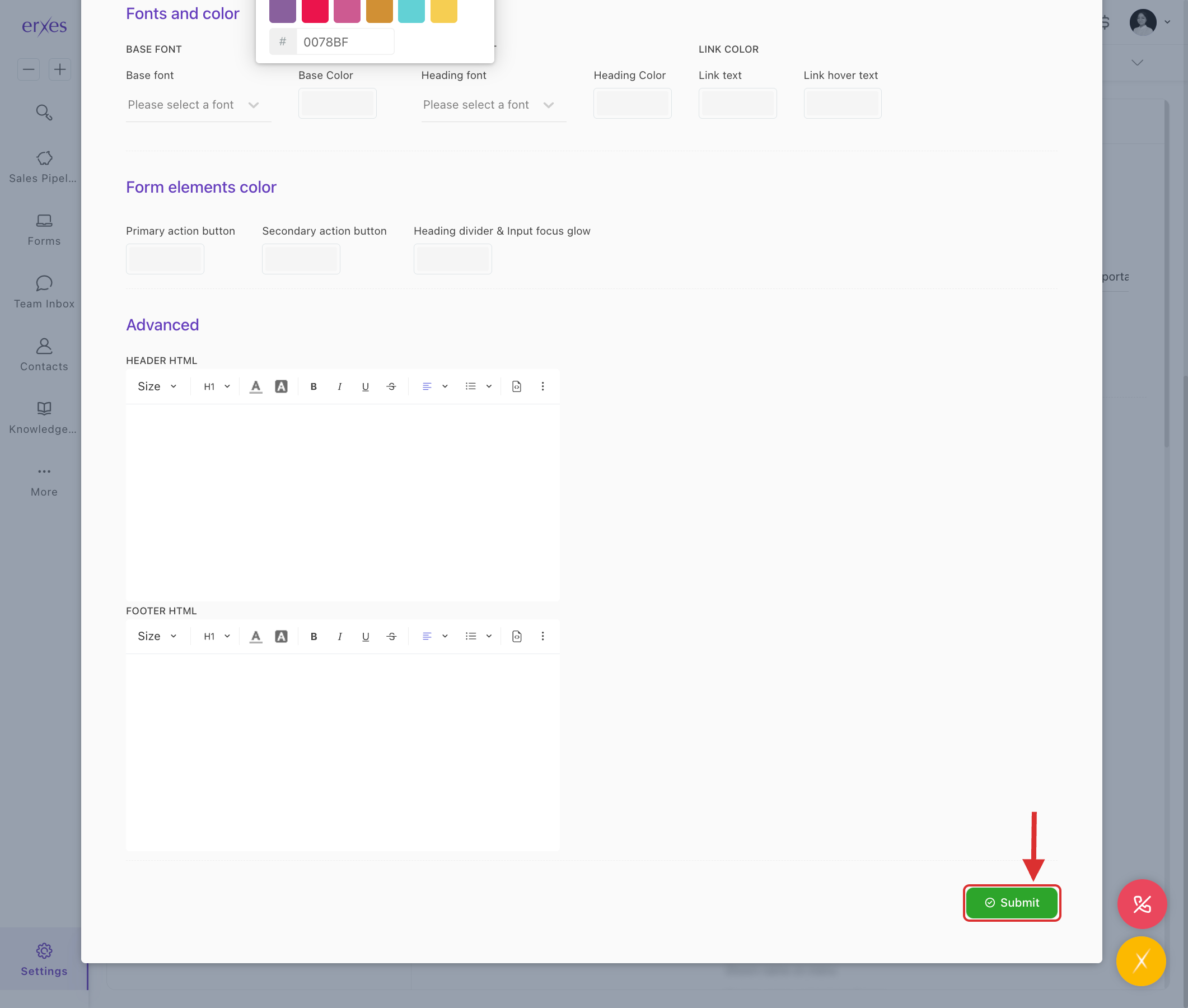
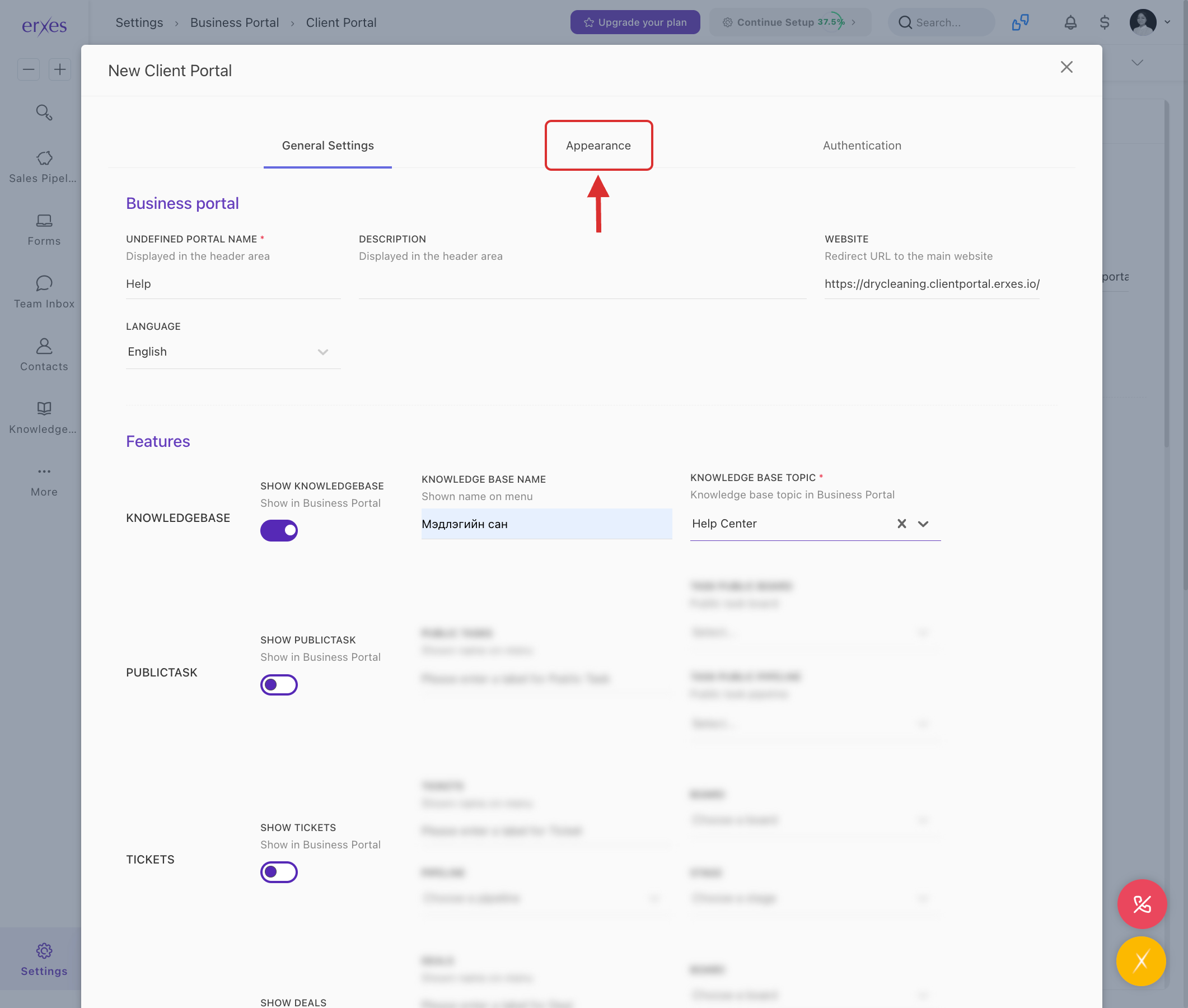
- Go to the Appearance section.
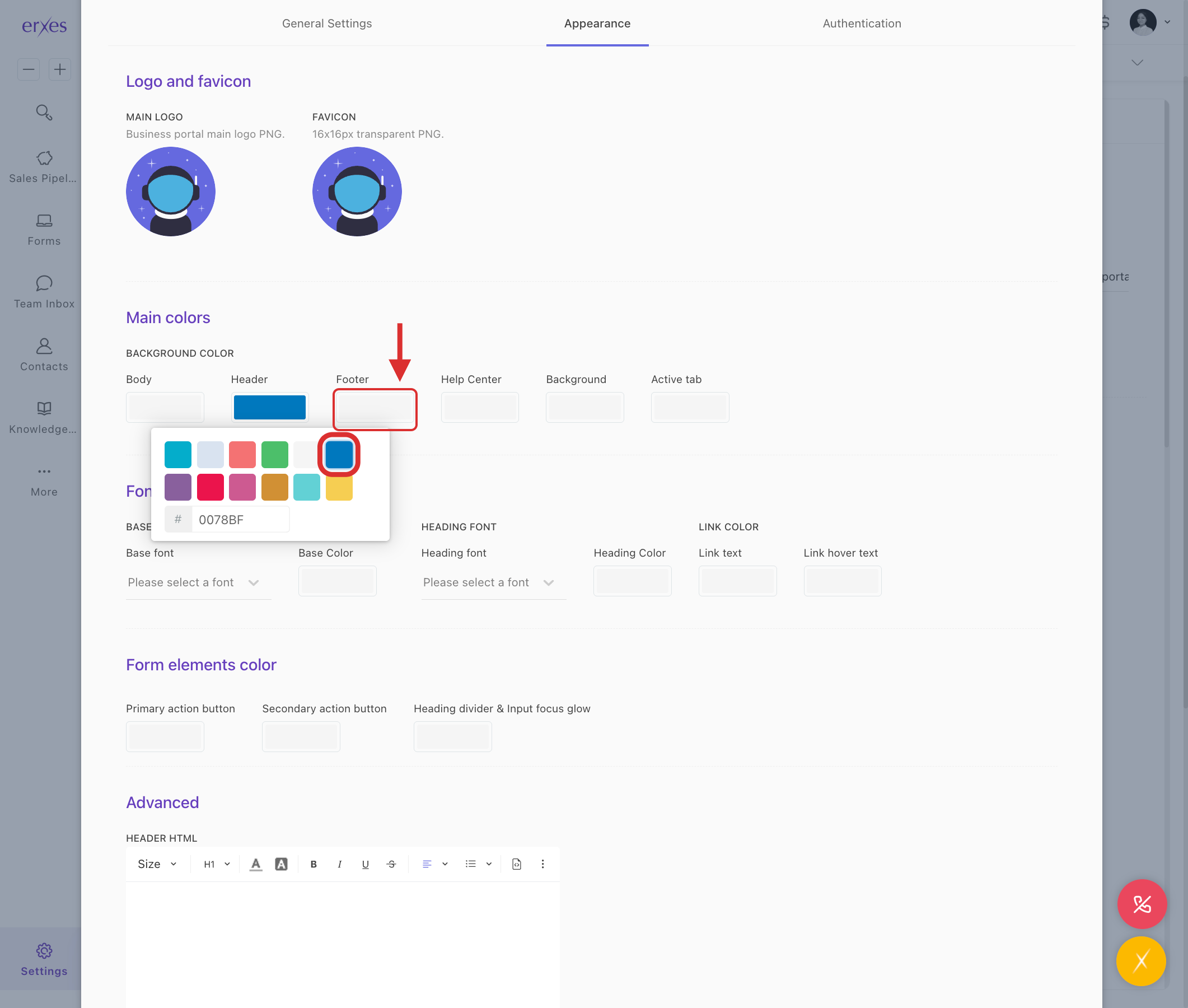
- Header/Footer: Enter company colors.
- Click the Submit button to save the Client Portal.
This guide helps you create a functional Knowledge Base and Client Portal on erxes, making it easier for users to find answers, improving overall service efficiency.
ILLUSTRATED INSTRUCTIONS
1. Instructions for creating a Knowledge Base
- Go to the Knowledge Base .
Click the Add Knowledge Base button.
- Enter your name in the Title field.
- Select a brand .
- Enter the code (example: helpcenter ).
- Click the Save button to save.
- Click on the ⚙️ settings icon next to the name you created .
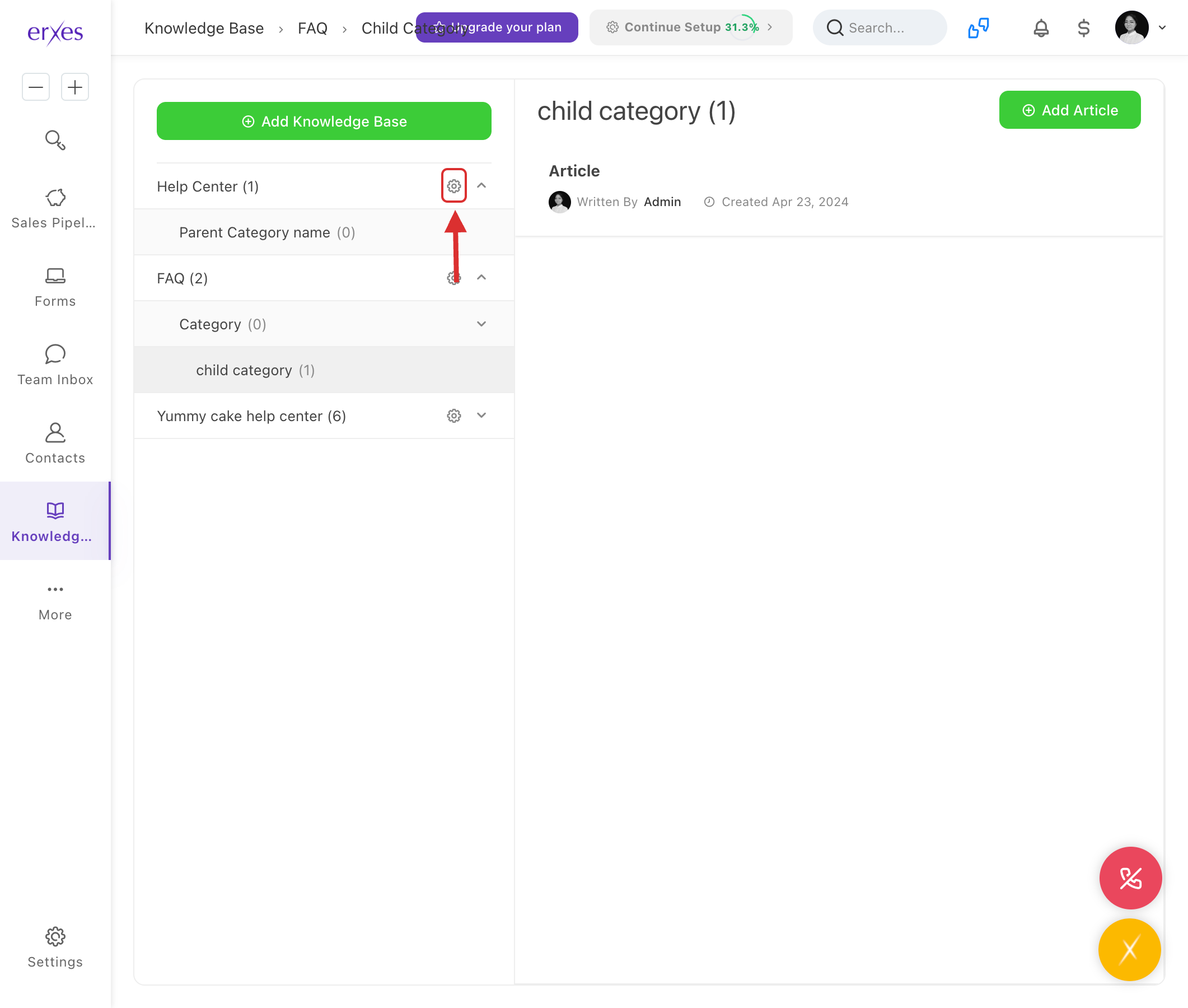
Click the Add Category button to add a category:
- Title : Category name (e.g. Settings)
- Code : any code (e.g. setup )
- Icon : select
- Click the Save button.
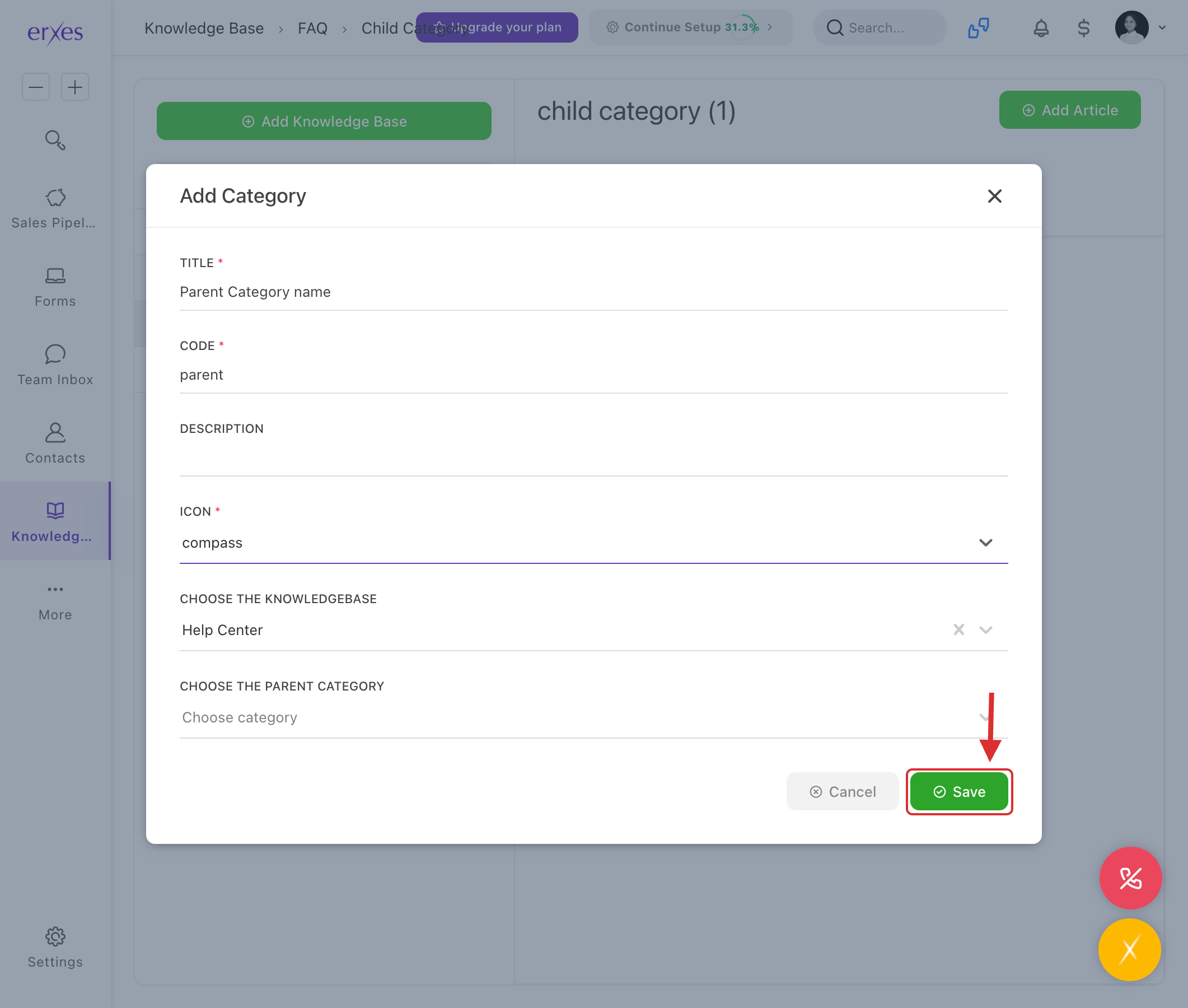
- When adding a new subcategory :
- Click the Add Category button again.
- In the Parent category section, select the category you created earlier.
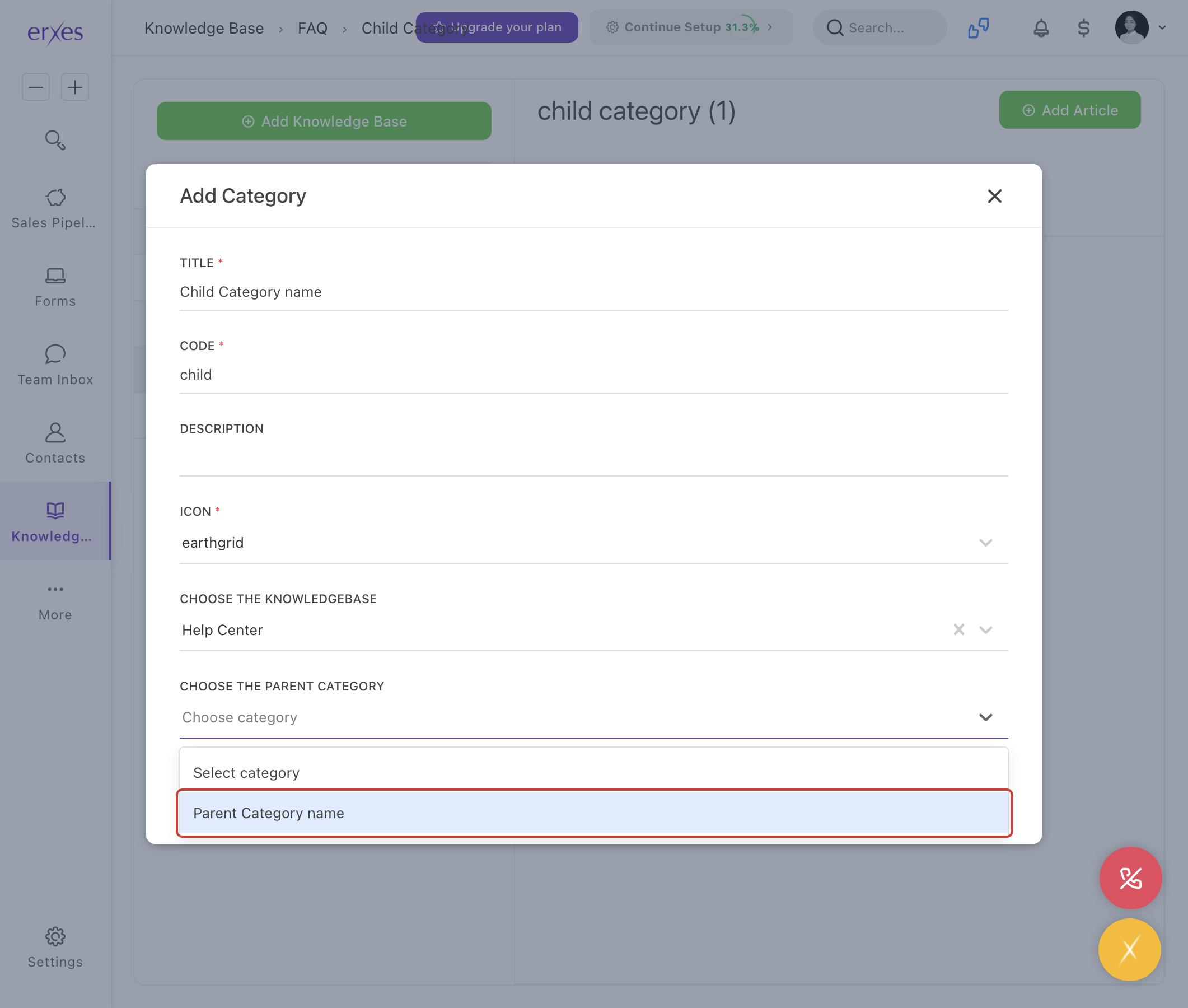
- Fill in the other information and click Save.
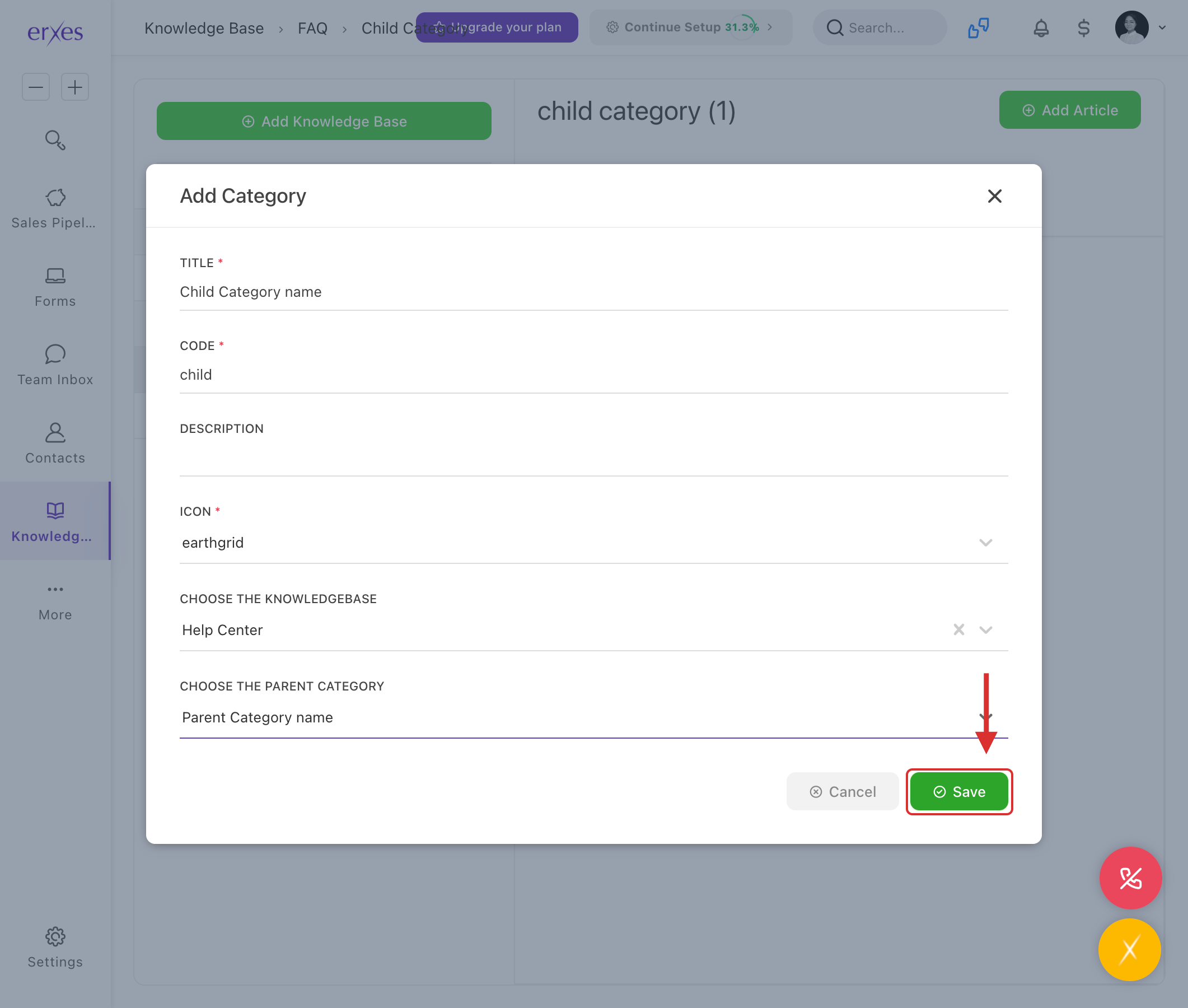
- Click the Add Category button again.
2. Add Article (Content)
- Select Child Category in Knowledge Base
- Click the Add Article button.
- Title : Content name (e.g. Login Instructions)
- Code : any code (example: login-guide )
- Reaction : user response settings
- Status : Select Publish.
- Content : Write the content.
- Click the Save button to save.
3. Create a Client Portal
- Go to Settings
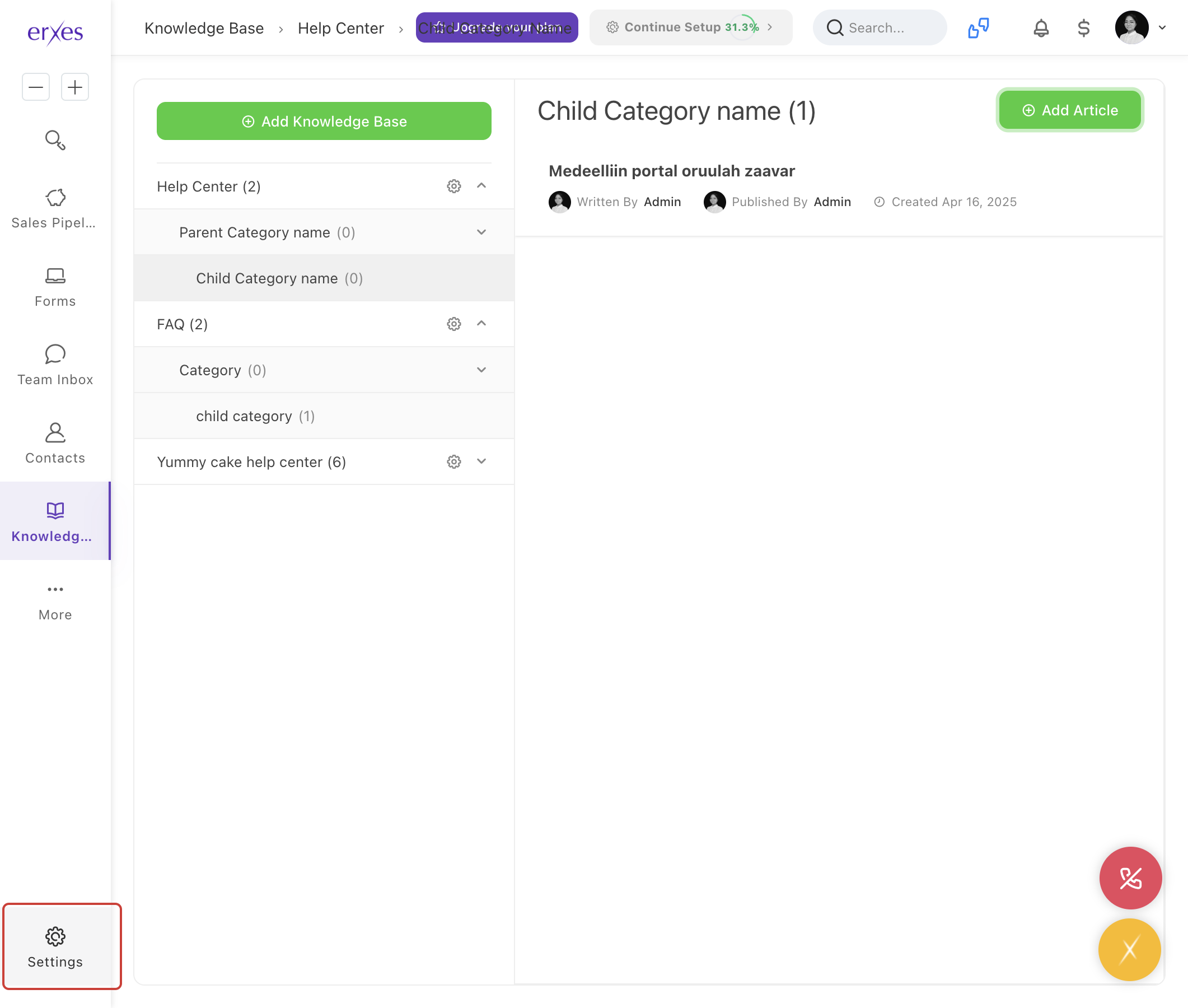
- Select Business Portal > Client Portal .
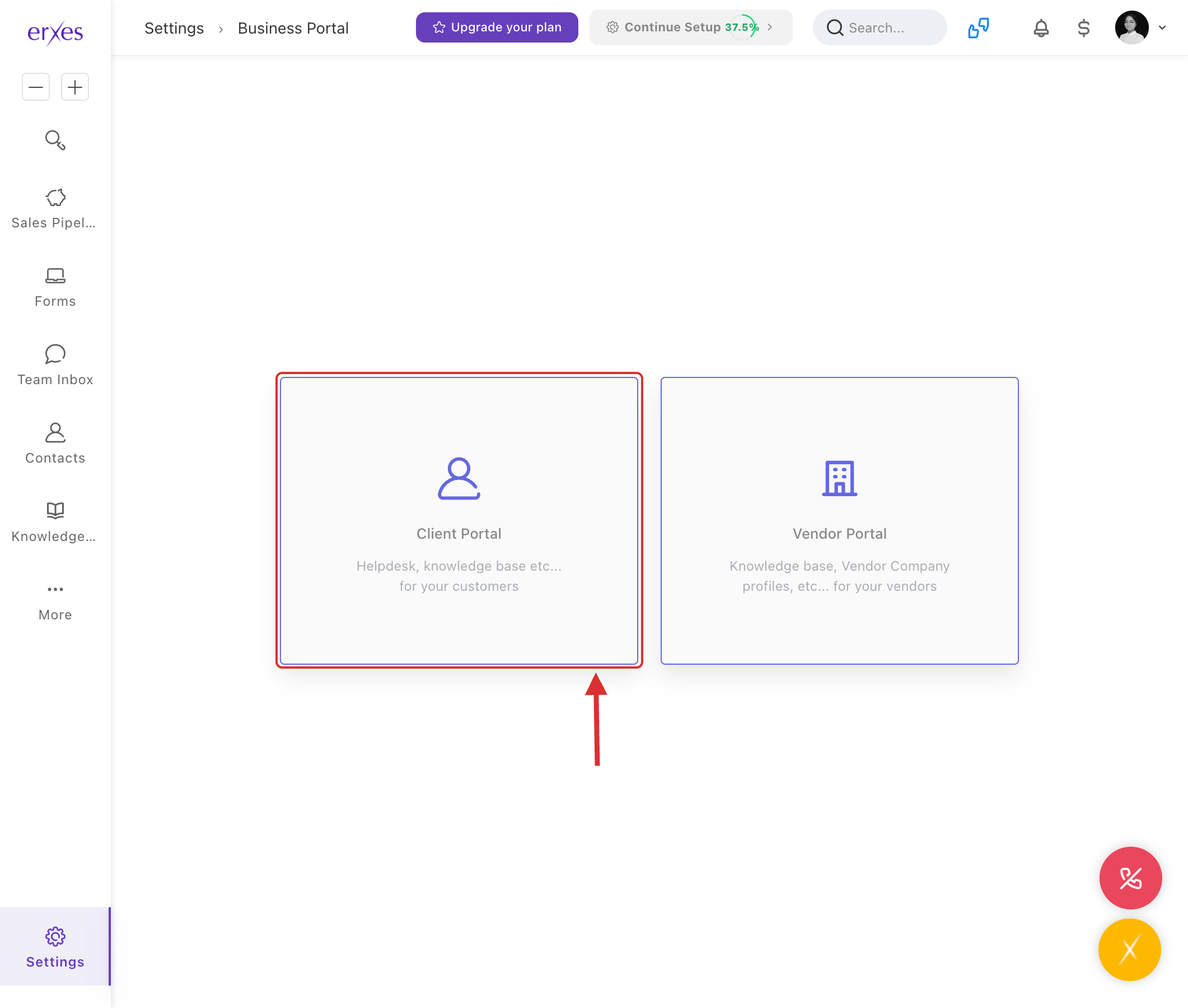
Click Add New Client Portal.
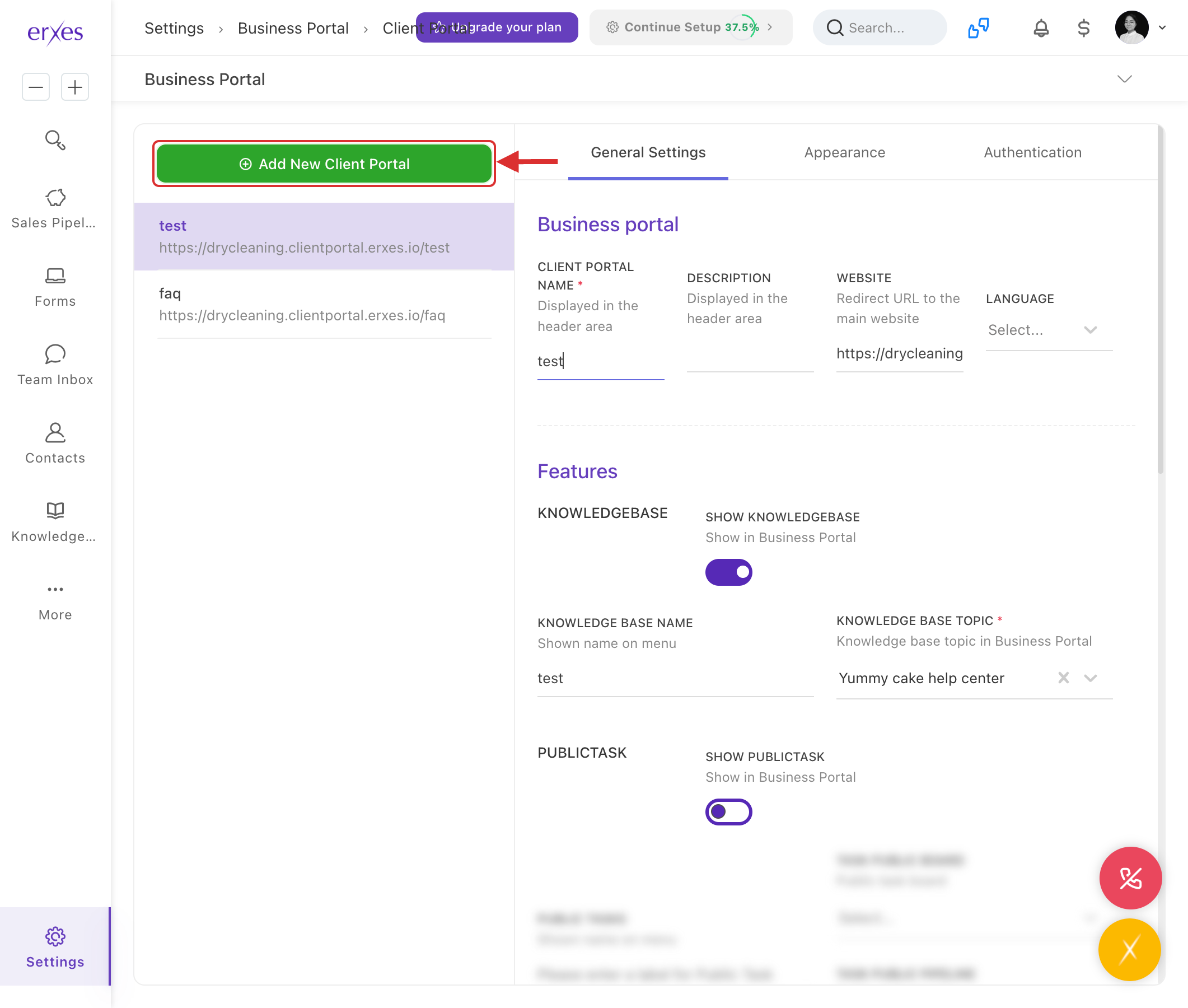
- Portal name: Help
- Website: https://companyname.clientportal.erxes.io/help
- KnowledgeBase : check
- Description : Information portal
- Knowledge base Topic : select a previously created knowledge base
Go to the Appearance section.
- Header/Footer : enter company colors
- Click the Submit button to save.