
Guides

All topics
erxes XOS
Sales
Settings
Account
Workspace
Developers
Core Modules
Broadcasts
Documents
Automations
Segments
Contacts
Plugins
Operation
Sales
Frontline
Tourism
Content
Accounting
Agents
Company Brain
Mongolian
Loyalty
Creating and Placing a Pop-up Form for Customer Feedback
This guide will explain the process of creating and placing a pop-up form on a website to collect customer feedback.
Instructions
1. Prepare the form content
Prepare the names of the fields that will be filled in the form. For example:
- Name
- Phone
- Feedback
2. Create a form
- Go to the Form menu.
- Click on the Lead Generation tab.
- Click the Create Lead button.
- Select Pop-Up and click Next.
- Check the Skip CallOut box and click Next.
- In the Form Title field, type "Feedback".
3. Add fields
- Name:
- Click on First Name.
- In the Field Label section, type "Name".
- Click the Add to Form button to add it.
- Phone:
- Click on Phone.
- In the Field Label section, type "Phone".
- Click the Add to Form button to add it.
- Email:
- Click on Email.
- In the Field Label section, type "Email".
- Click the Add to Form button to add it.
- Feedback:
- Click on the text area.
- In the Field Label section, write "Please provide feedback".
- Click the Add to Form button to add it.
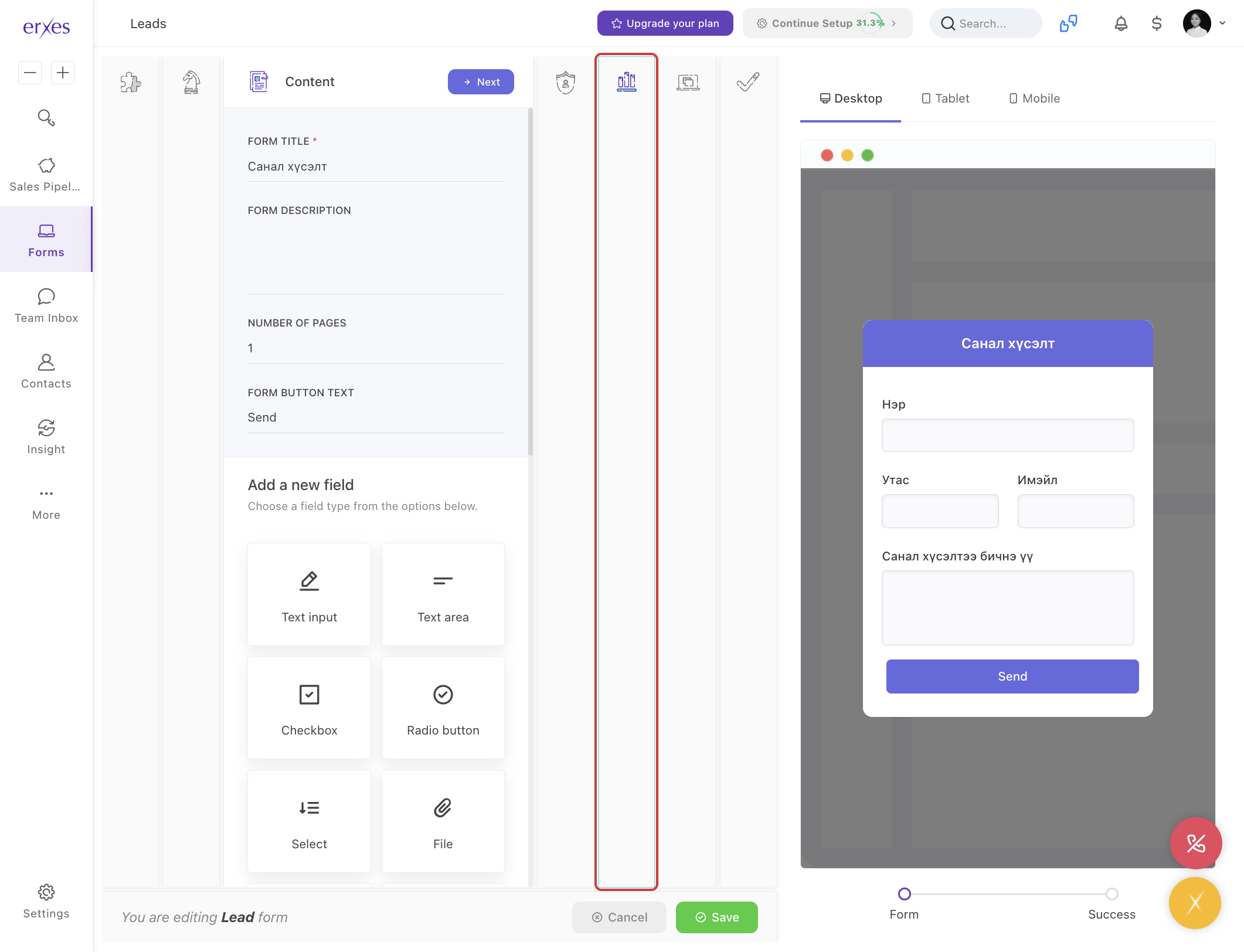
4. Form settings
- Go to the Options section.
- Form name – Give it a name like "Feedback".
- Select a brand.
- Select a channel.
- Click the Save button to save the form.
Test and Check
- Click the "< >" Install code button in the Actions section behind the form.
- Click the Preview button to see the form.
- A form will appear with Name, Phone, Email, and Feedback fields visible.
- Fill in the information and click the Send button to try it out.
⚠️ If the form is not visible:
- Check if the form's Install code has been copied and pasted correctly.
- Check if the Brand/Channel settings are correct.
- Check if the form status is active.
This process will allow you to create a customer feedback form that is easy to integrate into your website as a pop-up, making it simple for users to provide valuable feedback.
Illustrated instructions
1. Prepare the form content
Prepare the names of the fields that will be filled in the form. For example:
- Name
- Phone
- Feedback
2. Create a form
- Go to the Form menu
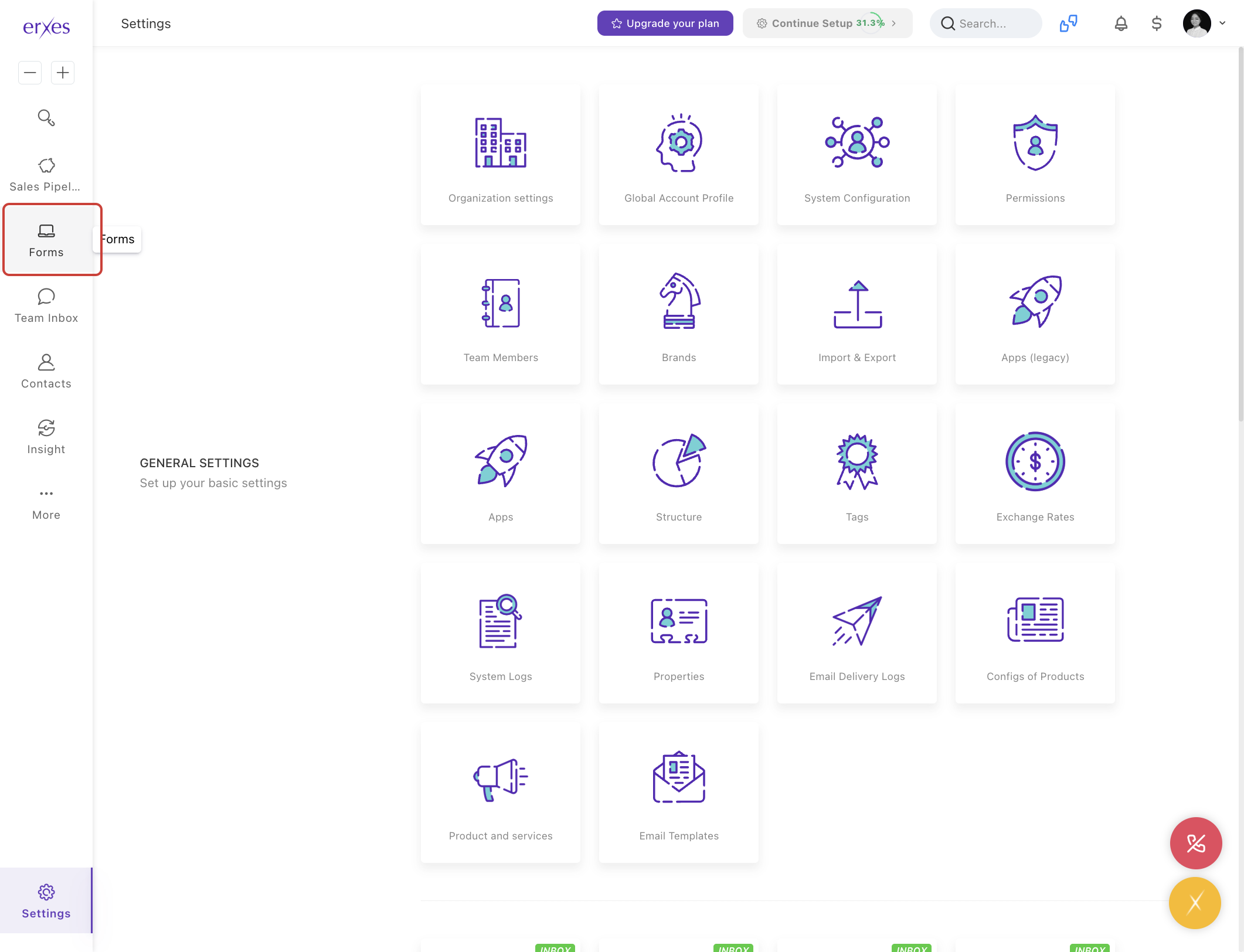
- Click on the Lead Generation tab.
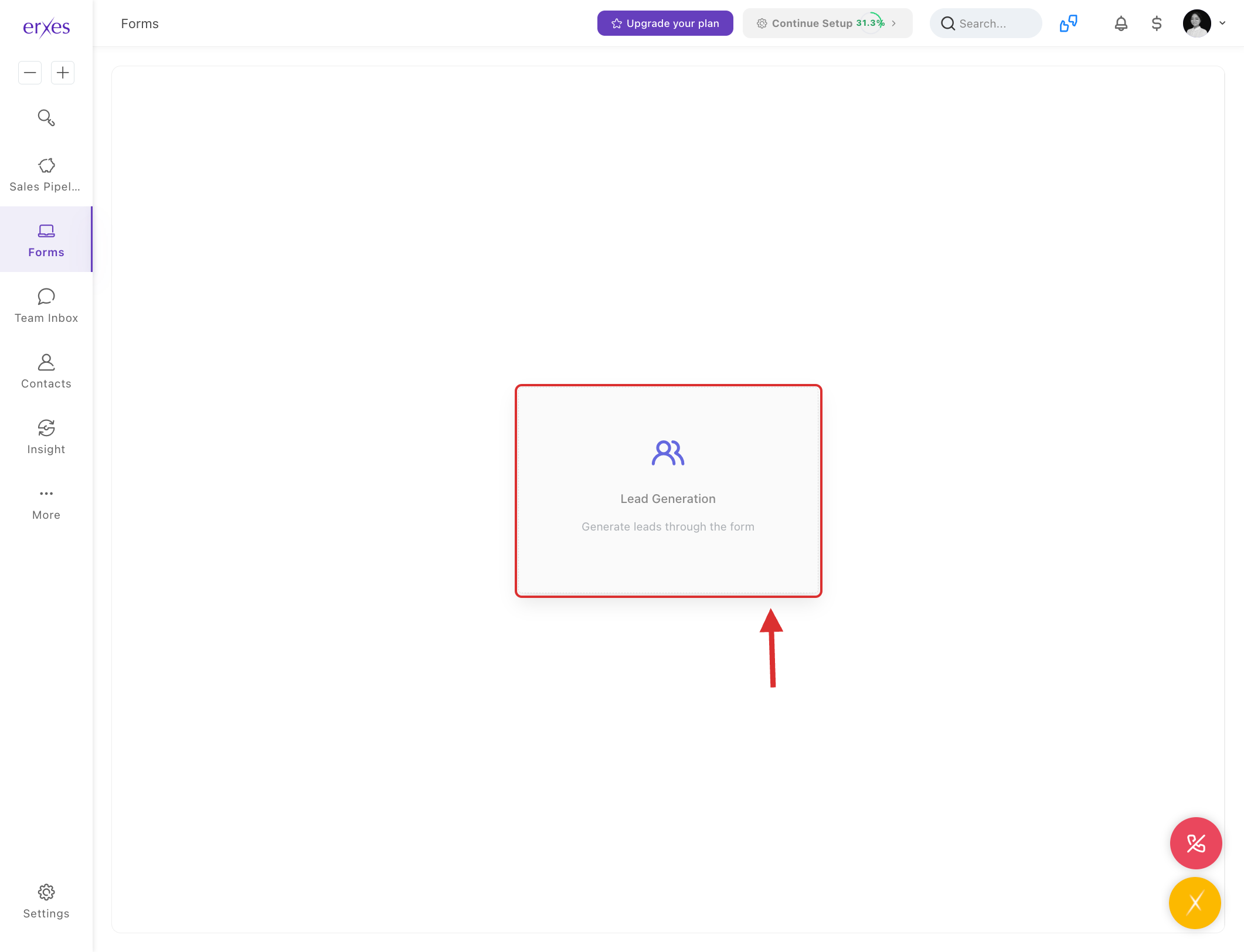
- Click the Create Lead button.
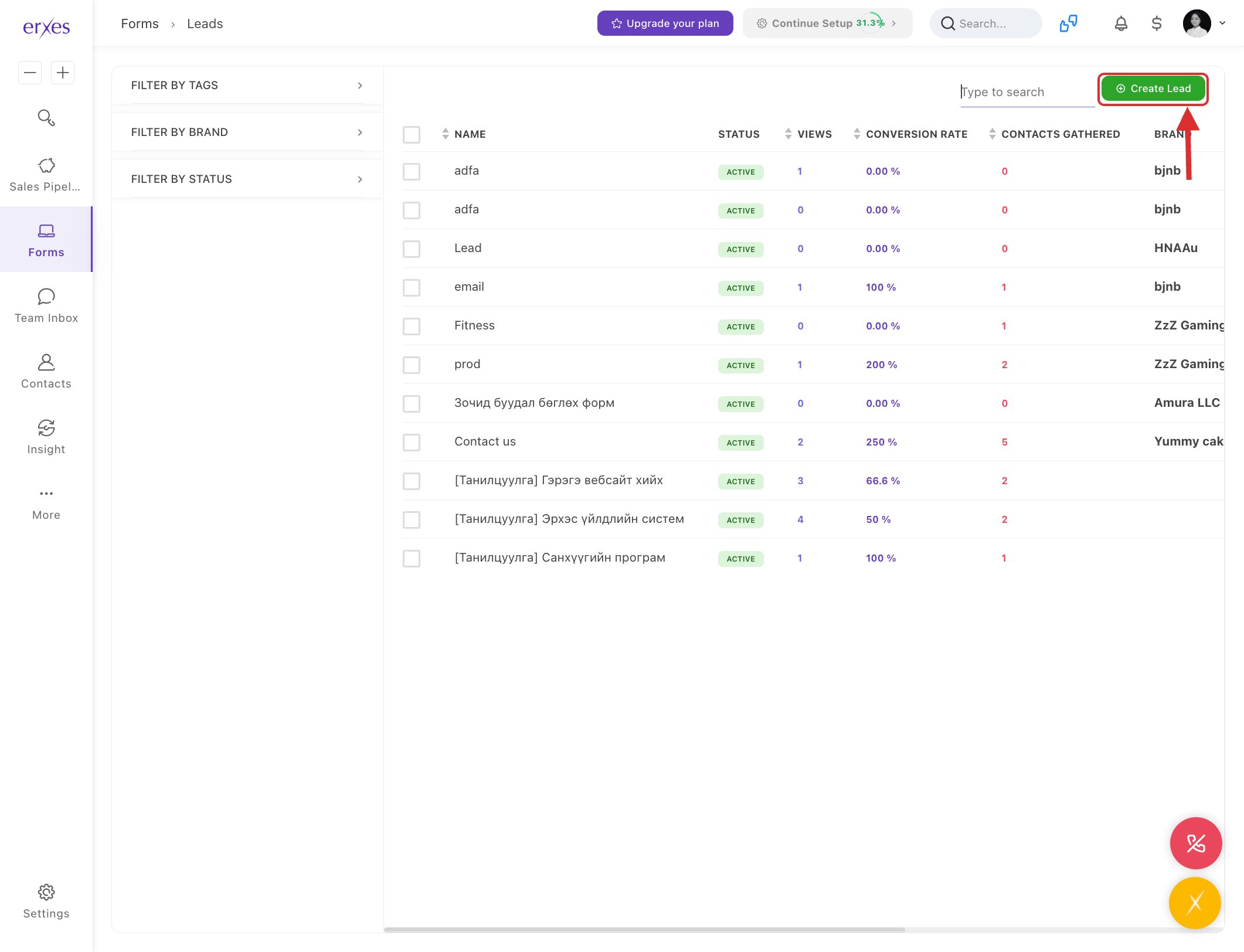
- Select Pop-Up and click Next.
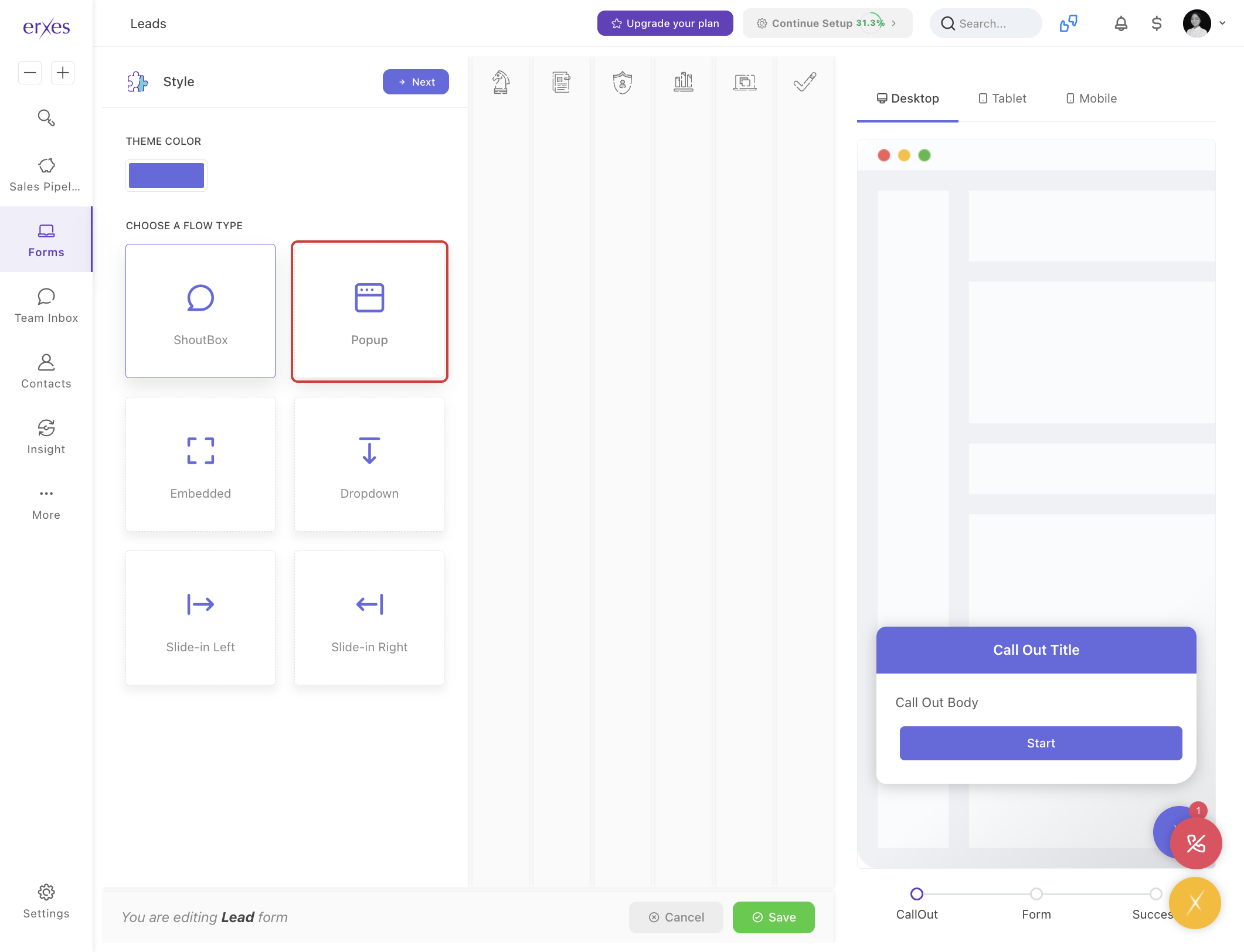
- Check the Skip CallOut box and click Next.
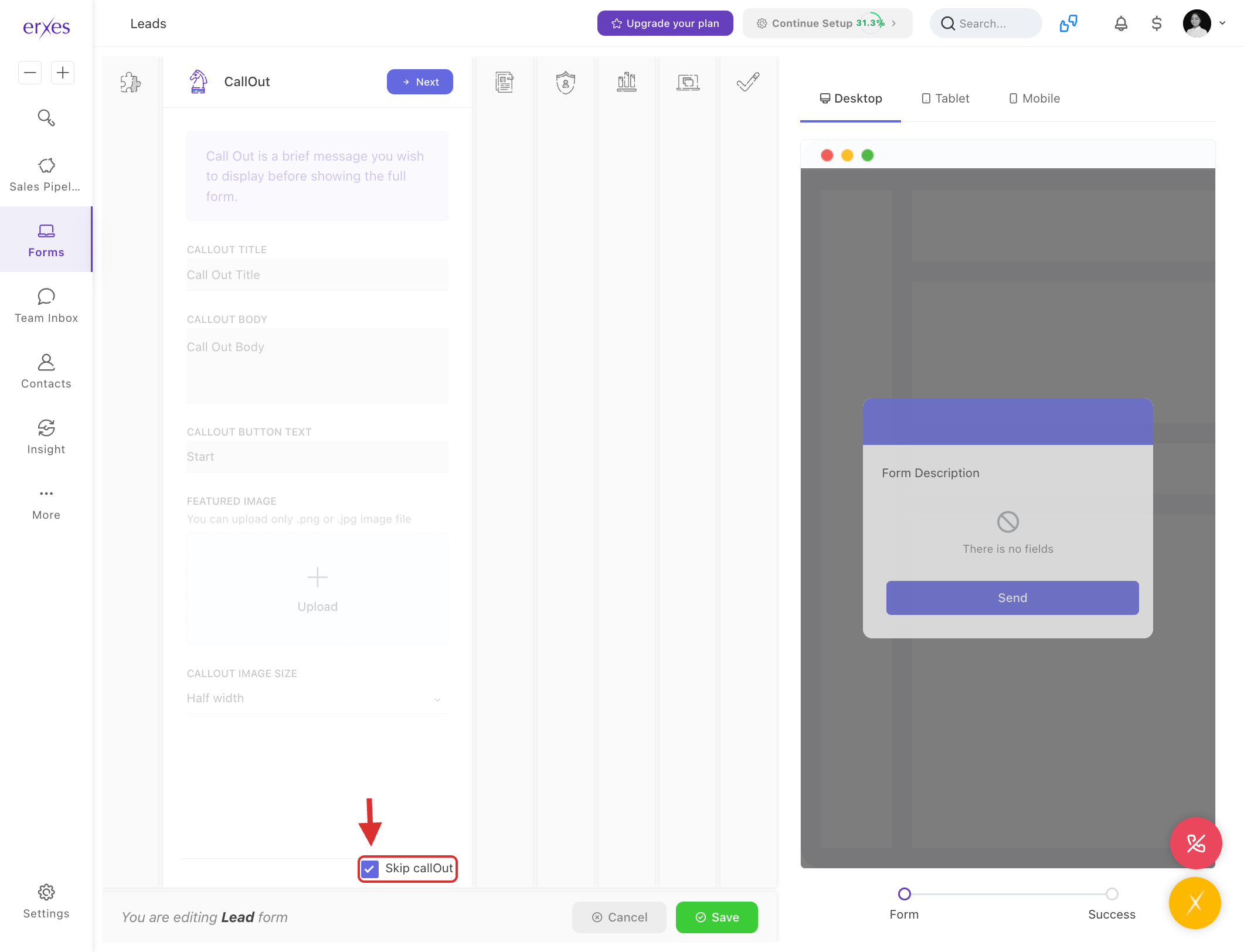
- In the Form Title field, type “Feedback”
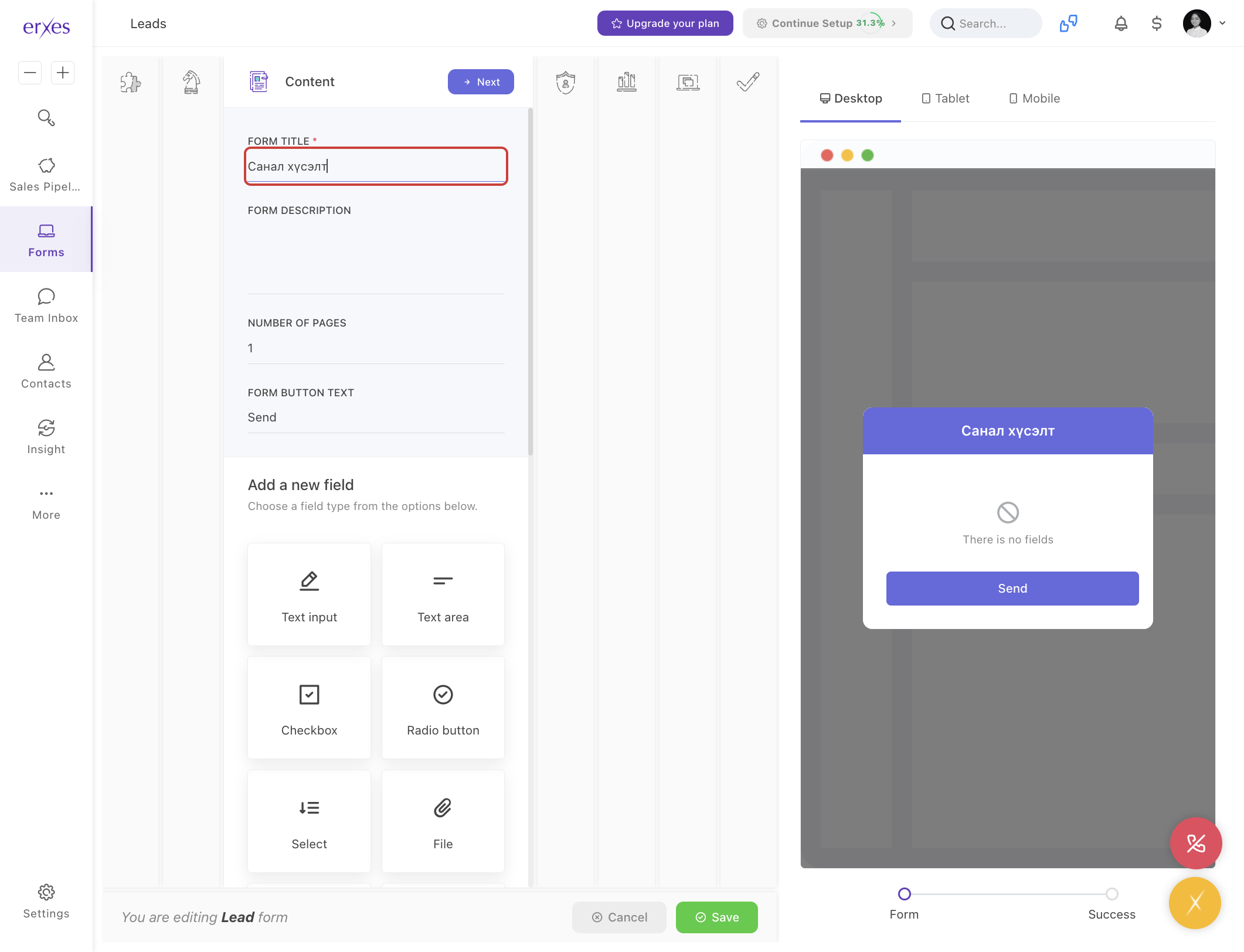
3. Add fields
- Name:
- Click on First Name.
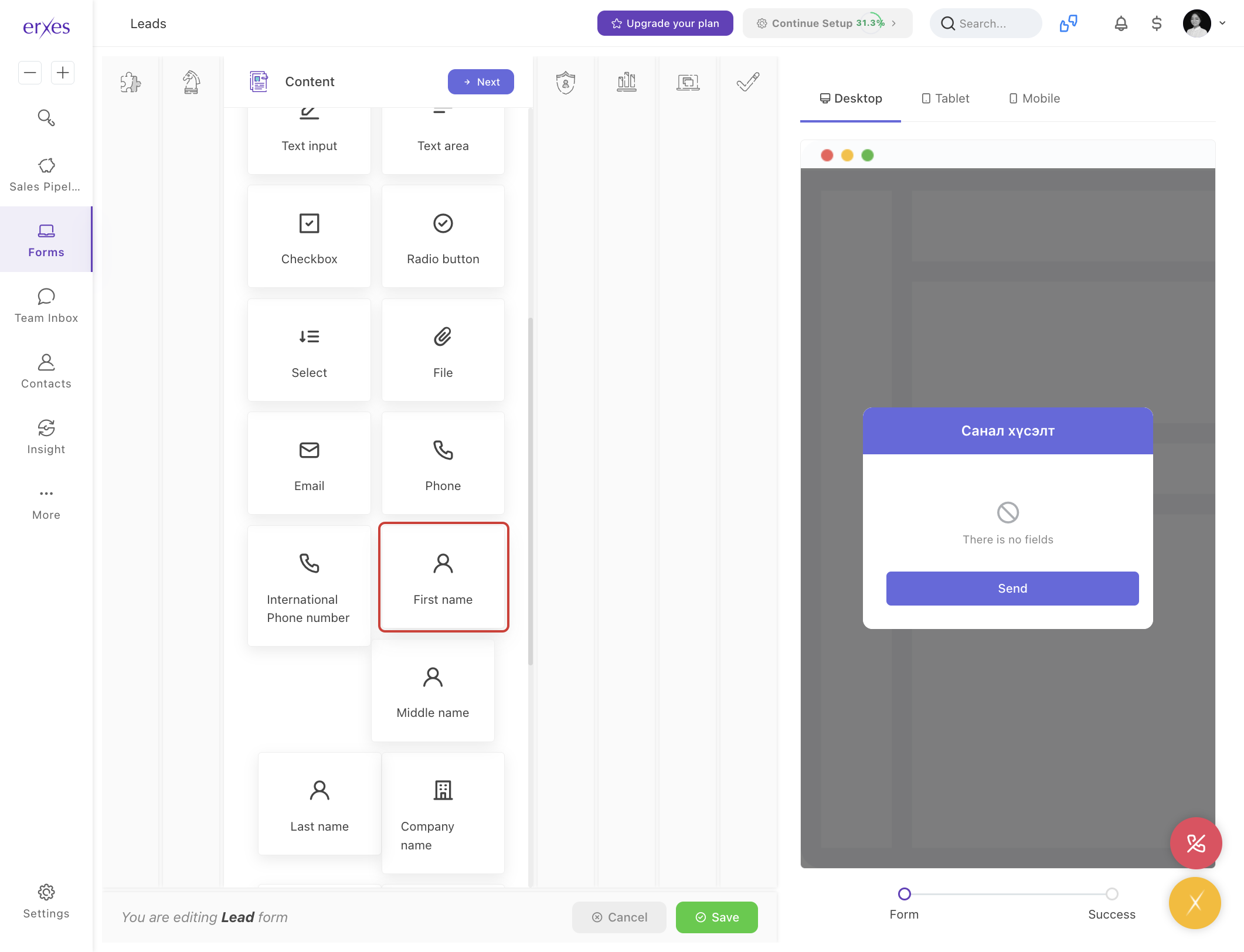
- In the Field Label section, type “Name.”
- Click the Add to Form button to add it.
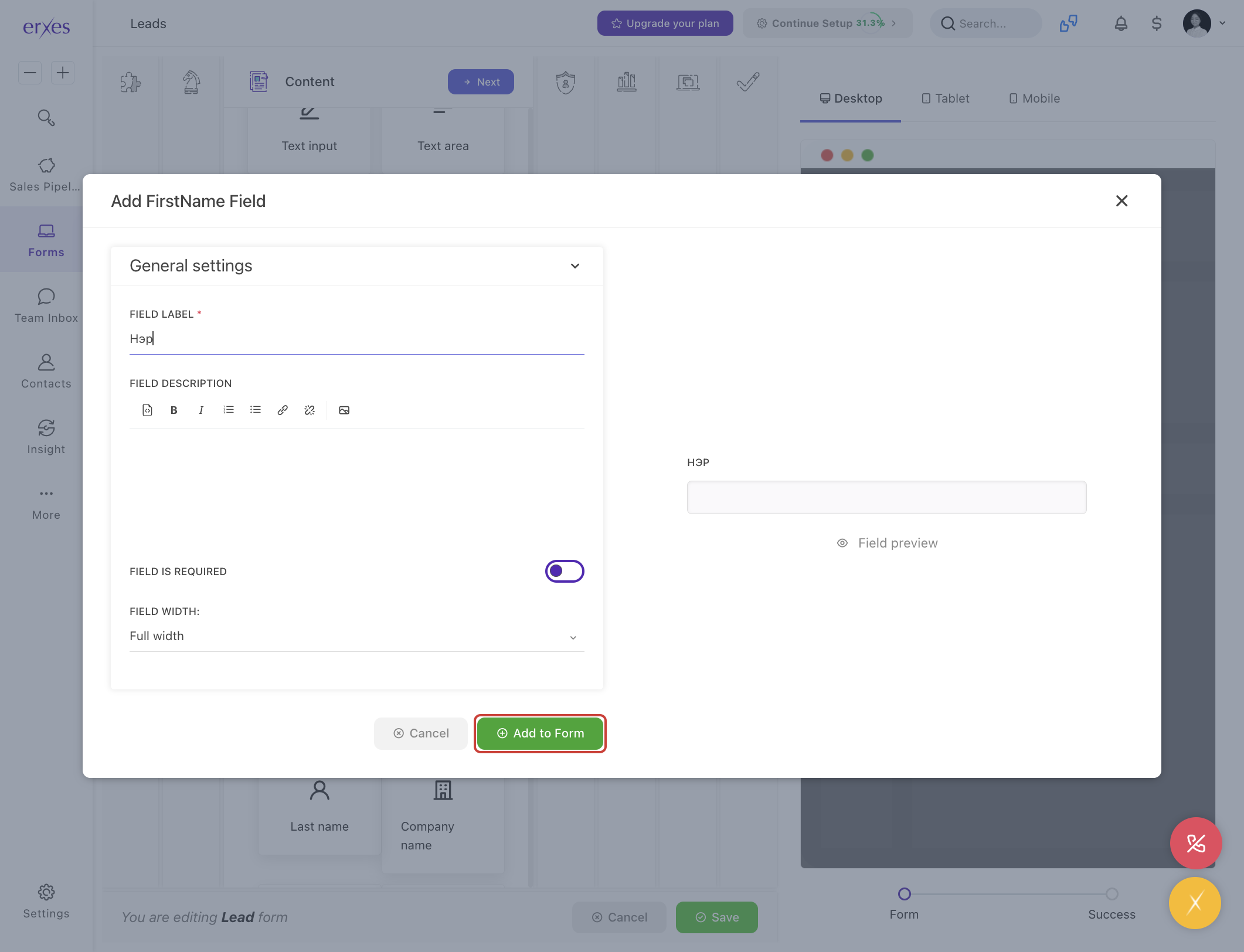
- Click on First Name.
- Phone:
- Click on Phone
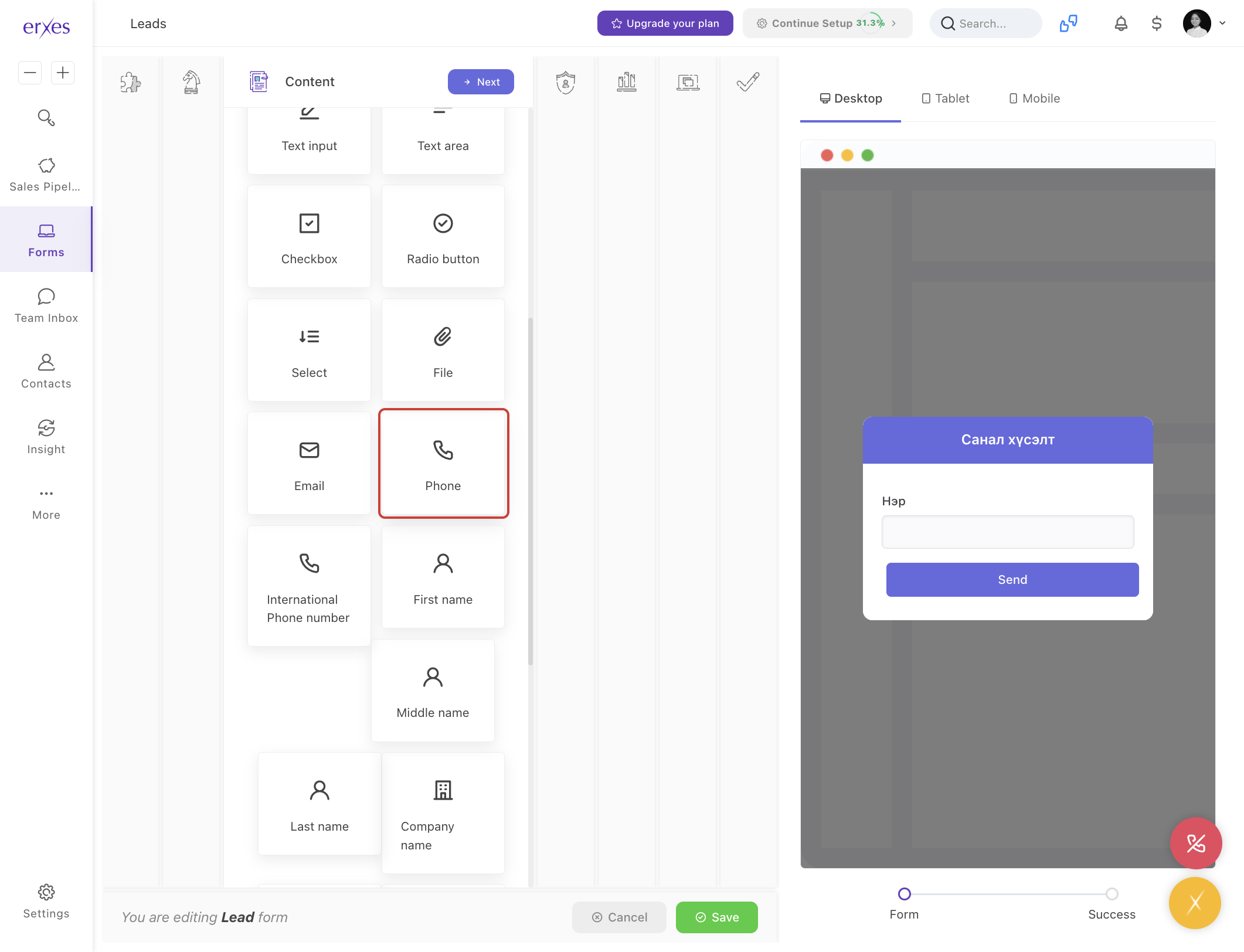
- In the Field Label section, type “Phone”
- Click the Add to Form button to add it.
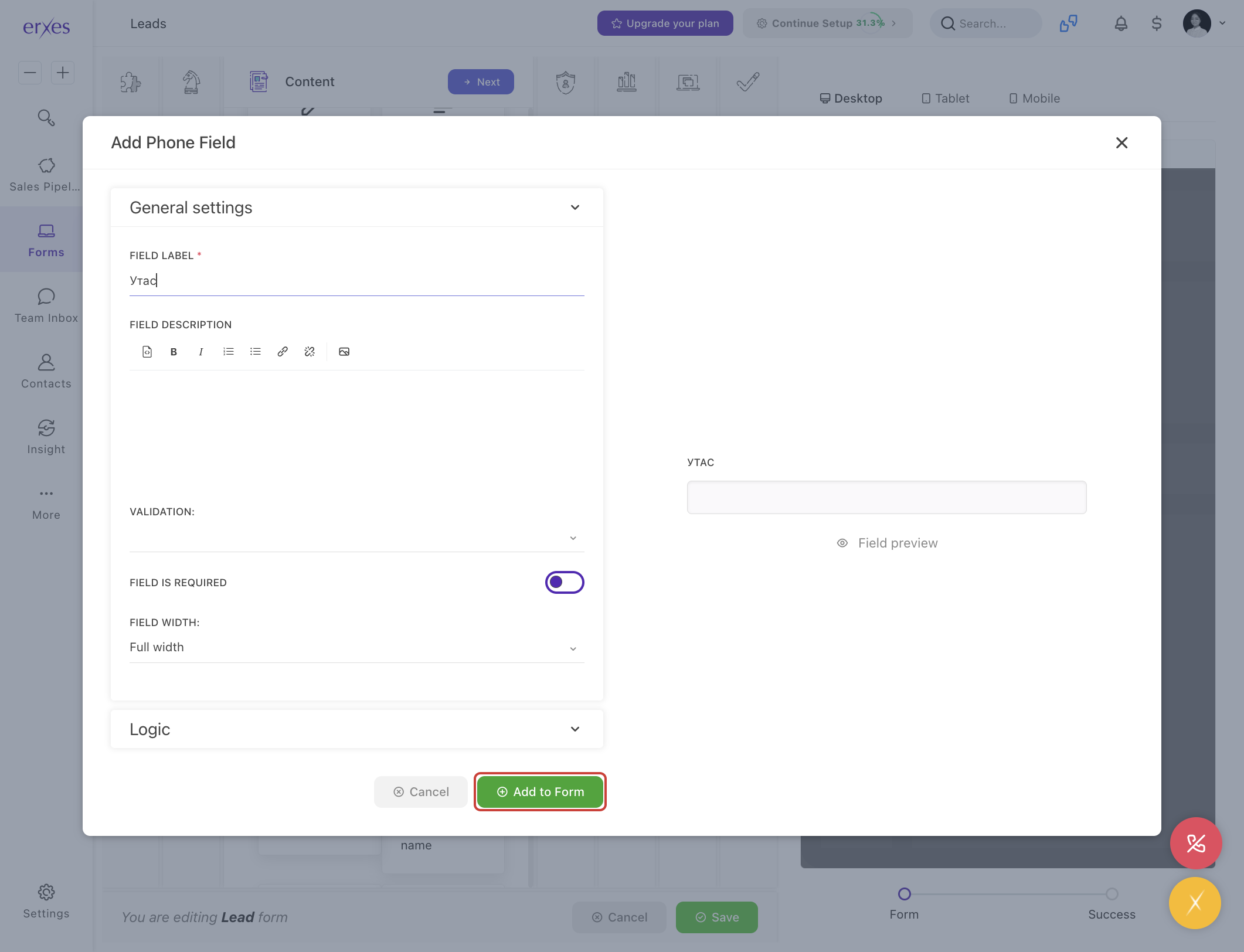
- Click on Phone
- Email:
- Click on Email.
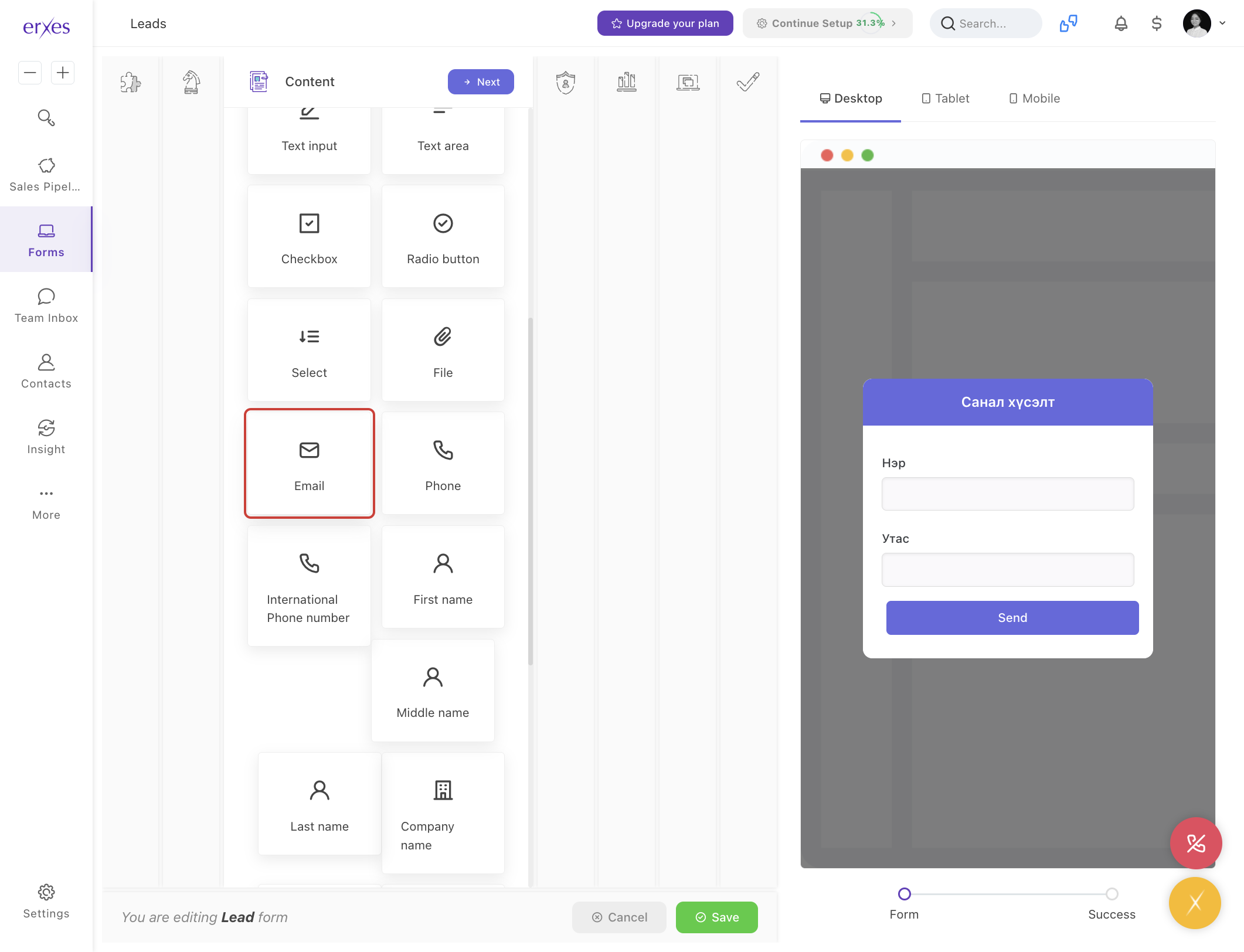
- In the Field Label section, type “Email”
- Click the Add to Form button to add it.
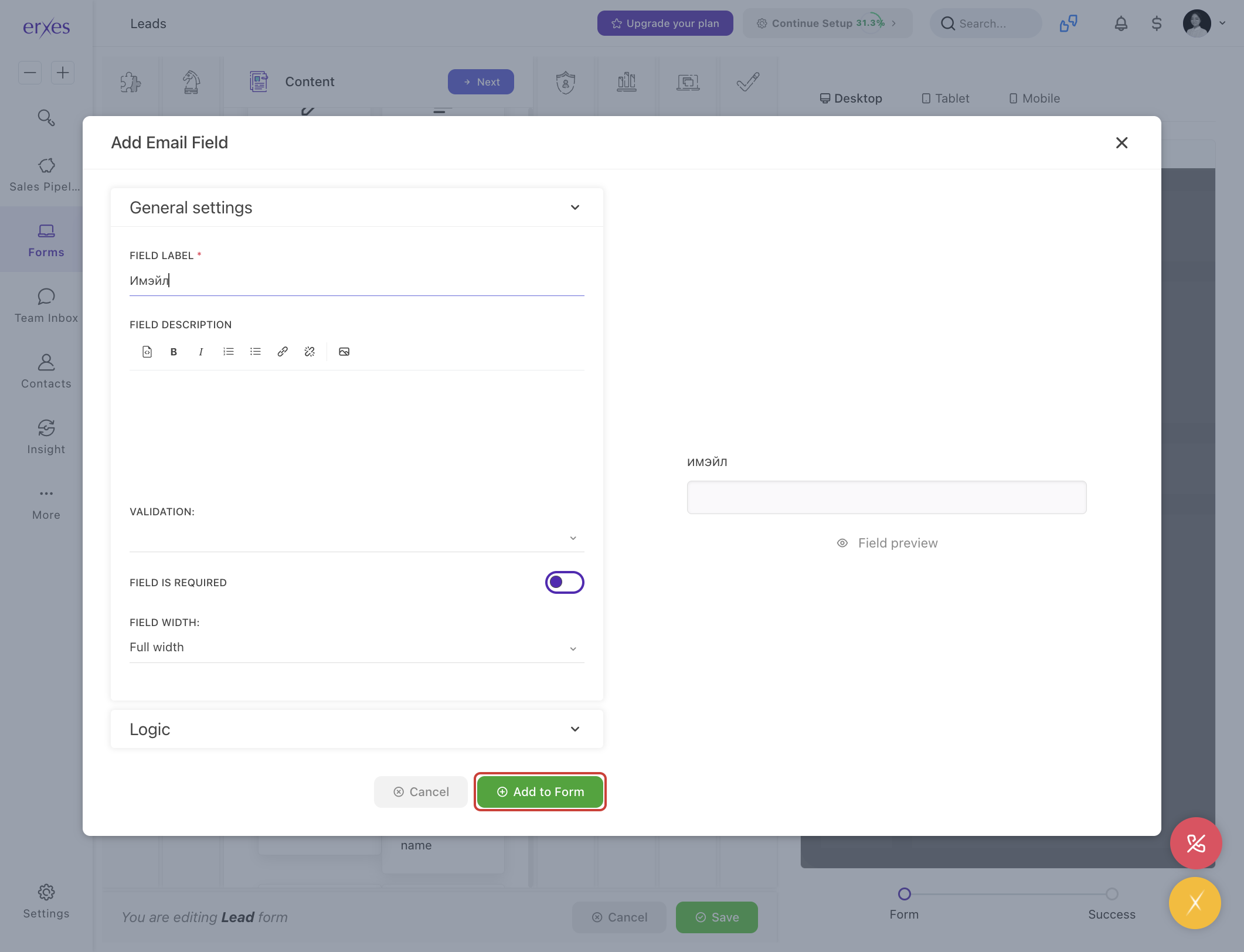
- Click on Email.
- Feedback:
- Click on the text area.
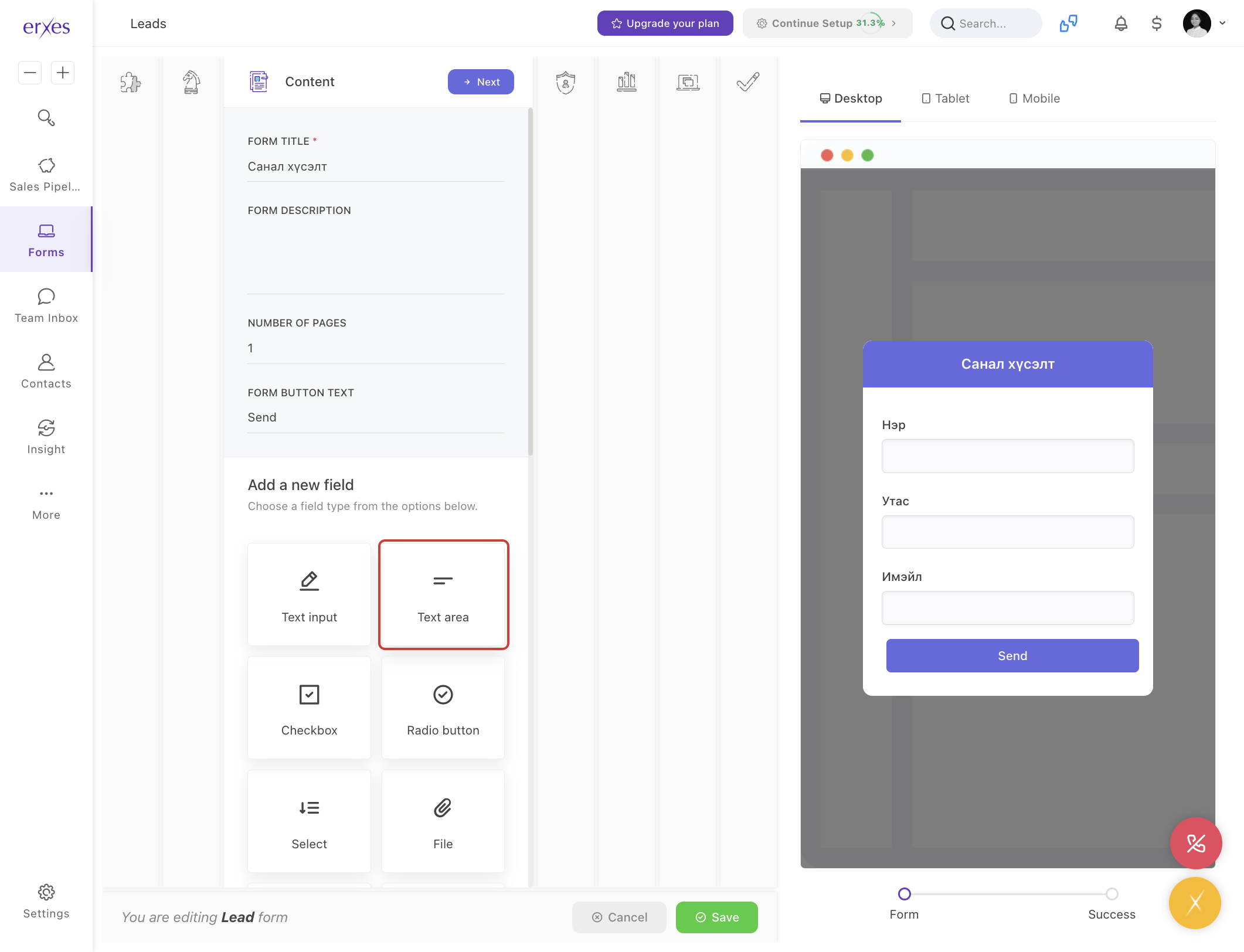
- In the Field Label section, write “Please provide feedback.”
- Click the Add to Form button to add it.
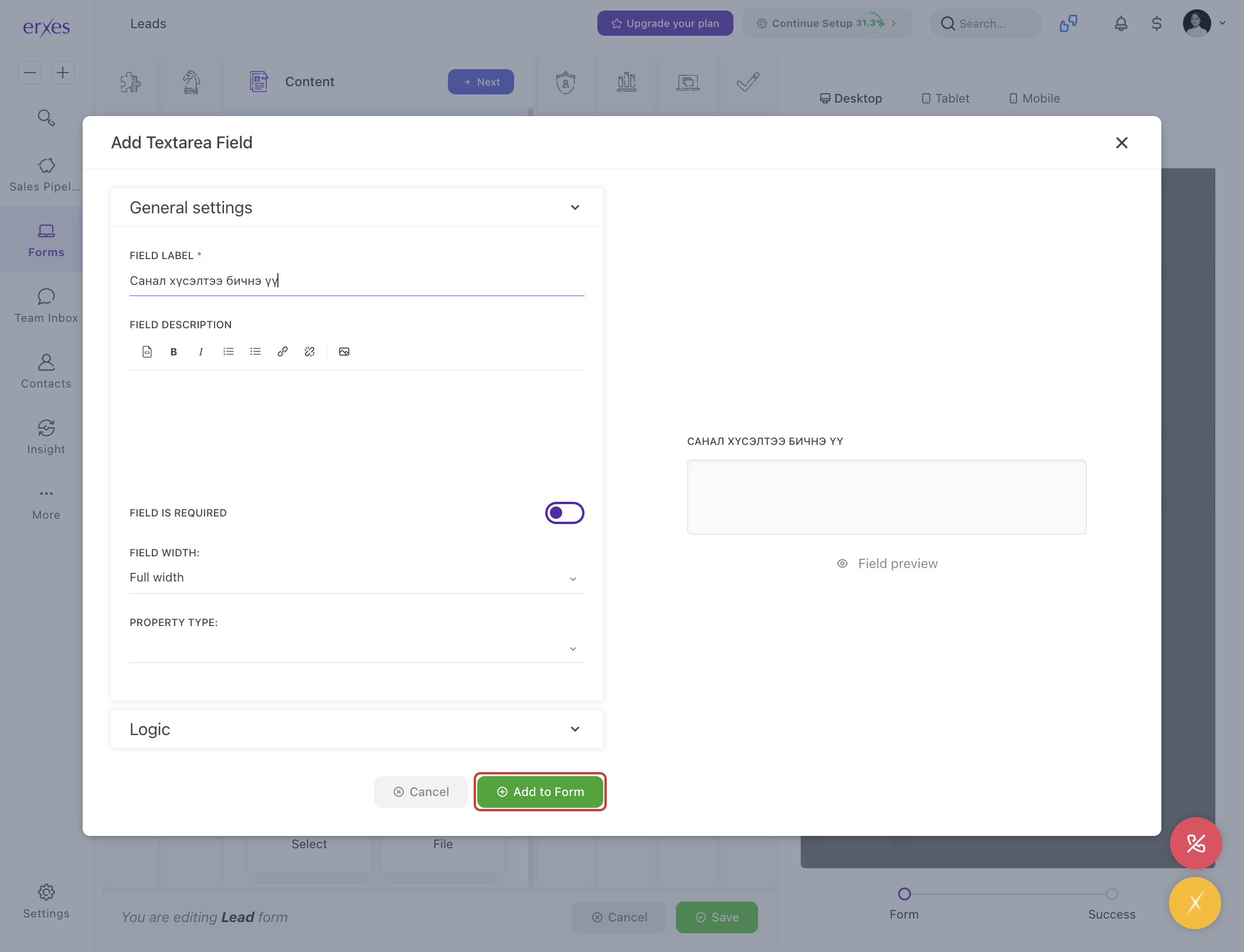
- Click on the text area.
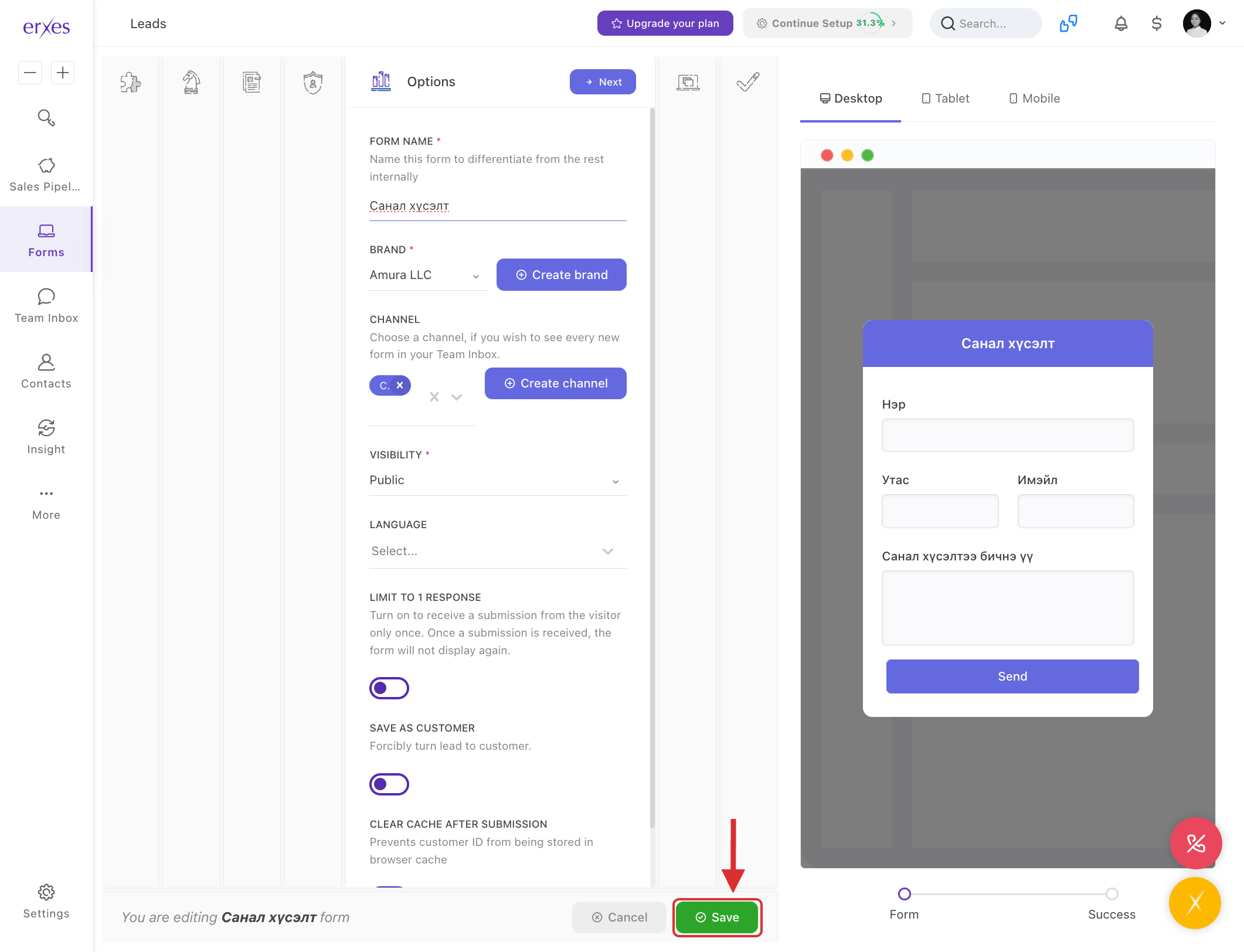
4. Form settings
- Go to the Options section.
- Form name – Give it a name like “Feedback”
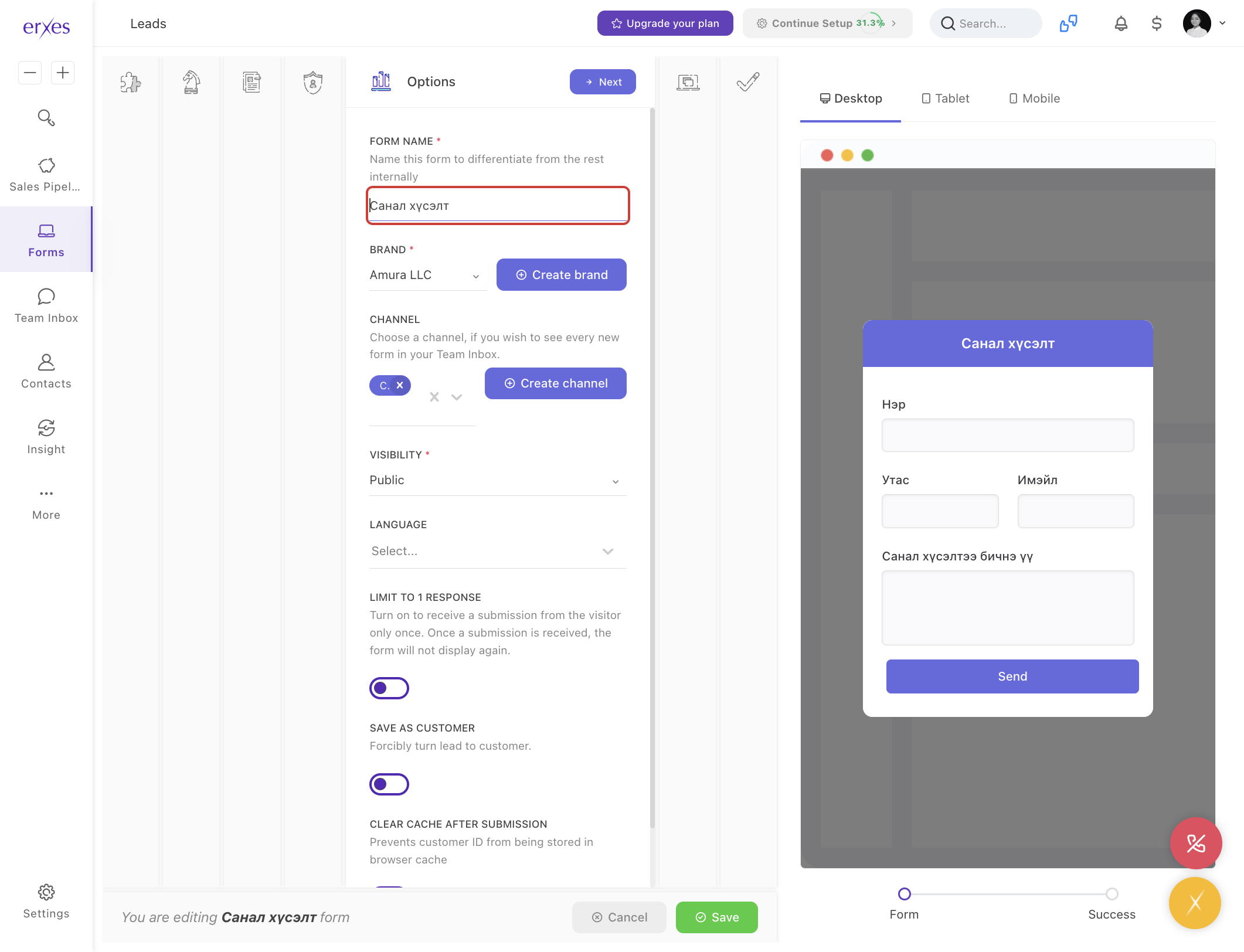
- Select a brand
- Select Channel
- Click the Save button to save.
Test and check
- Click the "< >” Install code button in the Actions section behind the form.
- Click the Preview button to see.
- A form will appear with Name, Phone, Email, and Feedback fields visible.
- Fill in the information and click the Send button to try it out.
⚠️ If the form is not visible:
- Check if the form's Install code has been copied and pasted correctly.
- Check if the Brand/Channel settings are correct.
- Check if the form status is active.






