Guides

All topics
erxes XOS
Sales
Settings
Account
Workspace
Developers
Core Modules
Broadcasts
Documents
Automations
Segments
Contacts
Plugins
Operation
Sales
Frontline
Tourism
Content
Accounting
Agents
Company Brain
Mongolian
Loyalty
Categorizing Conversations and Generating Reports
By categorizing conversations using tags and generating reports, you can track and analyze user issues.
Instructions
Step 1. Create a conversation category
- Go to Settings.
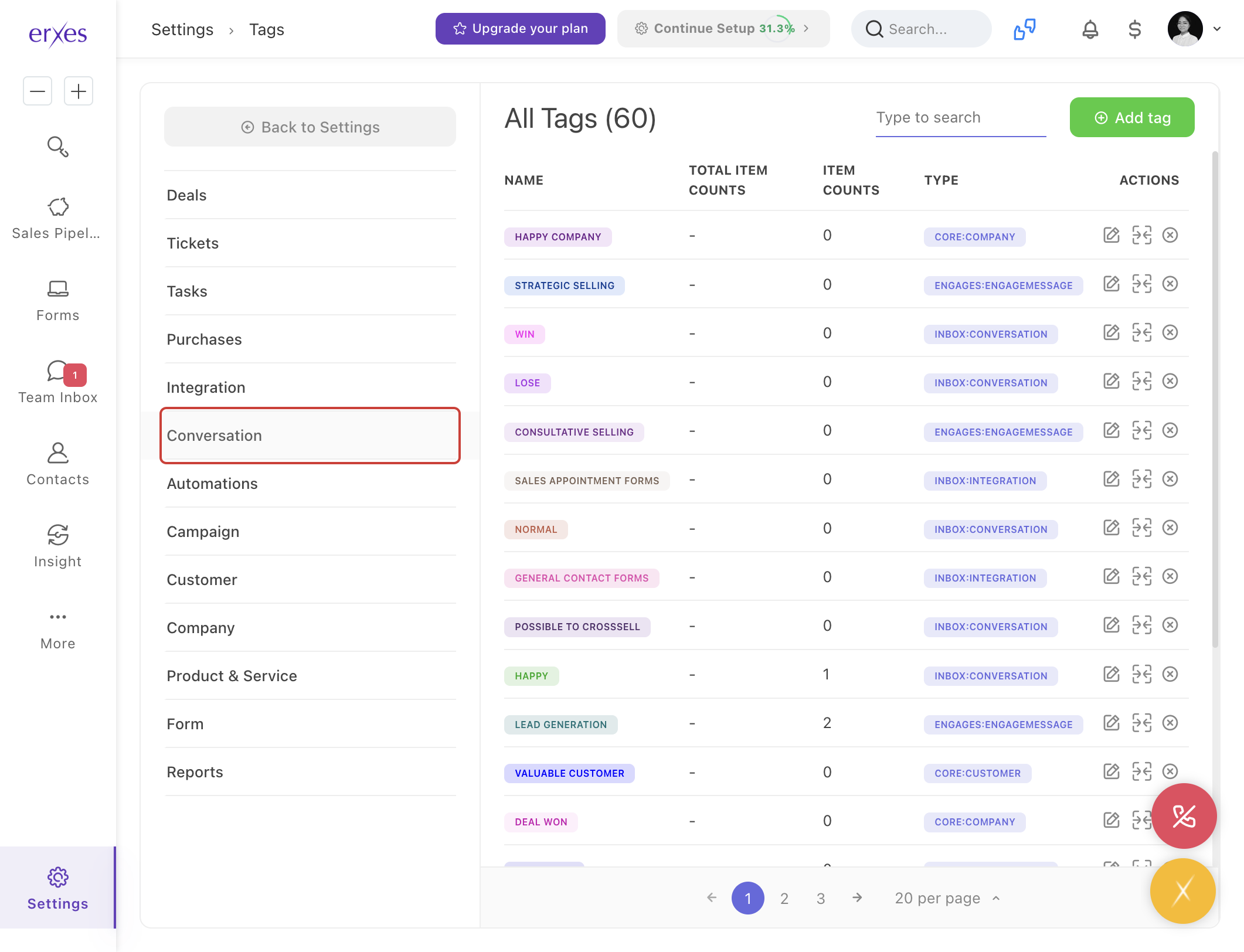
- Click on the Tag menu.
- Select a conversation type.
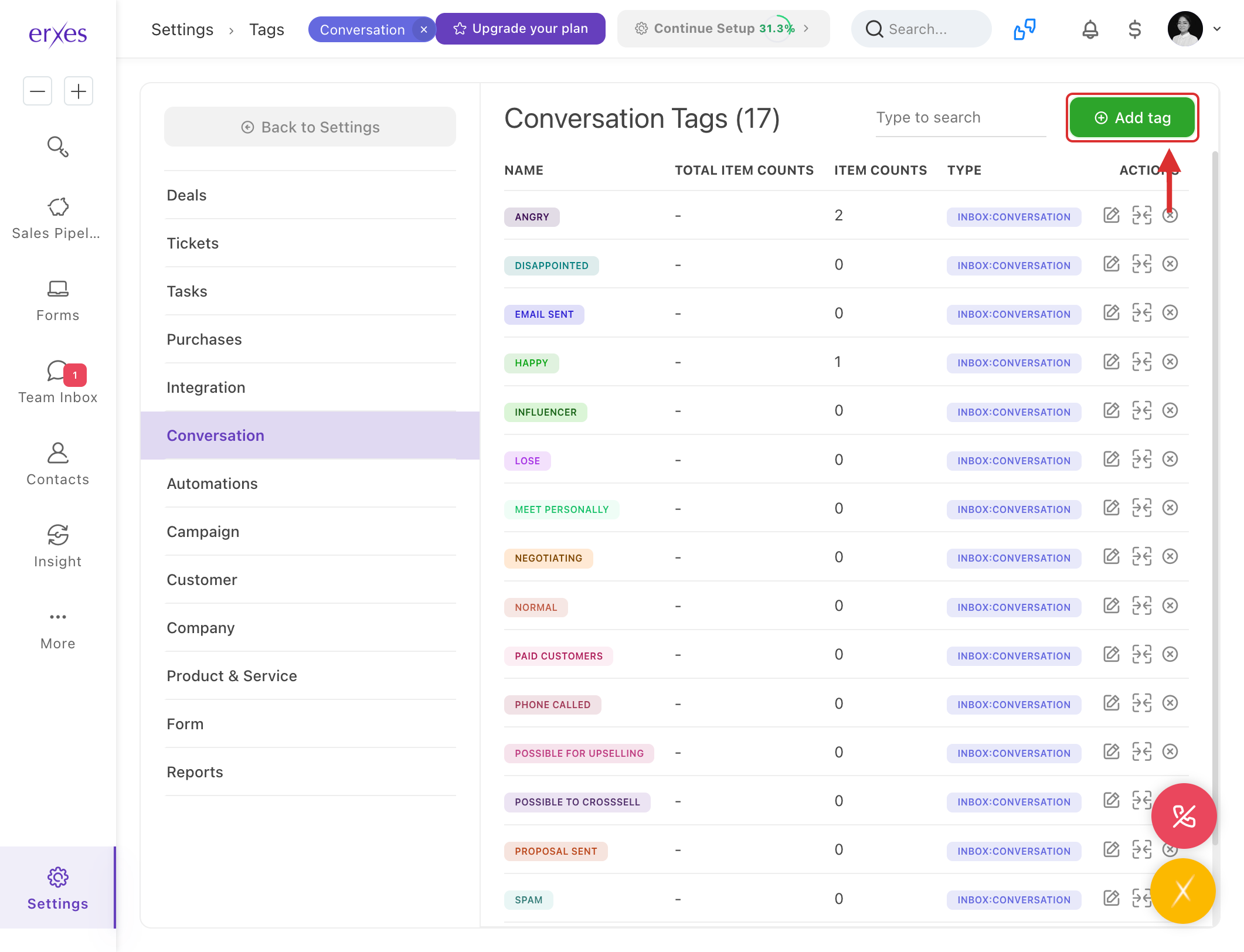
- Click the Add tag button.
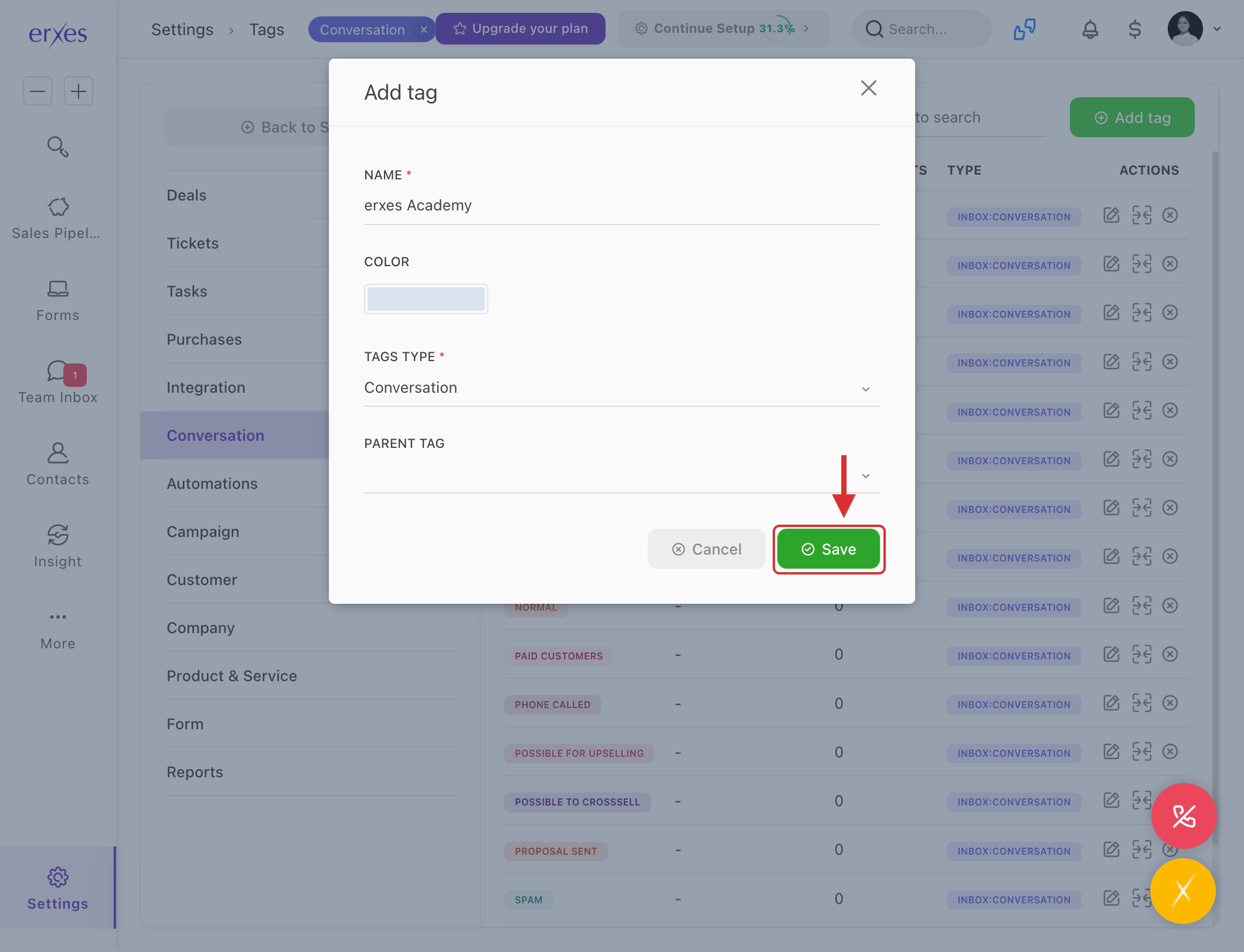
- In the Name field, type the name of the category.
- Click the Save button to save.
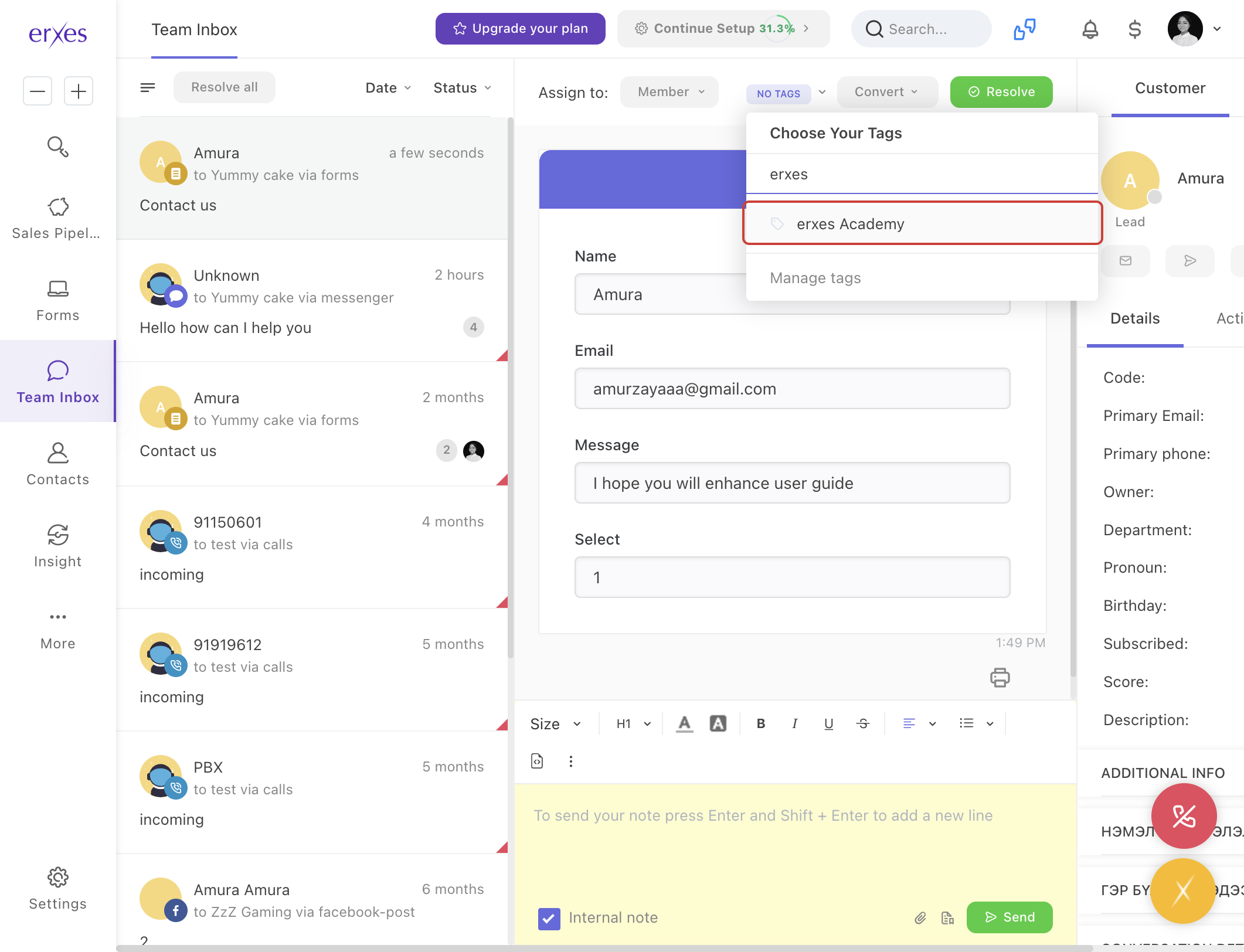
Step 2. Select a category for the conversation
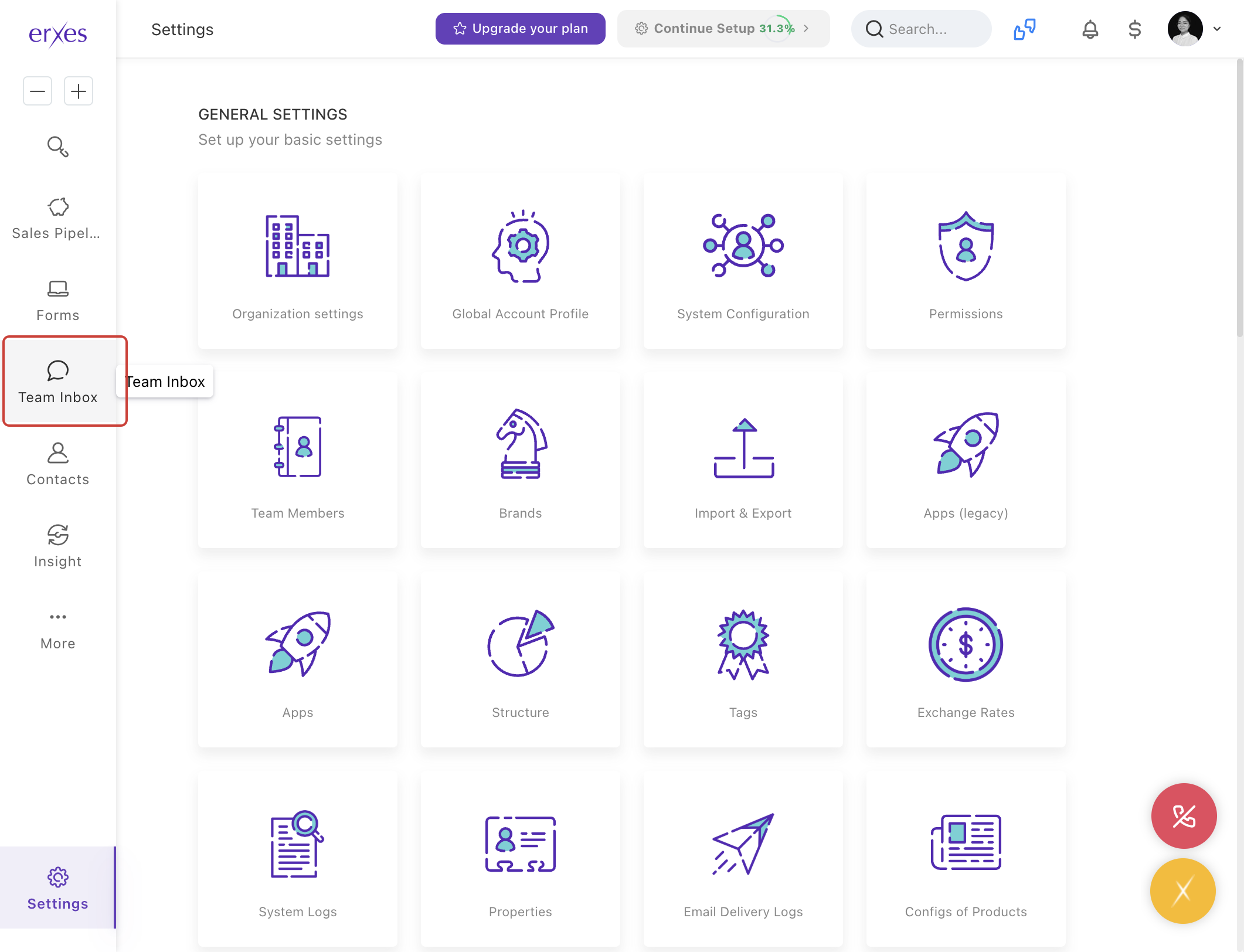
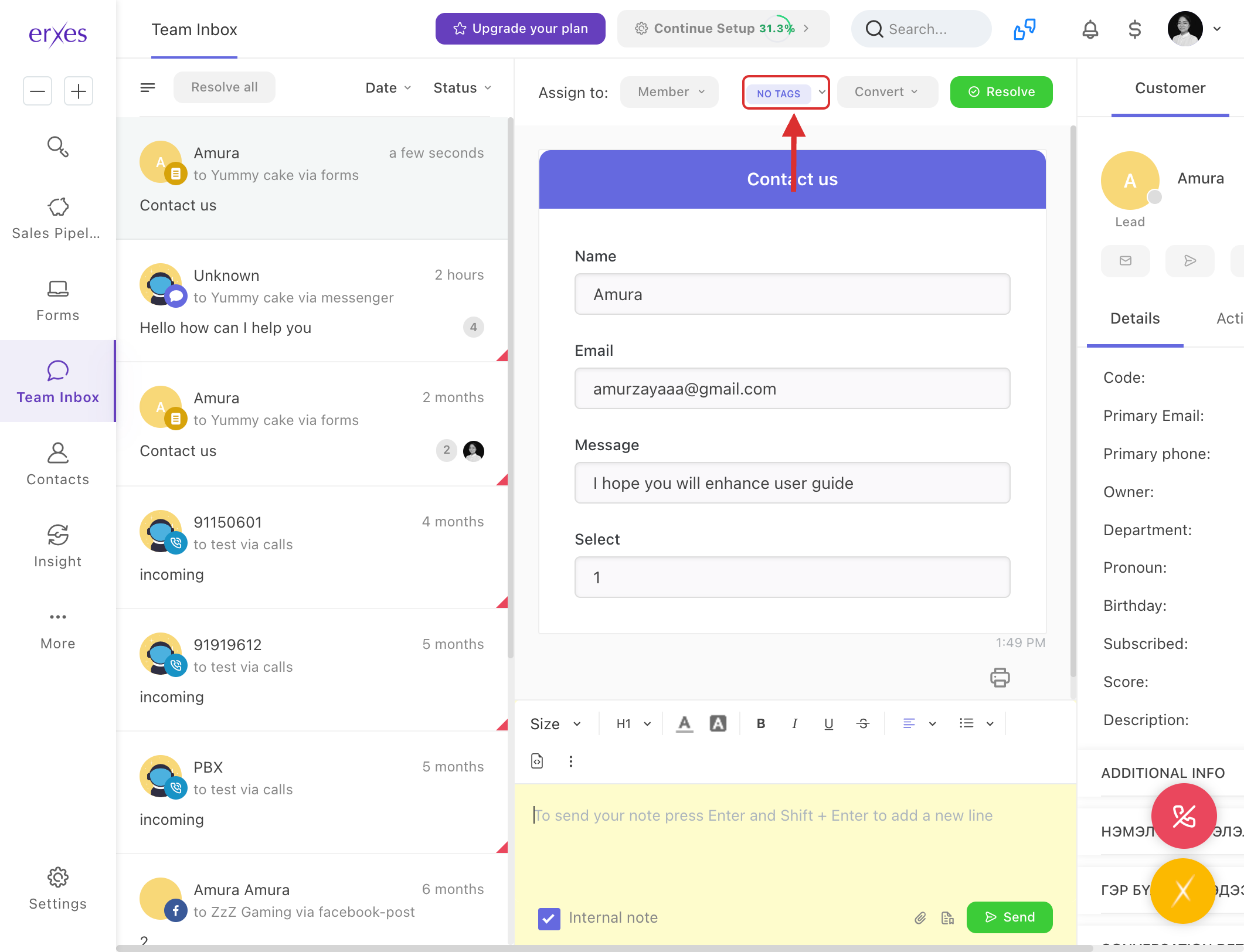
- Go to Team Inbox.
- Click on No tag.
- Select the category you created.
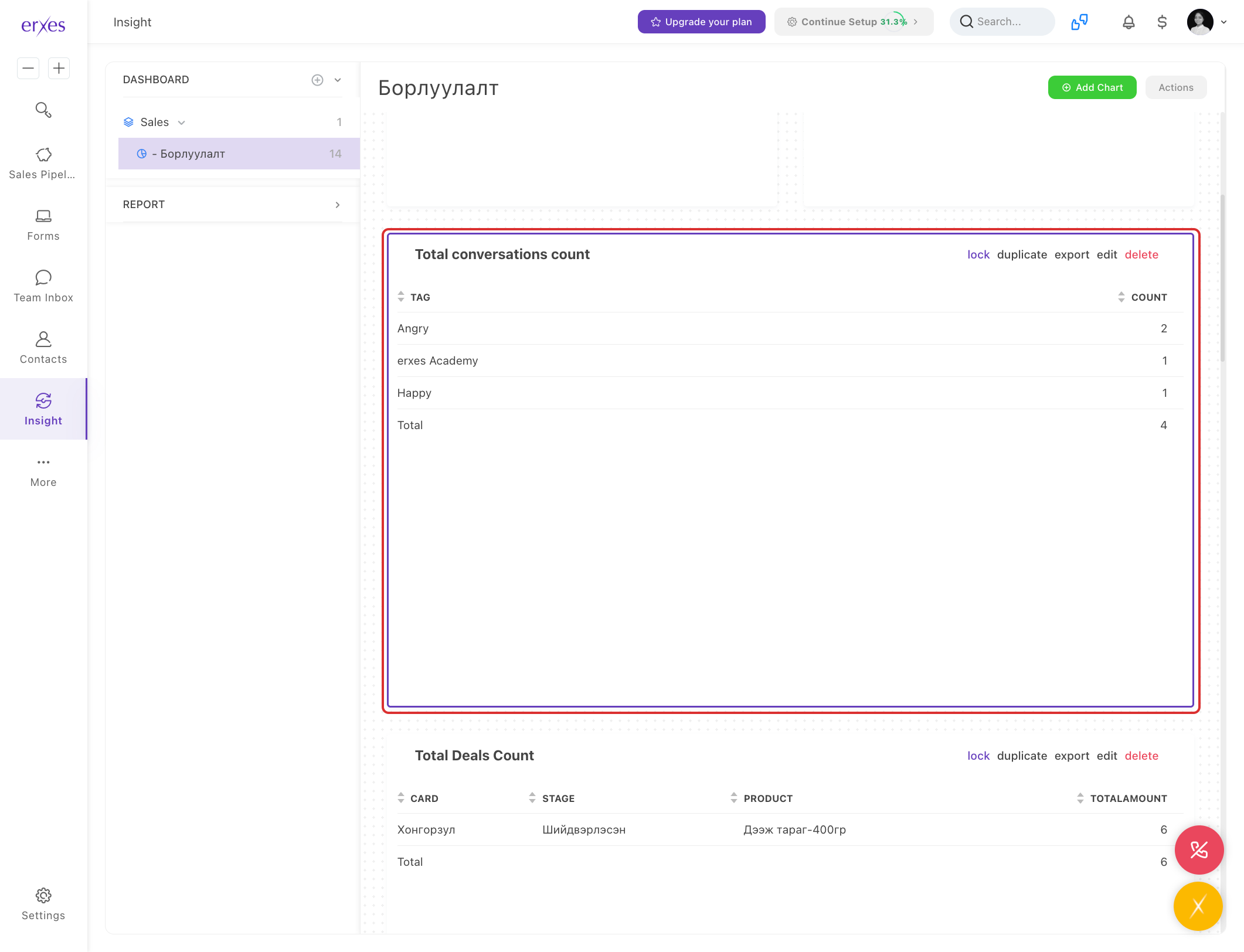
Step 3. Generate reports by conversation category
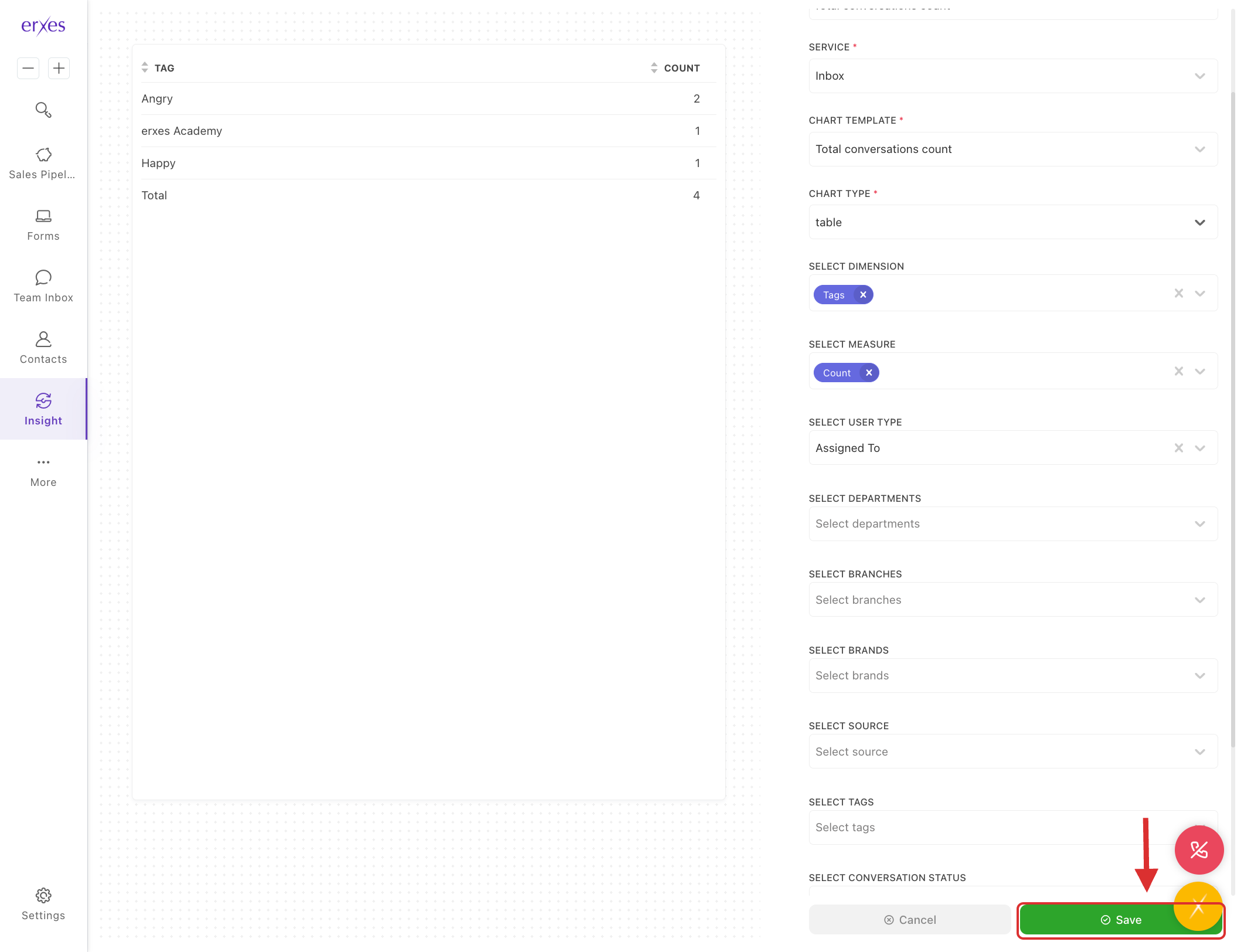
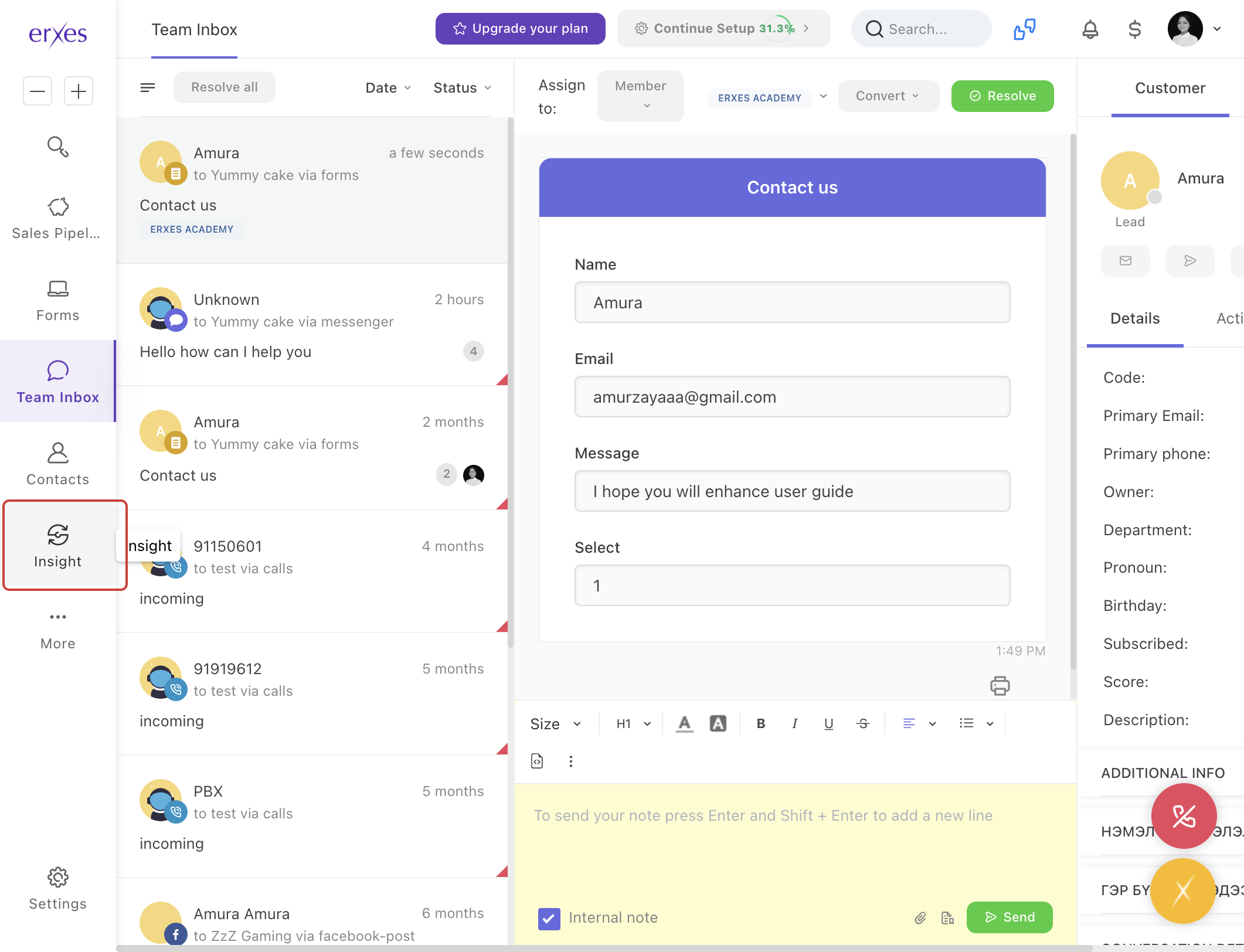
- Go to the Insight menu.
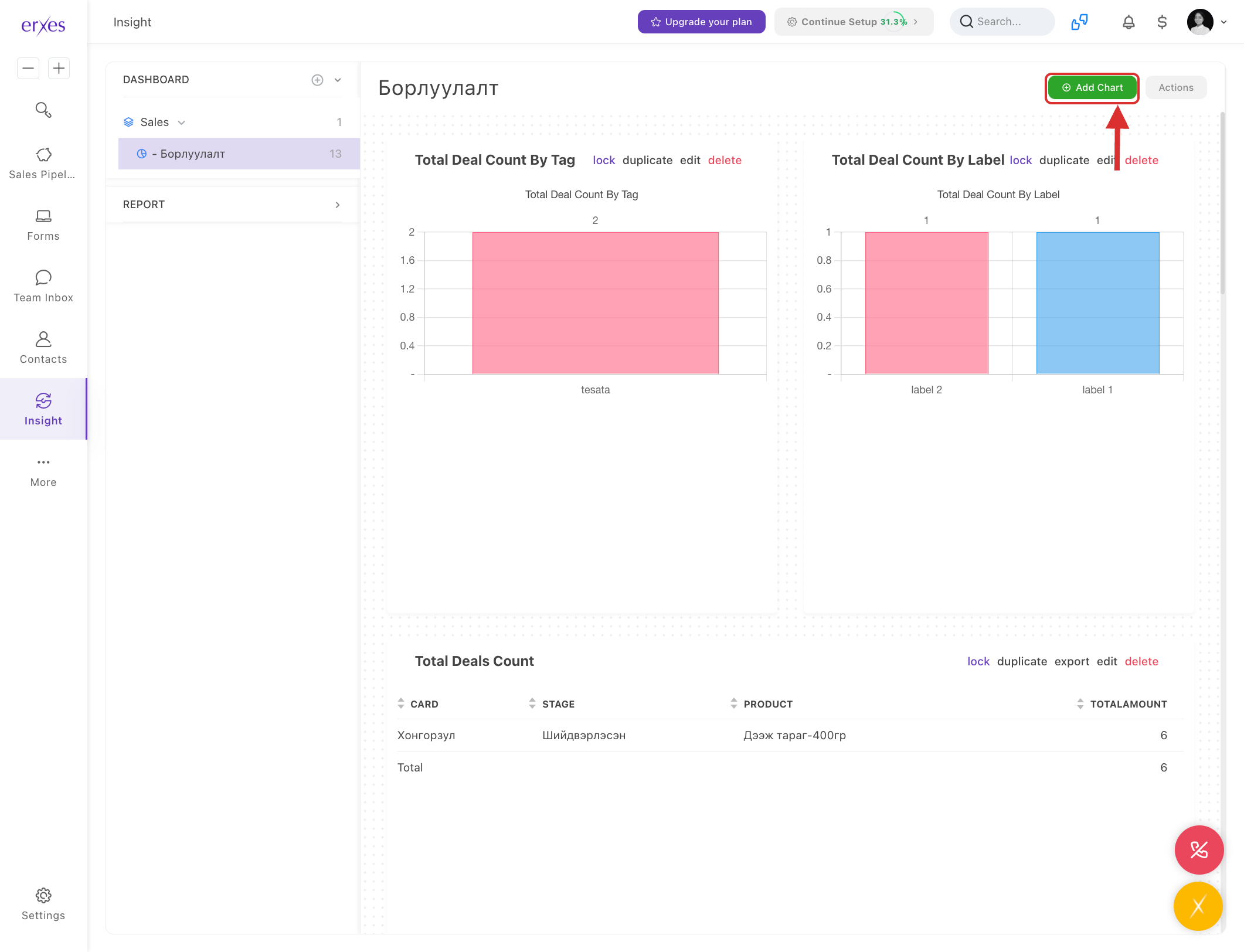
- Click the Add chart button.
- In the Service section, select Inbox.
- In the Chart Template section, select Total conversation count.
- In the Select dimension section, select Tag.
- In the Chart type section, select Table.
- Click the Save button to save.
Illustrated instructions
1. Create a conversation category
- Go to Settings
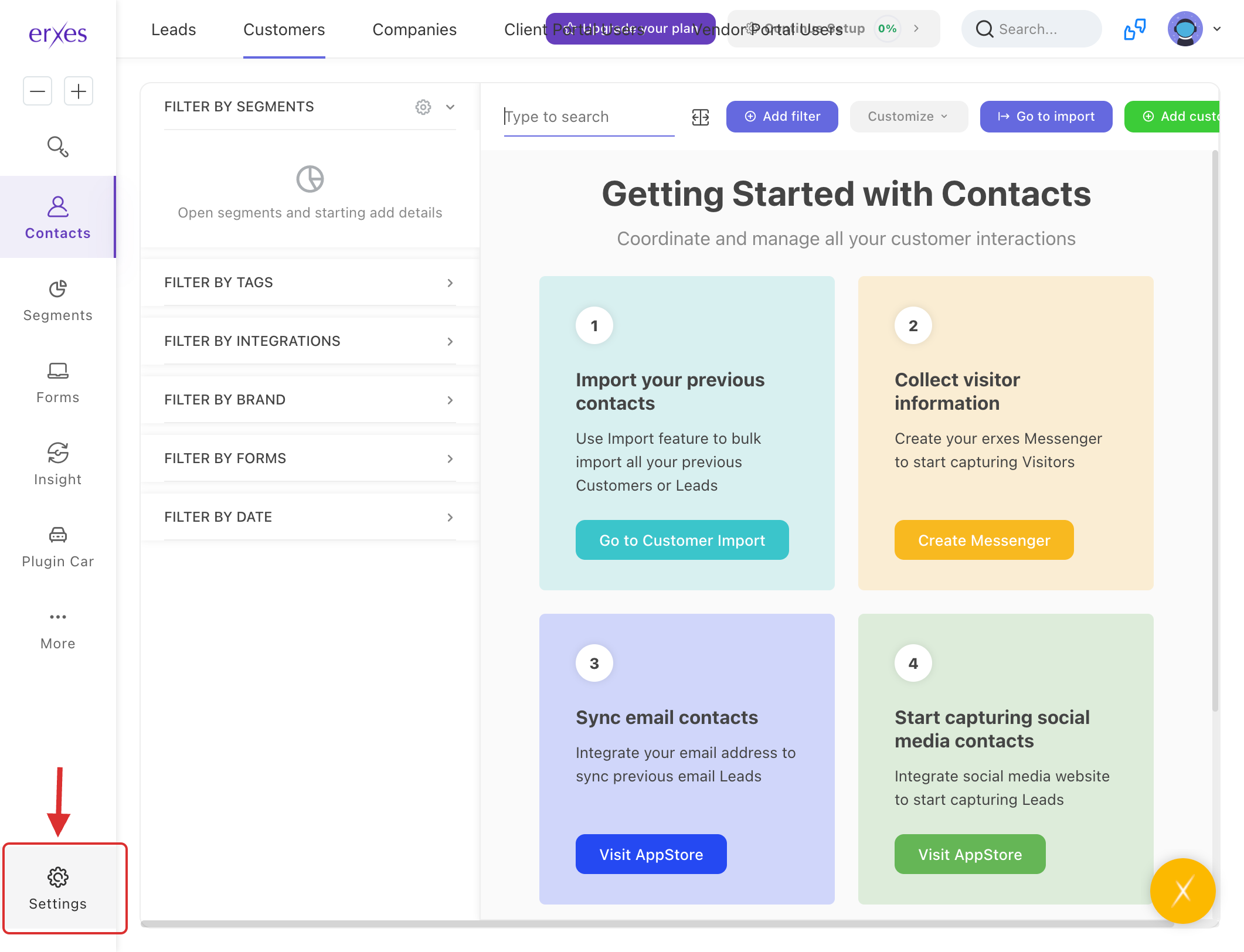
- Click on the Tag menu
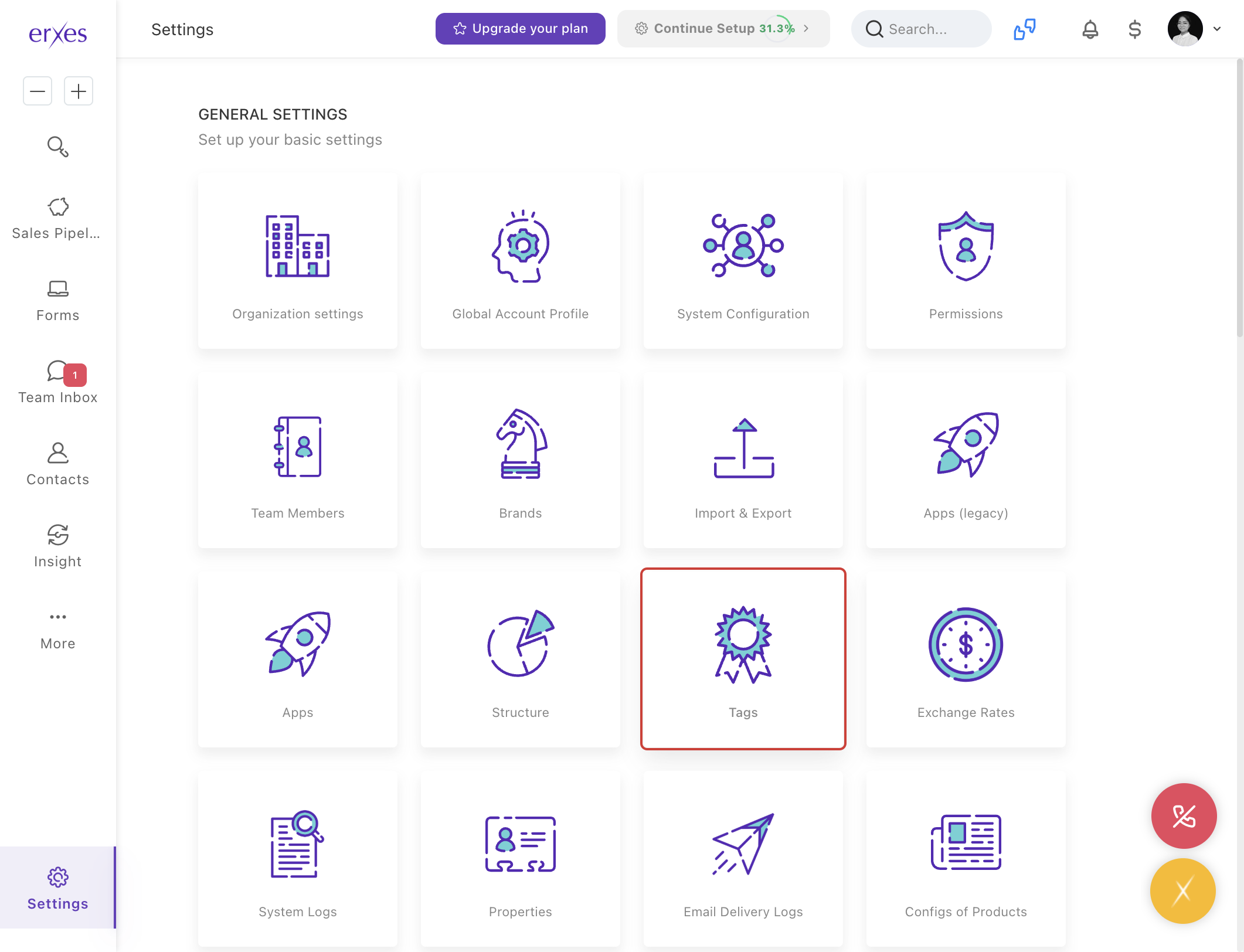
- Select a conversation type.
- Click the Add tag button.
- In the Name field, type the name of the category.
- Click the Save button to save.
2. Select a category for the conversation
- Go to Team Inbox
- Click on No tag.
- Select the category you created.
3. Generate reports by conversation category
- Go to the Insight menu
- Click the Add chart button.
- In the Service section, select Inbox .
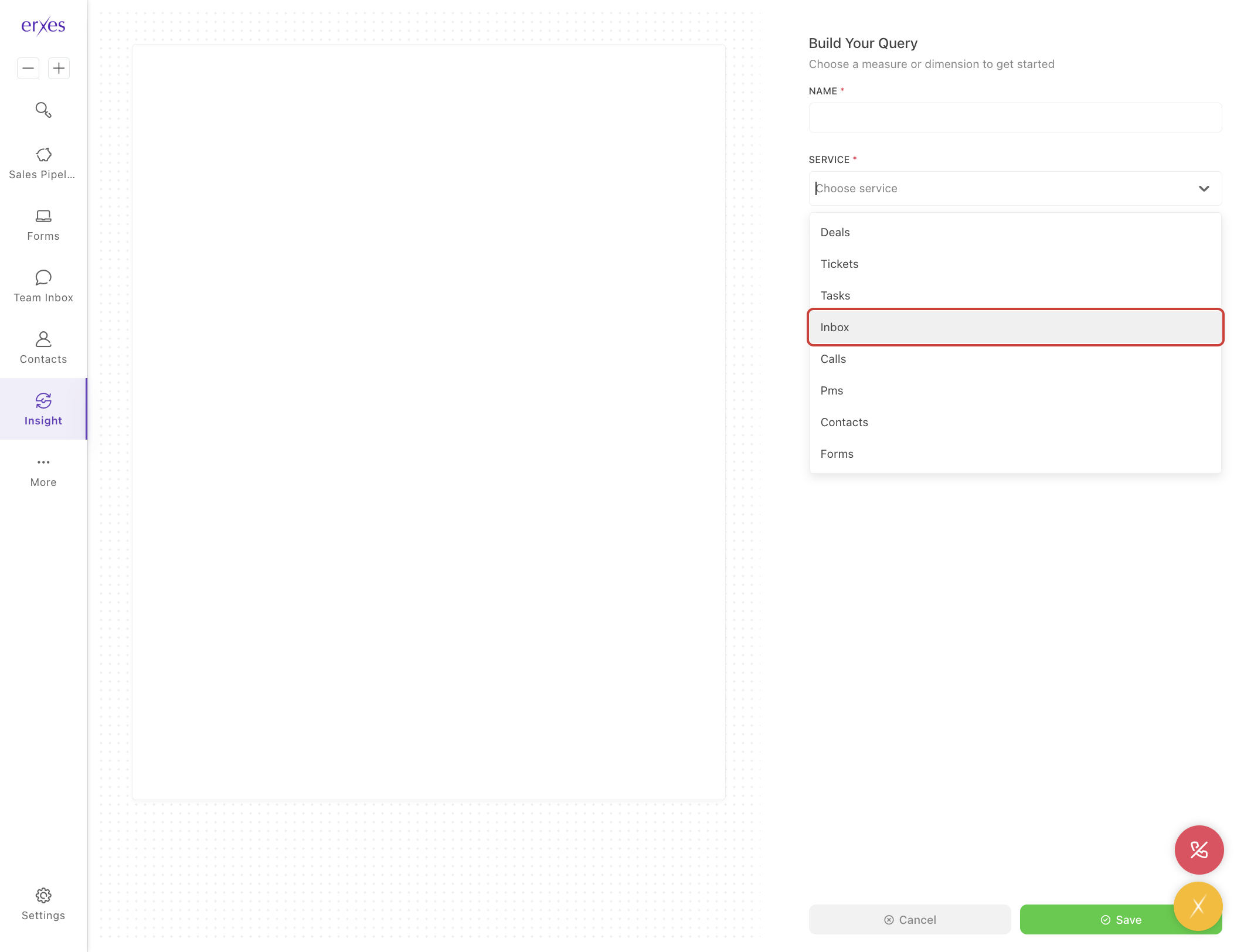
- In the Chart Template section, select Total conversation count .
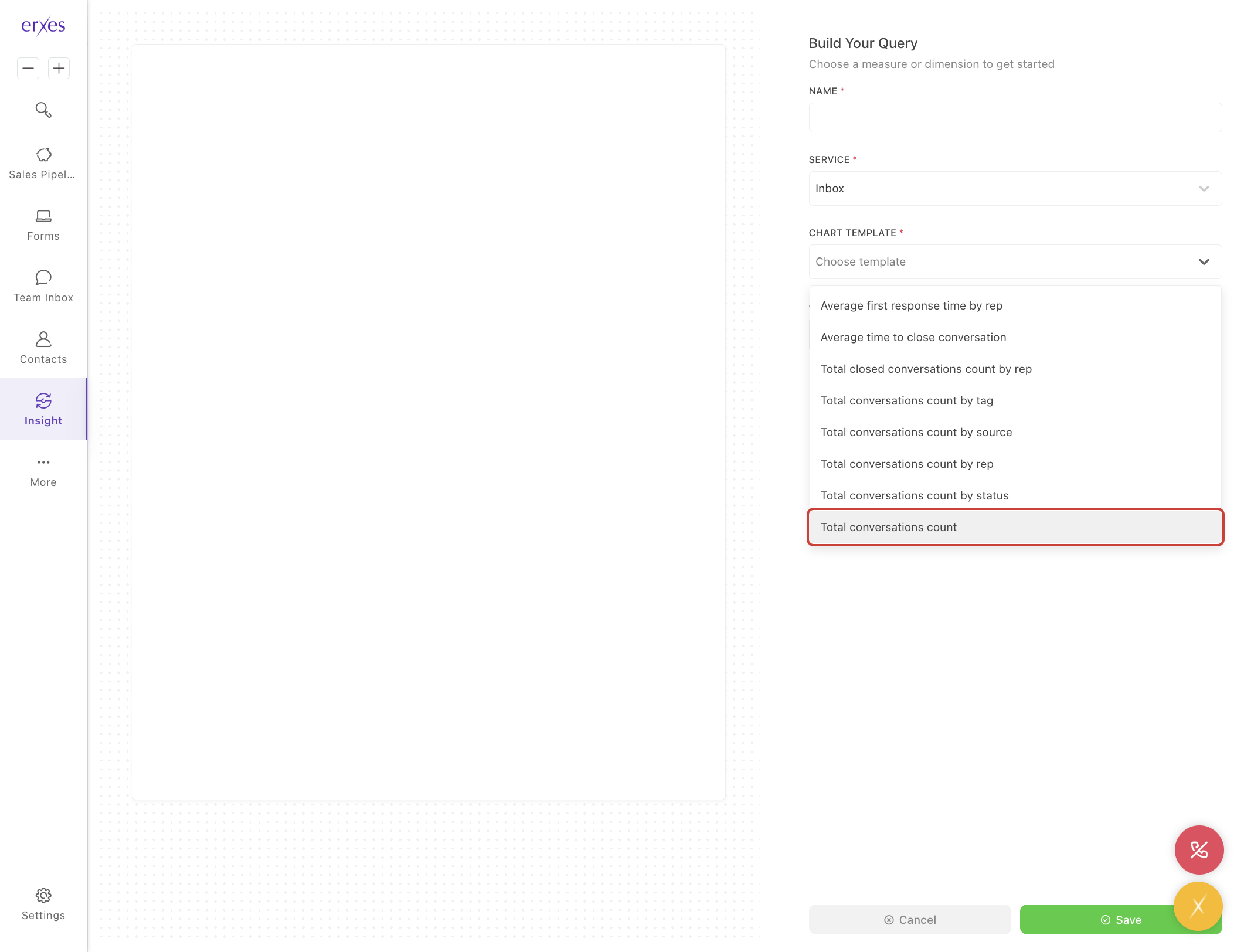
- In the Select dimension section , select Tag .
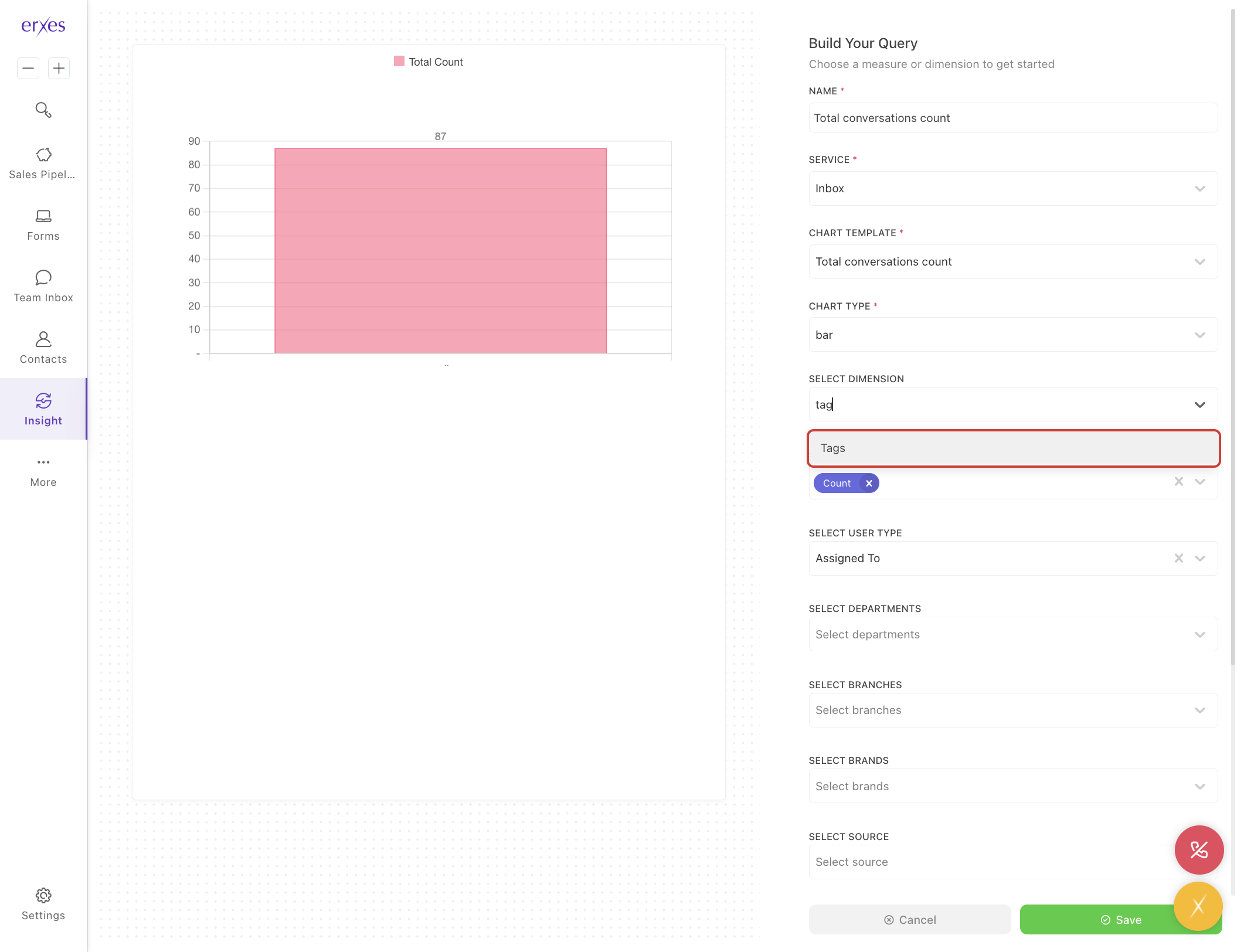
- In the Chart type section , select Table .
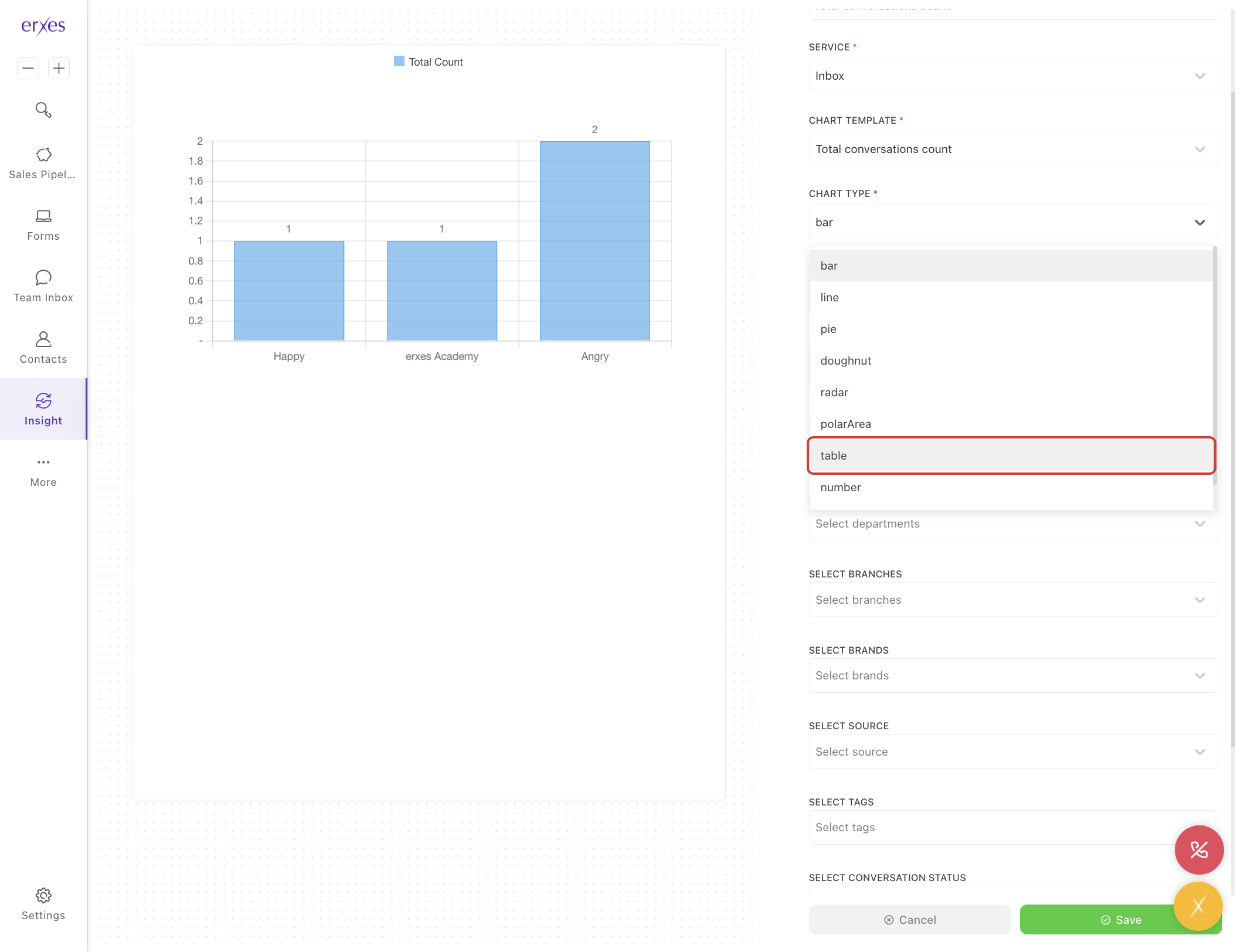
Click the Save button to save.