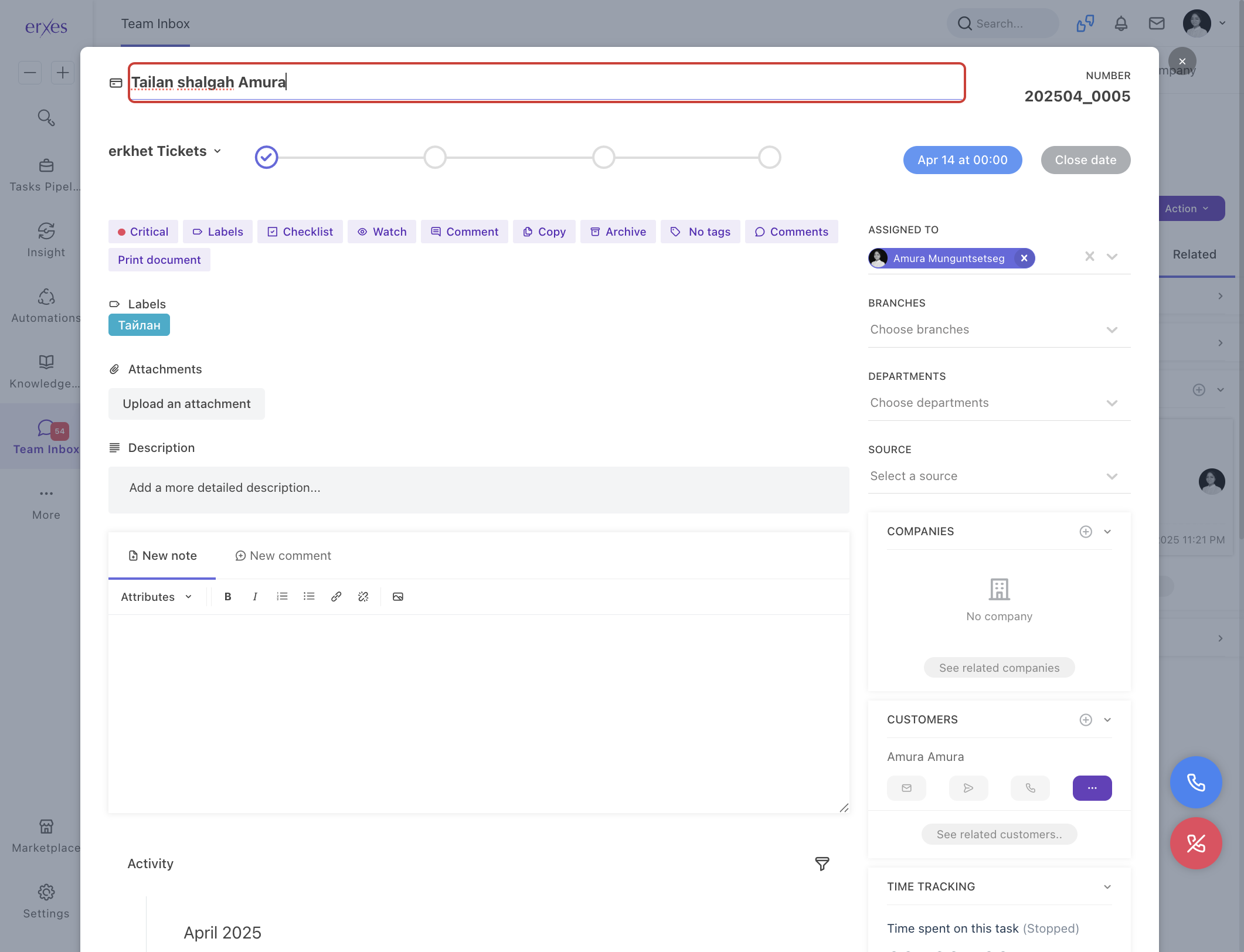
6. Instructions for Registering and Resolving Customer Feedback and Complaints
Updated Apr 29, 2025
This guide helps simplify the process of documenting and managing feedback or complaints from Customers through a clear pipeline.
Create a Feedback and Complaints Board
- Go to the Settings menu.
- Select Ticket Pipeline.
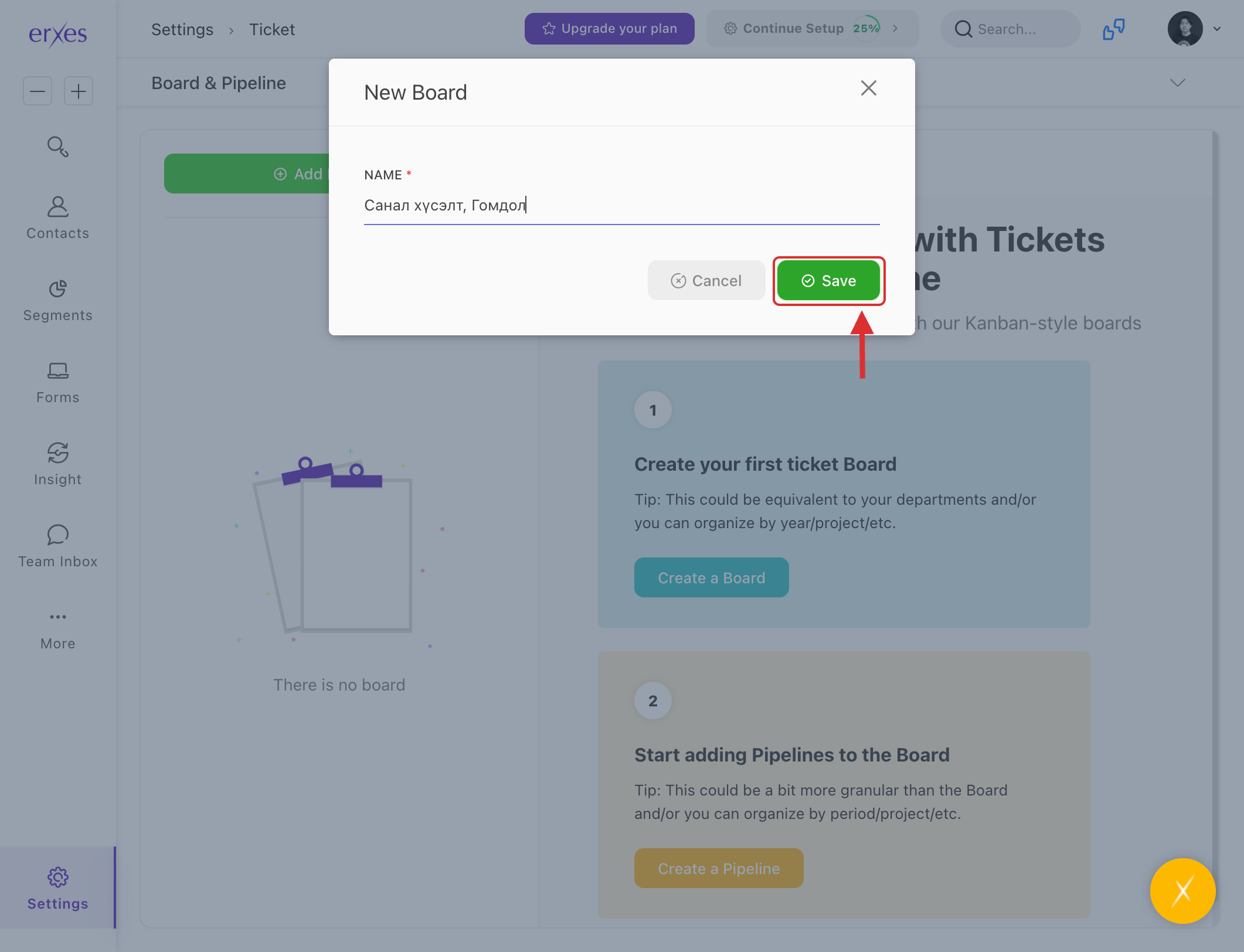
- Click Add New Board, enter the name “Feedback and Complaints”, and click Save.
Set Up the Feedback Resolution Pipeline
- Click Add New Pipeline.
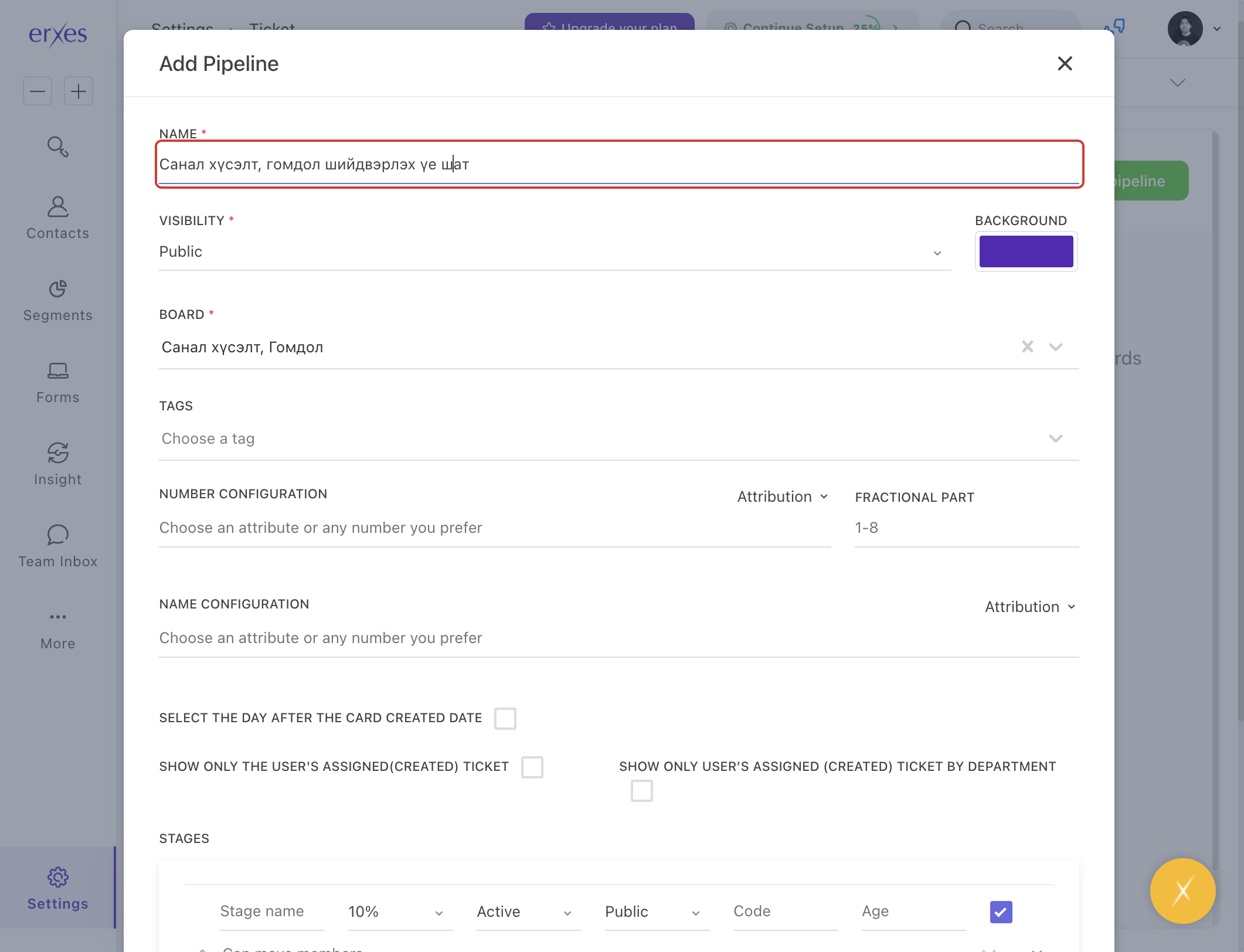
(This pipeline allows you to track and manage the stages of feedback and complaint resolution.) - In the Name field, enter: “Feedback and Complaints”.
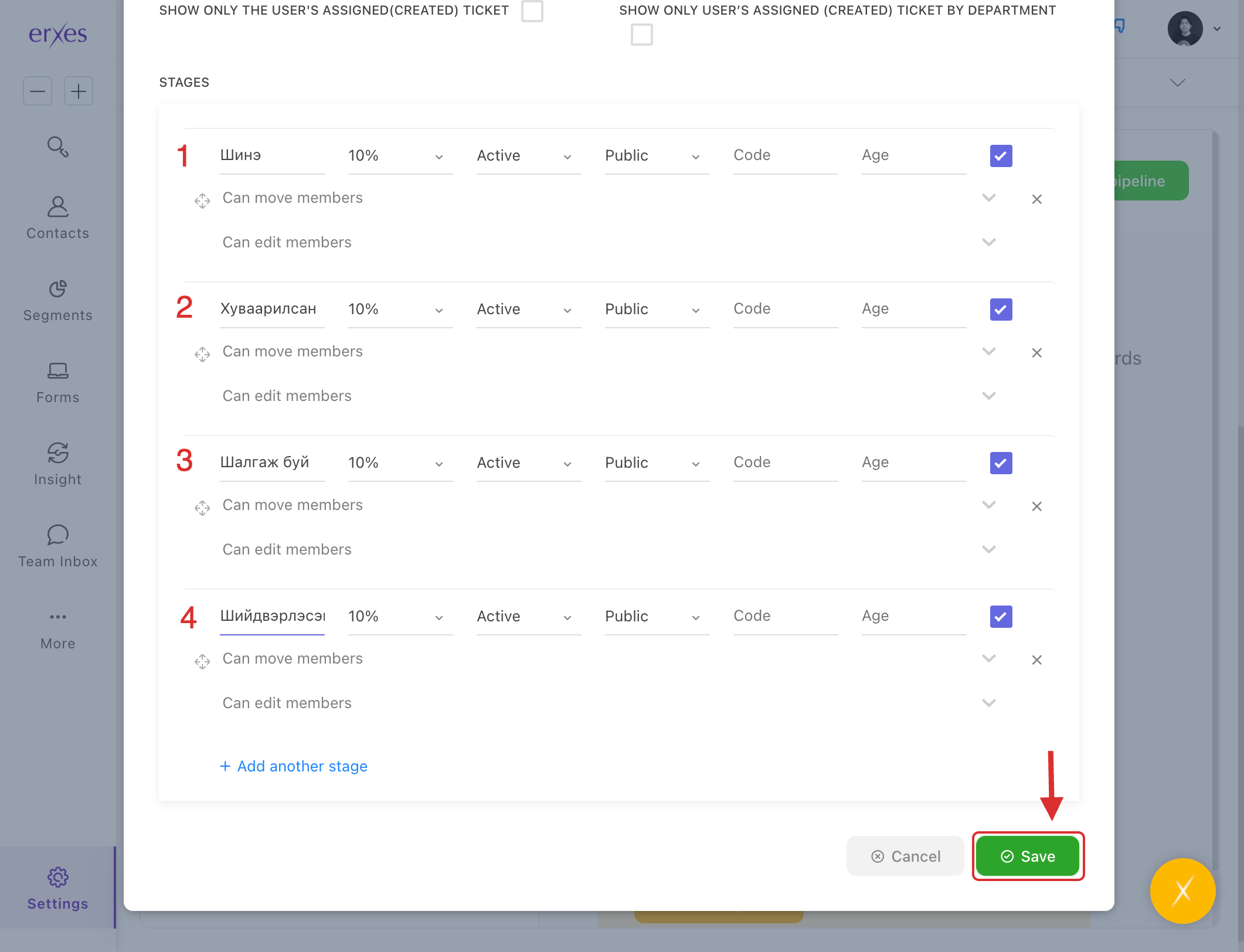
- Click Add Another Stage, enter: “New”.
- Click Add Another Stage, enter: “Distributed”.
- Click Add Another Stage, enter: “Checking”.
- Click Add Another Stage, enter: “Resolved”.
Note: You can add more stages if necessary, but having too many stages may make the process more complicated.
Register Feedback and Complaints from a Conversation
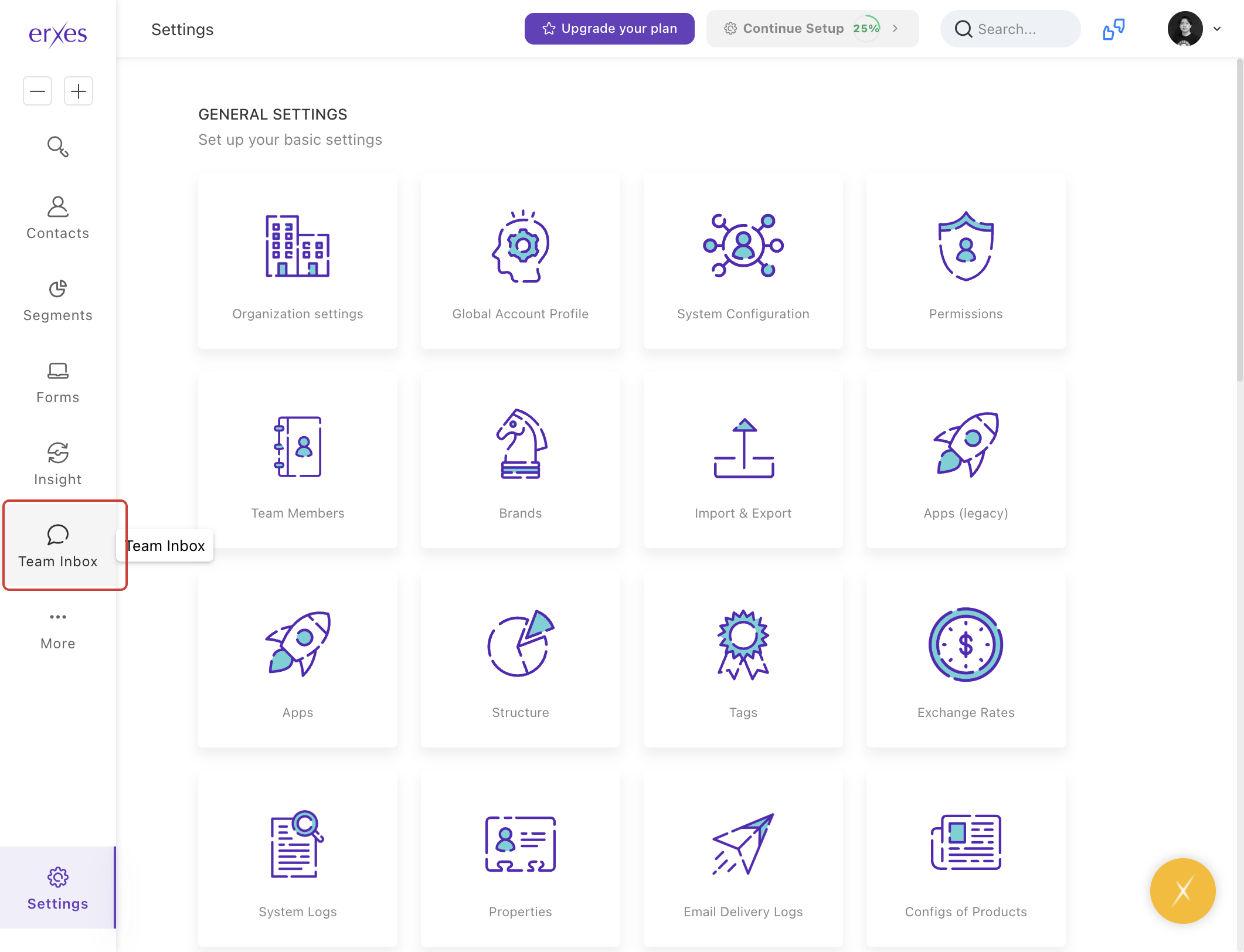
- Go to the Teaminbox and open the relevant conversation.
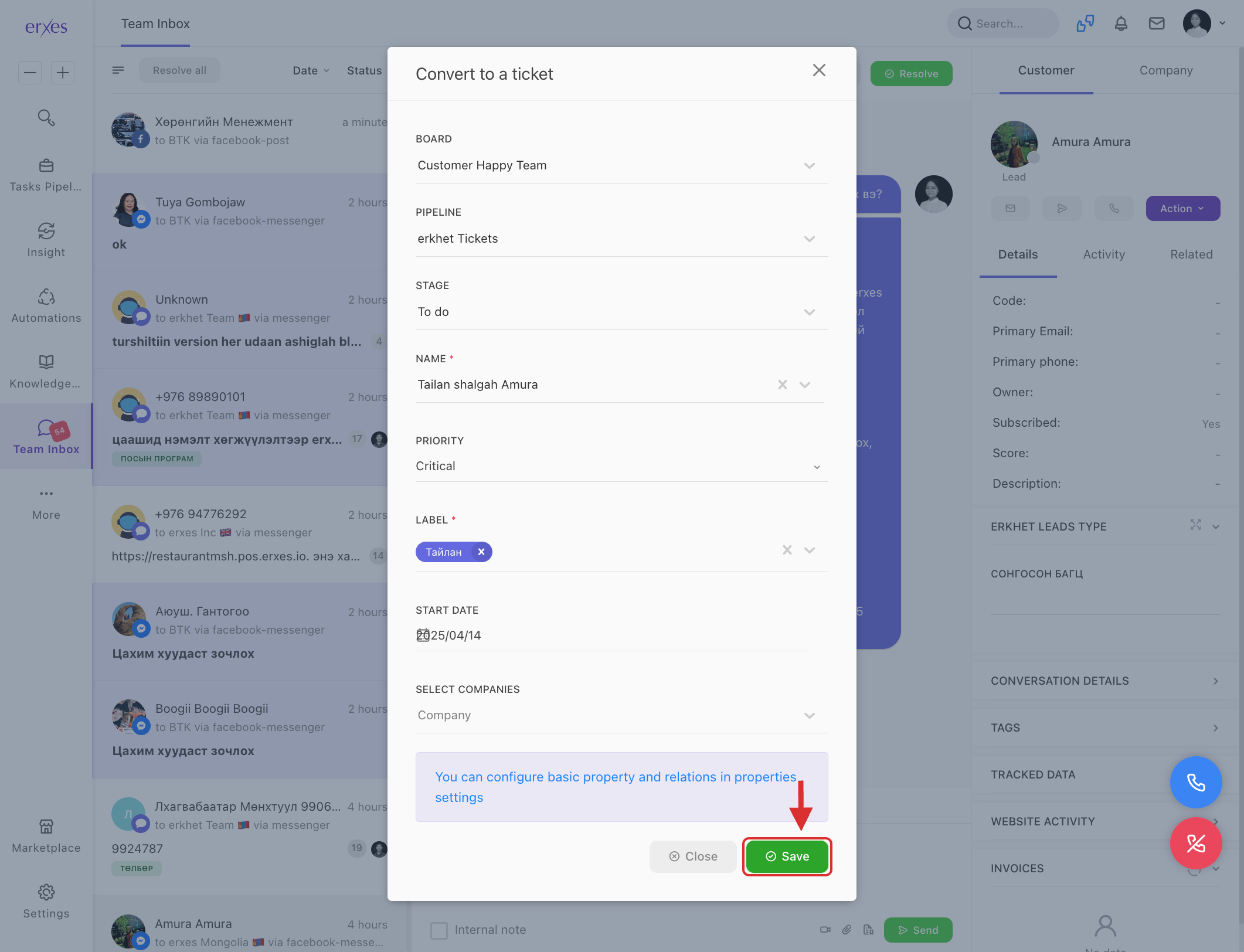
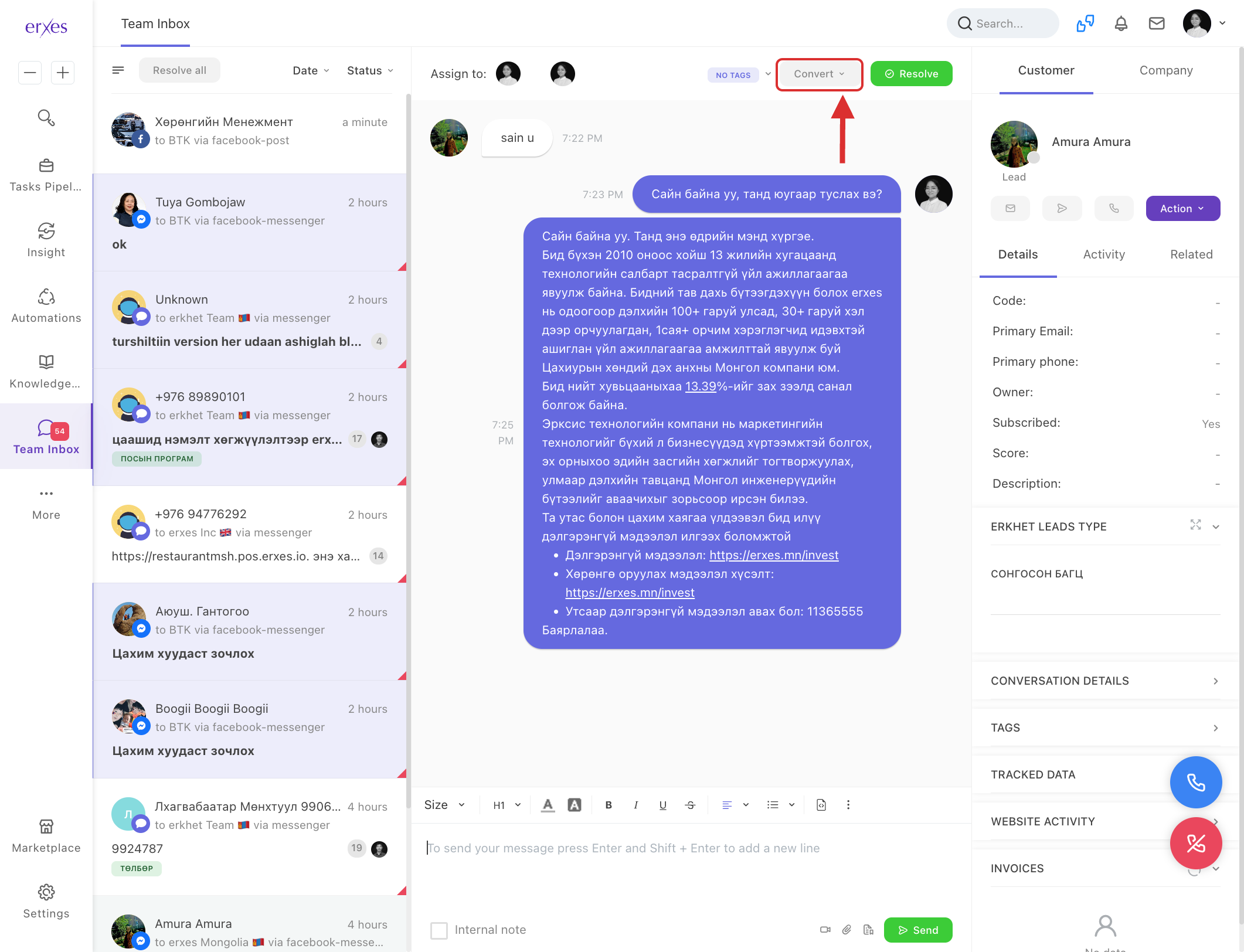
- Click the Convert button in the upper right corner.
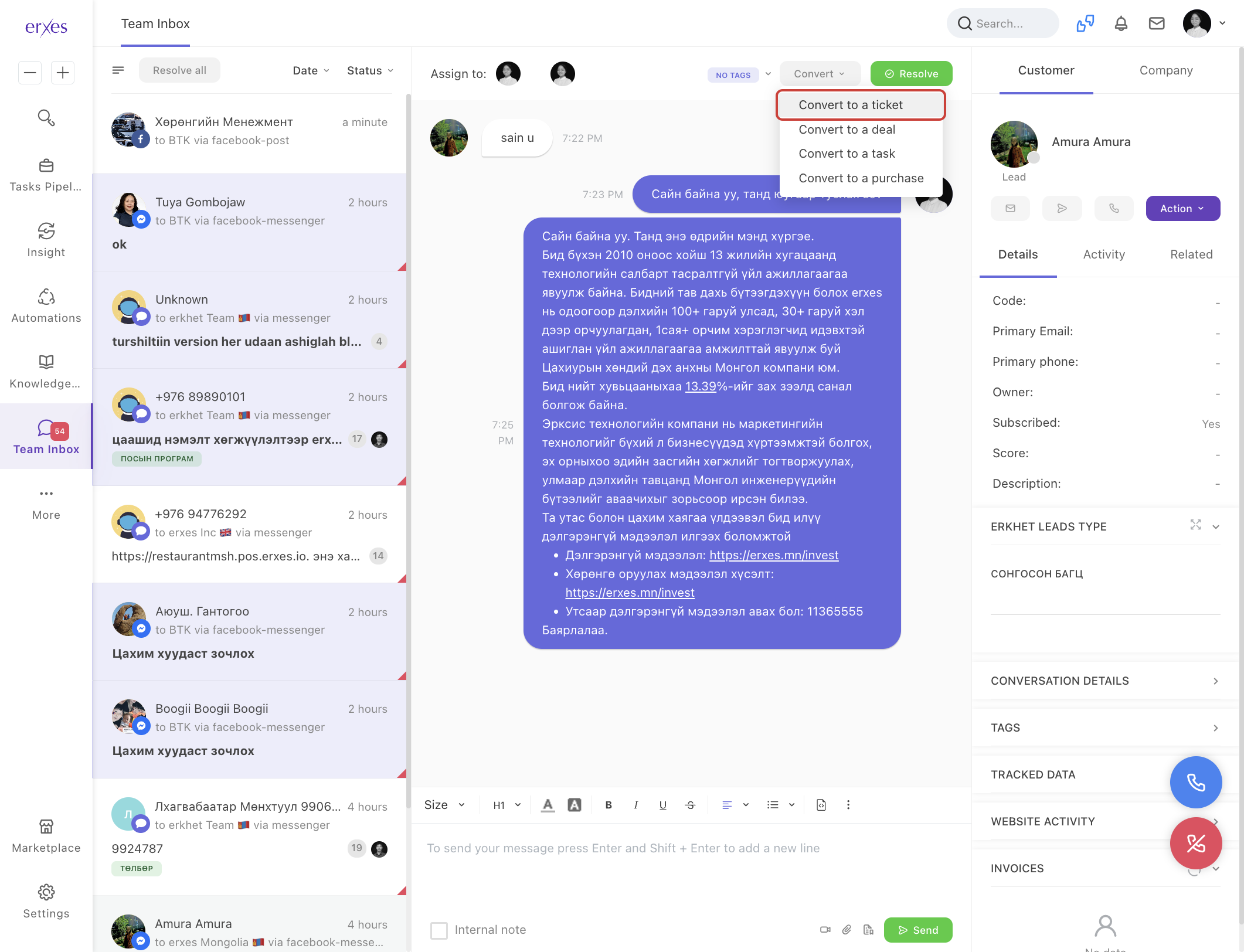
- Choose Convert to a ticket.
- In the Name field, briefly describe the content of the complaint (e.g., “Late Delivery” or “Product Quality Concern”).
- Click Save to register the complaint.
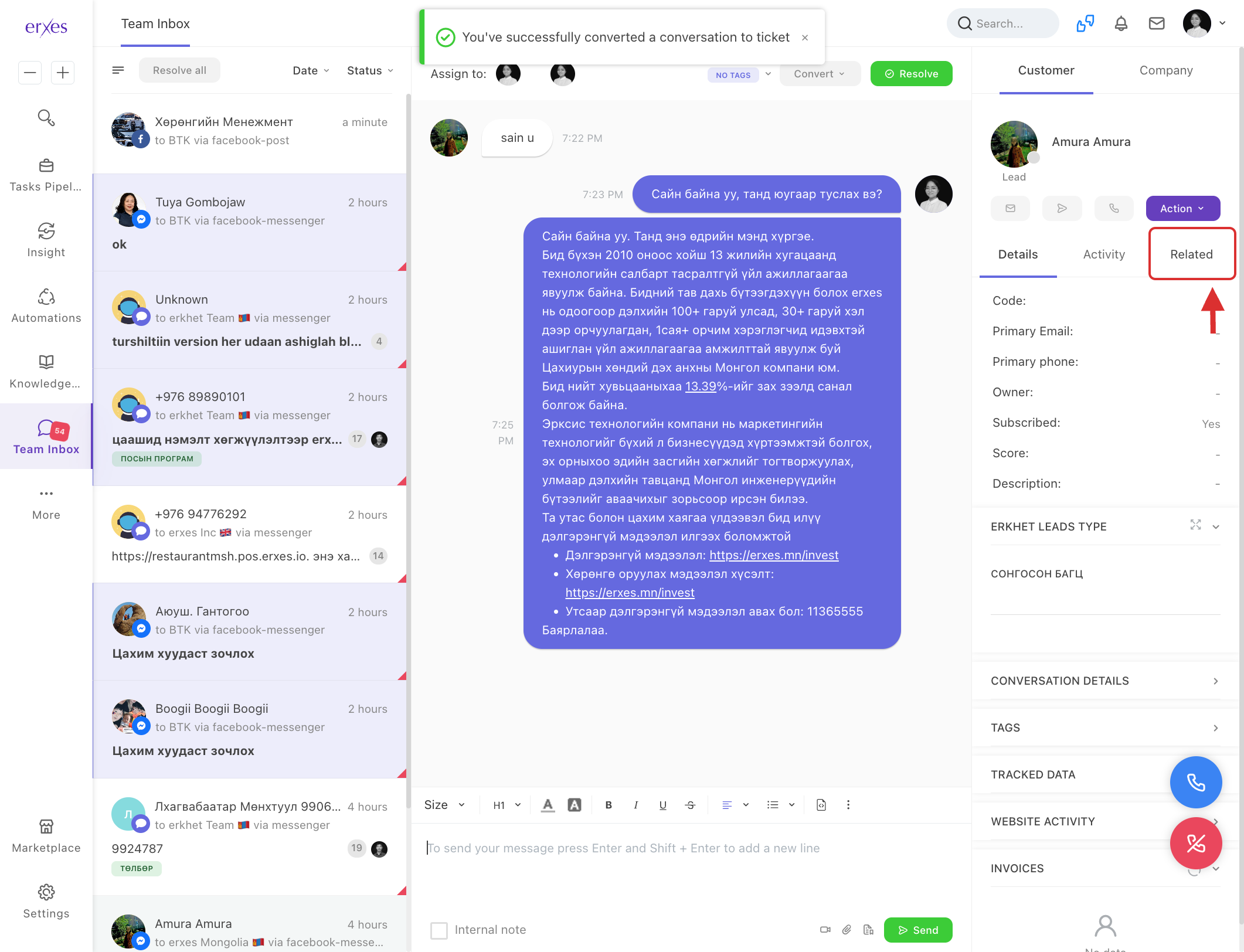
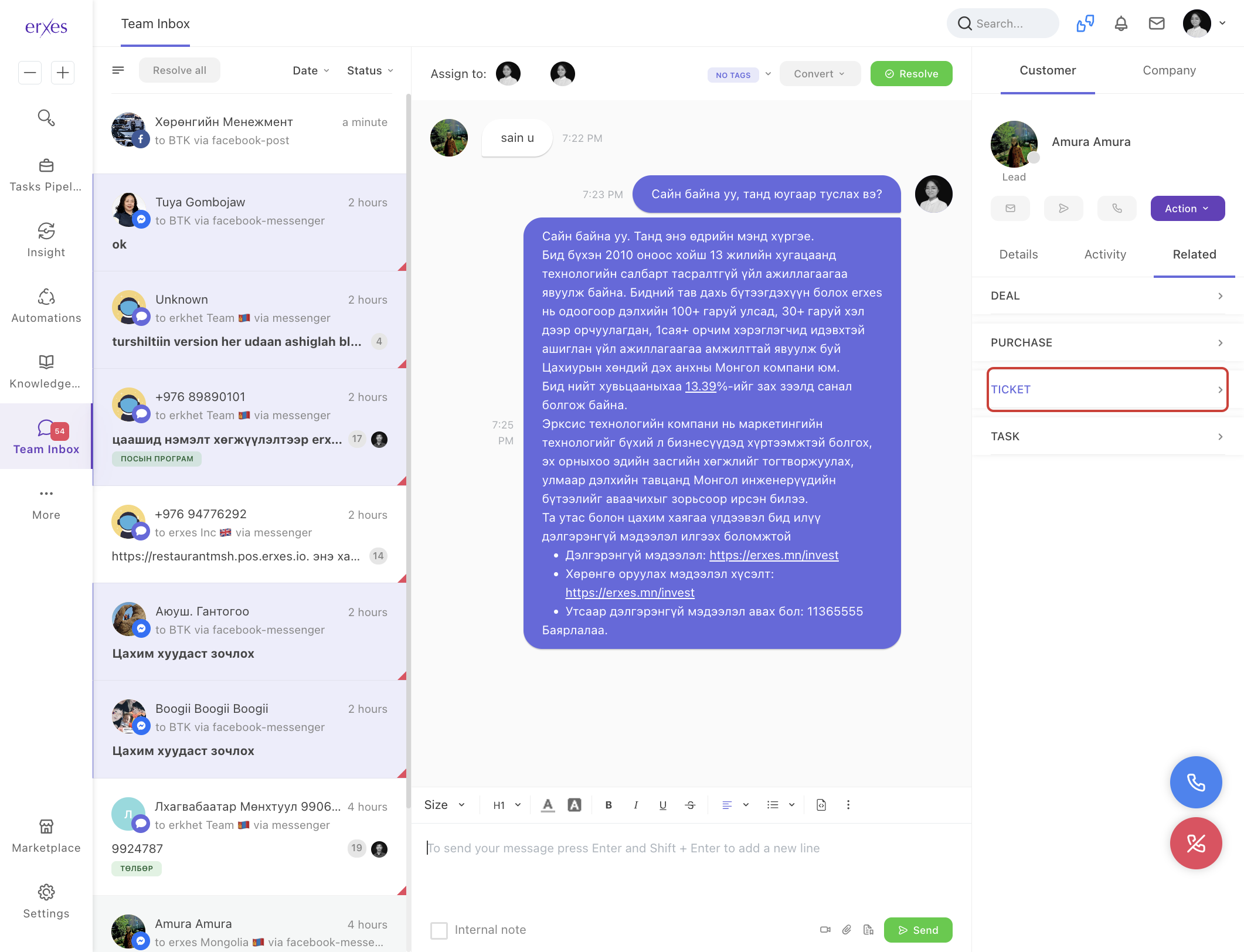
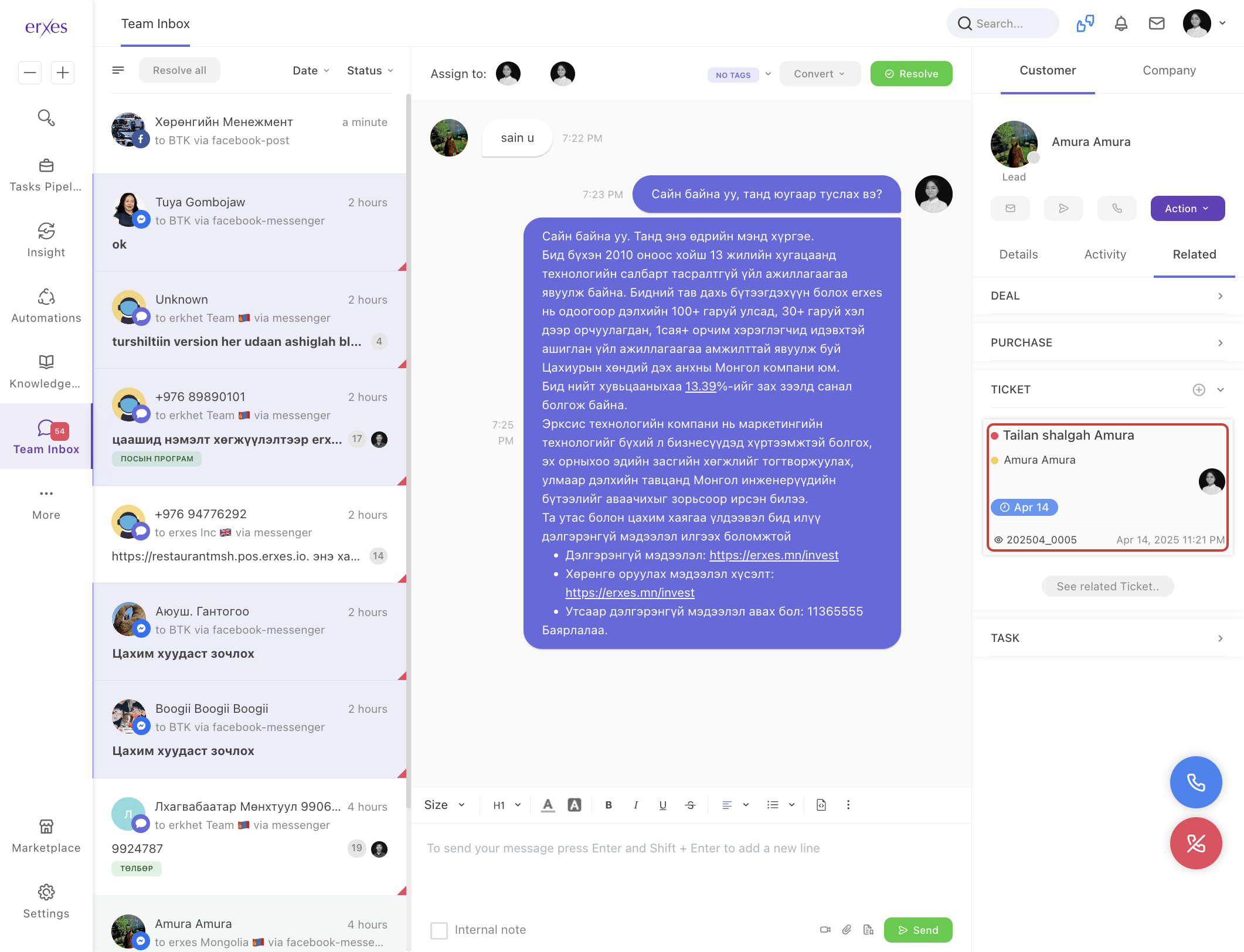
Illustrated instructions:
Create a field for registering feedback and complaints
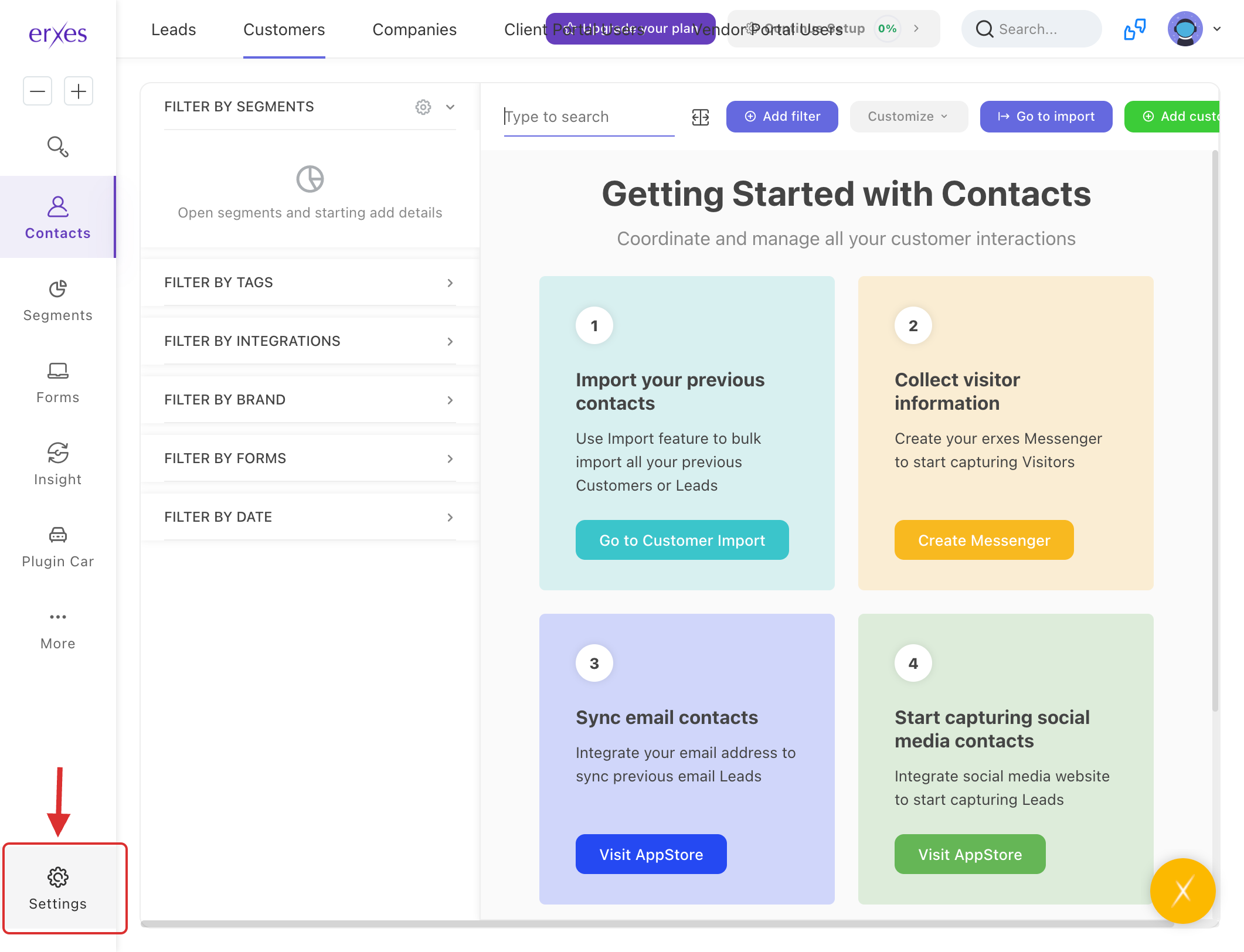
- Go to Settings .
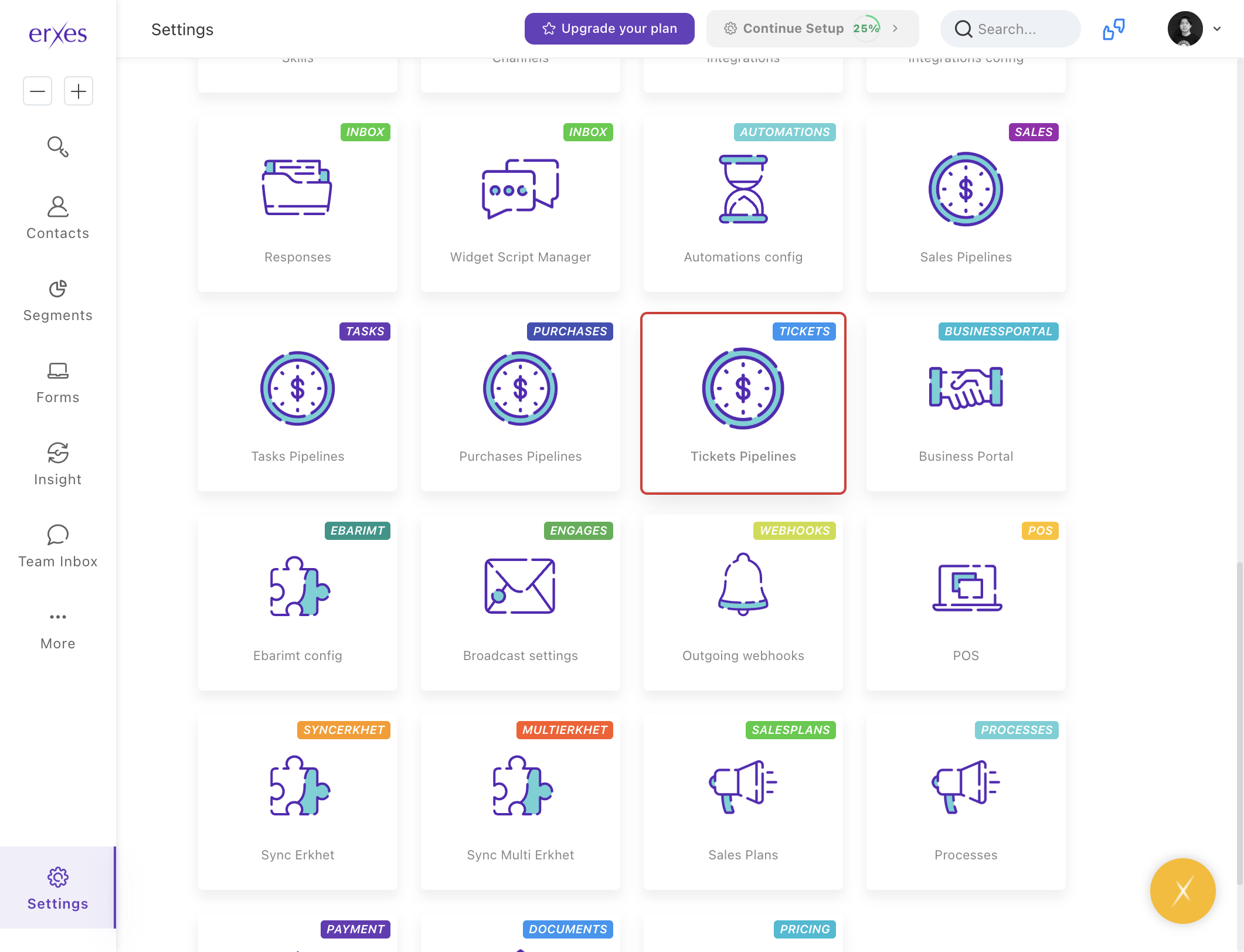
- Select Ticket Pipeline .
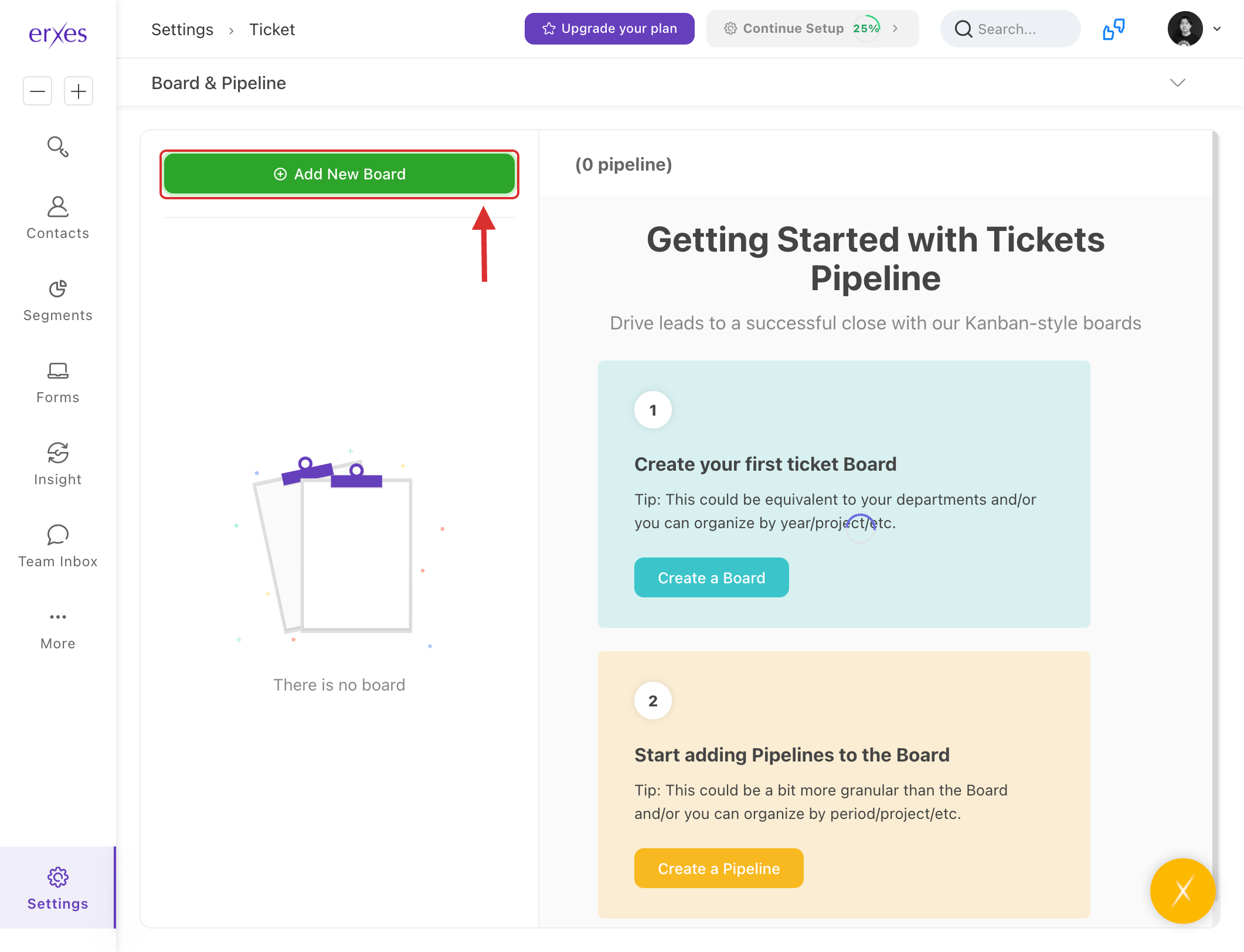
- Click Add New Board , type "Feedback and Complaints," and click Save .
- Click Add New Pipeline .
(Note: A field that allows you to manage the stages and steps of resolving feedback and complaints).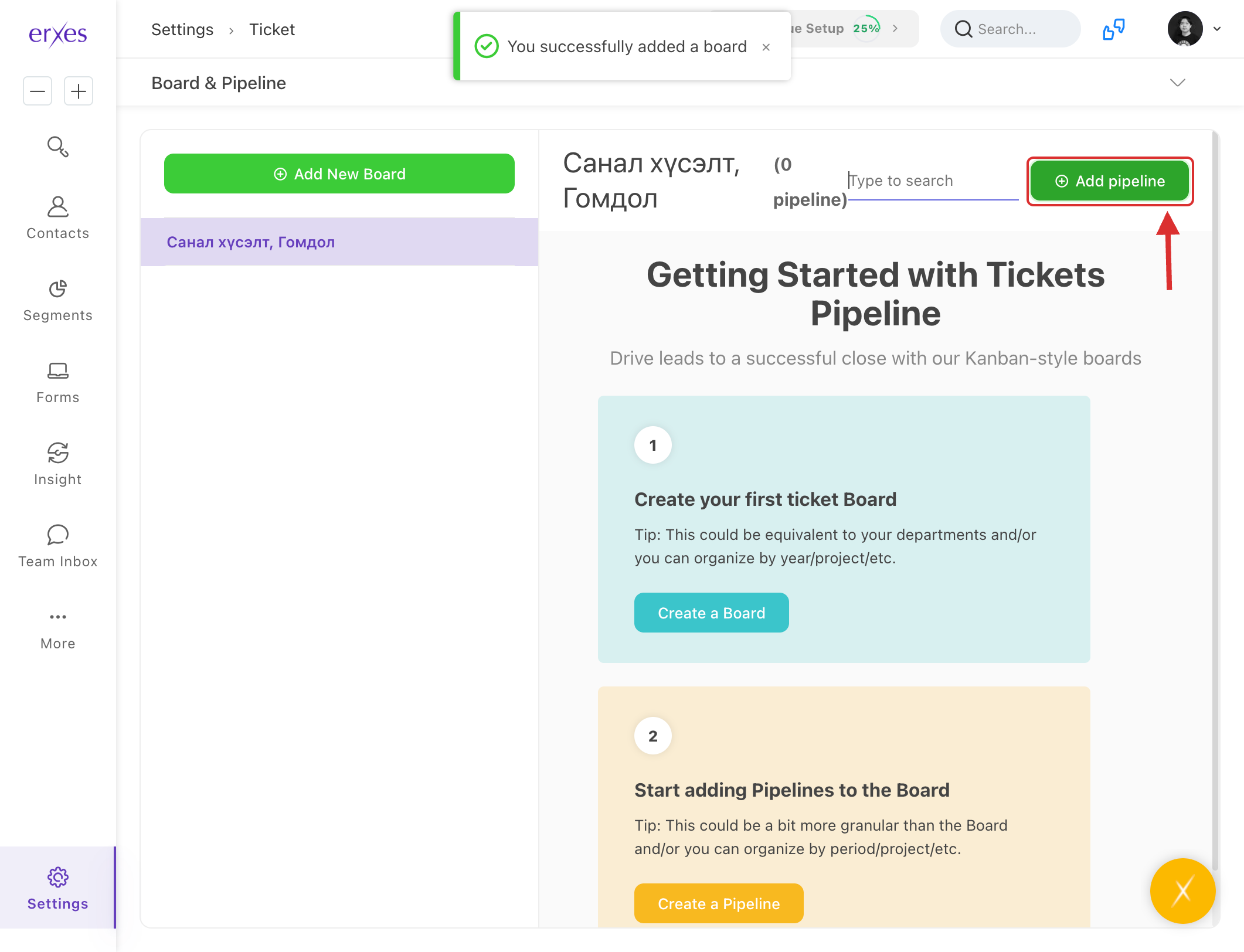
- In the Name field, type "Feedback and Complaints".
- Click Add Another Stage and type "New" in the Stage Name field.
- Click Add Another Stage and type "Distributed" in the Stage Name field.
- Click Add Another Stage and type "Checking" in the Stage Name field.
- Click Add Another Stage and type "Resolved" in the Stage Name field.
( Note: You can create as many stages as you want, but it's not a good idea to have too many.)
- Click the Save button to save.
Registering feedback and complaints
- Go to the Teaminbox conversation.
- Click the Convert button in the upper right corner .
- Click Convert to a ticket.
- In the Name field, enter the general content of the complaint.
- Click the Save button to save.