7. Creating a 7-Day Customer Service Report and Custom Charts
Updated Apr 29, 2025
This tutorial explains how to generate a weekly report specifically for the Customer Service Team and how to create a custom chart in the Insight module.
Prepare a Report for the Last 7 Days
- Go to the Insight menu.
- Click Add a Dashboard.
- In the Dashboard name field, enter: "Last 7 Days Report".
- In the Choose Section field, enter: "Customer Service Team".
- Click on the Inbox chart.
- Check the following values:
- Total conversations count by source
- Total conversations count
- Click Save to generate and save the report.
Create a New Chart
- Click Add Chart.
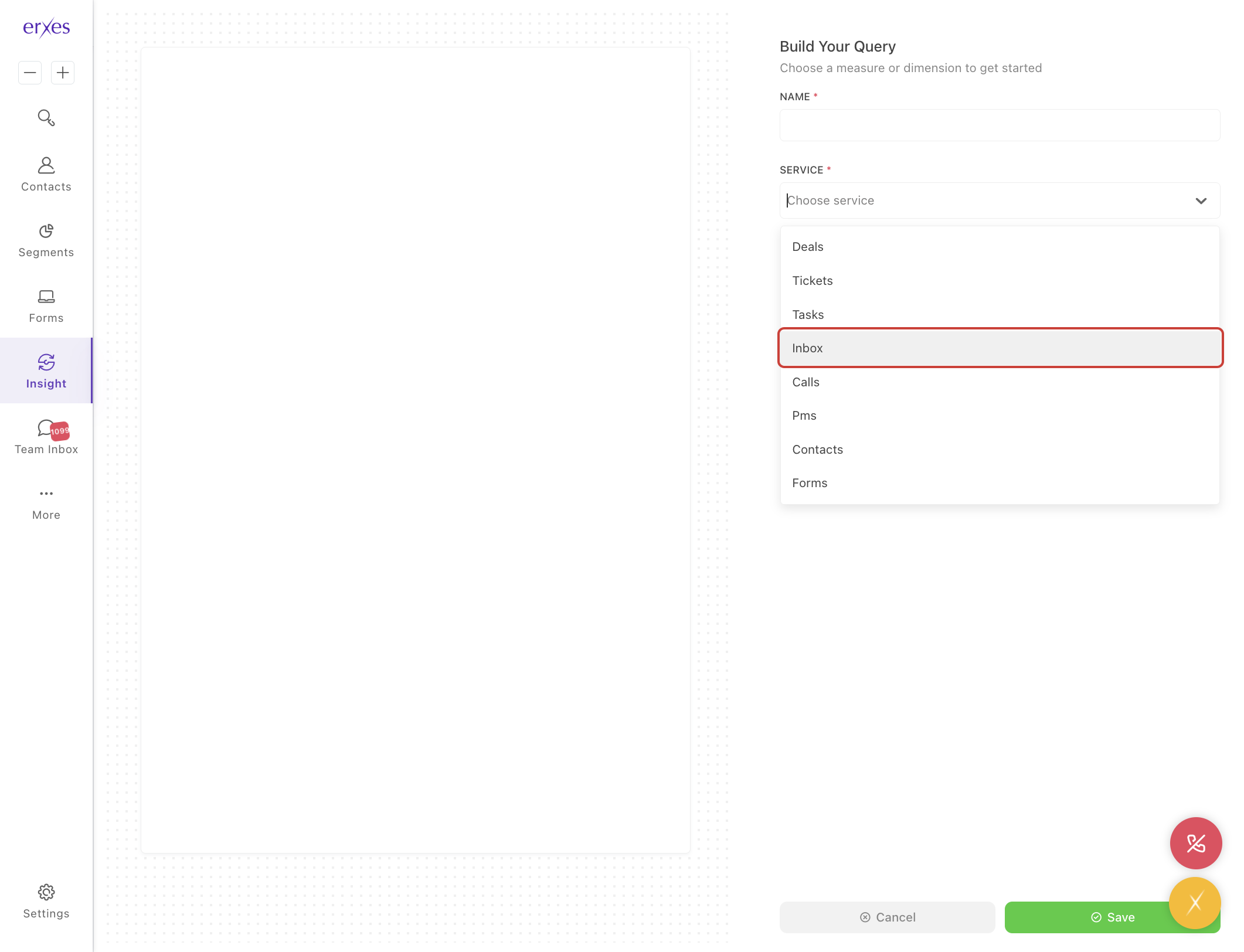
- In the Service section, select: Inbox.
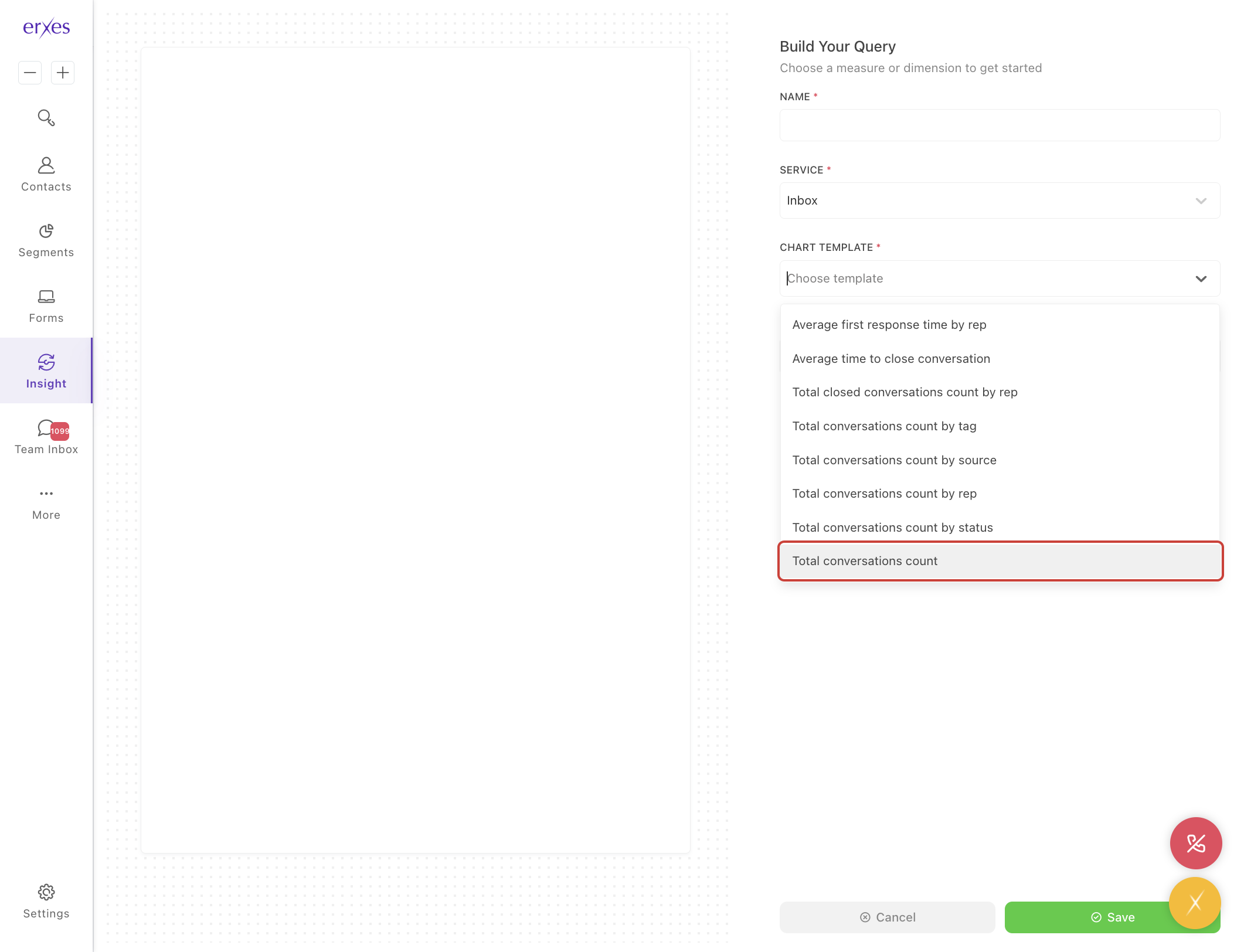
- In the Chart template section, choose: Total conversations count.
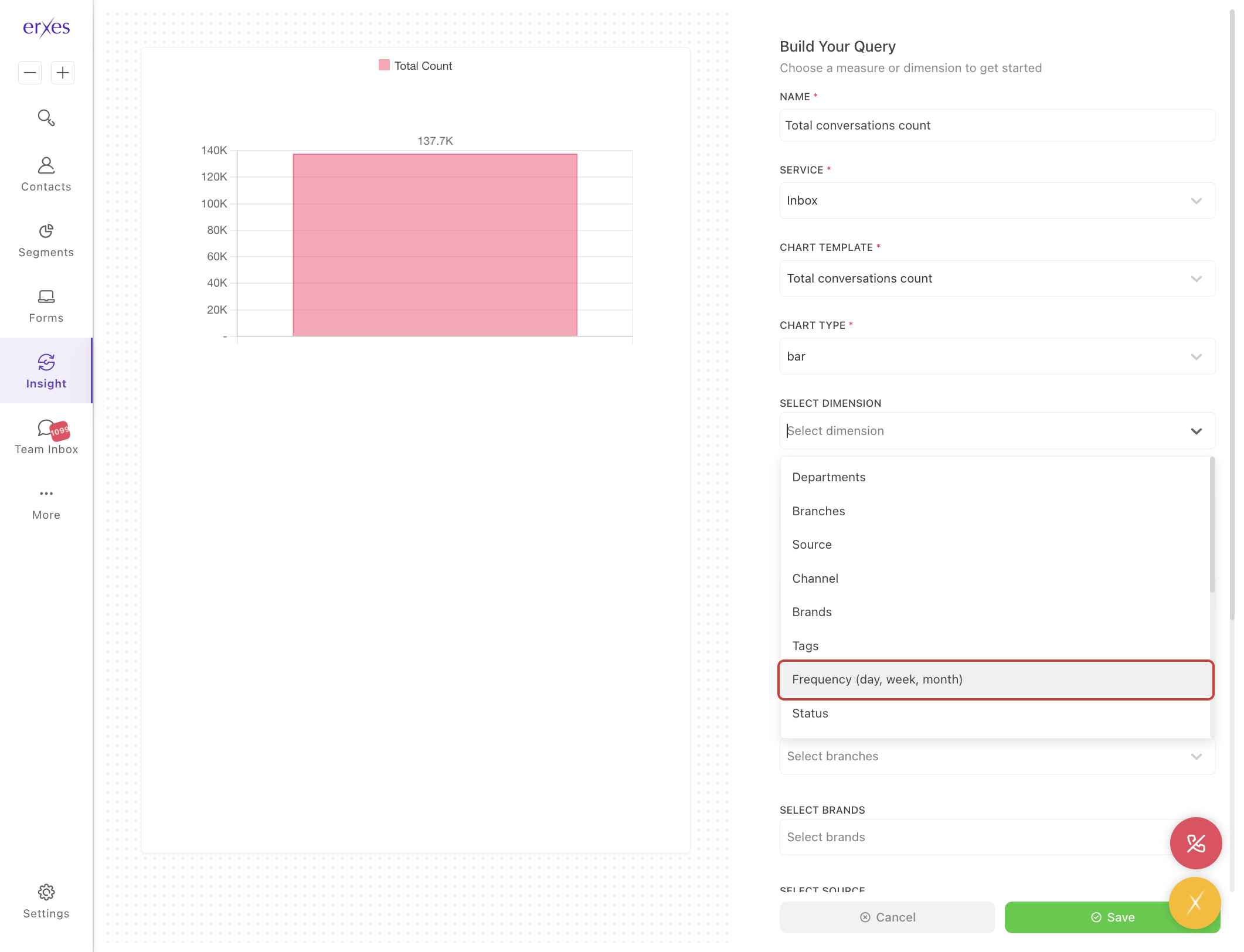
- In the Select dimension section, choose how you want to break down your data:
- Source – Channels such as Facebook, Instagram, web form, call, etc.
- Tag – Categorized labels.
- Frequency – By time period (daily, weekly, etc.).
- Assign to – Responsible Team member.
- Status – Closed, Open, etc.
- In the Chart type section, choose how your data should be displayed:
- Bar – Column chart
- Pie – Circular chart
- Line – Line graph
- Table – Tabular format (recommended for overview)
In the Name section, enter your desired chart name.
Note: It’s best to enter the name last, as entering it first may result in the name being removed after choosing the chart template.
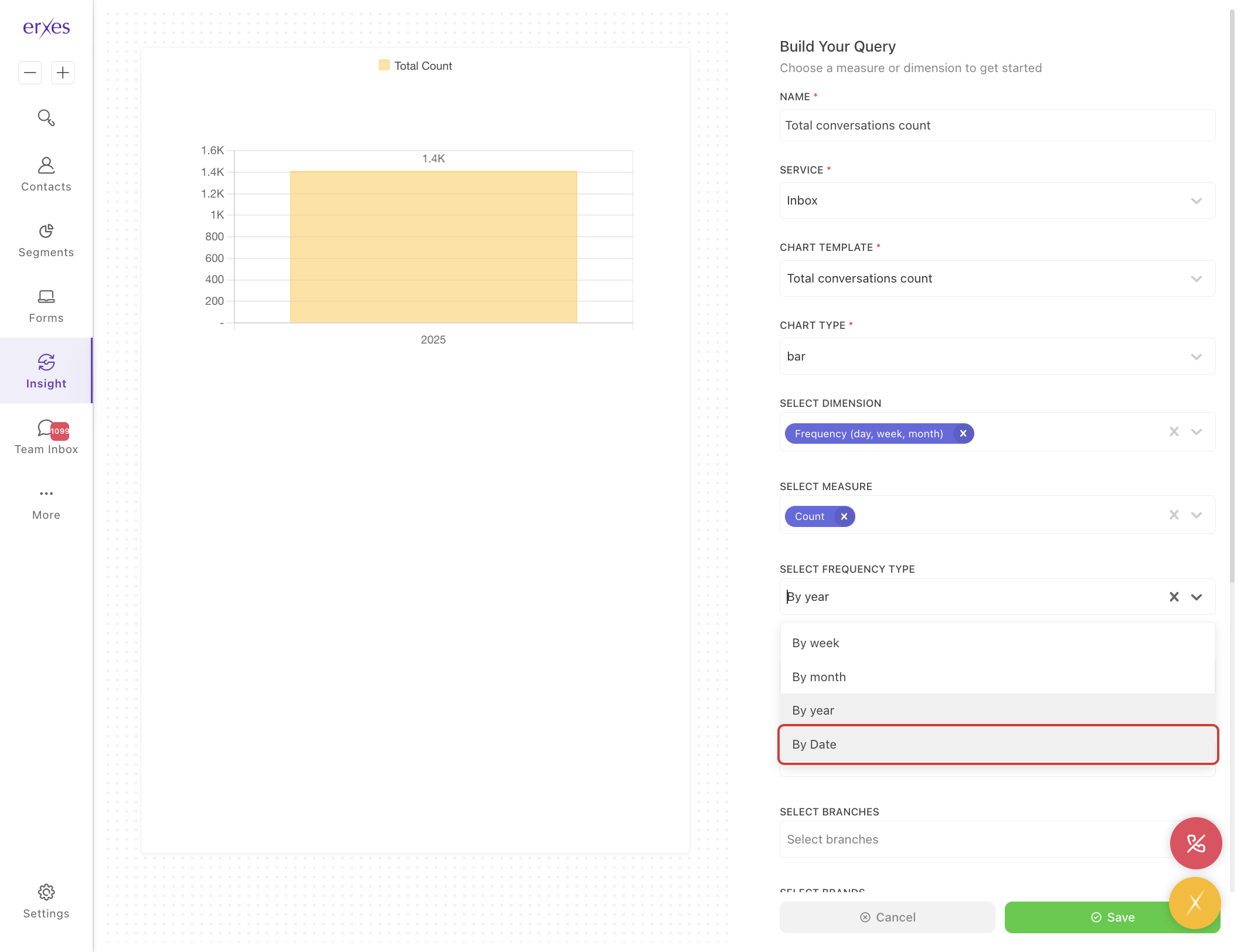
- In the Select date range section, choose your reporting time frame:
- Today
- Yesterday
- This Week
- Last Week
- This Month
- Last Month
- This Year
- Last Year
- Click Save to finish creating the chart.
Illustrated instructions:
Prepare a report for the last 7 days
- Go to the Insight menu.
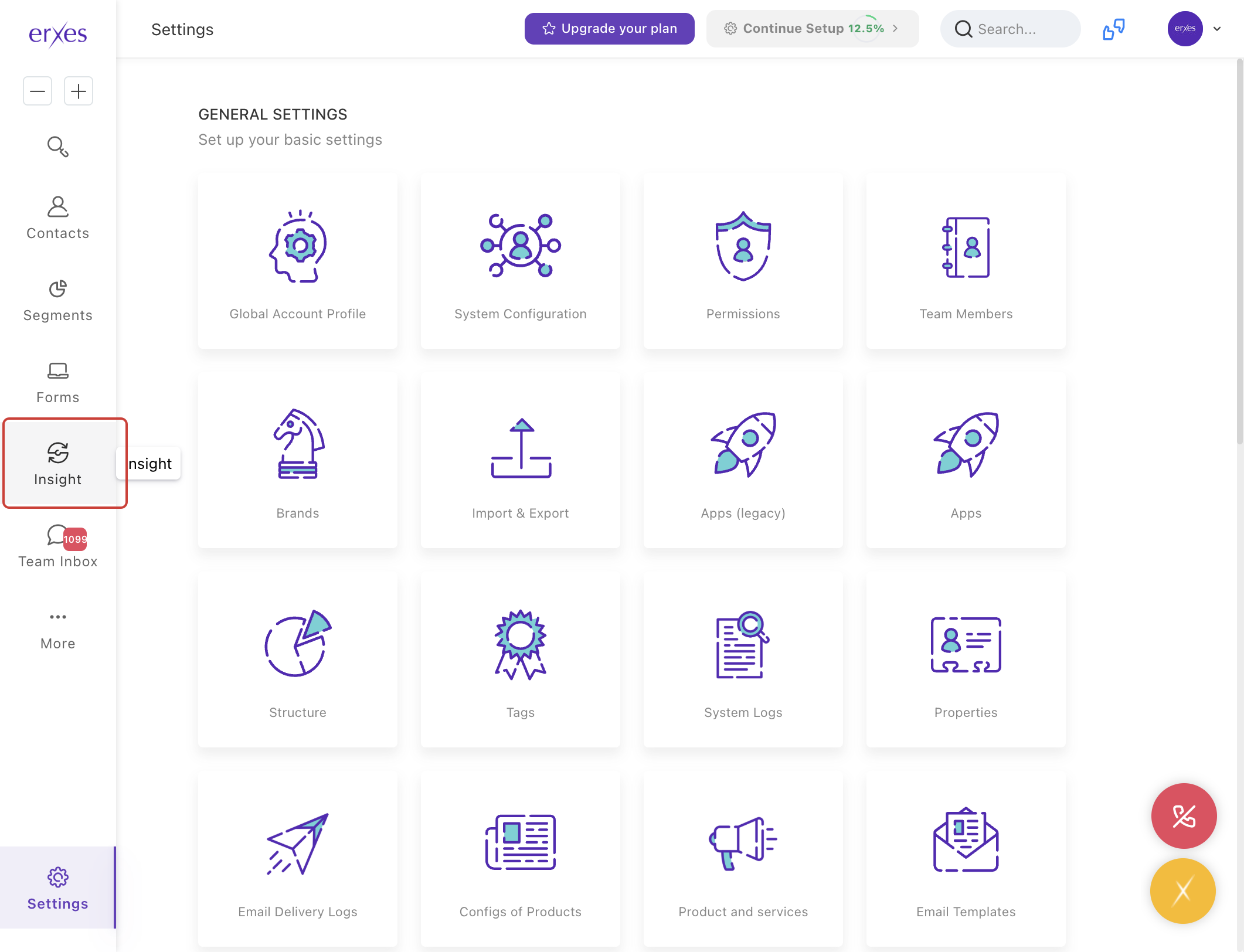
- Click Add a Dashboard .
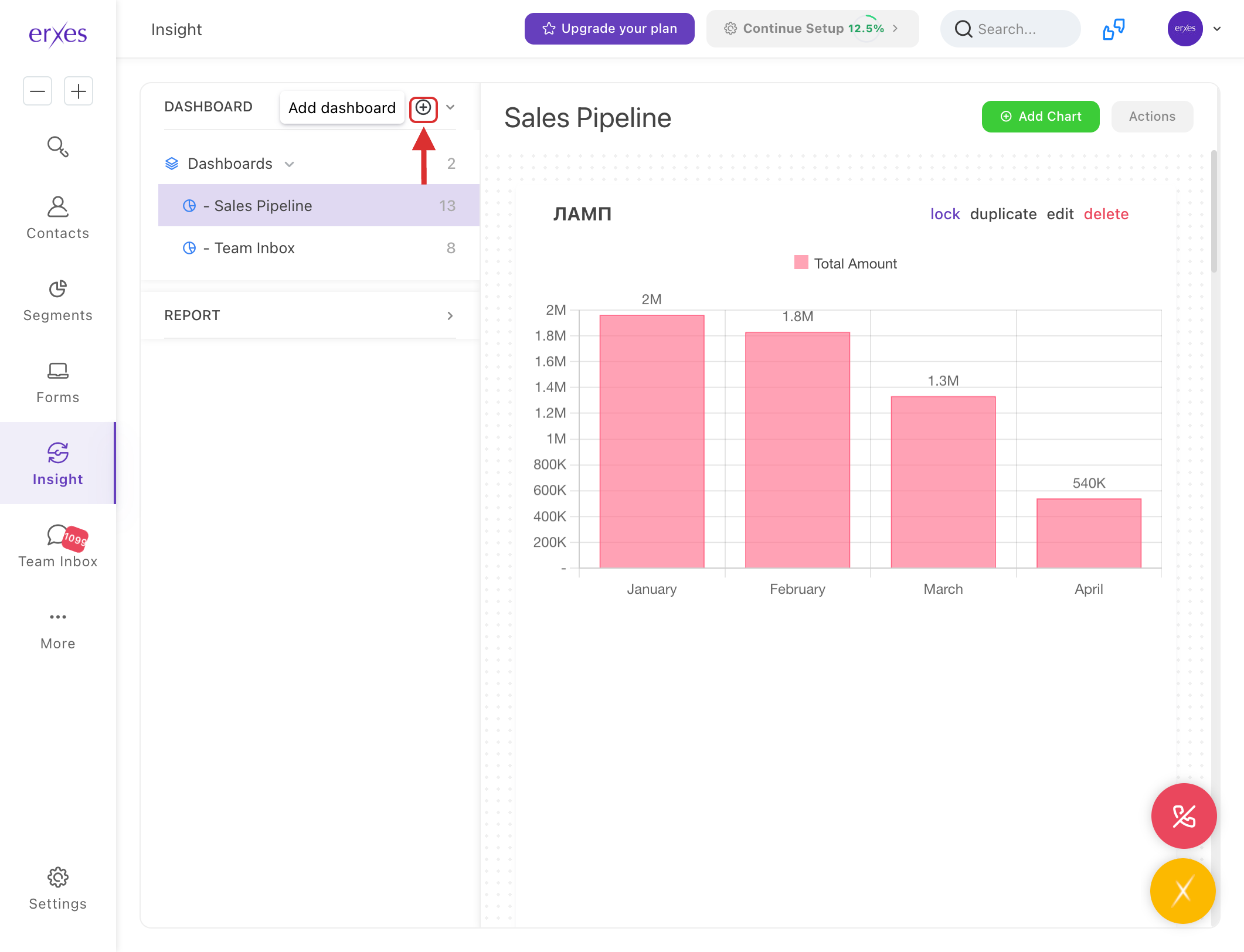
- In the Dashboard name field, name it "Last 7 Days Report"
- In the Choose Section section, name it "Customer Service Team".
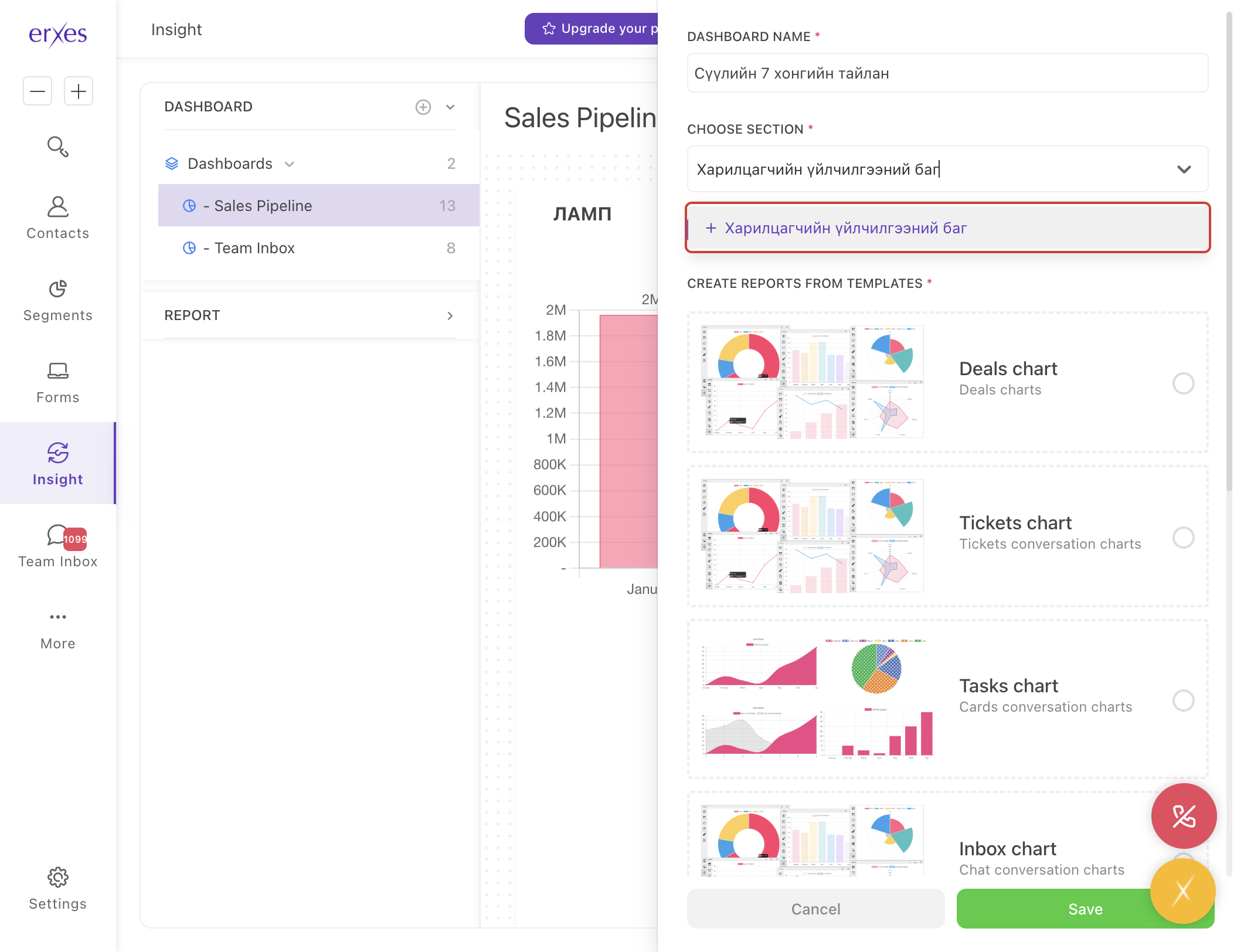
- Click on the Inbox chart .
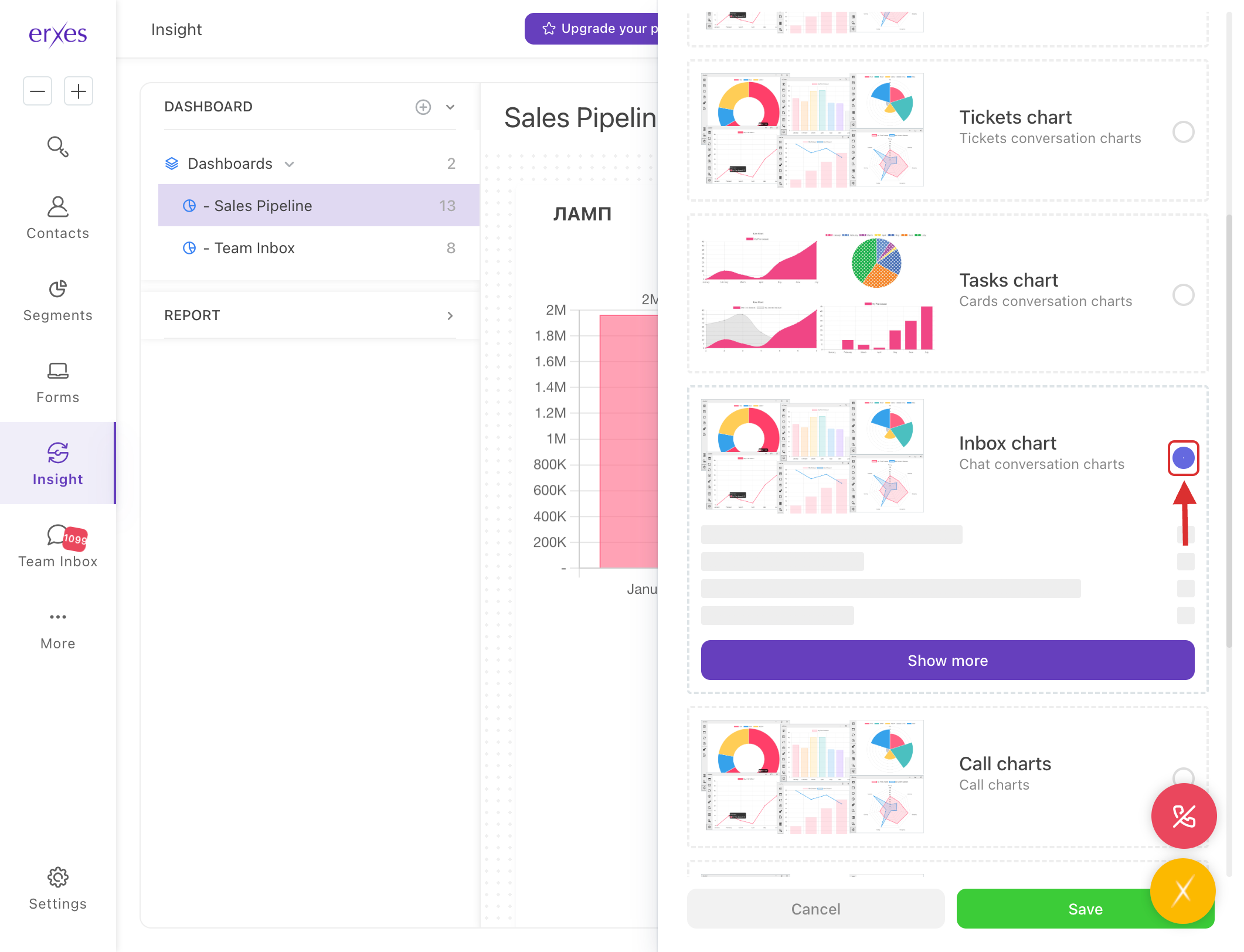
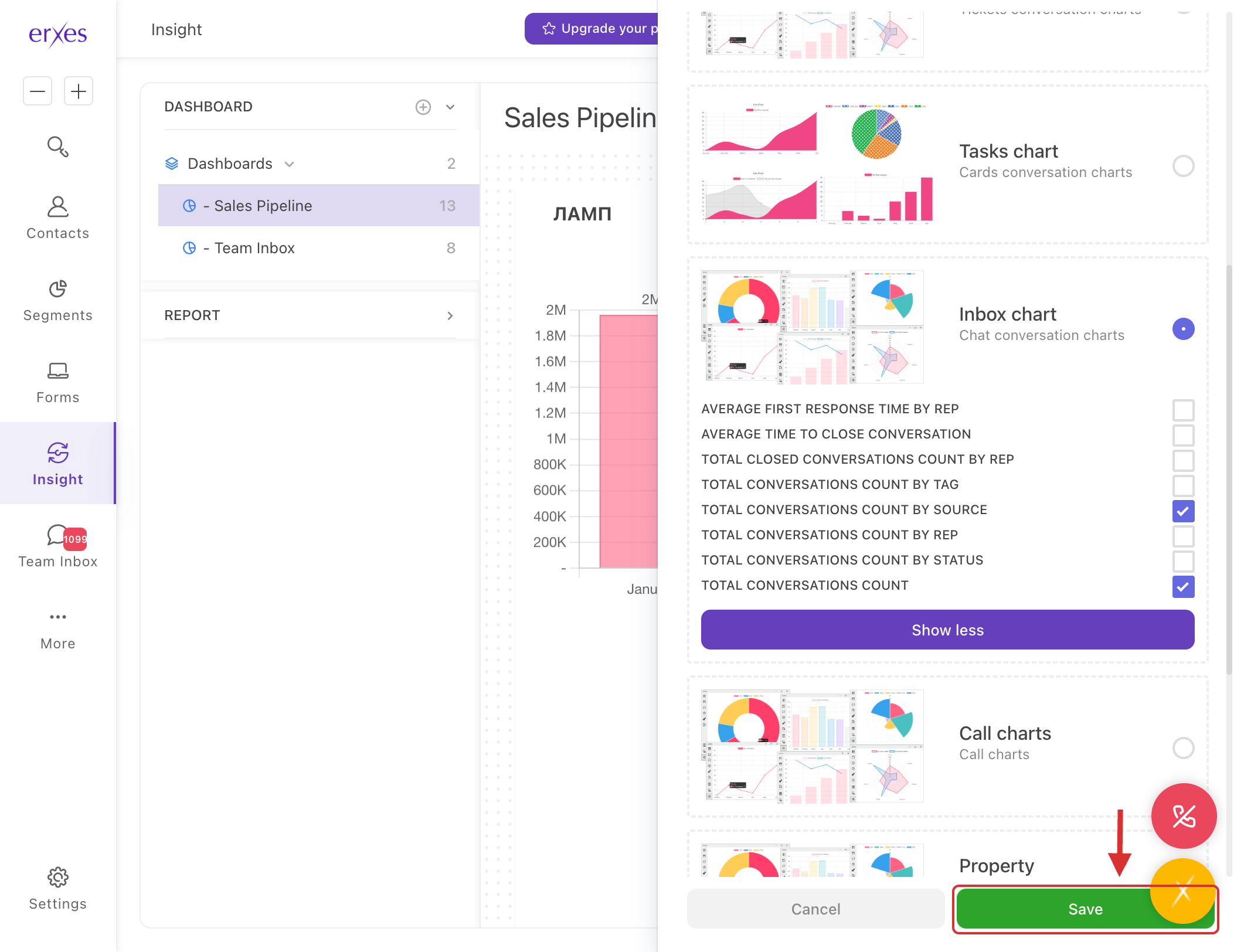
- Check the values below:
- Total conversations count by source
- Total conversations count
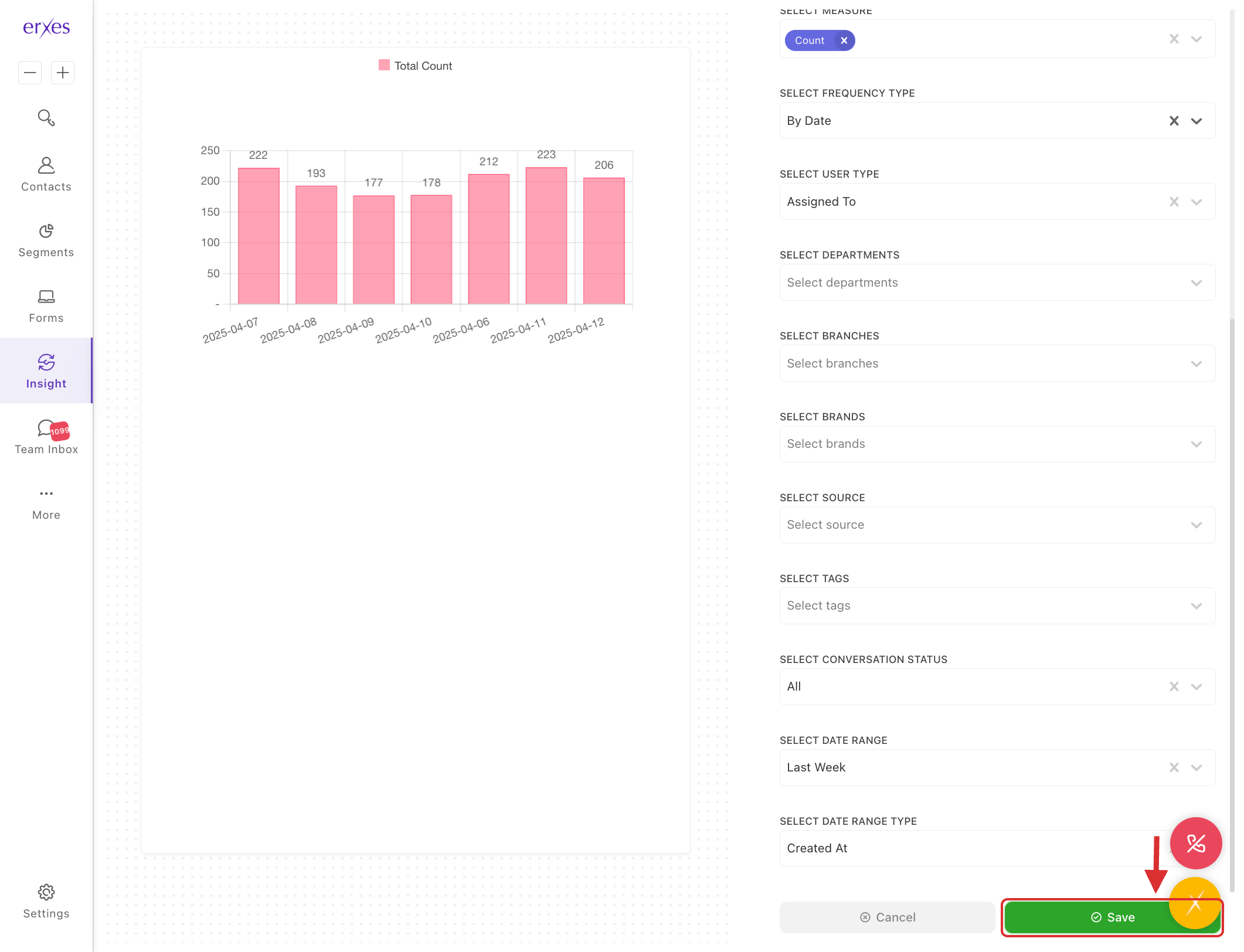
- Click the Save button to get the report.
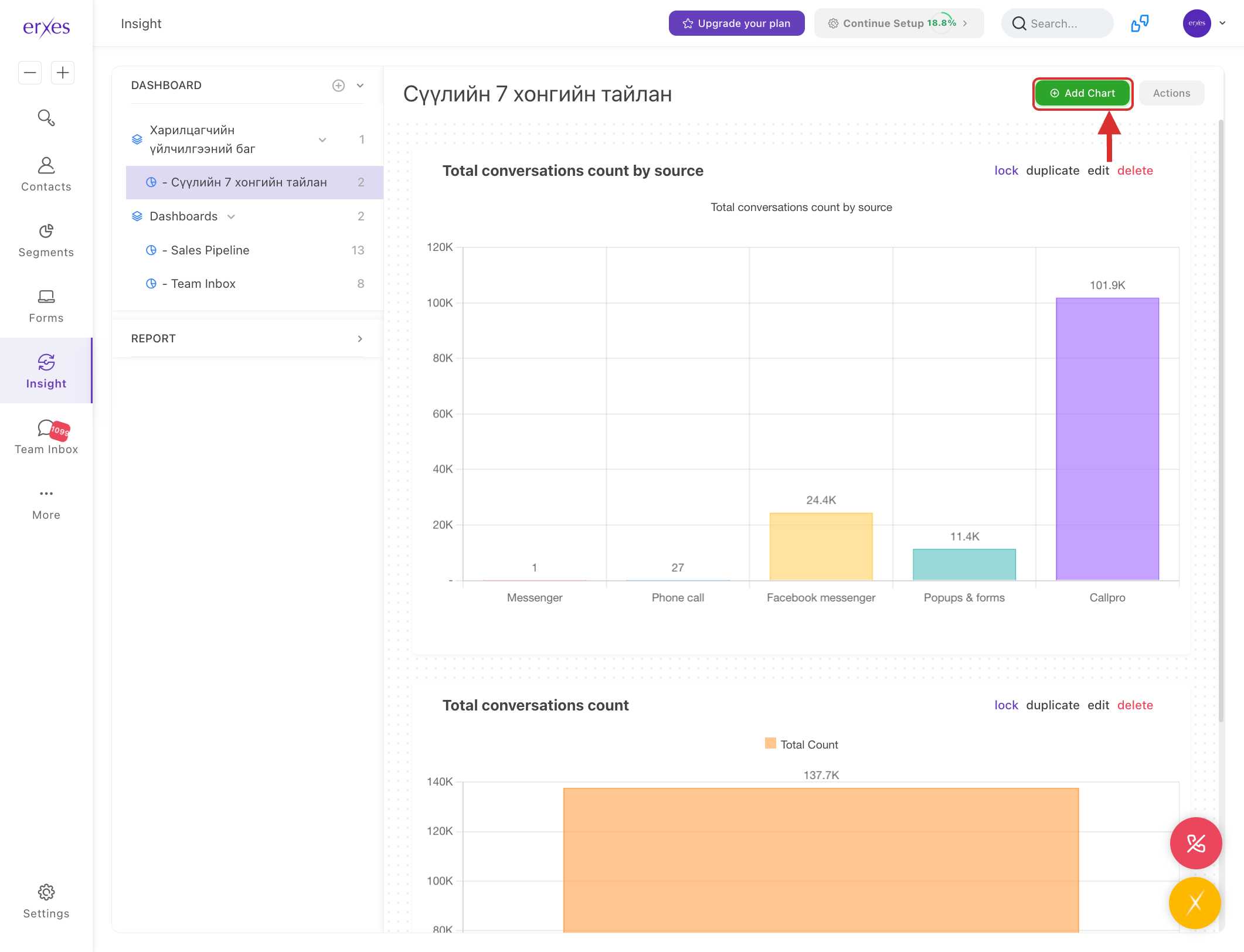
Create a new chart
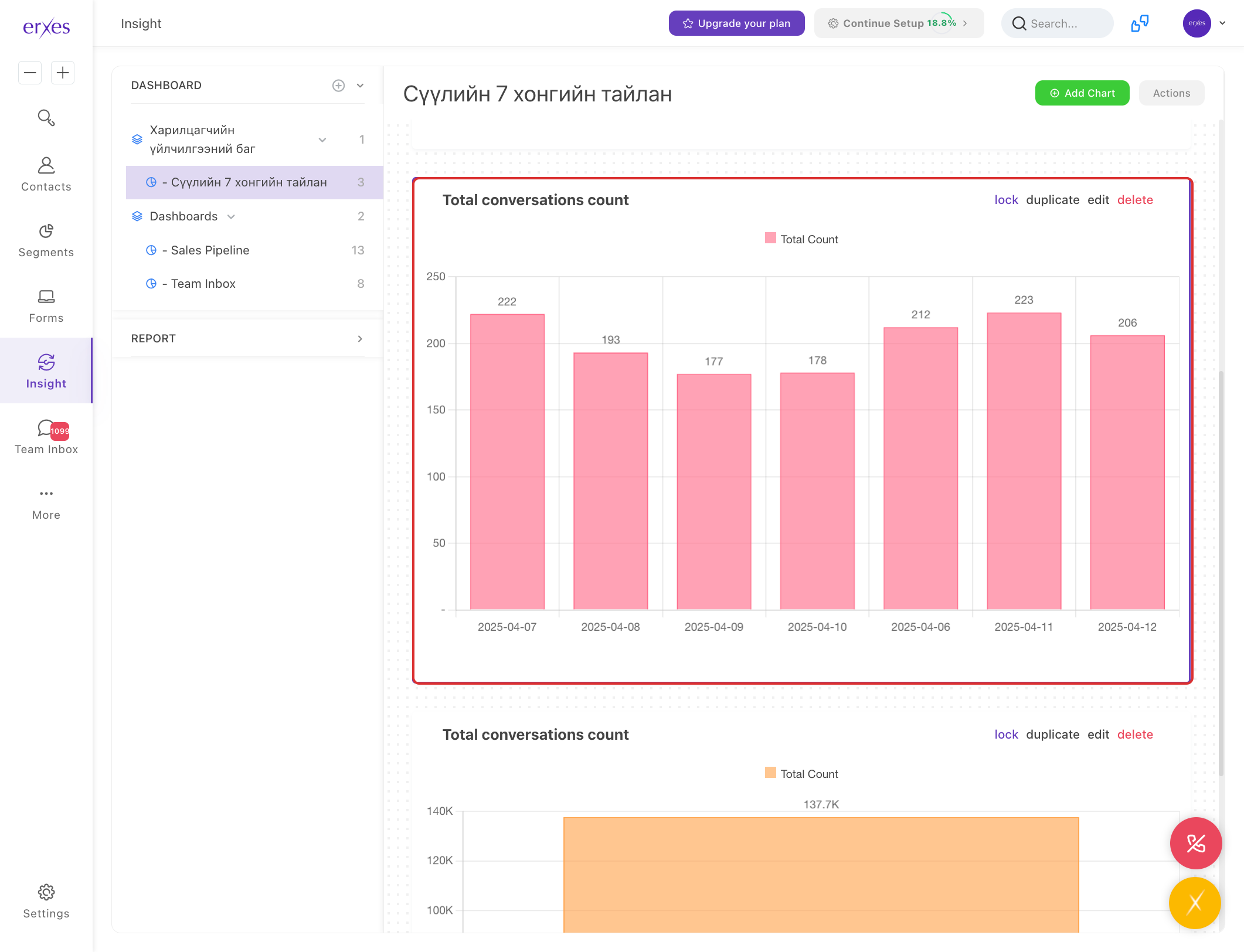
- Click Add Chart .
- In the Service section, select Inbox .
- In the Chart template section , select Total conversations count .
In the Select dimension section, enter the information you want to sort your data by:
- Source : Through incoming channels (facebook, instagram, form, call, etc.)
- Tag : Created by category
- Frequency : Periodically
- Assign to : Responsible employee
- Status : Closed, Not Closed, etc.
In the Chart type section, select the type of chart you want to view:
- Bar : By the column
- Pie : In circular division
- Line : Linear design
- Table : By table (highest usage)
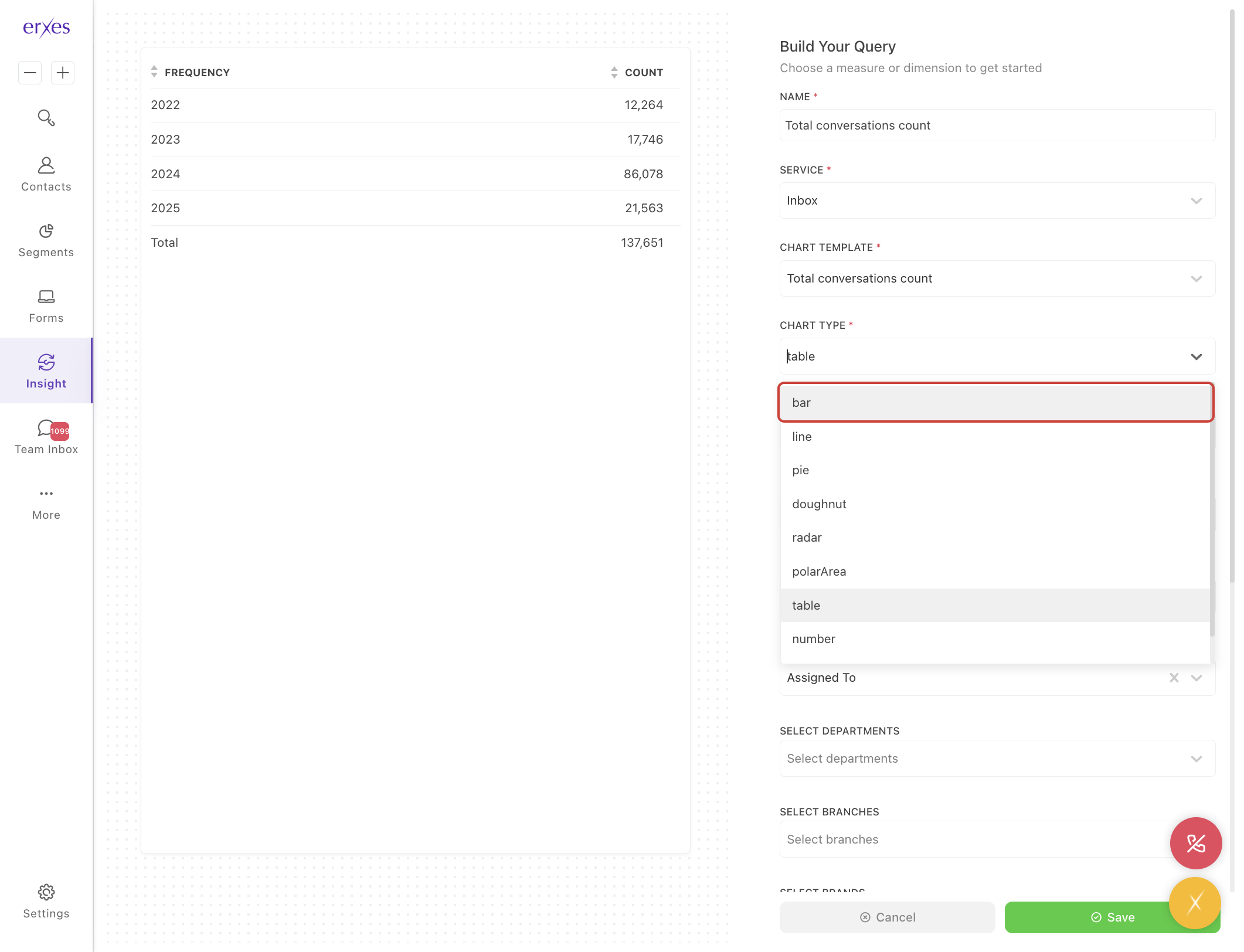
- In the Name section, give it your desired name (Note: It is best to give it last, as it is deleted when you first give it a name after selecting the Chart template).
- In the Select date range section, select the date range for the report.
- Today : Today
- Yesterday : Yesterday
- This week : This week
- Last week : Last week
- This Month : This month
- Last Month : Last month
- This Year : This year
- Last Year : Last year
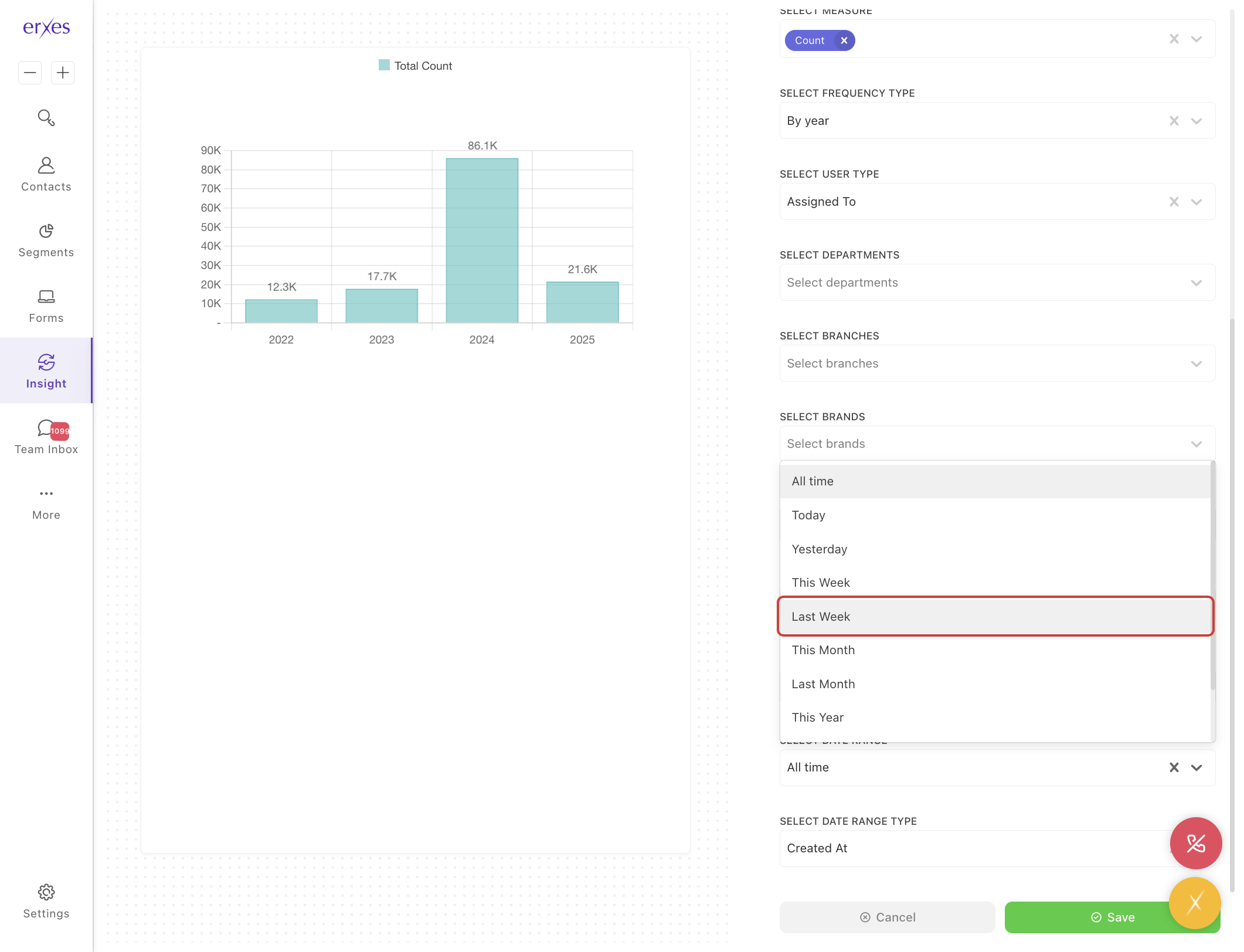
- Click the Save button to save.