Categorizing Conversations and Generating Reports
Updated Apr 29, 2025
By categorizing conversations using tags and generating reports, you can track and analyze user issues.
Instructions
Step 1. Create a conversation category
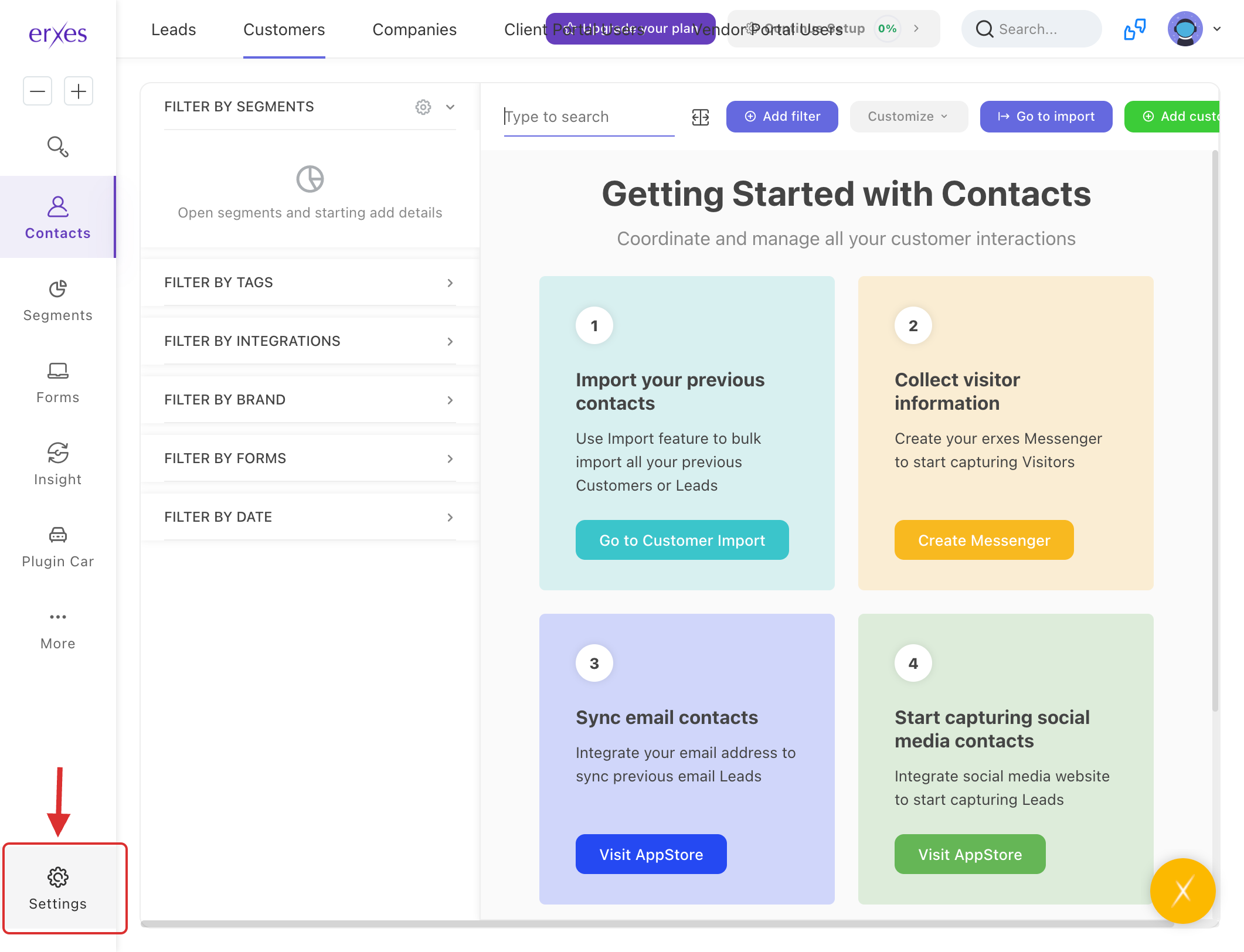
- Go to Settings.
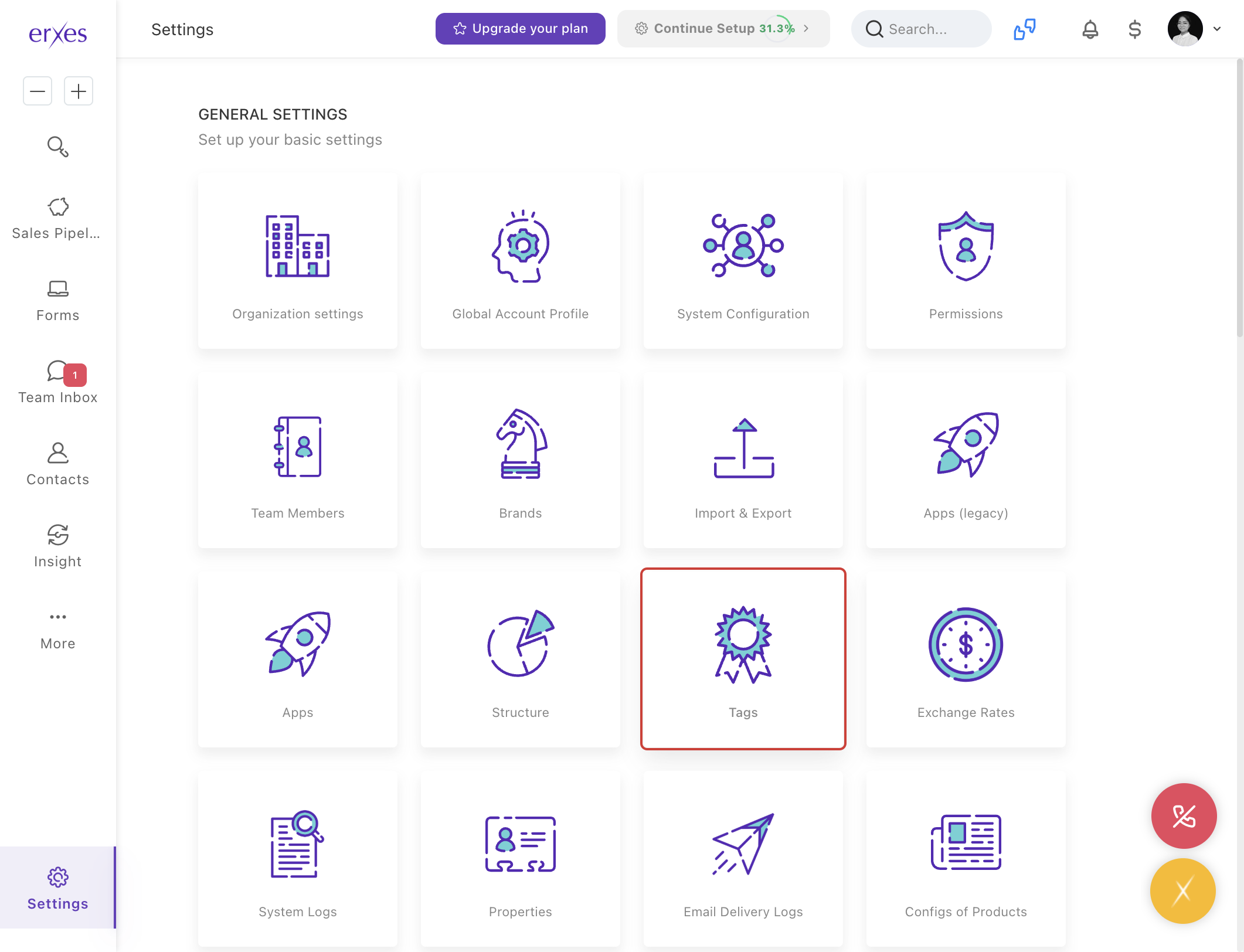
- Click on the Tag menu.
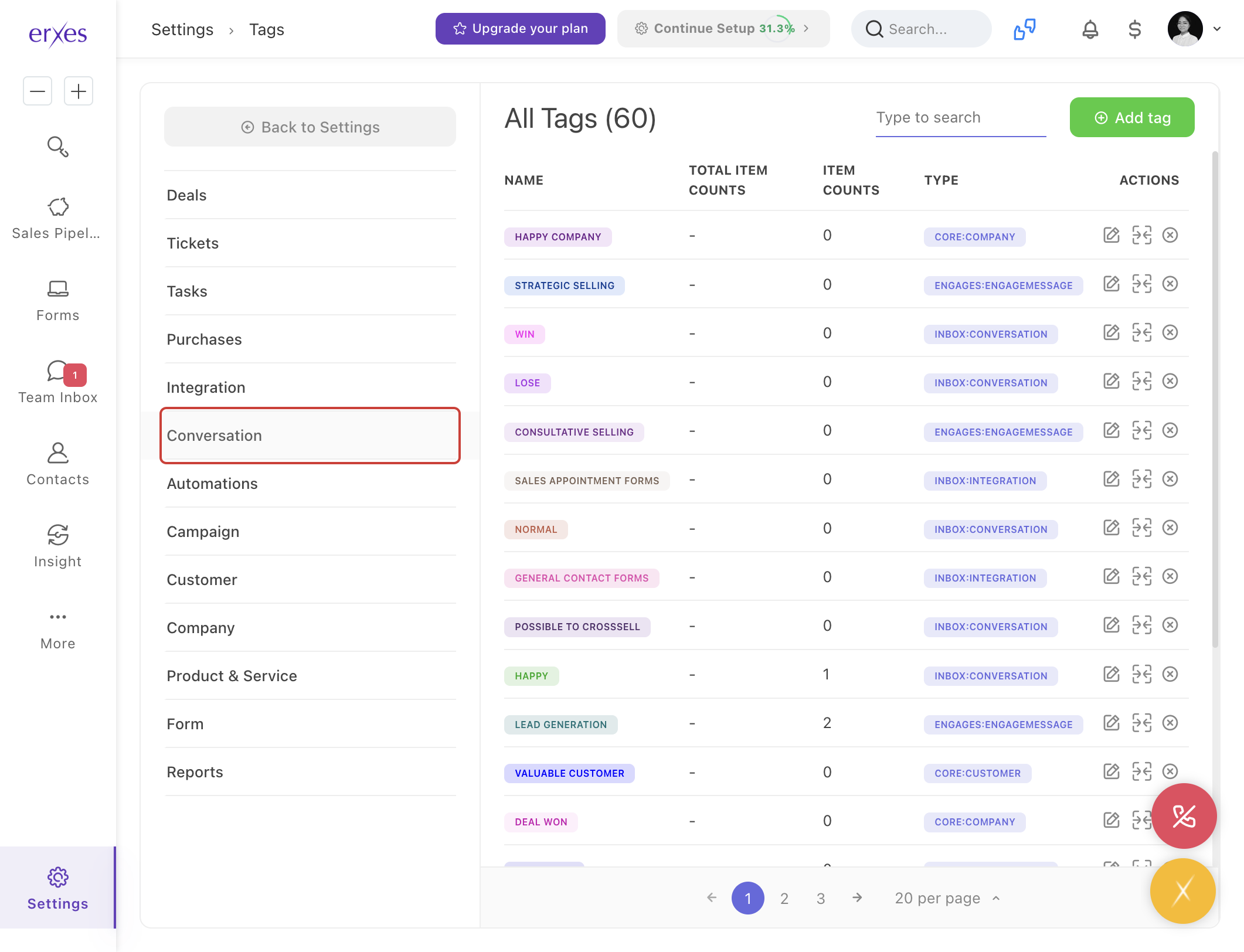
- Select a conversation type.
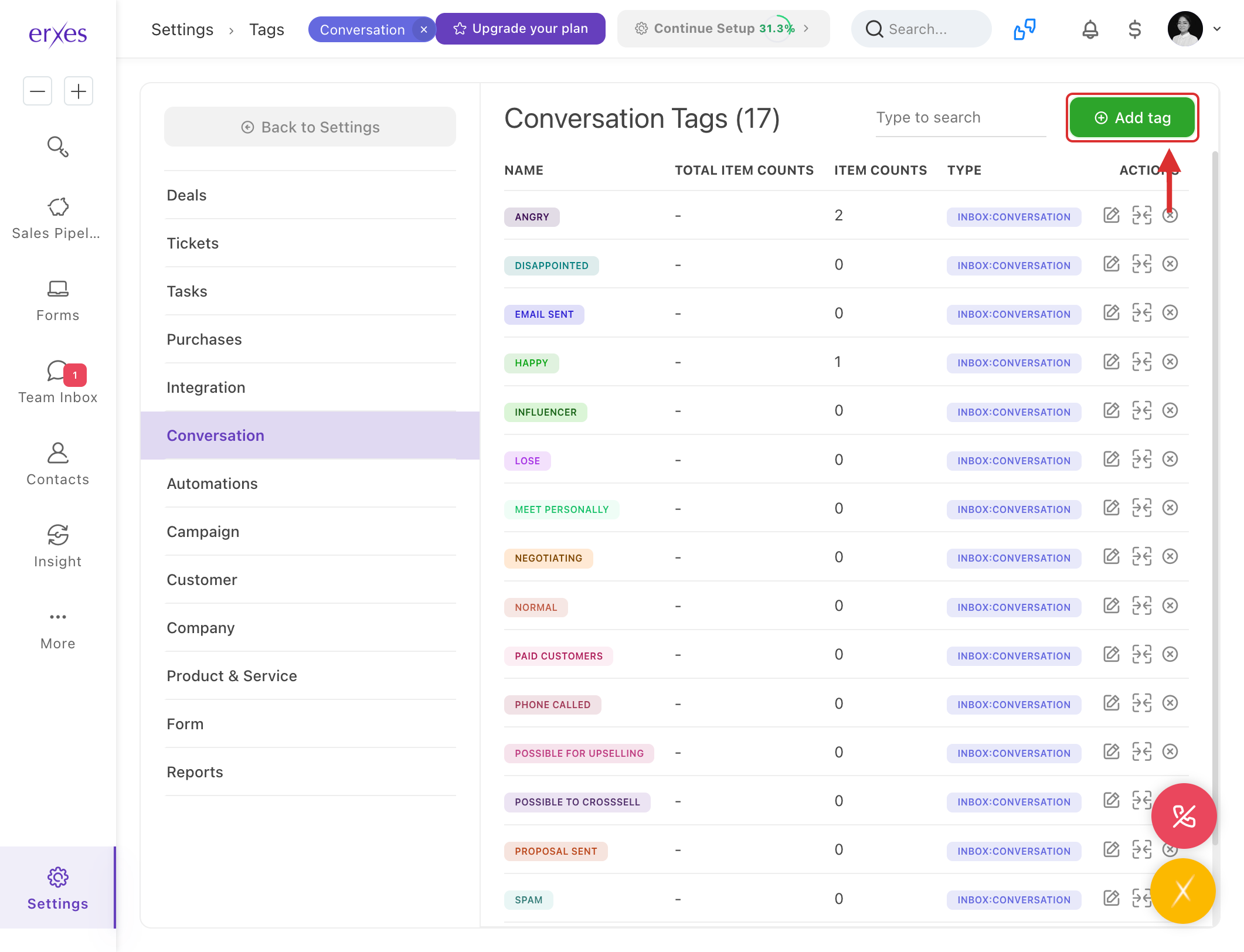
- Click the Add tag button.
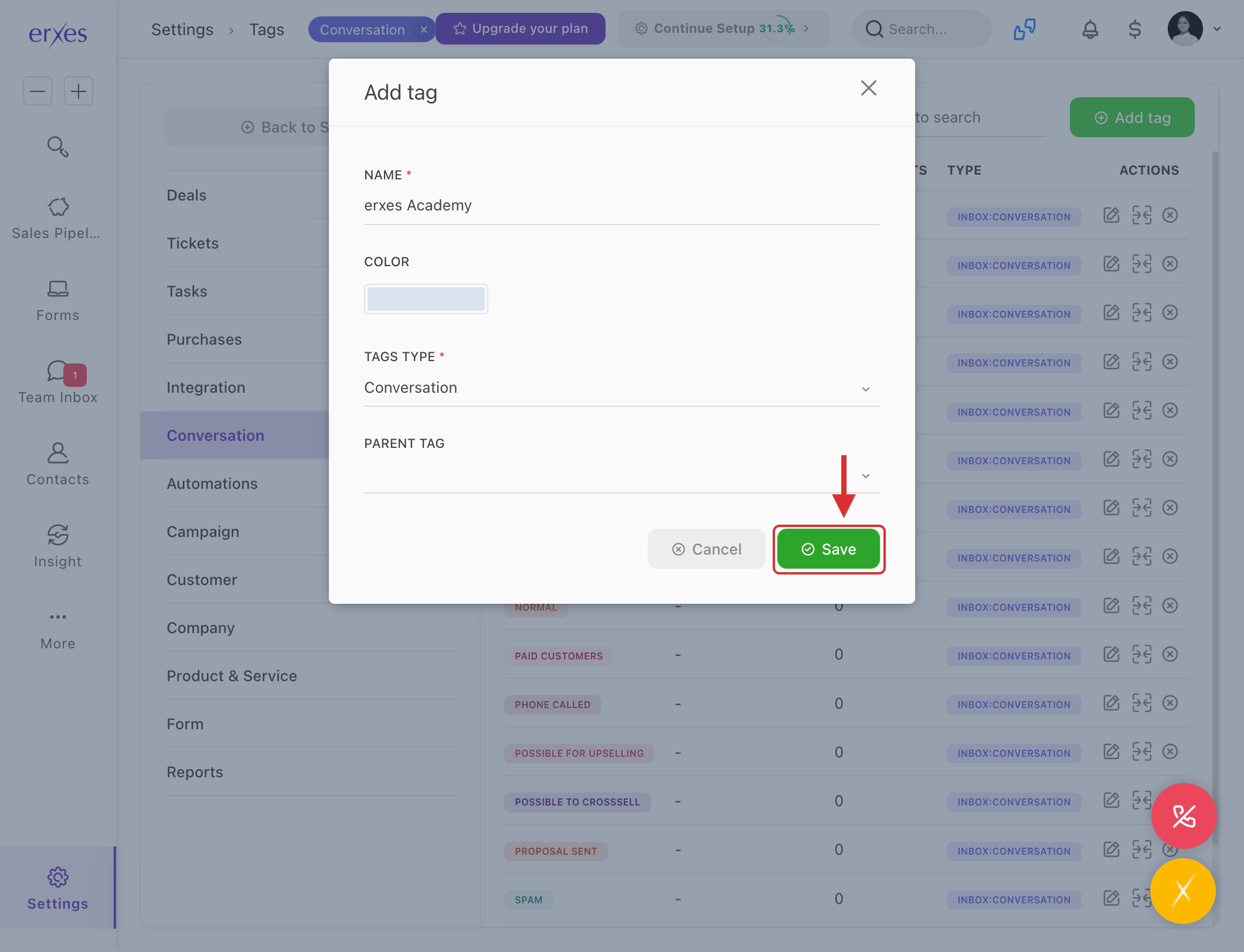
- In the Name field, type the name of the category.
- Click the Save button to save.
Step 2. Select a category for the conversation
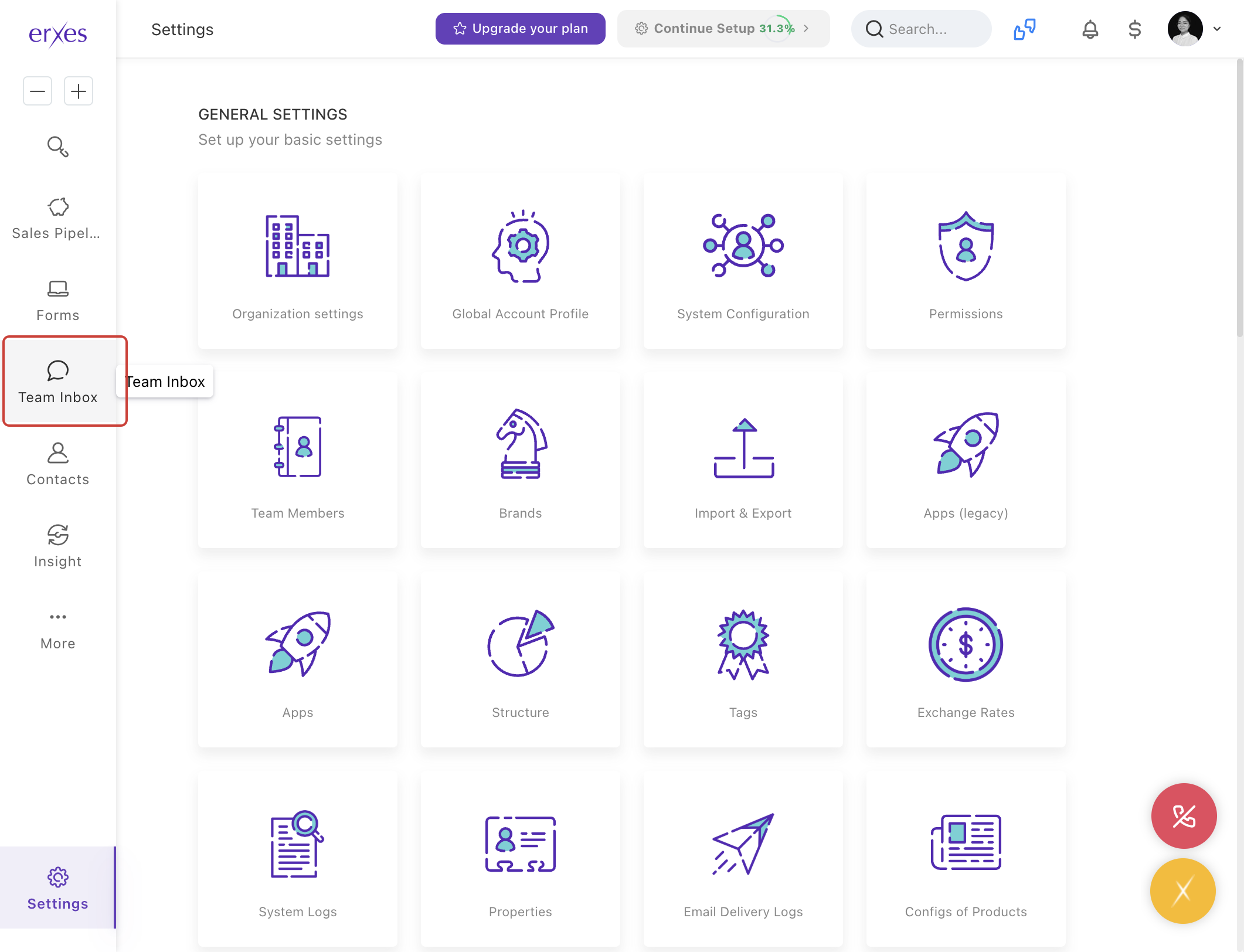
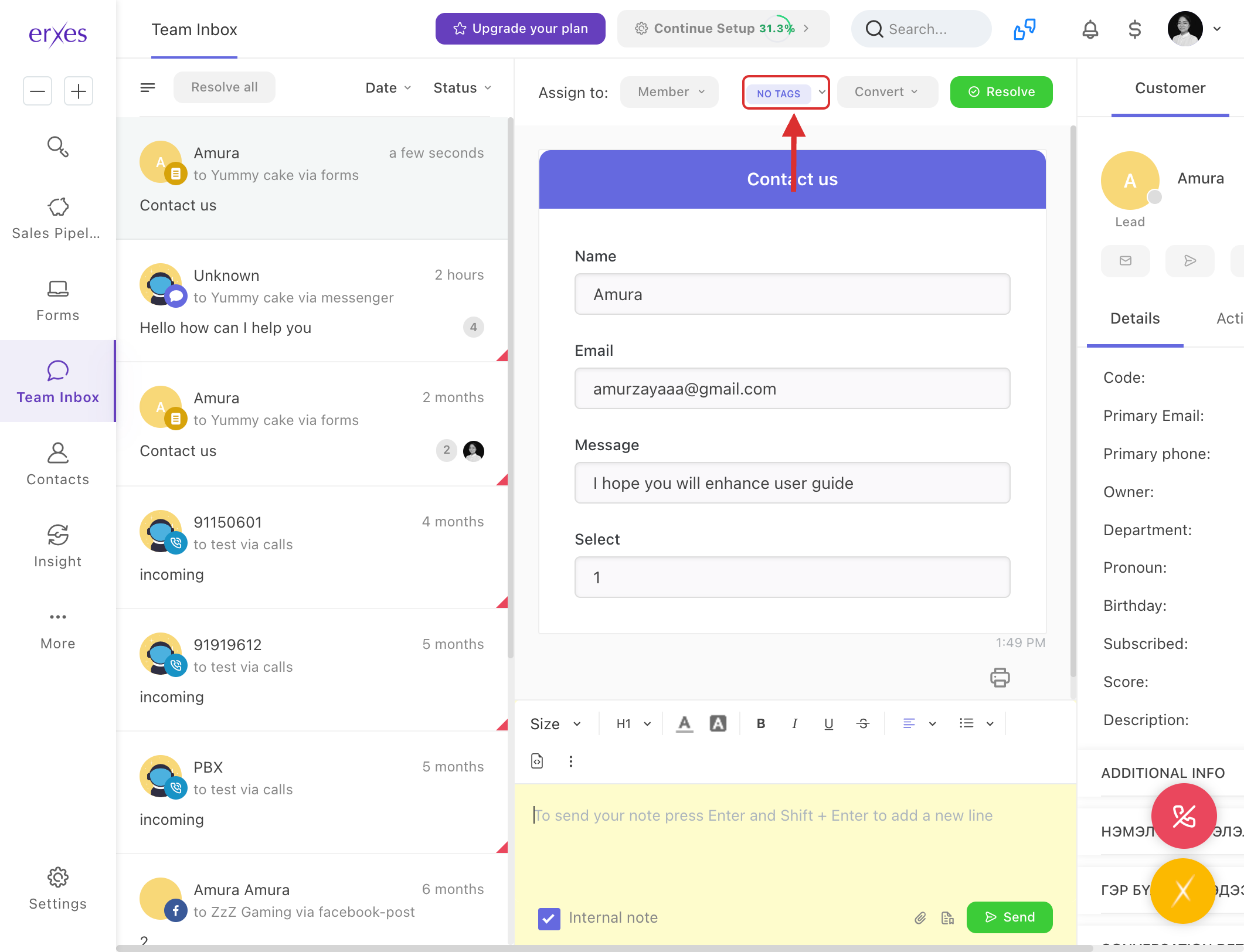
- Go to Team Inbox.
- Click on No tag.
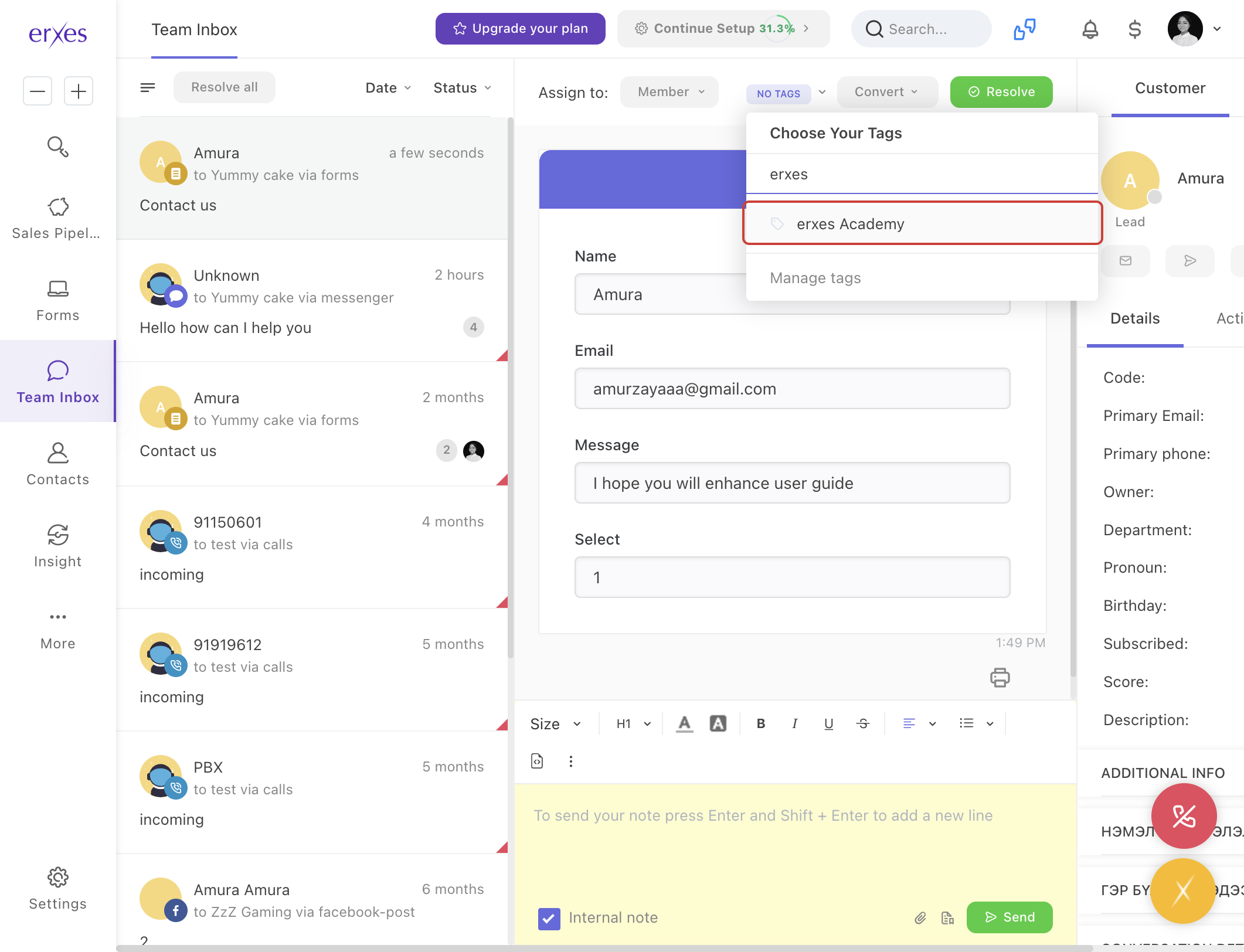
- Select the category you created.
Step 3. Generate reports by conversation category
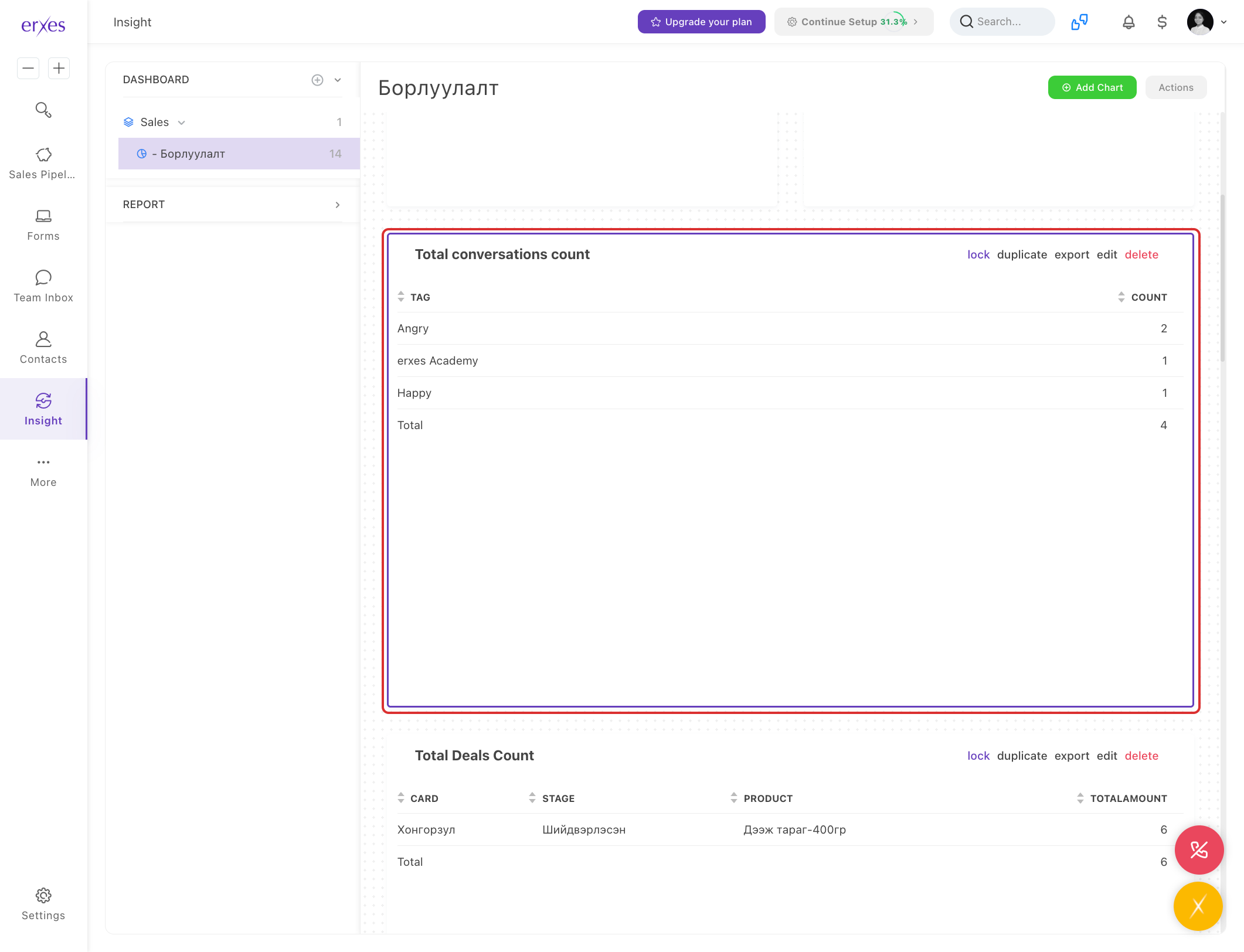
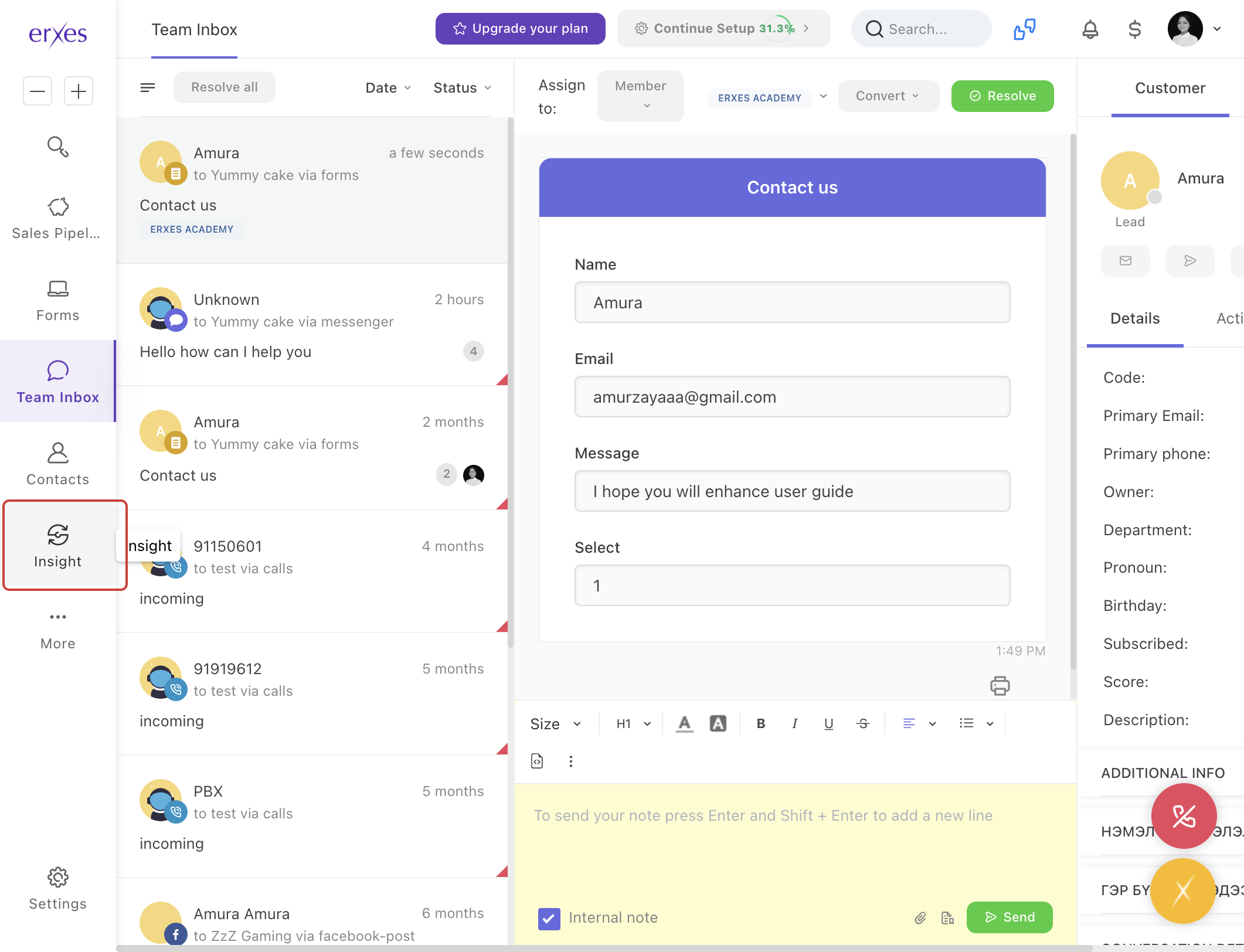
- Go to the Insight menu.
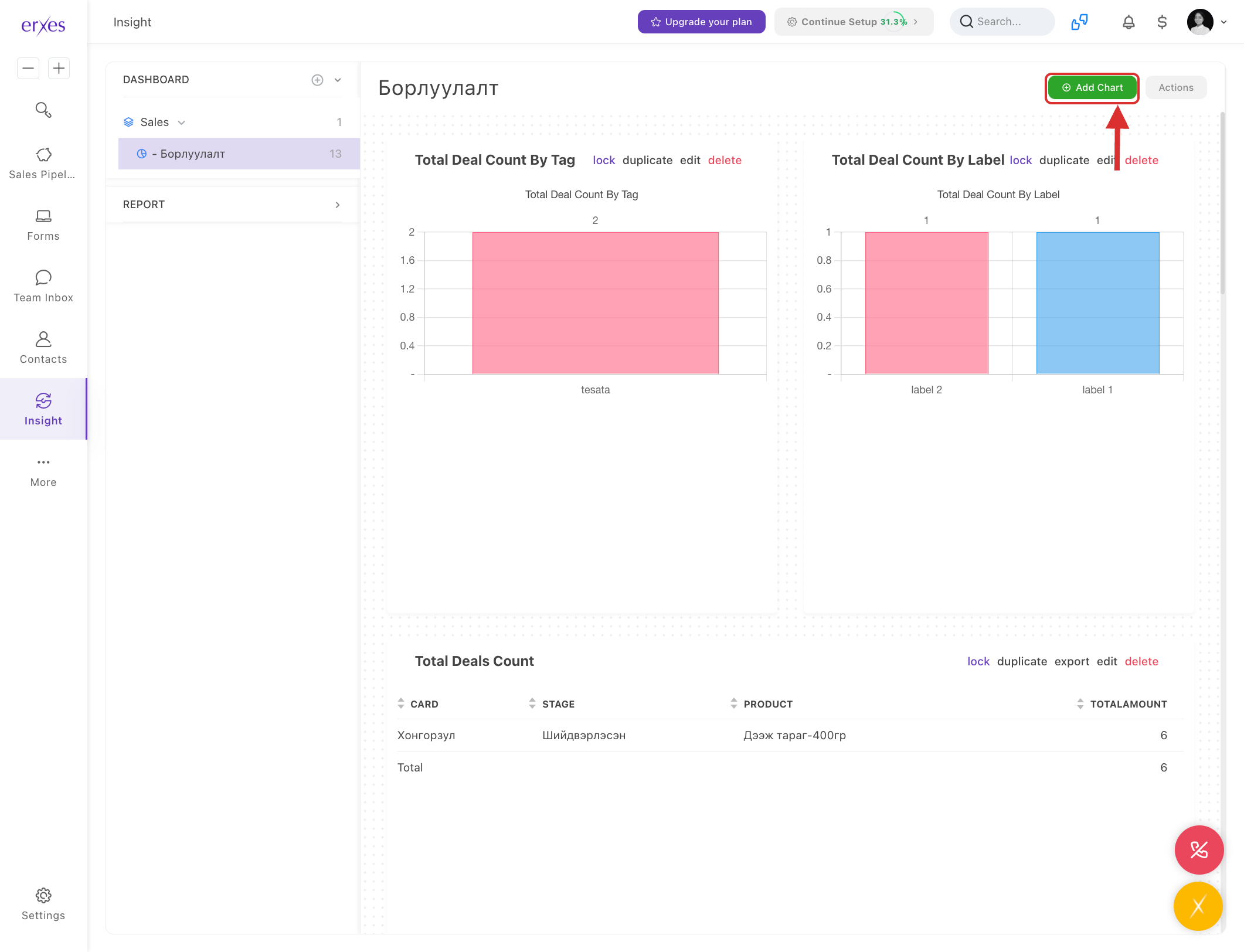
- Click the Add chart button.
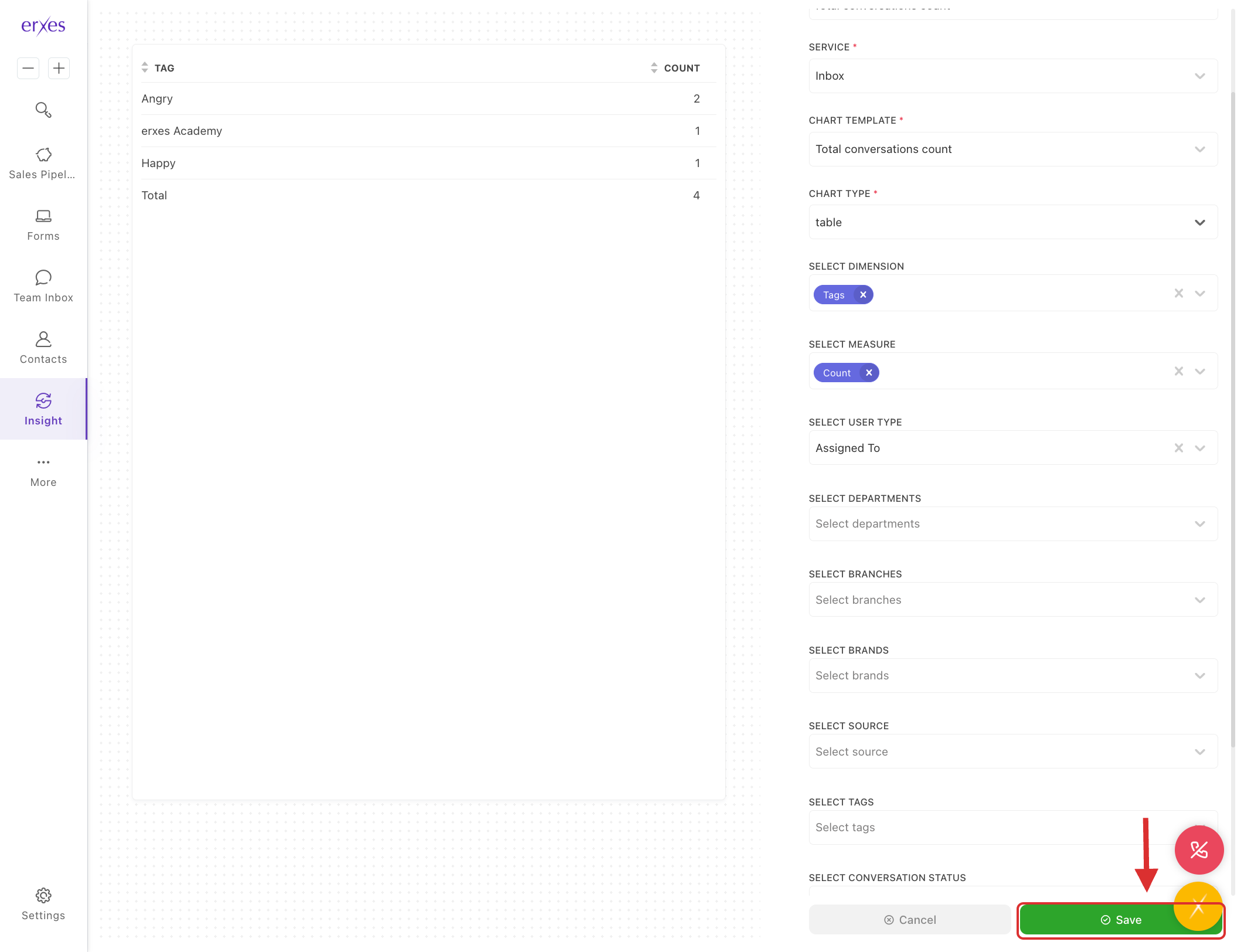
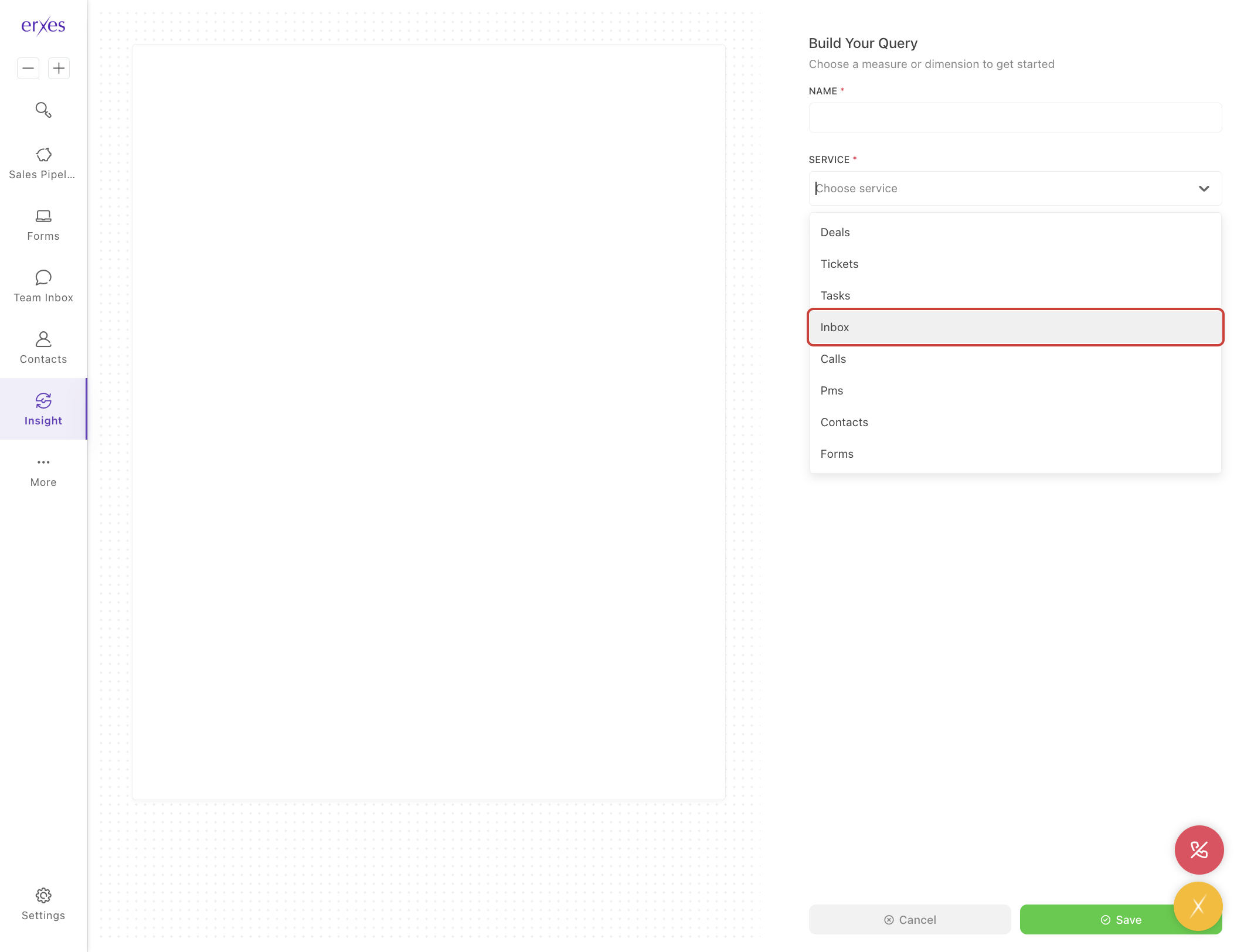
- In the Service section, select Inbox.
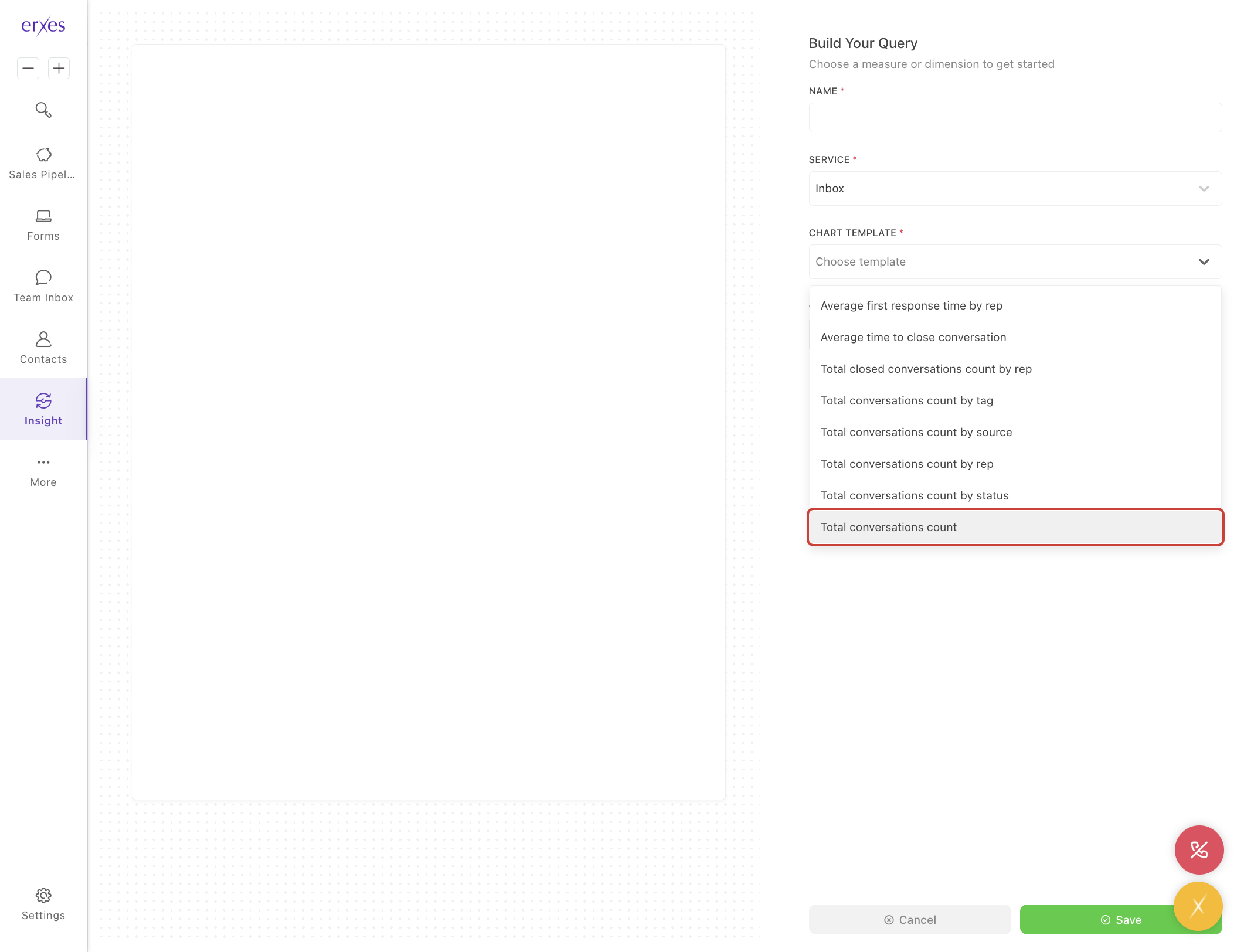
- In the Chart Template section, select Total conversation count.
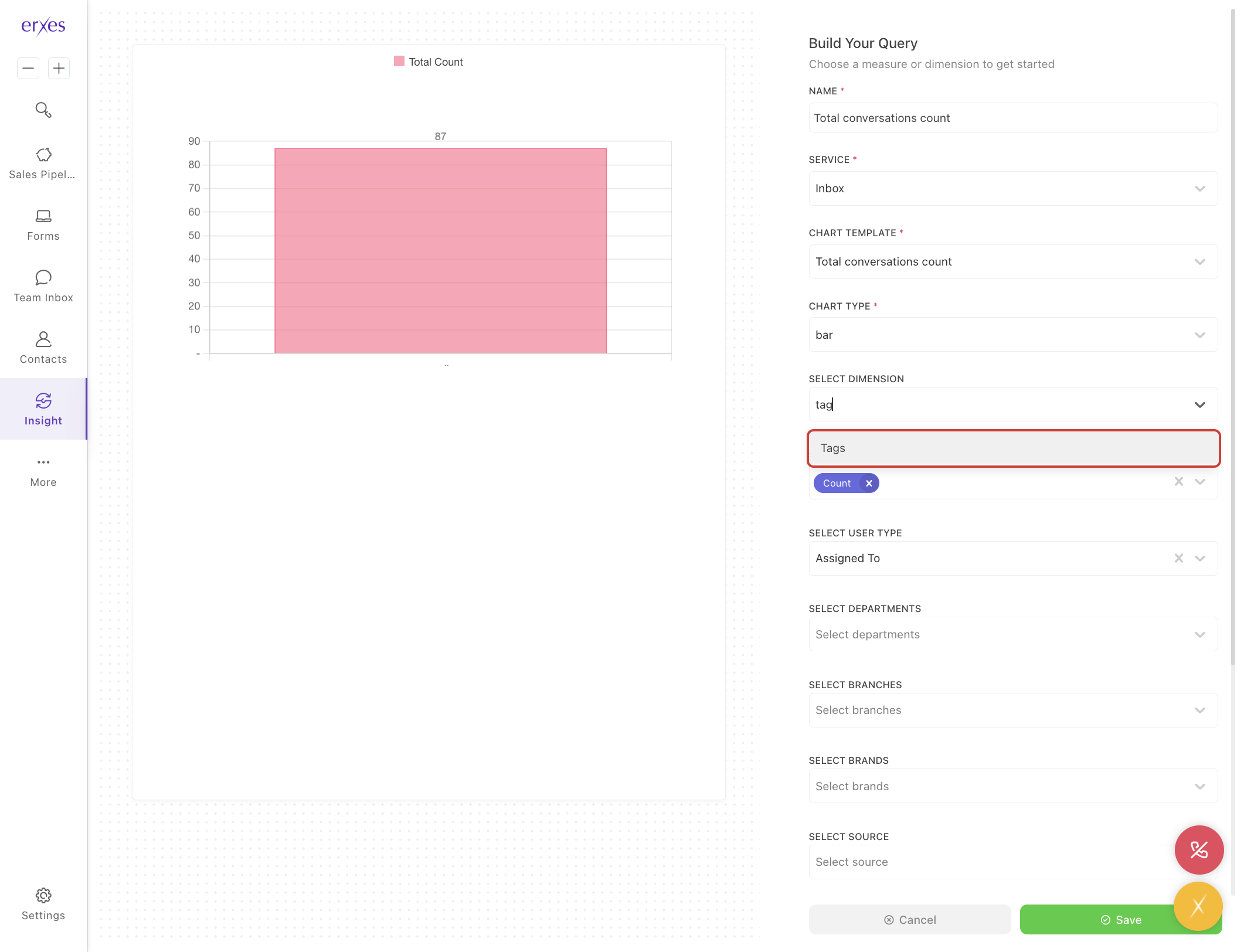
- In the Select dimension section, select Tag.
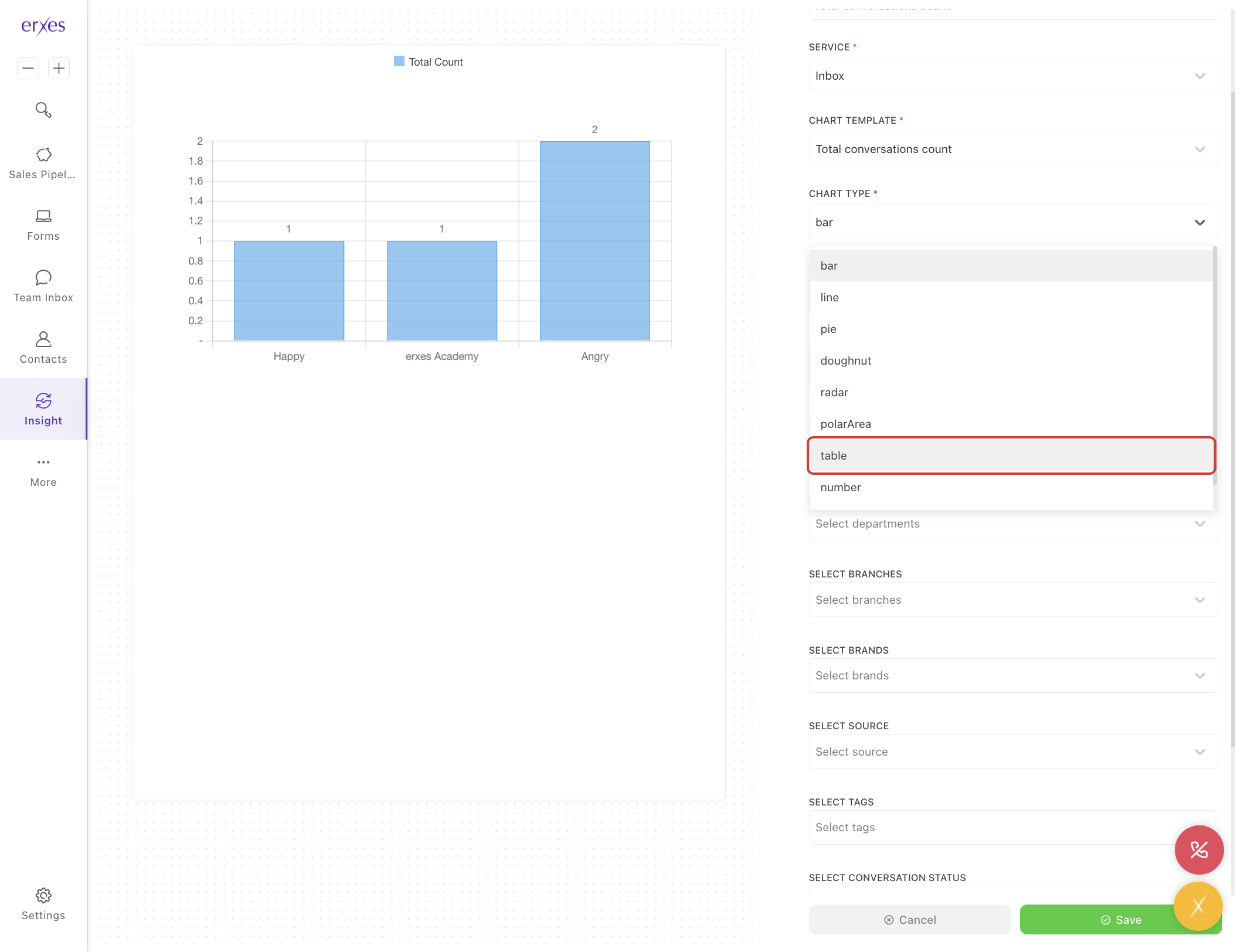
- In the Chart type section, select Table.
- Click the Save button to save.
Illustrated instructions
1. Create a conversation category
- Go to Settings
- Click on the Tag menu
- Select a conversation type.
- Click the Add tag button.
- In the Name field, type the name of the category.
- Click the Save button to save.
2. Select a category for the conversation
- Go to Team Inbox
- Click on No tag.
- Select the category you created.
3. Generate reports by conversation category
- Go to the Insight menu
- Click the Add chart button.
- In the Service section, select Inbox .
- In the Chart Template section, select Total conversation count .
- In the Select dimension section , select Tag .
- In the Chart type section , select Table .
Click the Save button to save.